
Duty Crews: Sign Up, Request a Shift, and Assign a Crew
Duty crews help you fill particular shifts when the people available can change from one date to the next: Friday night station coverage, a weekend volunteer crew, or extra staffing during a storm. You choose the hours, the number of seats, and, if the crew serves one, the station. Members either take an open seat themselves or ask to be considered for a crew that an officer chooses. A duty shift can repeat weekly or cover specific dates.
Use first come, first served (FCFS) when members can commit to any open seat without an officer choosing the crew. Use officer assigned when someone needs to review availability, request notes, and the mix of people before confirming who will work. Neither option automatically rotates members into seats.
You can run your department on duty crews alone, or use them alongside regular schedules. If the same team works together on a repeating pattern, use platoon scheduling. If each person needs their own repeating schedule, use personnel rotation scheduling. The scheduling overview compares these choices.
The screenshots show real workflows in the Metro City Fire & Rescue demo department. Select a screenshot to see it full size.
In this guide:
- Choose how seats are filled
- Who can do what
- Set up a duty crew
- Sign up or request a shift
- Choose and publish a crew
- Handle cancellations and replacements
- Notifications: who hears what and when
Choose how seats are filled
| First come, first served | Officer assigned | |
|---|---|---|
| Use it when… | Members may choose their own shifts and commit immediately, with no selection or approval step. | An officer needs to consider availability, experience, or a fair share of shifts before choosing the crew. |
| Example | Four volunteers for Friday evening station coverage. | Three members for an overnight crew, with the officer choosing the right mix of people. |
| What members do | Choose Sign up. They have the seat as soon as the signup succeeds. | Choose Request this shift. A request does not reserve a seat. |
| What the officer does | Check staffing and add or remove members when needed. There is no publish step. | Review requests, pick a draft crew, then Publish it. |
| What happens to open seats | Members can claim them while signups are open. | After publishing, members can claim leftover seats if that option is enabled. Otherwise an officer fills them. |
You can have both kinds of schedule in the same department. Each duty schedule has its own rules. The choice of how seats are filled is set when you create the schedule; you cannot switch an existing schedule between the two modes.
For example, your regular platoons can cover weekdays while volunteers fill a Friday evening FCFS crew. For an overnight relief crew where an officer needs to choose an appropriate mix of members, collect requests and publish the selected crew. The officer is responsible for checking that the selected members are suitable for the work; a seat count alone does not establish that.
Claimed and published duty seats count toward station staffing at the crew's station. A crew with no station counts toward no station's staffing. Duty shifts have no apparatus assignment, so these seats do not fill an apparatus minimum. Their hours show on payroll reports only when the schedule has Include on the payroll report turned on. For a named member's one-time paid coverage on a unit, see Fill an Open Seat.
Who can do what
The Scheduling module must be enabled for your department.
| Person | What they can do |
|---|---|
| Member | View duty shifts and manage their own signups and requests. Their login must be linked to their personnel record. |
| Member with Duty Officer permission | Draft and publish crews, review candidates and request notes, and add or remove anyone on a duty shift. |
| Member with Schedule Builder permission | Create, edit, and archive duty schedules and their shifts. |
| Admin or Owner | Everything above. They already have Duty Officer and Schedule Builder access. |
Duty Officer is a separate permission, so you can put someone in charge of staffing crews without making them an Admin. It does not give them access to change the schedule's setup or policies; that is the separate Schedule Builder permission.
To grant it to one member, open Members, open the actions menu on their row, and choose Edit Permissions. Search for Duty Officer or expand Scheduling & payroll, turn on Duty Officer, then Save. You can also grant it to a group and add your duty officers to that group. A rank or a group name such as “Captain” or “Officers” does not grant this permission by itself.
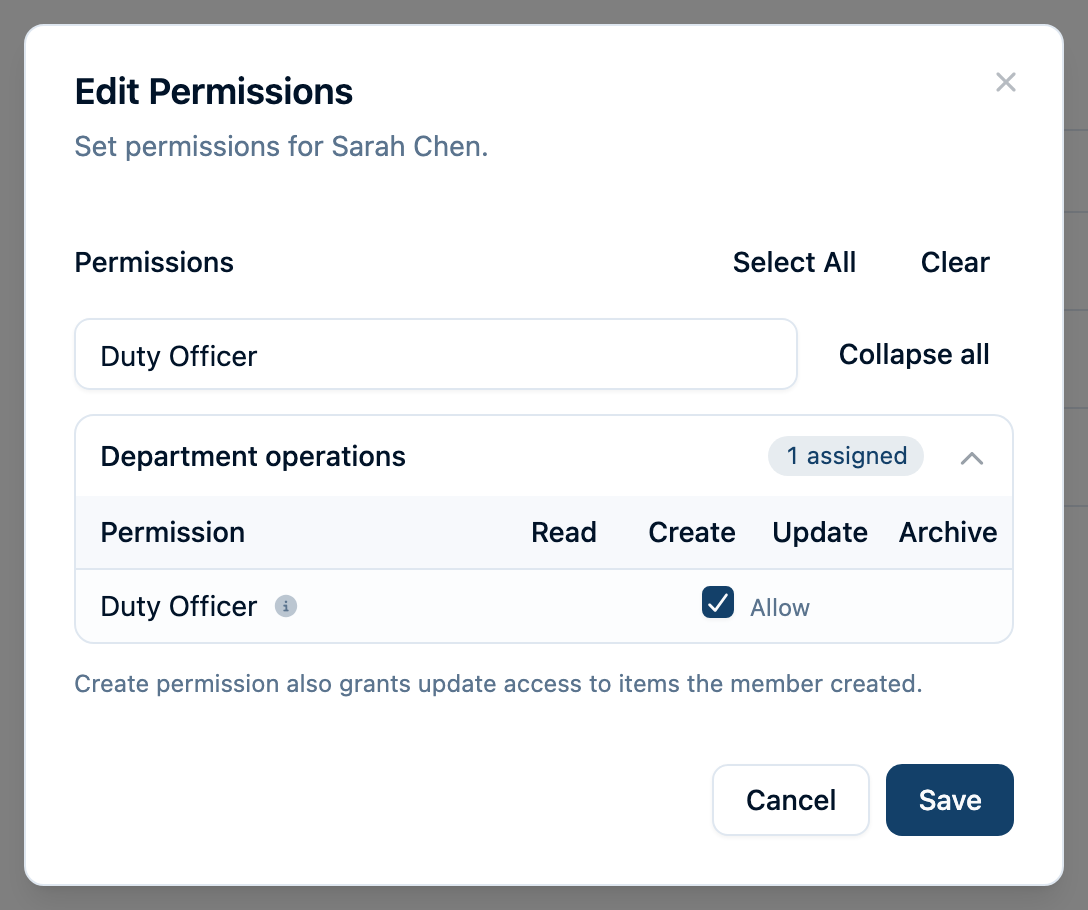
If you can see shifts but have no signup or request buttons, ask an Admin to check that your login is linked to the correct personnel record. A personnel entry without a linked login cannot receive personal duty notifications.
Set up a duty crew
An Admin, Owner, or Schedule Builder opens Schedule → Settings → Duty Crews. If nothing is configured yet, choose Set Up Duty Crews on the Schedule page to go straight there. You do not need to create a shared shift pattern or platoon first.
There are two parts to setup:
- Duty schedule: the crew's name and rules for signups, requests, cancellations, and alerts.
- Shift: when and where that crew works, how many seats it has, and its minimum staffing. A schedule can contain several shifts.
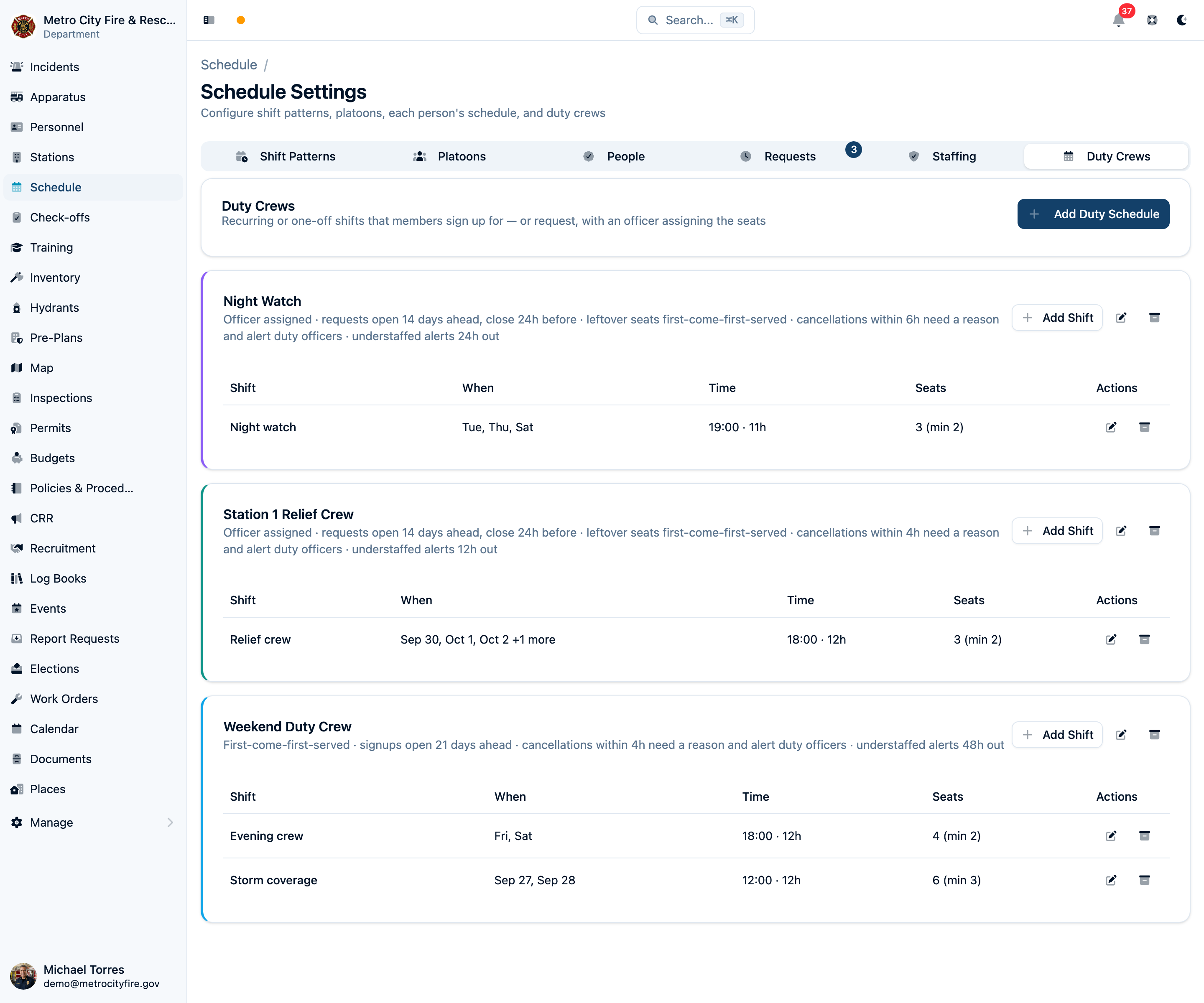
1. Add the schedule and its rules
Choose Add Duty Schedule, give it a clear name, and choose How seats are filled. A description can explain the purpose of the crew. The color helps you recognize it on the schedule.
For First come, first served, set Signups open (days ahead): how far ahead members can claim a shift. This follows calendar dates in your department's time zone.
For Officer assigned, first choose Who proposes the crew:
- Members request shifts: members ask for the shifts they want, and the officer builds the crew from those requests. Set Requests open (days ahead) for how far ahead members can request a shift, and Requests close (hours before) for when members can no longer request the shift or withdraw a request. Closing requests does not publish a crew automatically. An officer still needs to publish before the shift starts.
- Officer picks the whole crew: choose this when the officer always decides who staffs the shift and there is nothing for members to ask for. Members see no Request this shift button and no “requests open” announcement; the officer drafts and publishes the crew from the full candidate list. Optionally set Remind officers to publish (hours before) to have duty officers reminded when a crew still isn't published; leave it empty for no reminder. Officers can publish at any time, even after the shift. You can change this later; requests already sent stay with the officer and can still be withdrawn.
Then decide on Open leftover seats first-come-first-served after publishing: leave this on if members may take any seats still open after you publish. Turn it off if every seat should be filled by an officer.
For every schedule, set:
- Late-drop window (hours): how close to the start a member must give a reason to drop the shift. Inside this window, dropping frees their seat and alerts duty officers. Leave it empty if members can drop any time before the shift without a reason.
- Understaffed alert lead (hours): when to check whether the crew is below its minimum. Leave this empty to turn off understaffed alerts for this schedule.
- Understaffed alert recipients: appears when you enter an alert lead time. Select the groups that should hear about a staffing shortage, or leave it empty to notify Admins and Owners.
- Include on the payroll report: turn this on if members are paid for this crew, hourly or per shift. Each member's hours and shift count on this crew then get their own columns in payroll reports. The columns are named after the schedule, so renaming the schedule renames them in later exports.
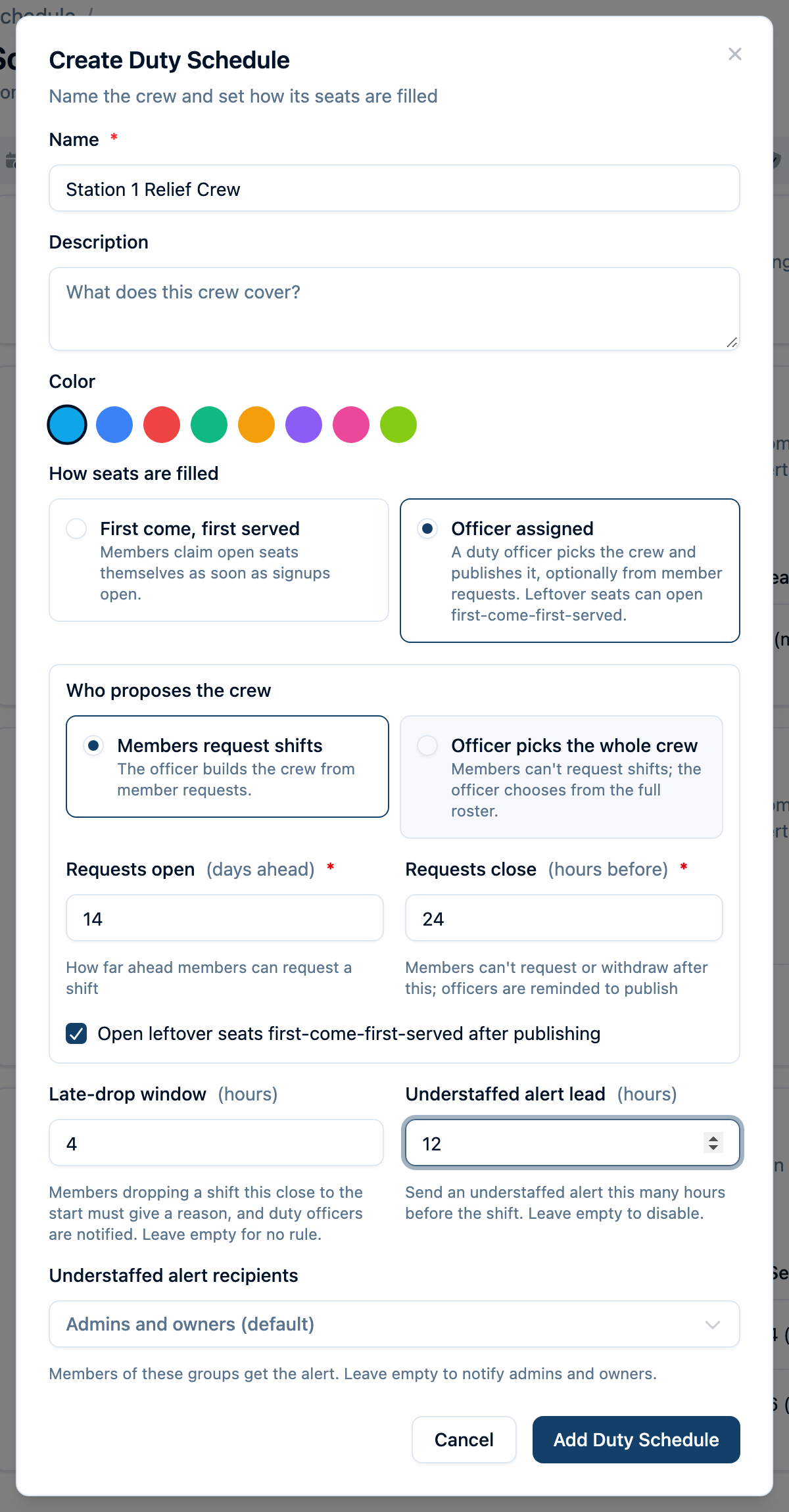
For example, for a Saturday 6 PM shift with a 24-hour request cutoff, requests close Friday at 6 PM. Plan to publish promptly so people know whether they are working. With a four-hour late-drop window, a member leaving after Saturday at 2 PM must give a reason.
Choose Add Duty Schedule to save.
2. Add the shift
On the schedule's card, choose Add Shift.
- Label: a short name such as “Evening crew” or “Storm coverage.” If you leave it blank, the schedule's name is used.
- Occurs: choose Repeats weekly and select the weekdays, or choose Specific dates and add each date. A weekly shift can also have a Start date and an End date. The start date is set to today for a new shift. Clear either date to leave that end open, so the shift repeats from now on or until a set date. Shifts members have already joined stay on the schedule if you change the dates later.
- Start time / End time: use your department's local time. For an overnight shift, the form shows ends next day. Shifts can last from 30 minutes to 24 hours.
- Station: where the crew will serve. Leave it blank for a crew that isn't tied to one station, such as a department-wide duty officer or a roving crew; it then appears whichever stations you're viewing, and on the day Timeline it sits in its own Department-wide group above the stations.
- Seats: the number of places to fill. Leave it blank if you do not want to set a seat cap.
- Minimum staffing: the number needed to avoid an understaffed alert. Leave it blank or enter zero if no minimum is needed. If you set a seat cap, the minimum cannot be higher than that cap.
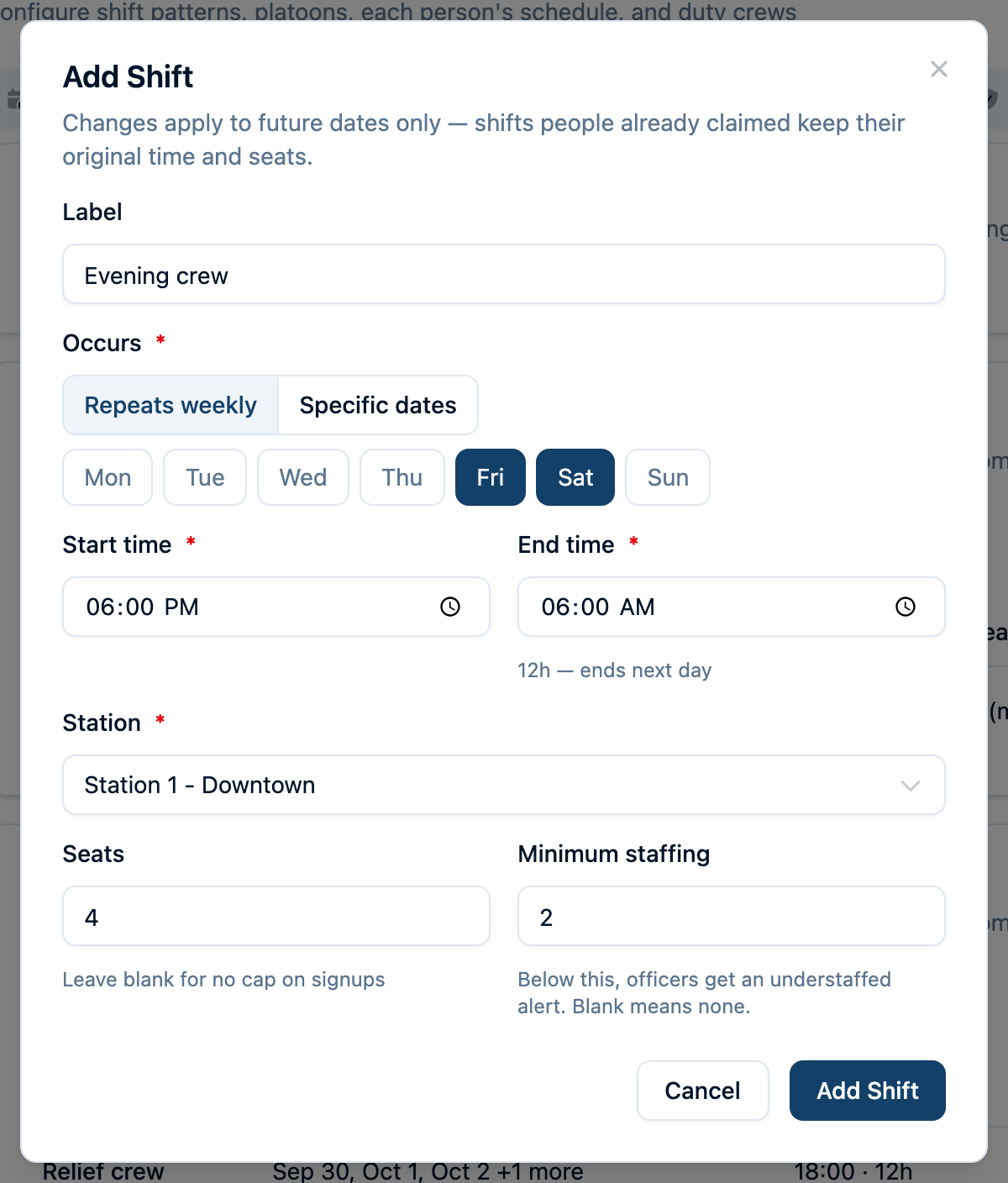
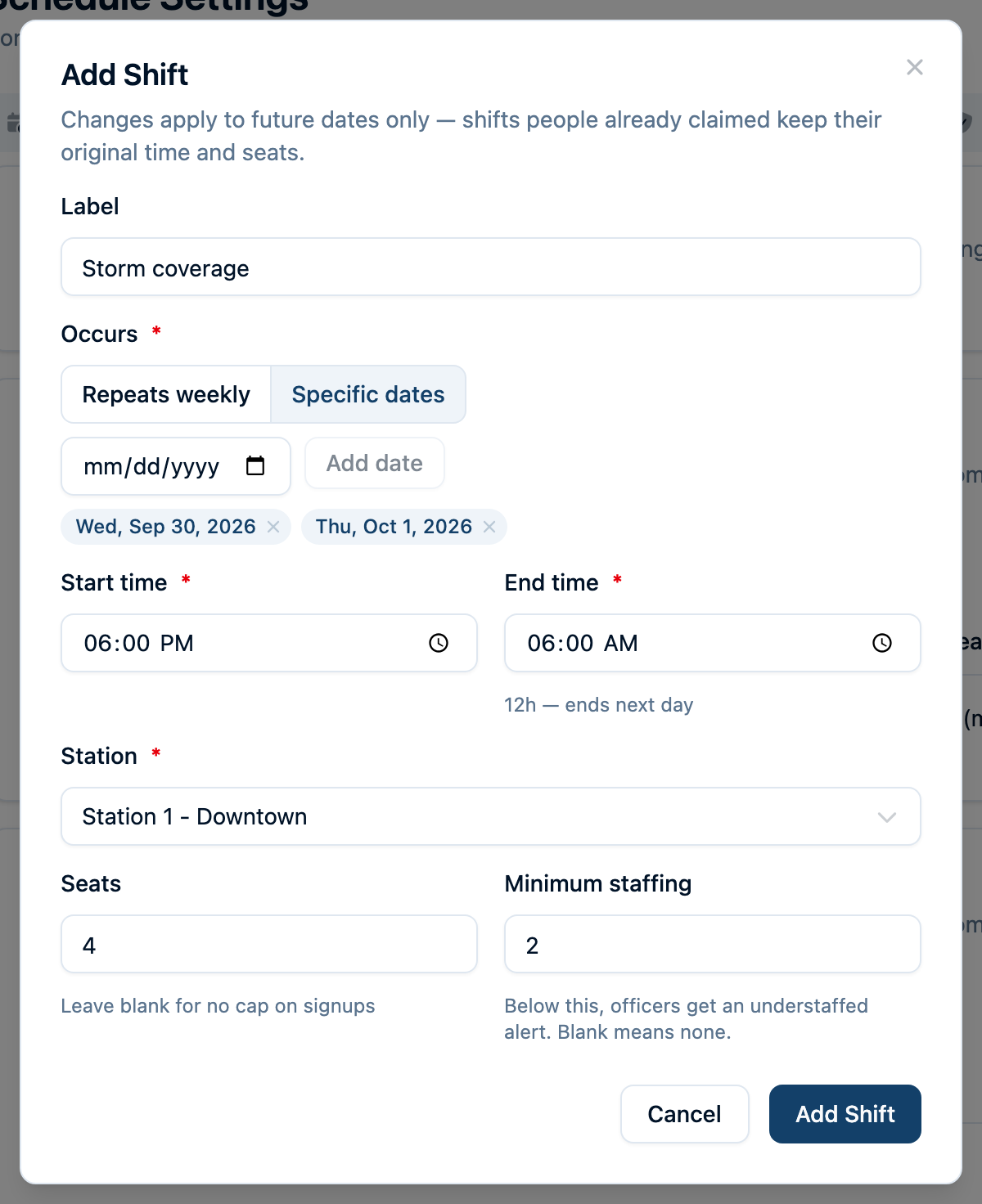
Choose Add Shift. Check the calendar to make sure the dates, station, and hours are what you intended.
A minimum of two does not mean a four-seat crew is full at two. It means two is enough to avoid the understaffed alert. To receive that alert, the schedule also needs an Understaffed alert lead.
Change a schedule later
Use the pencil beside a schedule to edit its rules, or the pencil on a shift row to edit its dates, time, station, or seats.
Editing a shift does not reschedule members who already hold seats. Claimed shifts and published crews keep their original hours, station, and seats. Check existing dates separately before telling members their assignments have changed.
Once a shift's last date has passed, it moves from the schedule's shift list to Past shifts below it. You don't need to archive past events to make room: each schedule can hold up to 50 current and upcoming shifts, and past shifts don't count toward that limit. Past shifts stay on the calendar for their dates, and you can still open them from Past shifts to edit them. If you move a past shift to a future date, it counts toward the limit again.
Archiving a shift removes every occurrence from the calendar, Assign crews, My duty, and duty widgets, including past shifts and published crews. Archiving the whole schedule removes all of its shifts in the same way. Archived shifts no longer count toward staffing coverage, and for a schedule on payroll, their hours come off payroll reports, including reports for past pay periods. Records are retained for audit history, and an admin can undo the archive. Archiving does not notify members, so tell affected crews about the change.
Archiving is meant for a shift or crew that shouldn't have existed. To stop a repeating shift but keep its history, give it an End date instead.
Sign up or request a shift
Open Schedule. Use the month or week view to find the date, then the Day view to see its Duty Crews, hours, station, and available seats.
With a station selected, Timeline shows each duty crew on its own row. Crews posted to a station appear with that station; department-wide crews appear once, at the top, under Department-wide, however many stations you've selected. Select the crew's bar to open its details and signup or request actions. Choose Roster to see the crew cards shown below; the same actions are available in both layouts.
My duty is the row of shifts above the calendar: your upcoming seats and pending requests, soonest first, each edged in its crew's color. It appears once you have a seat or request to show. A solid border is a seat you hold; a dashed border is a request still waiting for the officer's decision. Select a shift to open it on its day, where Can't make it and Withdraw live. Past the first few, the rest are under +N more. If the officer publishes a crew without you, the request drops out of My duty and you get a notification instead.

First come, first served: take an open seat
- Find the shift and check its hours and station.
- Choose Sign up.
- Check that the shift now says You're on this shift and appears in My duty.
You do not need an officer to approve or publish a first-come signup. If the shift is full, there is no seat to claim. If signups have not opened yet, the disabled button explains when they open. Members cannot sign up after the shift starts.

If the shift overlaps another commitment recorded in the schedule, review the warning before continuing. An overlap warning helps you make a decision; it does not automatically prevent a signup.
Officer assigned: ask to be considered
- Find the shift and choose Request this shift.
- Add an optional note, such as “I can drive” or “Available for the full shift.” The officer can read this when choosing the crew.
- Choose Send request.
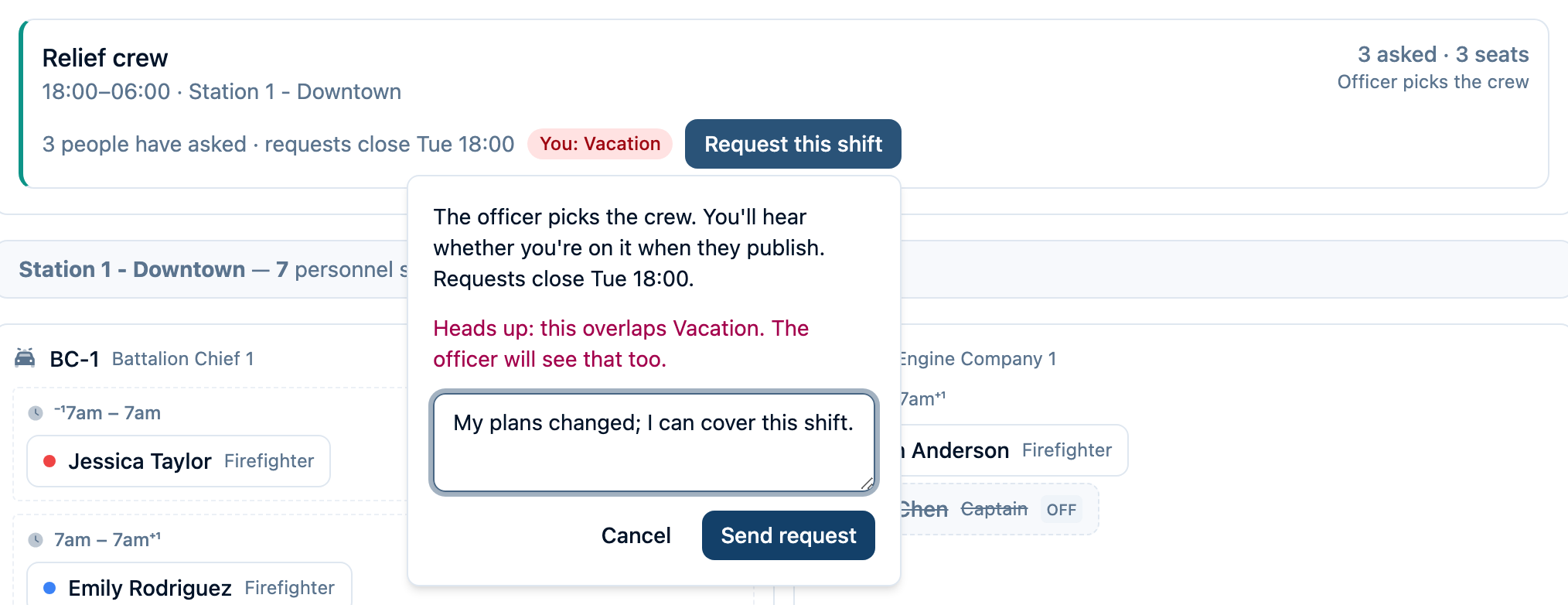
Your status becomes Asked. You can choose Withdraw before requests close. Once they close, your request stays pending until the officer publishes. If your availability changes after that point, contact your duty officer.
Members can see how many people asked and their own request. The full request list, notes, and draft selections are for duty officers.
After the officer publishes
If you are chosen, you are on the crew and get a notification. There is nothing to accept; the seat is yours unless you give it up.

If you requested a shift but were not chosen, you're notified, and the shift's card shows Not selected. When open signups are enabled and a seat was left open, the shift also counts toward the duty shifts could use you line above the calendar; choose Sign up to take it, or check back if the shift is full. When open signups are disabled, an officer can add you if a seat is available.

Choose and publish a crew
Duty officers open Schedule → Assign crews. This shows upcoming officer-assigned shifts and first-come shifts below their minimum staffing. Choose a crew to work on it. You can also open Assign crew from a shift in the Day view.
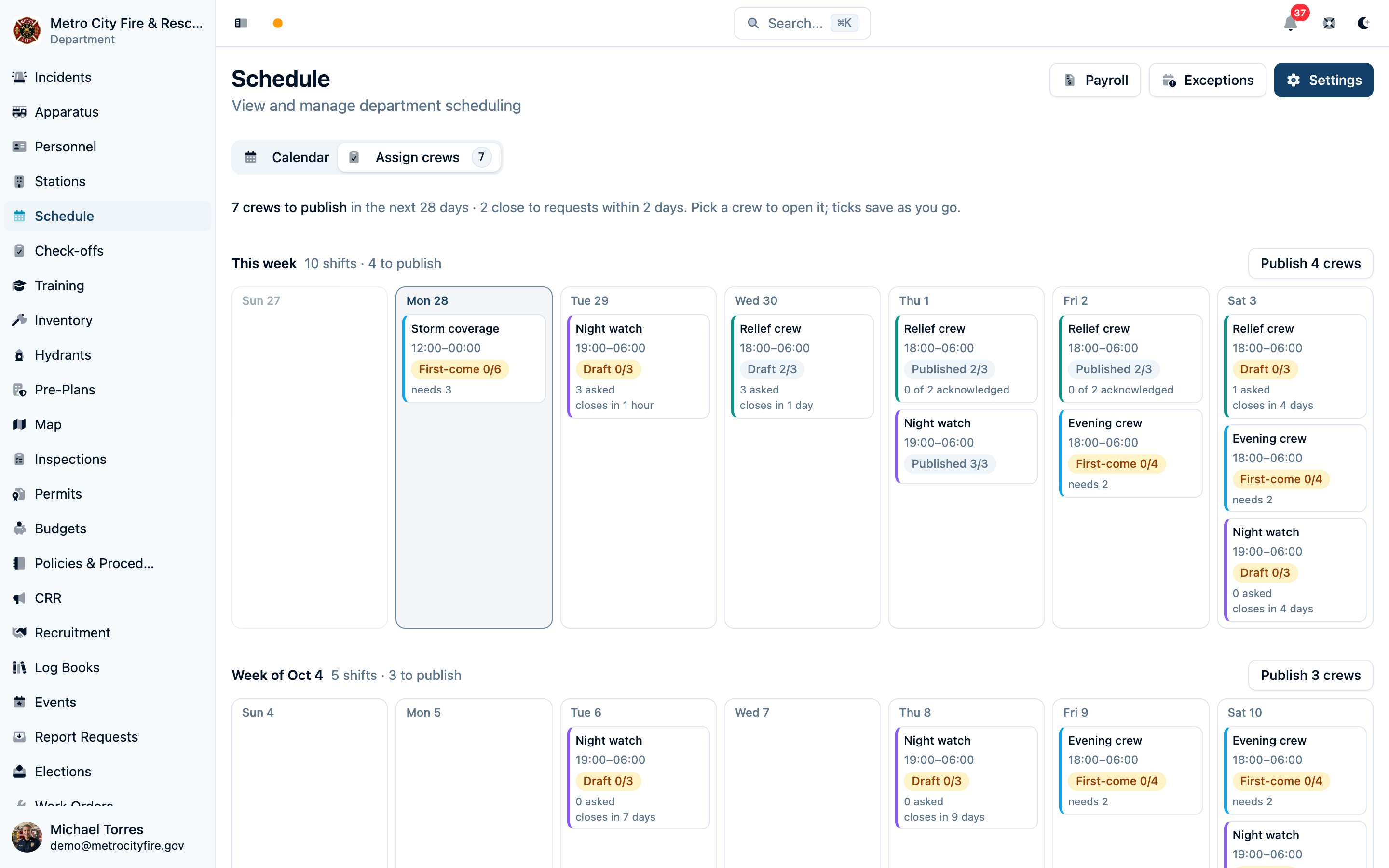
Review requests and pick the draft
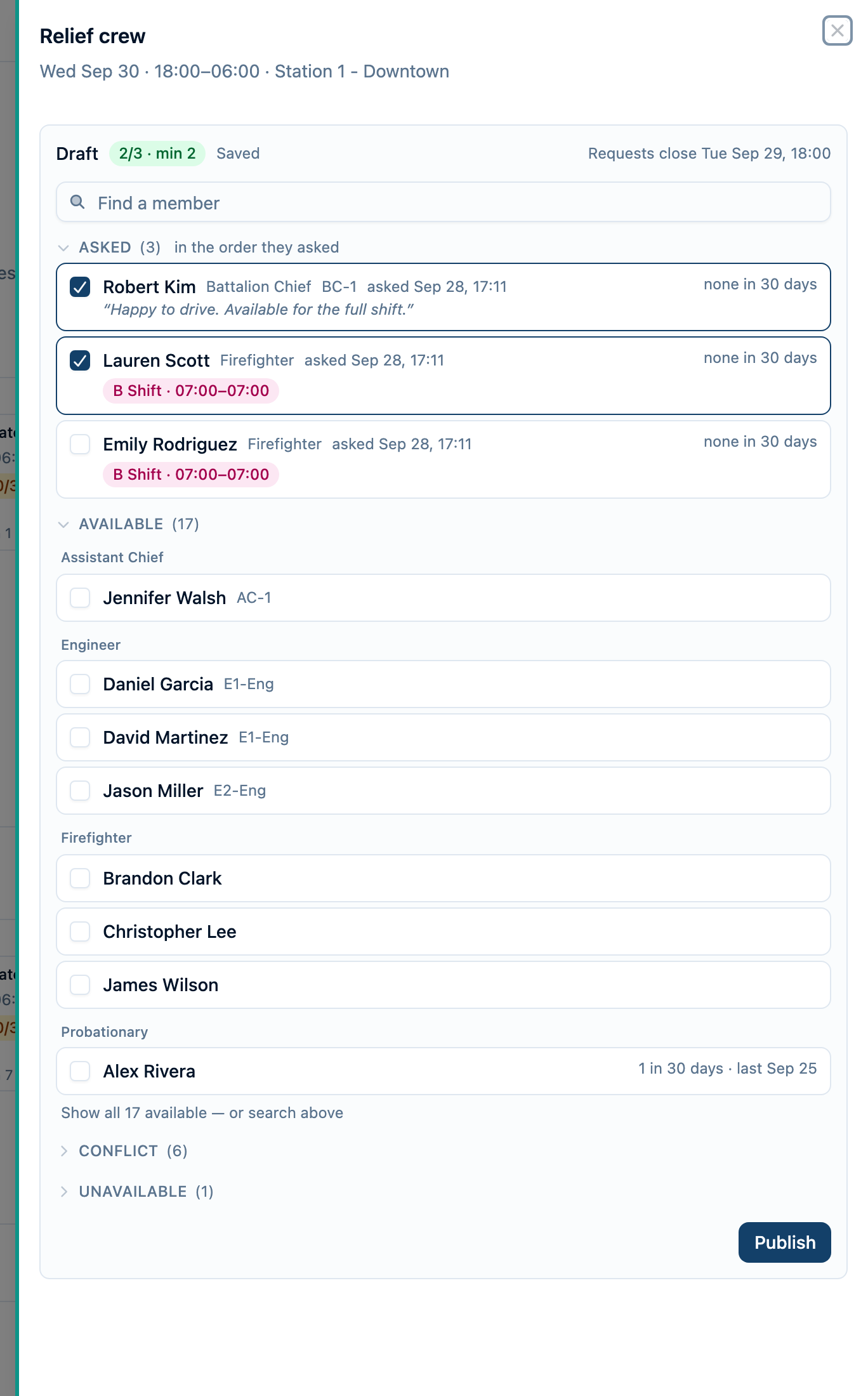
The candidate list groups members by Asked, Available, Conflict, and Unavailable. It shows request notes, recorded overlaps, and recent duty counts to help you share shifts fairly. Search by name or call sign, or expand a group to see more people.
- Asked: members who requested this shift, shown in the order they asked. Their rows still show any recorded conflicts.
- Available: members with no recorded overlapping commitment or approved time off. This does not mean they have personally agreed to work.
- Conflict: members with an overlapping rotation shift or another duty seat.
- Unavailable: members with approved time off or a training exception during the shift.
Check the members you want on the crew. You can choose someone who did not request the shift. Review any conflicts and make sure the selected people are suitable for the work.
Your selections save automatically. Saved means the draft has been saved; it does not mean members have been assigned or notified.
Publish when the crew is ready
Choose Publish. The confirmation tells you how many members will be assigned and what will happen to any remaining seats. It also calls out issues such as being below minimum, overlapping commitments, or choosing someone who did not ask.
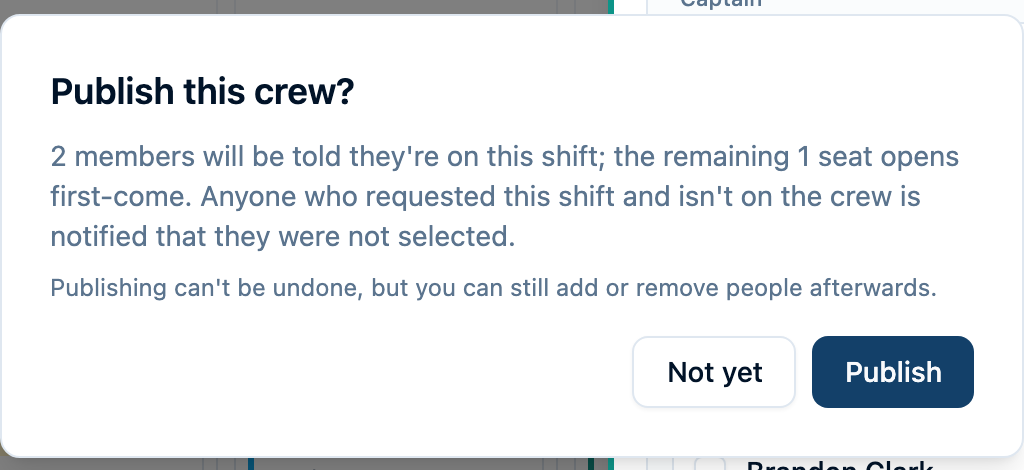
Confirm Publish, or Publish anyway if you have reviewed the warnings and intend to proceed. Assigned members are notified. Requesters who were not chosen are notified too.
You can also use a week's publish control to publish several drafted crews together. Review the checks for each crew before choosing Publish week.
Publishing cannot be undone. You can still add or remove people afterward. Publish before the shift starts so members know whether they are working; a shift that starts without a published crew shows as Not published.
Filling in a past shift: you can draft and publish a crew, or add and remove people, on a shift that is underway or already over — for example, to record who actually turned out. Nobody is notified about changes to a shift that has started, and members can no longer request or claim seats on it.
Handle cancellations and replacements
As a member
Choose Can't make it on a shift where you hold a seat.
- Before the late-drop window: you give up your seat. A routine self-release does not send duty officers a cancellation alert.
- Inside the late-drop window, before the shift starts: enter a reason under What happened, then choose Give up my seat. Your seat opens immediately and duty officers are notified, including your reason. You do not wait for approval.
- After the shift starts: member actions are no longer offered. Contact the duty officer.
Giving up a seat and withdrawing a request are different: Can't make it releases an assigned or claimed seat; Withdraw removes a request that has not become an assignment.
As a duty officer
Open the crew to check the assigned names.
Use the remove control beside a member when you need to take them off the crew. To fill an opening on a published officer-assigned shift, choose Find a replacement. On a first-come shift, choose Add member. Review the candidates and select a member. Either action adds them directly; there is no second publish step.
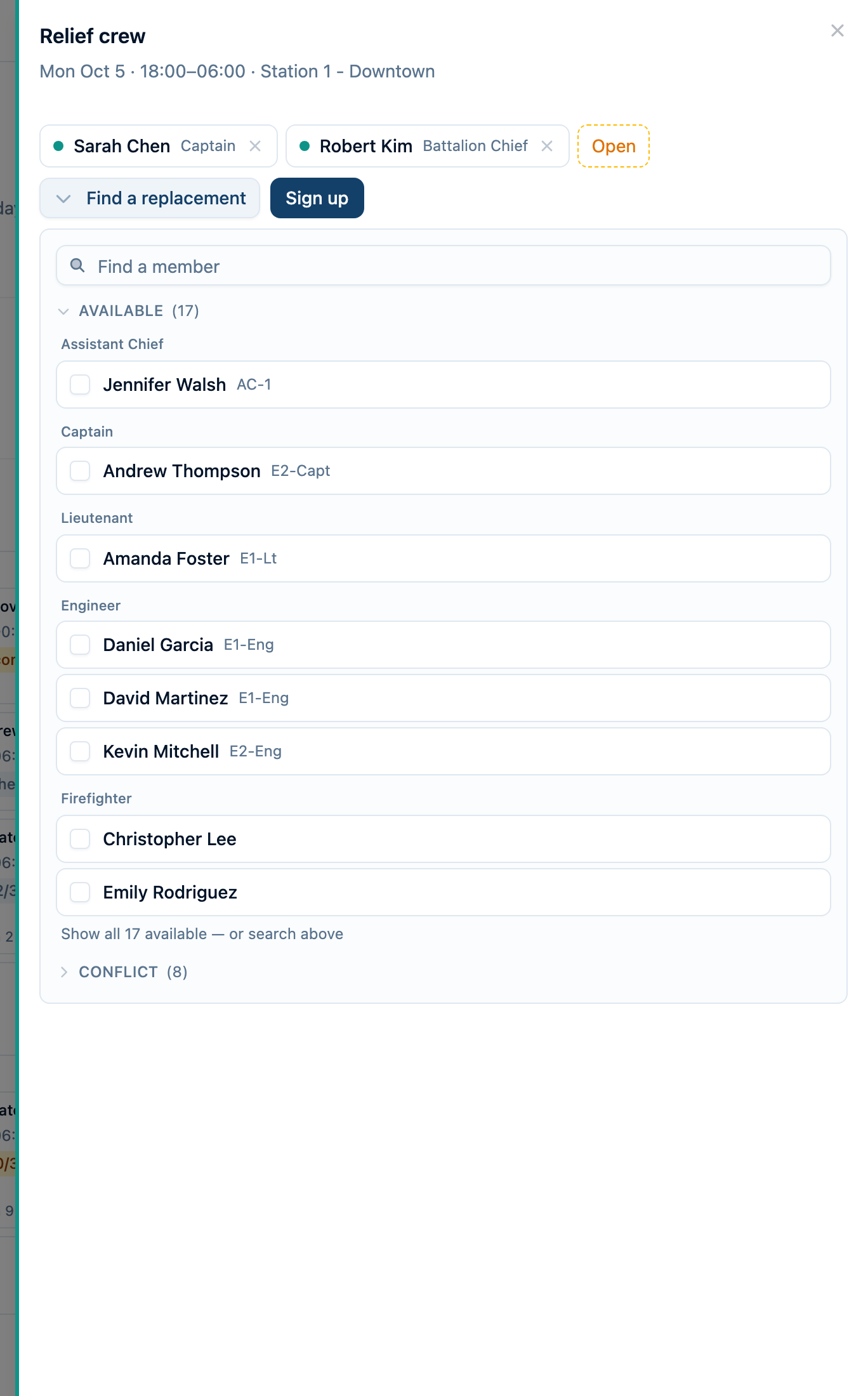
An officer can add or remove members without the member signup or late-drop windows, subject to the shift's capacity and lifecycle rules. Adding or removing someone else sends that member a notification, unless the shift has already started.
Notifications: who hears what and when
The table below describes when a duty notification is created and who it is intended for. Each person's notification settings determine whether they receive it in the app, by push, by email, or not at all. People need a linked login to receive personal shift notifications.
“Duty officers” below means Admins, Owners, and members with the Duty Officer permission, including permission granted through a group. The understaffed alert has its own recipient setting.
| Notification | Who gets it | When |
|---|---|---|
| Duty shift requests open | Department members whose logins are linked to personnel records. | An officer-assigned shift reaches its request-opening date, at midnight in the department's time zone. Already-published shifts are skipped. Creating a shift whose requests are already open does not send a catch-up announcement. Not sent when the officer picks the whole crew. |
| Duty crew assignments due | Duty officers. | Requests close (or, when the officer picks the whole crew, the reminder time arrives, if one is set) and the officer-assigned crew has not been published. This is a prompt to choose and publish the crew. |
| Assigned a duty shift | Members placed on the published crew. | The officer publishes before the shift starts. |
| Not selected for a duty shift | Members who requested the shift but were not included in the published crew. | The officer publishes. They are told they were not selected and whether they can sign up for an open seat or need an officer to add them. |
| Added to a duty shift | The member added by someone else. | An officer adds them directly to a first-come or already-published shift. |
| Removed from a duty shift | The member removed by someone else. | An officer removes their seat. |
| Late duty seat release | Duty officers. | A member gives up their own seat inside the late-drop window. It includes the reason, the opening, and whether staffing is now below minimum. |
| Duty shift understaffed | Members of the groups selected in Understaffed alert recipients. With no groups selected, Admins and Owners. If selected groups have no recipients, it falls back to Admins and Owners. | At the schedule's alert lead time, if the actual crew is below minimum. Requests and unpublished drafts do not count as staffed seats. The alert can flag a shift with no signups at all. |
| Duty shift reminder | Members holding seats when the reminder runs. | Normally two hours before the start. It does not go to people who only requested the shift or were not selected. |
The two-hour reminder is a check for that shift, not a fresh reminder for every later signup. If you join close to the start, check the time on your assignment rather than relying on another reminder.
These actions do not send a separate duty notification: saving a draft, sending or withdrawing a request, taking your own first-come seat, or releasing your own seat outside the late-drop window. First-come schedules do not send the officer-assigned “requests open” announcement. A seat opening does not automatically notify or assign members who were not selected.
Choose how you are notified
Open Settings → Notifications and find Notification Types → Scheduling. Set a delivery channel for the duty alerts you want to receive. An override applies to that notification type; otherwise your default channel is used. Selecting an alert does not make you one of its recipients—for example, only duty officers receive assignments-due alerts.
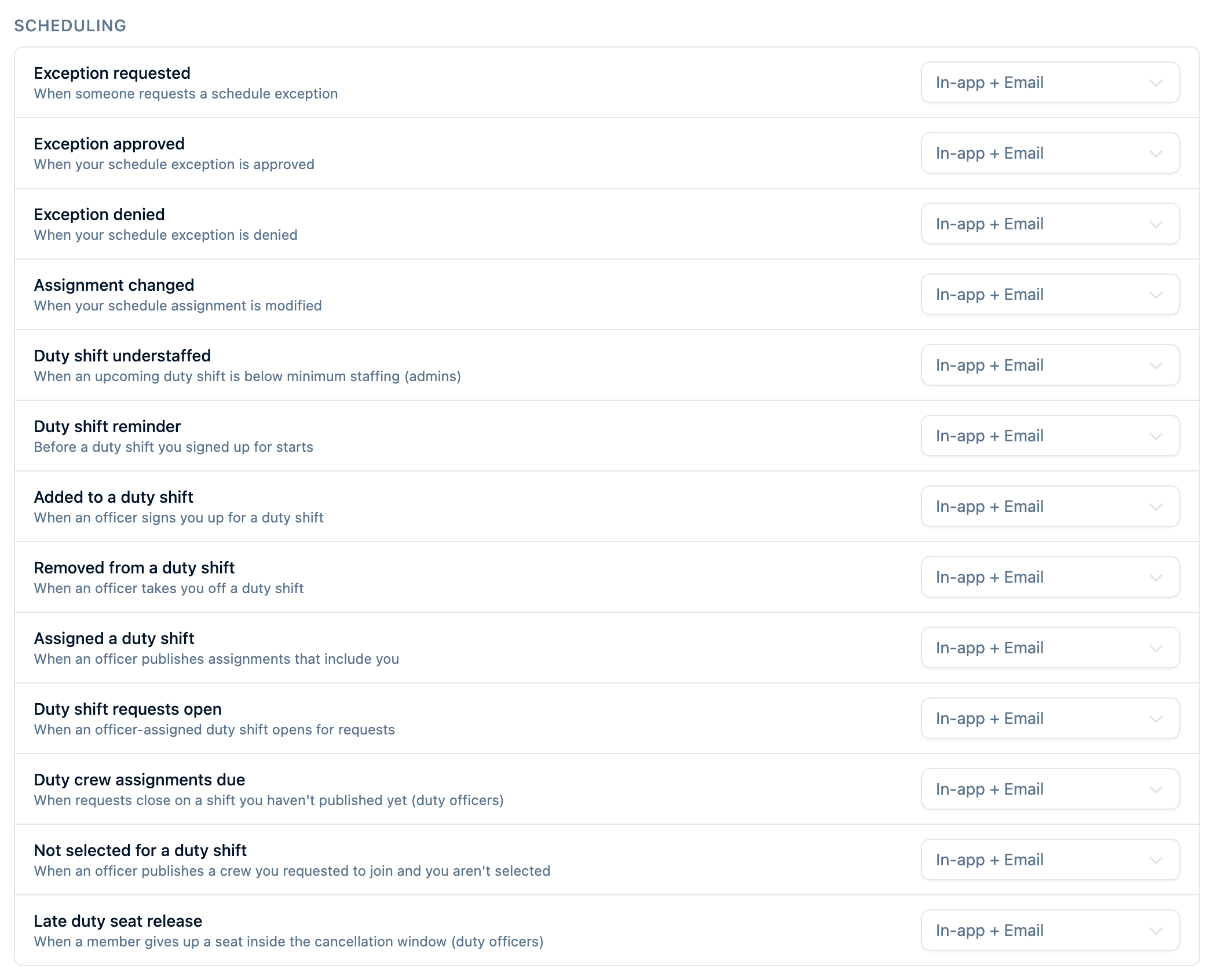
In-app and push notifications are delivered when the notification is processed. Push also needs to be enabled on your device; see Enable Push Notifications.
If you choose email, these duty alerts bypass the email digest: understaffed shifts, shift reminders, assignments due, and late seat releases. The other duty emails can be grouped into the usual 15-minute digest, including publication outcomes and officer additions or removals. See Notification Emails and Digests.
If something looks wrong
- No Assign crews tab: ask an Admin to check your Duty Officer permission.
- No Sign up or Request button: check your linked personnel record, whether the window is open, whether the shift has started, and whether seats are available. On an officer-assigned shift, leftover seats may be reserved for the officer to fill, and some crews don't take requests at all: the shift reads “The officer assigns this crew” until it is published.
- Asked, but no assignment: the officer has not published that crew yet. A request or saved draft is not an assignment.
- No understaffed alert: check both the shift's minimum and the schedule's alert lead, then the recipient groups and your notification channel. Duty Officer permission alone does not add you to this alert's recipients.
- No personal notification: check that your personnel record is linked to your login and that the relevant notification type is enabled. Your own actions do not send you a notification about yourself.