
Platoon Scheduling: Shared Crew Rotations
Use platoon scheduling when a group of people follows the same repeating work schedule. It suits career departments with A, B, and C shifts, ambulance crews that share regular weekday hours, and any team whose shifts should move together when its shared pattern changes.
A platoon gives the crew a name and color. Its shift pattern defines when it works, and each member's schedule assignment connects that person to the platoon, a station, and optionally an apparatus. Members on the same platoon can work at different stations or on different units.
If each person's hours differ, use Personnel Rotation Scheduling. If members sign up for available shifts or an officer selects the crew for each occurrence, use Duty Crews. The scheduling overview helps you choose and explains how these schedules fit together.
Before you start: An Admin or Owner sets up regular schedules. Enable the Scheduling module and add your personnel, stations, and apparatus first. Check the department's timezone before entering shift times.
Create the shared shift pattern
Open Schedule → Settings → Shift Patterns → Add Pattern.
Choose Rotating Cycle under Schedule Type for rotations such as 24/48. Set the pattern's name, Cycle Length (days), and Work Periods. Each work period has a Start Day, Start Hour, Start Minute, and Duration. The cycle repeats after its final day.
For example, a 24/48 rotation has a 3-day cycle with one 24-hour work period starting on day 1. If your shift change is at 7 a.m., set Start Hour to 7, even when a preset starts at another hour.
Quick Presets fill in the form so you can check and adjust it before choosing Create Pattern. Common presets include:
| Preset | Cycle | Work periods |
|---|---|---|
| 24/48 | 3 days | One 24-hour shift, followed by 48 hours off. |
| 48/96 | 6 days | Two consecutive 24-hour periods, followed by 96 hours off. |
| Kelly | 9 days | 24-hour shifts starting on days 1, 3, and 5. |
| 10/14 Split | 8 days | Two 10-hour day shifts, then two 14-hour night shifts, followed by four days off. |
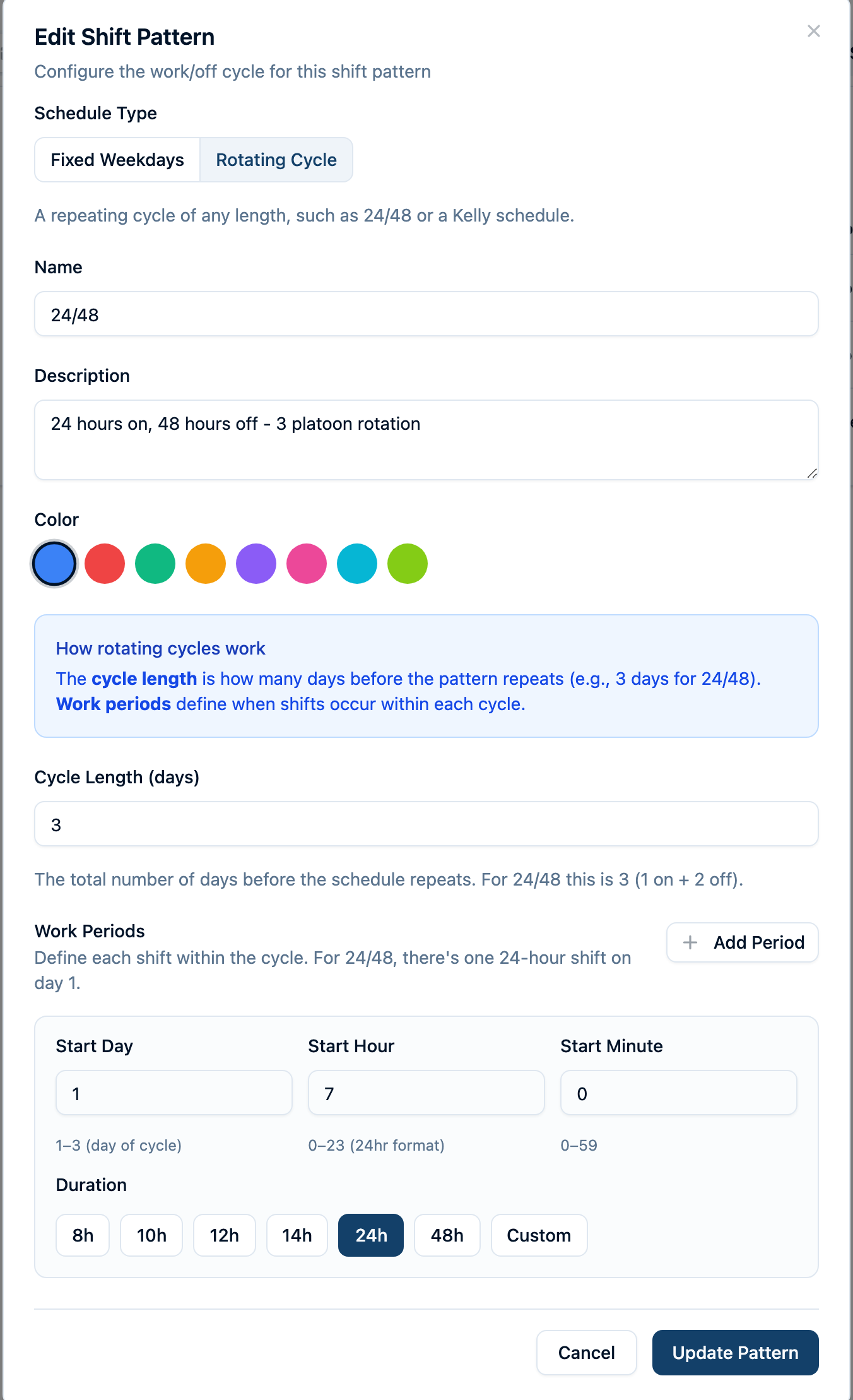
For the same weekdays and hours every week, choose Fixed Weekdays instead. Select the work days, start time, and shift length. Follow Set Up Weekly Crews and Per Diem Coverage for a complete weekday ambulance example.
Create a platoon for each crew
Open Schedule → Settings → Platoons → Add Platoon.
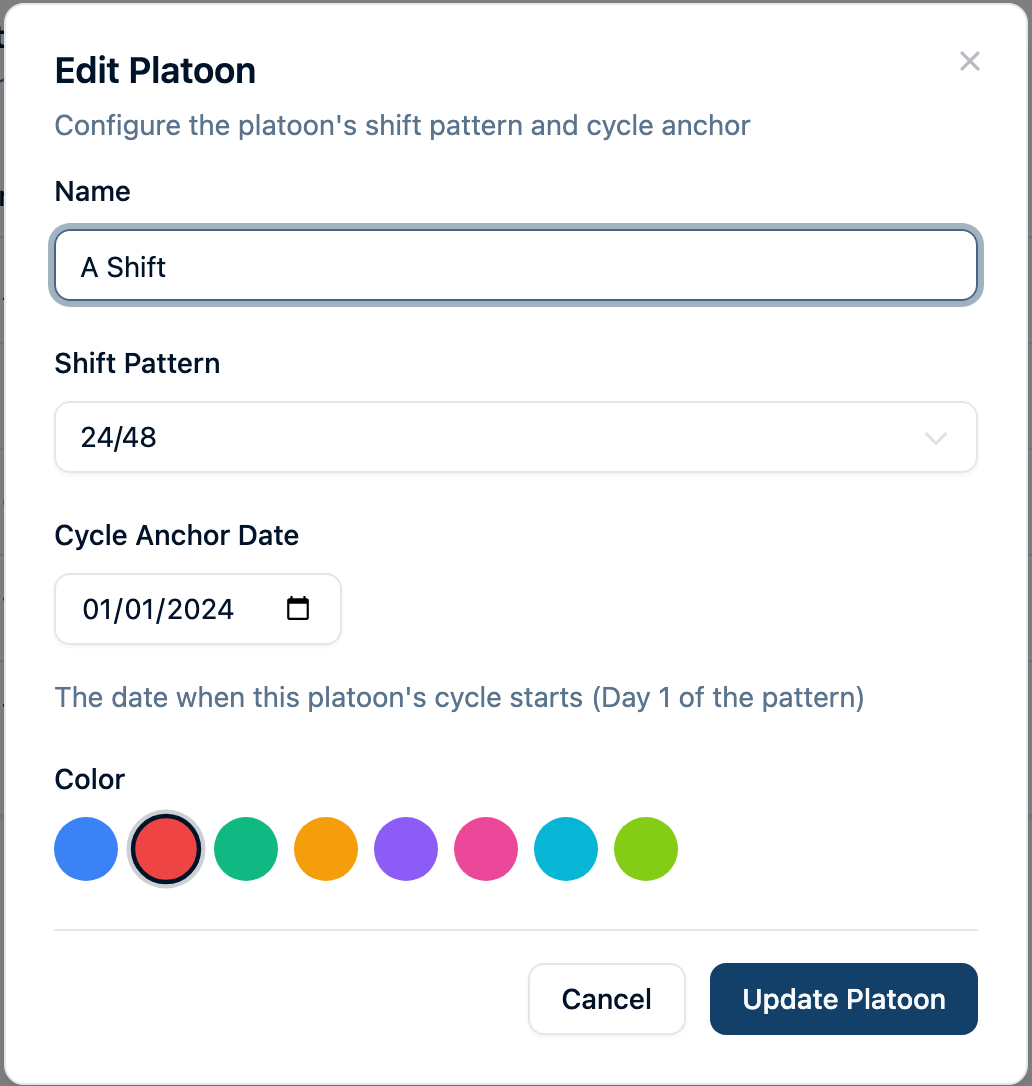
- Enter the crew's Name, such as A Shift.
- Choose its Shift Pattern.
- For a rotating cycle, set Cycle Anchor Date to a date when that crew begins day 1 of the pattern.
- Choose a Color, then select Create Platoon.
The anchor aligns the repeating cycle with real calendar dates. It is separate from the date an individual member joins the crew. For a three-platoon 24/48 schedule, consecutive anchors stagger the crews:
| Platoon | Cycle anchor | First shift starts | Next shift starts |
|---|---|---|---|
| A Shift | October 1 | October 1 | October 4 |
| B Shift | October 2 | October 2 | October 5 |
| C Shift | October 3 | October 3 | October 6 |
Choose dates that match your existing rotation. Each shift begins at the time in the shared pattern and can continue into the next calendar day. A Fixed Weekdays pattern follows the calendar week, so its platoon form has no anchor date to set.
Assign people to the platoon
Open Schedule → Settings → People. For someone without a regular schedule, choose Set schedule, then:
- Set Starts to the first date the assignment applies.
- Under Works, choose A platoon and select the crew.
- Choose a Station and, if applicable, an Apparatus.
- Review First four weeks, then choose Save schedule.
To assign several people with the same crew, station, unit, and effective dates, choose Assign to a platoon. Select the personnel, platoon, station, optional apparatus, and Effective From date. Leave Effective Until blank for an ongoing assignment.
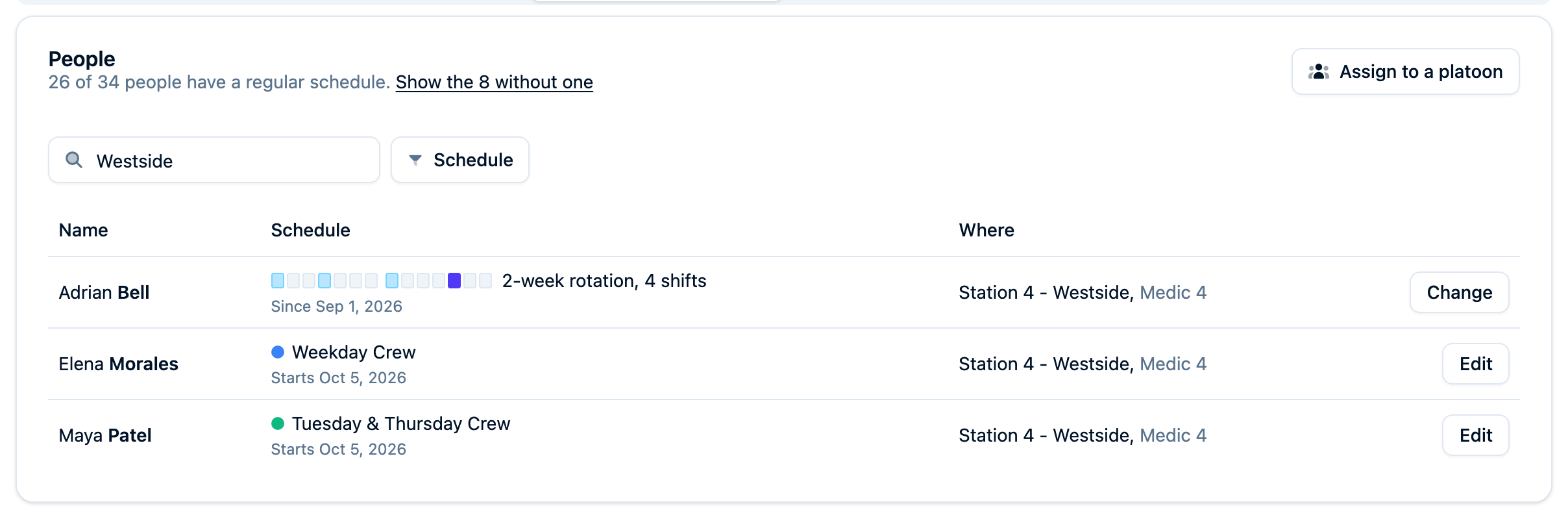
A member follows one regular schedule at a time. When moving someone who already has a schedule, use Change on their People row or Change schedule on their personnel profile. This ends the old period the day before the new one starts.
Check the resulting coverage
Return to Schedule and check several dates in Month, Week, and Day views. Verify which platoon starts each shift, which members appear, and where they are assigned. Check an overnight handover as well as a normal daytime view.
Under Settings → Staffing, set minimum personnel for each station or apparatus. These minimums flag coverage gaps; they do not create assignments. The scheduling overview explains staffing checks and exceptions. For one-off relief, see Fill an Open Seat.
Keep vacation, trades, callbacks, and temporary details in Schedule → Exceptions so the underlying rotation continues. Regular platoon hours and approved exceptions feed payroll reports.
Change a crew's schedule without rewriting its past
Editing a shared pattern or a platoon's anchor changes the dates calculated for everyone using it, including past dates and payroll totals. Use those edits to correct an error in the shared setup.
For a planned change to regular hours:
- Create a new shift pattern and a new platoon with the new hours and anchor.
- Use Change schedule for each affected member and choose when the new assignment starts.
- Select the new platoon and check the station and apparatus before saving.
- Check dates before and after the change in the calendar and payroll report.
If only one member transfers stations or platoons, change that person's schedule. If their new hours no longer match a shared crew, choose Own rotation and follow Personnel Rotation Scheduling.
To stop a member's regular schedule without replacing it, open the member's Schedule tab, choose Edit on the period, and enter Ends. Removing a period also removes its historical shifts from the calendar and changes payroll; setting an end date retains earlier days.