
Scheduling: Choose the Right Setup for Your Department
Start with how your department decides who works each shift. Do volunteers sign up for duty shifts or ask an officer to assign them? Do career crews follow a shared rotation? Does each person have a different regular schedule?
Command Established supports all three. A volunteer fire department can run on duty crews alone. A combination department can use a career day platoon, volunteer overnight duty crews, and individual rotations for members with different regular hours.
The schedule says who is supposed to be on. To see who can actually respond right now, including members who aren't on shift, turn on member availability. It works alongside any of these setups, or on its own if you schedule in another tool.
Find your scheduling guide
| Your use case | Start with | How it works |
|---|---|---|
| The same crew works together on a repeating rotation or fixed weekdays. | Platoon scheduling | Create a shared shift pattern, connect platoons to it, and assign people to their platoon. |
| Each person's regular days, hours, or unit vary. | Personnel rotation scheduling | Draw a repeating schedule for that individual, including different units for individual shifts. |
| Eligible members can take any open seat. | First-come, first-served duty crews | Members sign up and immediately hold the seat when the signup succeeds. |
| An officer needs to choose the crew from available members. | Officer-assigned duty crews | Members request shifts; the officer drafts and publishes the assignments. |
For a one-time gap that an Admin or Staffing Officer needs to fill for a named member, see Fill an Open Seat. Choose Add Shift on the Schedule page to add a one-off Scheduled Shift without giving that person a recurring rotation.
Platoon scheduling: a shared crew rotation
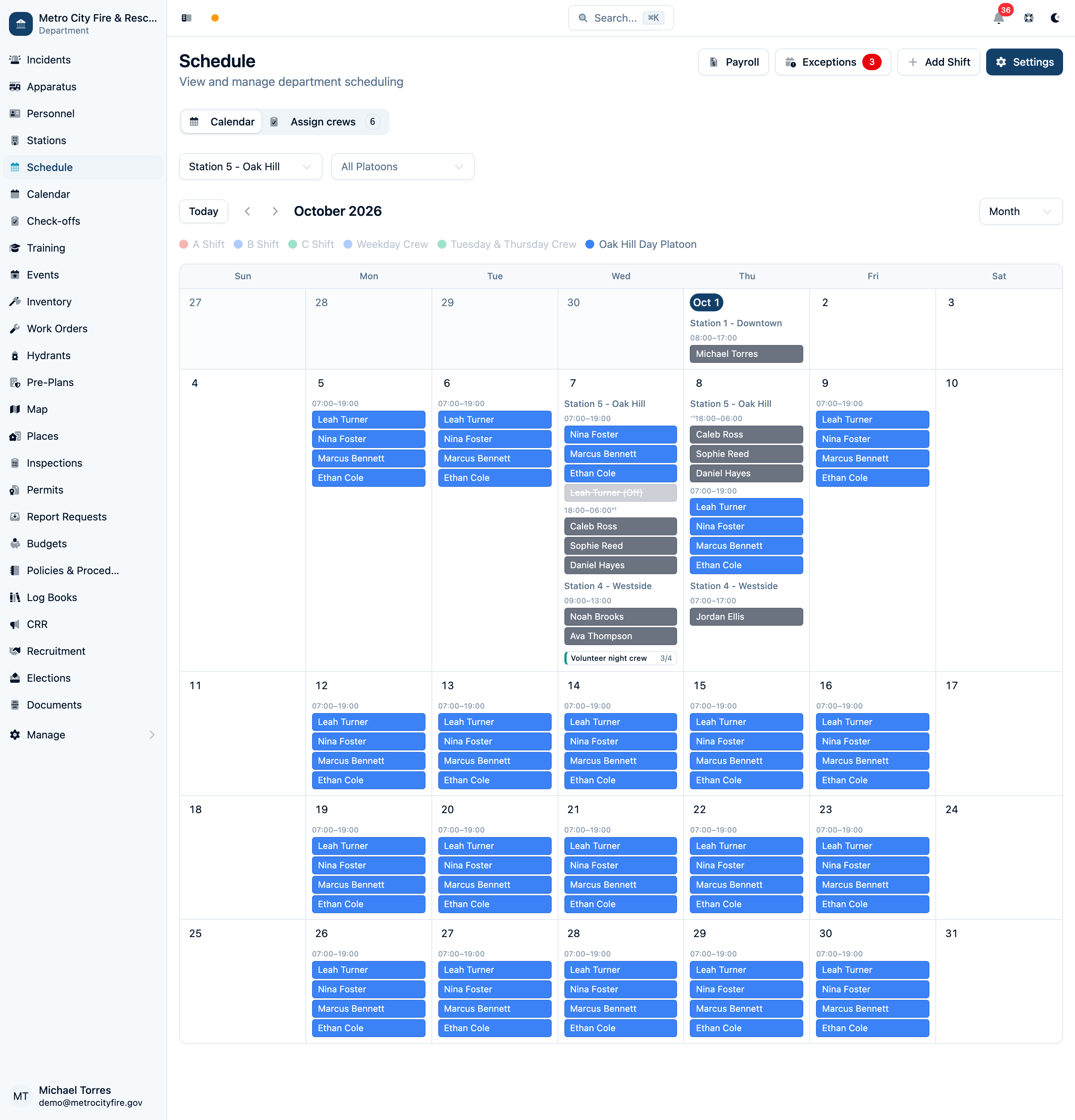
Use platoons when people work together on the same recurring schedule. Common examples include A, B, and C shifts on a 24/48 rotation, a 48/96 crew, or a weekday daytime crew.
A shift pattern defines the working hours. Each platoon follows that pattern; for rotating cycles, its anchor date determines where it starts in the rotation. Assign each member to the platoon, station, and optional apparatus from a start date. The schedule then repeats automatically.
Platoons also support Fixed Weekdays for crews that work the same days and hours every week. A shared pattern makes sense when changing that pattern should affect the entire crew.
Continue with Platoon Scheduling: Shared Crew Rotations for patterns, anchor dates, assignments, and safe changes to an established schedule. For a worked EMS weekday example, use Weekly Crews and Per Diem Coverage.
Personnel rotation scheduling: a pattern for one person
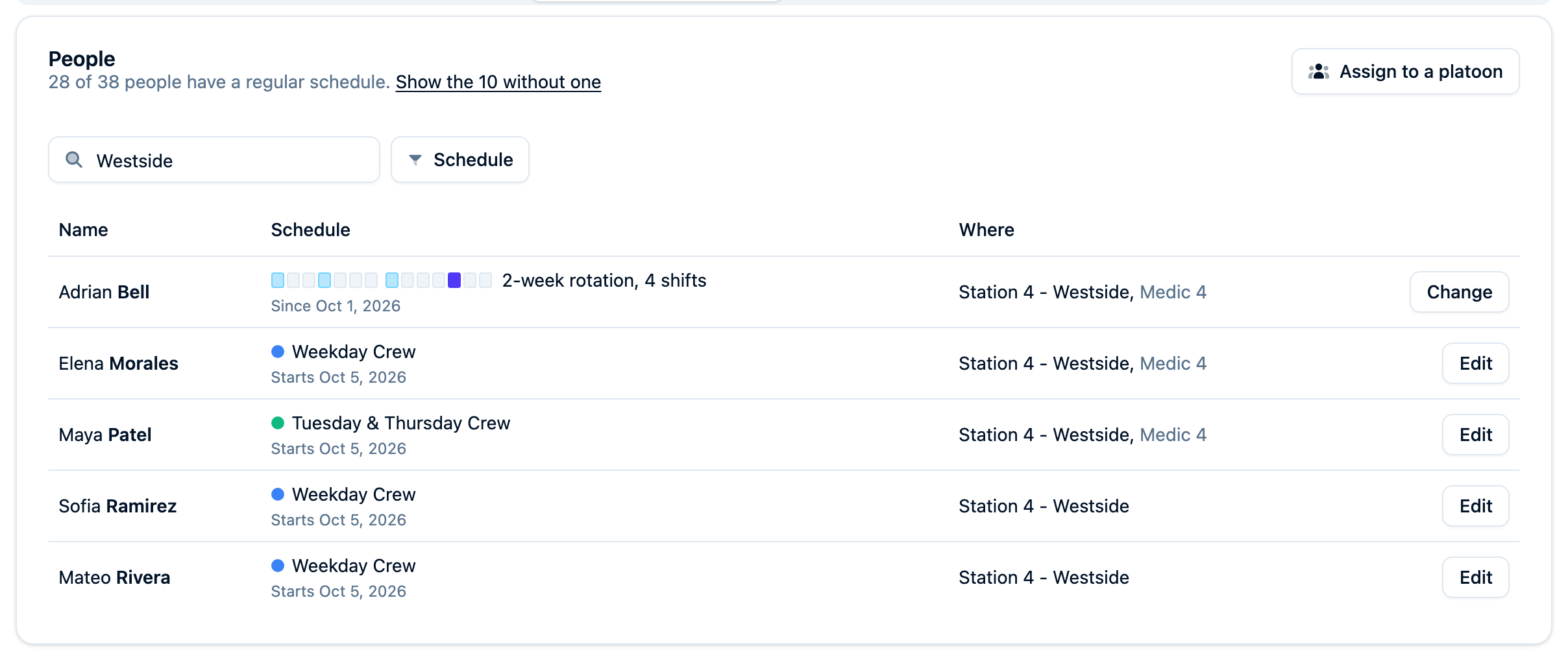
Use an Own rotation when a member has a predictable repeating schedule that differs from their coworkers. This is useful for EMS services, part-time staff, alternating weeks, or members who regularly work different units on different days.
For example, one paramedic might work two daytime shifts and an overnight shift each week, with one shift on another ambulance. Draw those hours on that person's rotation and set the unit for the shift that differs. There is no need to create a separate platoon for every person.
The rotation belongs to that member. Their shifts appear in the same calendar, roster, staffing checks, and payroll reports as platoon shifts. Use Change schedule with a start date when their regular arrangement changes so their previous schedule remains in their history.
Continue with Personnel Rotation Scheduling for the People tab, the time grid, overnight shifts, per-shift unit assignments, and schedule history.
Duty crews: fill seats for each shift
Use duty crews when you know the station, hours, and number of seats you need, but the people filling those seats can change. This works well for volunteer duty nights, weekend station coverage, relief crews, storm staffing, and special events. A duty shift can repeat on selected weekdays or occur on specific dates.
Choose how seats are filled:
- First come, first served (FCFS): use this when any eligible member can take an open seat. Members choose Sign up and hold the seat as soon as the signup succeeds. No officer publication is needed.
- Officer assigned: use this when an officer needs to consider availability, experience, or how shifts are distributed before selecting the crew. Members choose Request this shift. A request is not a seat: the officer chooses a draft crew and publishes it, and assigned members are notified.
Duty crews can run alongside platoon and individual rotations. Committed seats appear on the roster and count toward station staffing; duty seats are not assigned to an apparatus. A duty crew's seats add hours to payroll reports only when its schedule has Include on the payroll report turned on.
Continue with Duty Crews: Signups & Officer Assignments for both approaches, including policies, permissions, requests, publication, cancellations, and replacements.

Using the calendar
Open Schedule to review month, week, or day views. Filter by station or platoon to focus on the coverage you need. For one person's calendar, open the Schedule tab on their personnel profile.
In Day view, choose a station and select Timeline to see shifts against the day's hours. Apparatus, personnel working at the station, duty crews, and people who are away appear in separate rows. Shift bars show when people work; hatched Open seat bars mark the hours when staffing is short. Select a bar to inspect the person, crew, or gap.
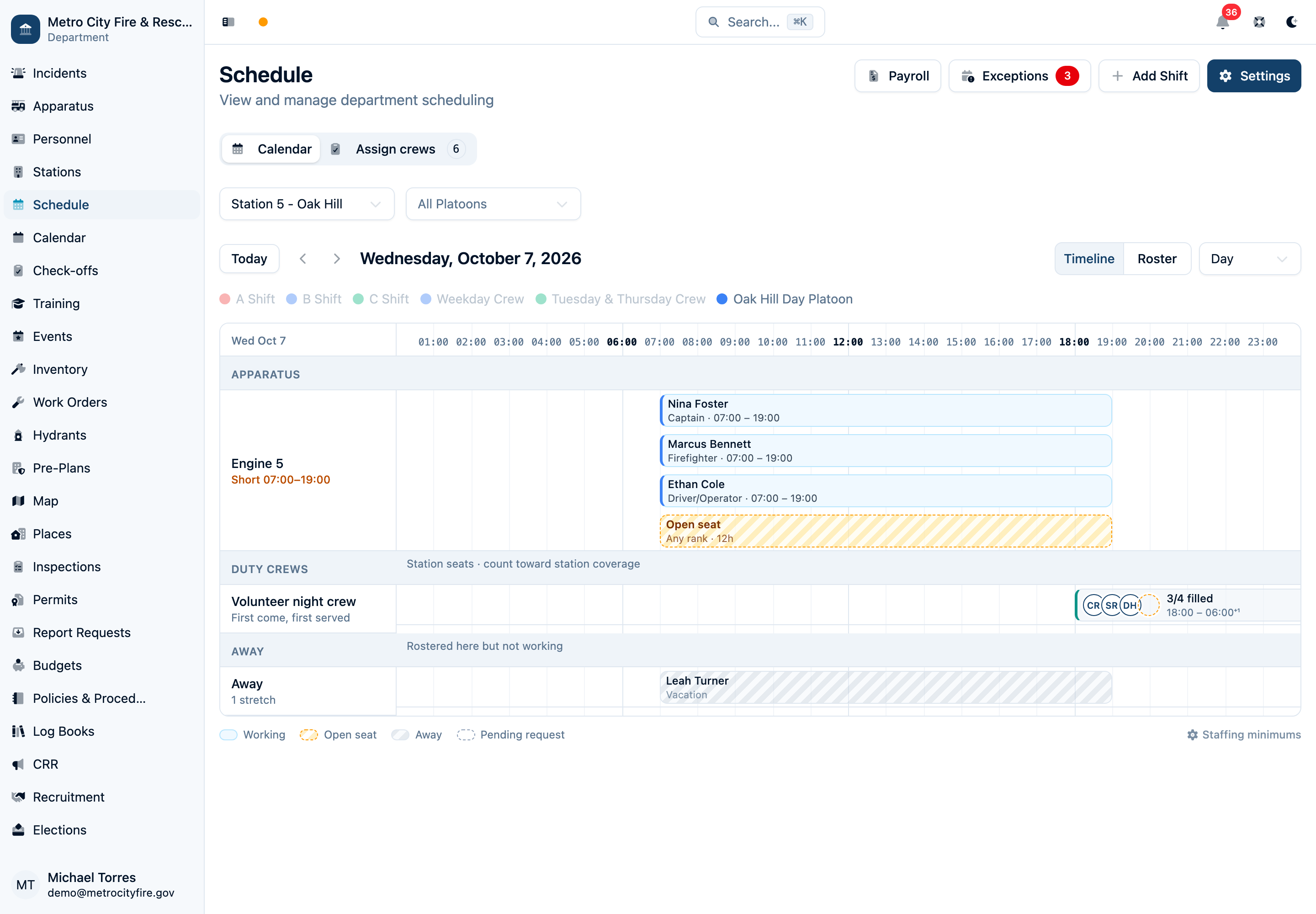
Choose Roster for the personnel list grouped by station and apparatus, with staffing counts against your requirements. Phones start on Roster, and the calendar remembers your layout choice.
A combination fire department can keep its career platoons and volunteer duty crews on the same calendar. Members with different regular hours can use individual rotations alongside them.
The department calendar is available once you have a platoon, an individual schedule, or a duty schedule. A department can run entirely on individual rotations or duty crews without creating shared shift patterns or platoons.
If nothing is configured yet, an Admin, Owner, or Schedule Builder can choose Configure Schedule to set up platoons or individual rotations, or Set Up Duty Crews to go directly to duty-crew settings.
Managing time-off and exceptions
Keep the regular schedule as the baseline. Use Schedule > Exceptions for a particular absence or change: time off, overtime, a Scheduled Shift, a trade, a detail, a callback, light duty, or training.
Members who can't work a shift can offer it to colleagues from Schedule > Pick up; the first to take it works it, once an officer approves. See Shift Trades.
Members can submit requests for themselves. Admins, Owners, and members with Schedule Request Review approve or deny pending requests, and are notified when one comes in; approved exceptions are reflected in the schedule. Admins and Staffing Officers can also create approved exceptions directly for someone else, such as a named member's per diem coverage. Nobody approves their own request — an officer's own time off goes to review like anyone's. See Understanding Permissions & Groups for these permissions.
The schedule shows every member that someone is off and when. The reason — sick, FMLA, injury, and so on — and any notes are visible only to that member, to Admins and Owners, and to members with Time-Off Reasons, Staffing Officer, or Schedule Request Review access.
For a duty seat, use the duty cancellation or replacement workflow to release or replace the member on that shift.
Setting staffing requirements
Go to Schedule > Settings > Staffing to define minimum personnel for a station or apparatus, with rank requirements when needed. Staffing is about people working at the same time, not the sum of everyone who works at some point that day.
Use the day timeline to spot the hours when coverage is short. Select an Open seat to see the unmet minimum and any absences contributing to the gap. Admins and Staffing Officers can choose Add a shift in that panel to open Fill Open Seat, with the station, apparatus, and gap's hours already selected. In the Roster layout, select Vacant to open Fill Vacant Seat instead. A temporary staffing requirement can add a unit's minimum for the dates of a special detail.
Follow Weekly Crews and Per Diem Coverage for a complete example: regular weekday crews, an open seat filled by a per diem member, and an extra ambulance for an event.
Payroll integration
Platoon schedules and individual rotations feed payroll reports alongside applicable approved exceptions. Schedule > Payroll provides totals, per-person daily details, and CSV exports. Duty-crew seats are included when their schedule has Include on the payroll report turned on.
See Running Payroll Reports for the included hour categories and export workflow, and Setting Up Pay Rules for how trades, overtime limits and unpaid time off are counted.