
Set Up Weekly Crews and Per Diem Coverage
For an EMS department with full-time and permanent part-time employees working the same days each week, start with Fixed Weekdays. Pick the days and hours once, put the people who share those hours in a crew, and their shifts appear on the calendar. You can then fill gaps and add coverage for special events as needed.
This guide follows an ambulance crew with regular weekday staff, per diem help, and an extra unit for a county fair. The screenshots use example EMS crews in the Metro City Fire & Rescue demo department. Select any screenshot to see it full size.
In this guide:
- Plan your crews
- Create the weekly patterns
- Create a platoon for each crew
- Assign your members
- Set your minimum staffing
- Fill an open seat
- Add an extra unit for a detail
- Check the finished schedule
Before you start: An Admin, Owner, or member with the Schedule Builder permission handles this setup. Your department needs the Scheduling module enabled, with your personnel, stations, and apparatus already added. Check your department's timezone before entering shift times.
Start with Scheduling: Choose the Right Setup to compare approaches. For rotations such as 24/48 or Kelly schedules, see Platoon Scheduling. For a different repeating pattern for each member, see Personnel Rotation Scheduling. For shifts that members sign up for or request themselves, see Duty Crews.
Plan your crews
Group people by the days and hours they work. Full-time and permanent part-time members use the same setup; each different weekly schedule gets its own pattern.
| Crew | People | Hours | Unit |
|---|---|---|---|
| Weekday Crew | Paramedic Elena Morales | Monday–Friday, 7 a.m.–5 p.m. | Medic 4 |
| Tuesday & Thursday Crew | EMT Maya Patel | Tuesday and Thursday, 7 a.m.–5 p.m. | Medic 4 |
| Relief coverage | EMT Jordan Ellis | Individual shifts as needed | Medic 4 |
| County fair detail | Paramedic Noah Brooks and EMT Ava Thompson | One Wednesday, 9 a.m.–1 p.m. | Medic 5 |
Medic 4 needs two people. Maya joins Elena on Tuesdays and Thursdays. On the other weekdays, an Admin can add a per diem member for the open seat.
The regular schedule has three parts: the pattern sets the hours, the platoon names the crew, and the assignment puts a member on that crew at a station or apparatus. In the app, Apparatus is where you select the ambulance or other unit. A one-time relief shift does not need its own pattern or platoon.
Create the weekly patterns
Open Schedule → Settings → Shift Patterns, then choose Add Pattern.
- Name the pattern Weekday Days.
- Set Schedule Type to Fixed Weekdays.
- Under Work Days, select Monday through Friday.
- Set Start Time to 07:00 and Shift Length to 10h.
- Choose Create Pattern.
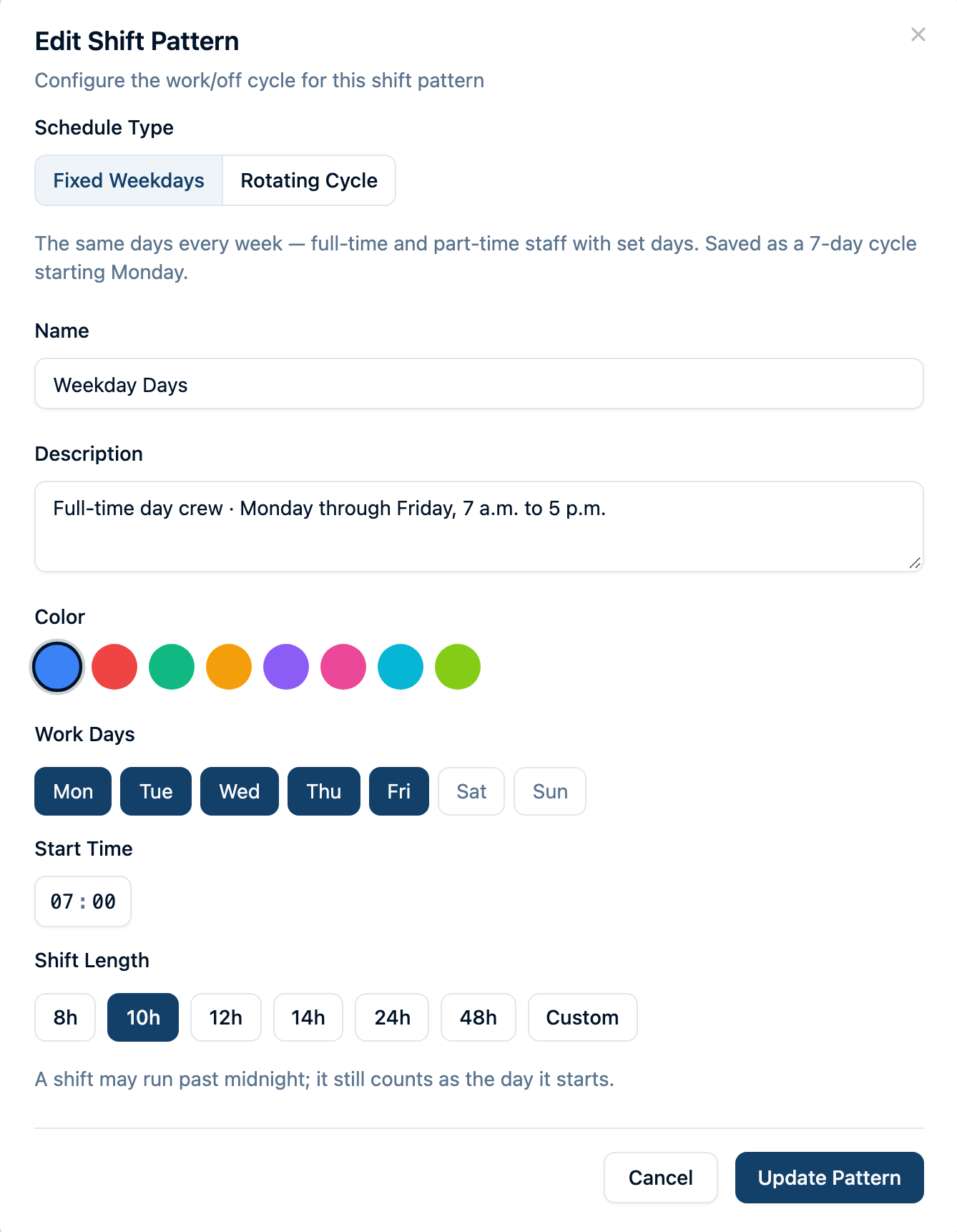
Repeat for Tuesday & Thursday Days, selecting only Tuesday and Thursday with the same hours. If another crew works different hours, give it a separate pattern. For an overnight shift, select the day it starts; the shift can continue into the next morning.
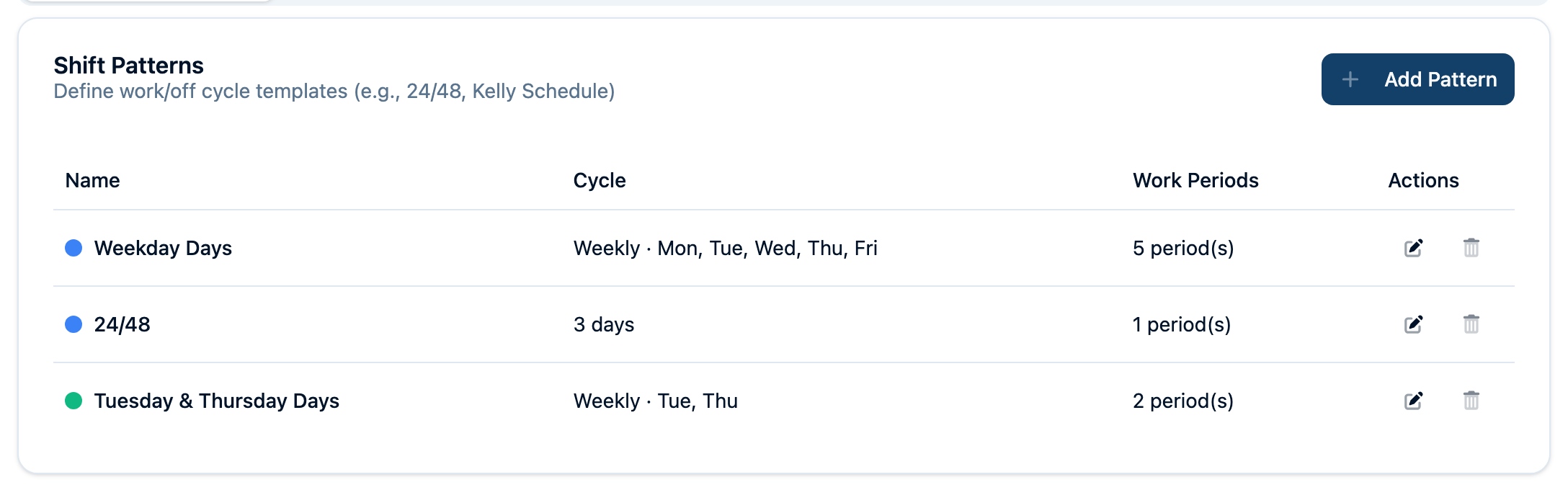
Create a platoon for each crew
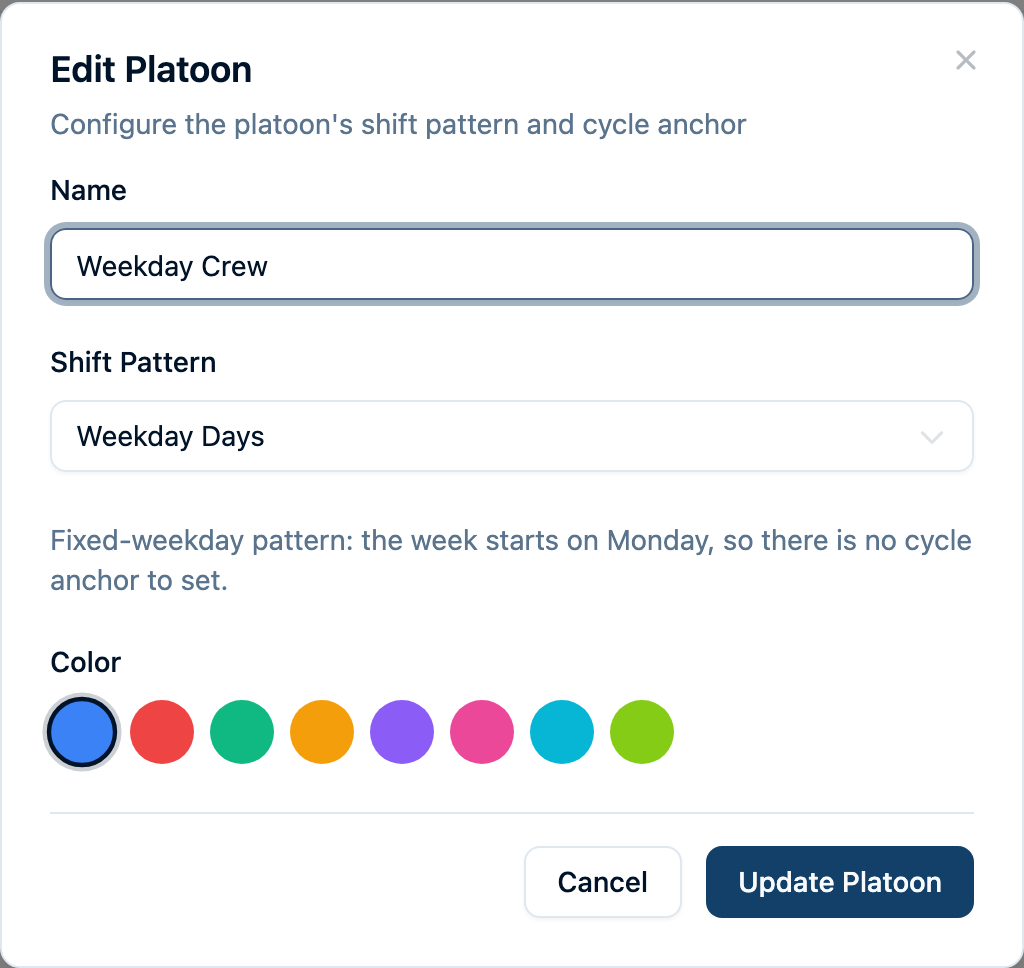
A platoon is simply a group of people who follow the same pattern. You can call it “Weekday Crew” even if your department does not use the word platoon day to day.
Open Settings → Platoons → Add Platoon. Name it Weekday Crew, select the Weekday Days pattern, choose a color, and select Create Platoon. Repeat for Tuesday & Thursday Crew using its matching pattern.
Assign your members
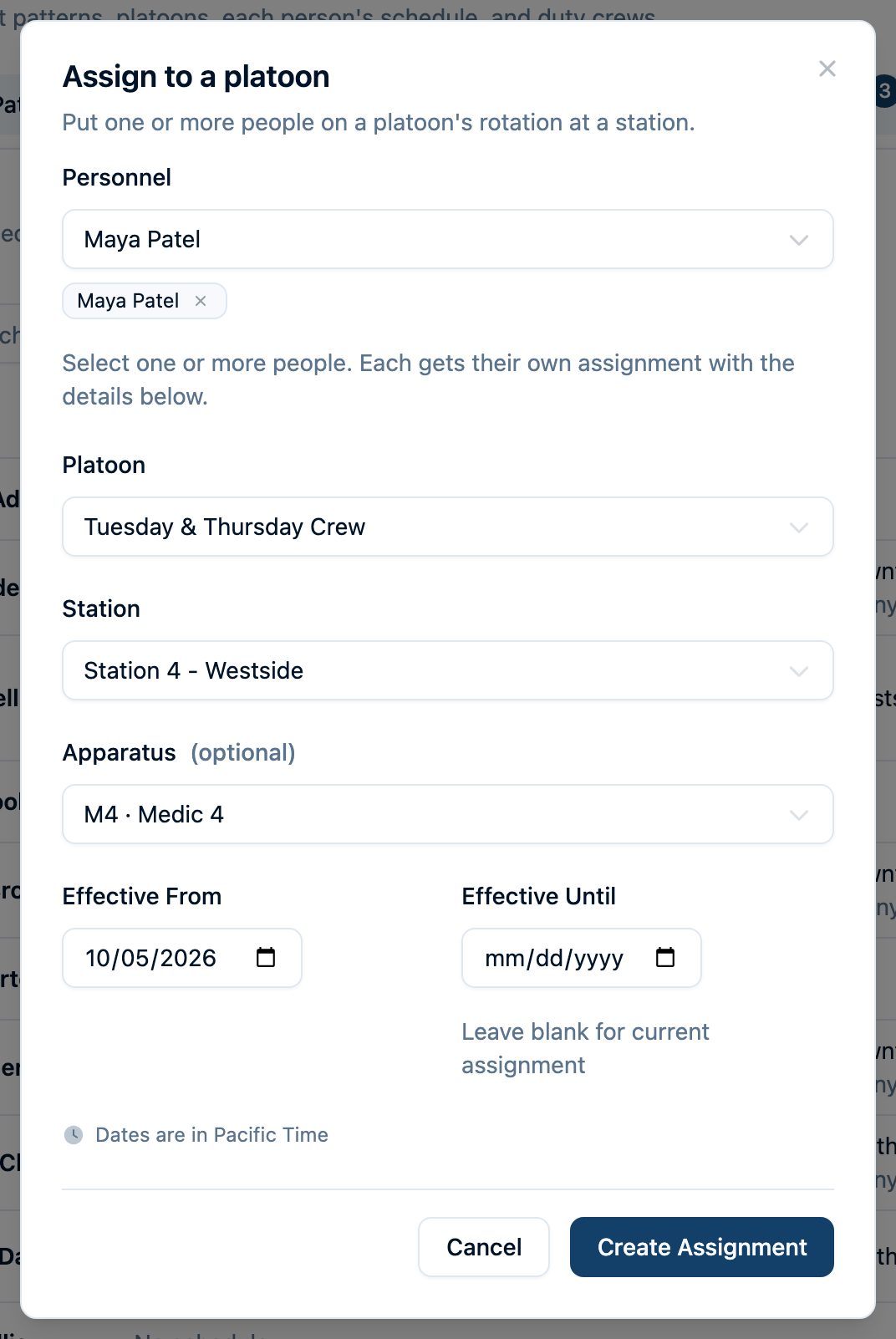
Open Settings → People → Assign to a platoon.
- Select the member or members who share the same assignment.
- Choose the Platoon and Station.
- Choose Medic 4 under Apparatus so those members count toward that unit's crew.
- Set Effective From to their first day on this assignment. Leave Effective Until blank for an ongoing assignment.
- Save the assignment.
In our example, Elena joins Weekday Crew. Maya gets a separate assignment to Tuesday & Thursday Crew, also on Medic 4.
Set your minimum staffing
Open Settings → Staffing → Add Requirement. Choose Station 4 - Westside, select Medic 4, and set Minimum Personnel to 2. Leave Temporary off for this ongoing requirement, then choose Create Requirement.
You can also add rank requirements if your department needs a particular mix of ranks. Each line sets how many people on duty must hold one of the ranks you pick, and every line must be met. When any of several ranks will do, put them on the same line. For example, a line of At least 1 with Paramedic and Firefighter/Paramedic is met by either. Separate lines each need their own person, so the form warns you when the lines need more people than the minimum. Rank endorsements count as well as a member's primary rank.
A station-wide minimum is useful for overall coverage; choosing an apparatus gives that unit its own minimum and vacant seats on the day roster. When a day falls short, the roster banner says what is missing, such as short 1 Paramedic or Firefighter/Paramedic.
Go back to Schedule, choose Station 4 - Westside and Day, then select Timeline and open a Wednesday. Elena is working from 7 a.m.–5 p.m., but Maya is not. Medic 4's shift bar shows Elena's hours, and its hatched open seats show when coverage is below the two-person minimum.
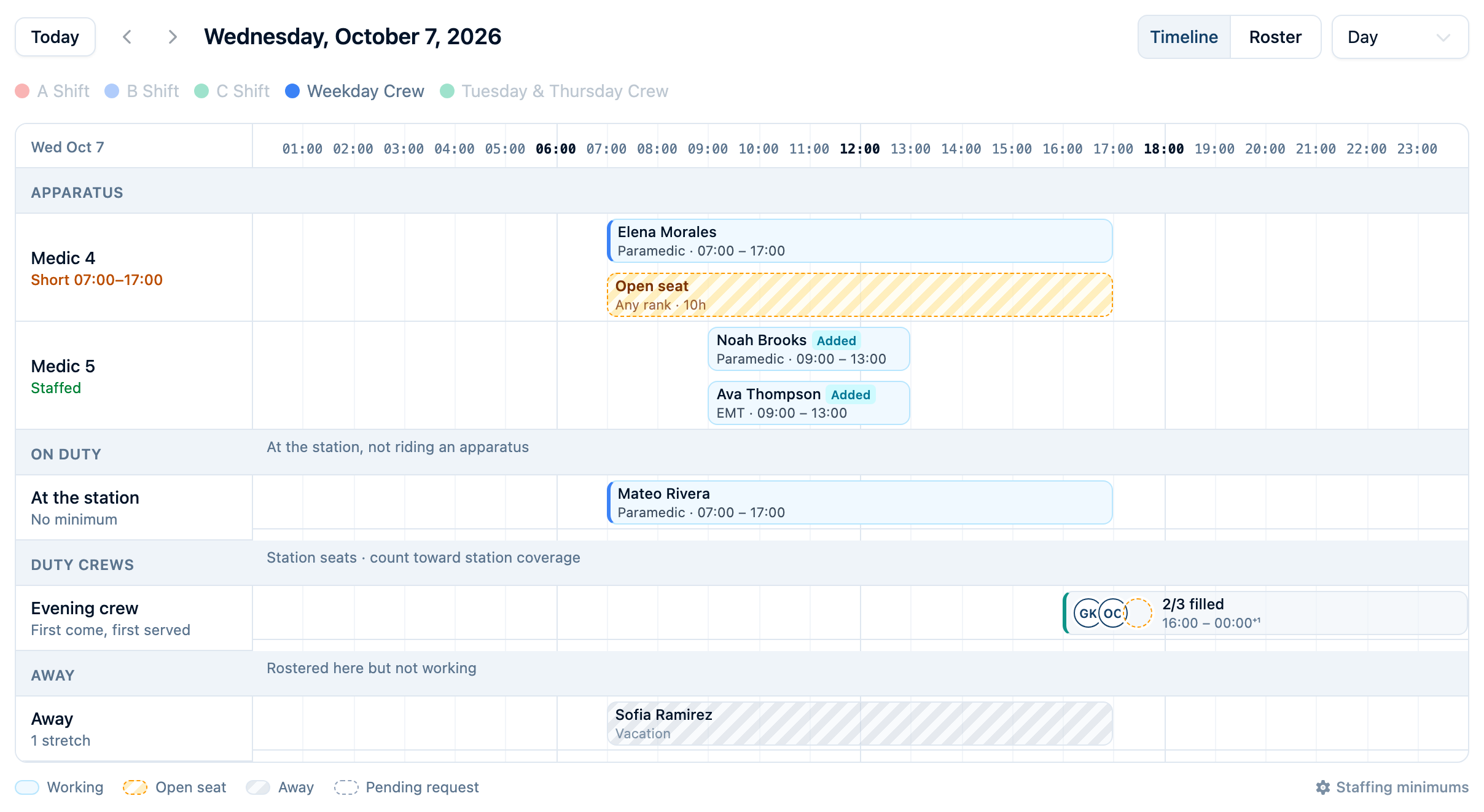
A standing minimum applies every day, including weekends. It does not follow the pattern's weekdays, so a day with no crew can still show vacant seats.
Staffing checks count people working at the same time. One person in the morning and another in the afternoon do not make a two-person crew.
Fill an open seat
Select an Open seat on Medic 4's timeline to review the gap. An Admin, Owner, or Staffing Officer can then choose Add a shift in the panel to open Fill Open Seat. If you use the Roster layout instead, select Vacant to open Fill Vacant Seat directly.
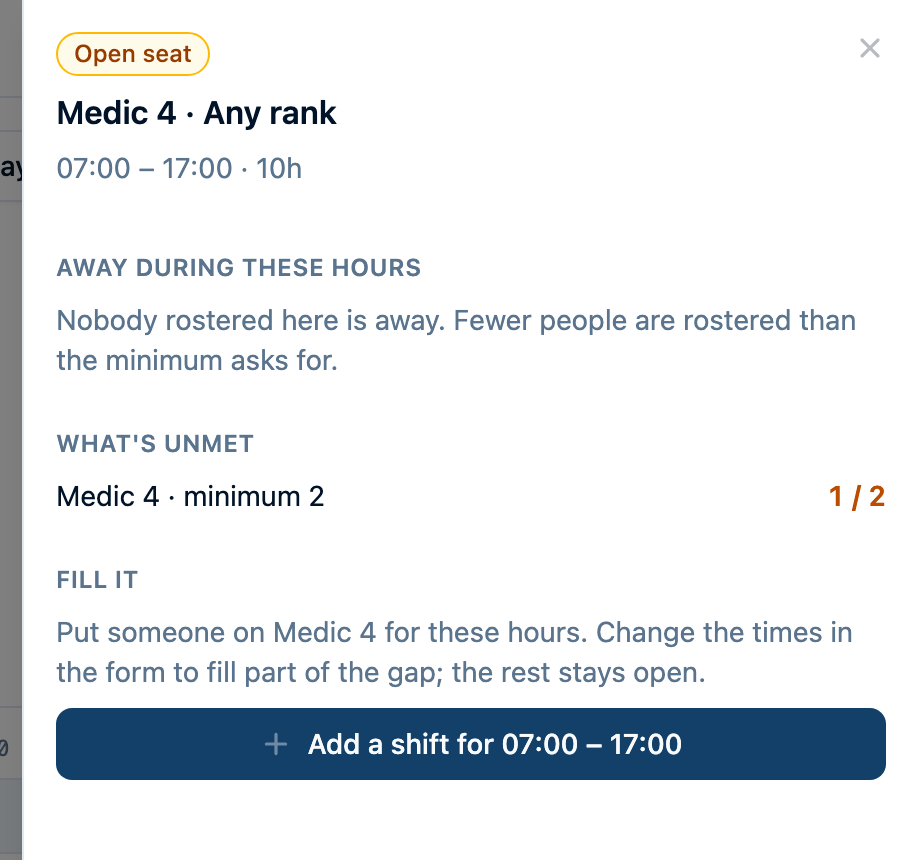
The form starts with Scheduled Shift, Approved, and the unit's station and apparatus already selected. It also suggests the hours when the unit is short.
- Select the relief member under Personnel. We use Jordan Ellis.
- Check both dates and times. For this gap, use 7 a.m.–5 p.m. on Wednesday.
- Add a short note explaining the coverage.
- Choose Add Shift, then check the updated timeline.
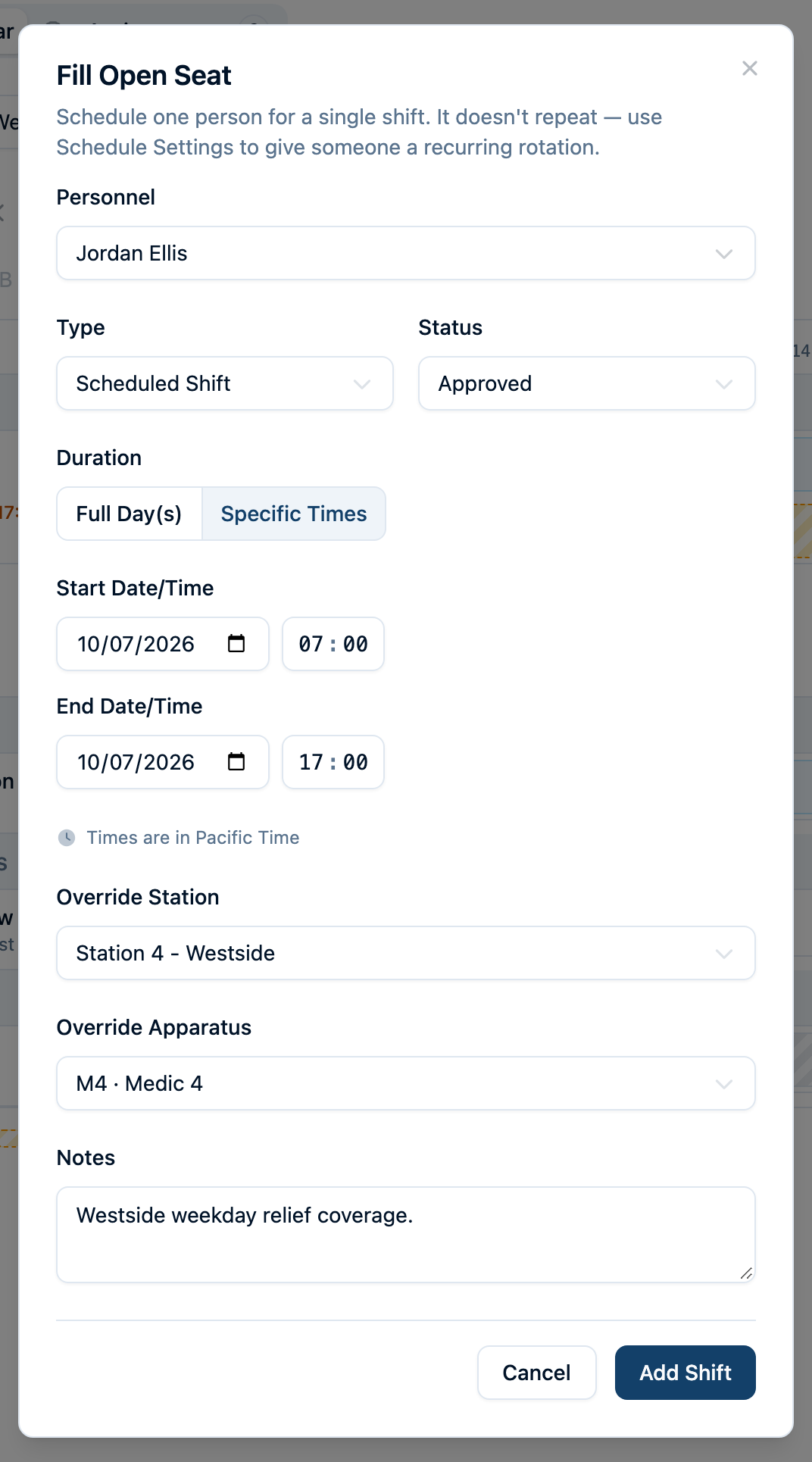
Jordan needs a personnel record, but no recurring platoon assignment or special “per diem” personnel type. Check that the person is available: the picker also includes people who already have a shift.
To put someone on a day without starting from a vacant seat, such as a unit with no minimum set, choose Add Shift at the top of Schedule (in the ⋯ menu on a phone). It opens the same form for the day you are viewing, set to a full-day Scheduled Shift at the selected station. Pick the member and apparatus, then narrow the hours. It adds one shift and doesn't repeat; to give someone a recurring schedule, use Set schedule on the People tab instead.
Always check the hours. If a unit has nobody assigned, the form starts with the whole day, from midnight to midnight. Change that to the actual shift you need covered. The saved hours are what payroll reports for that member.
Add an extra unit for a detail
Suppose two more people are covering the county fair from 9 a.m.–1 p.m. Use Medic 5 for that crew, keeping Medic 4's regular coverage in place. Add the apparatus record first if it does not already exist.
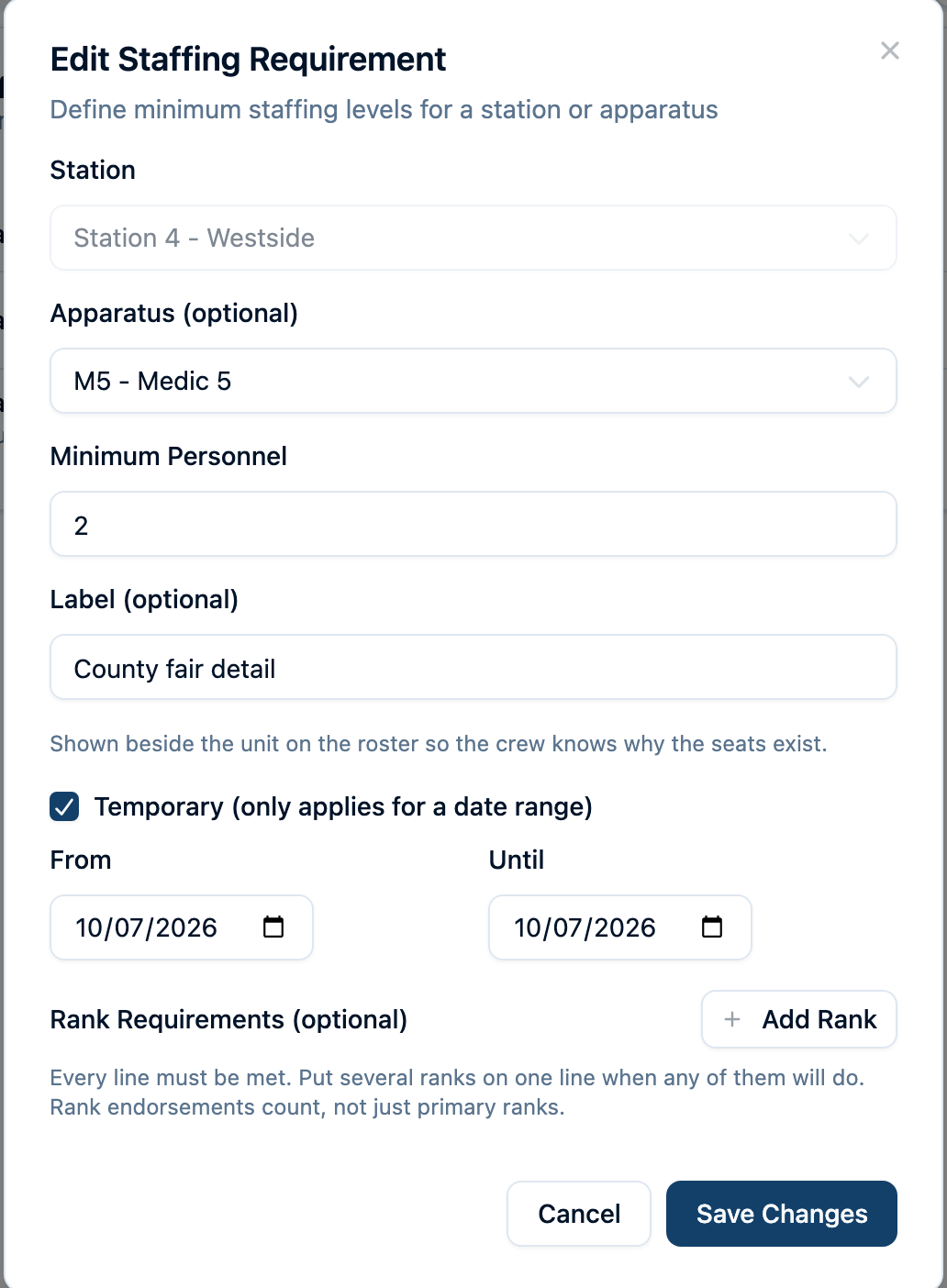
Open Settings → Staffing → Add Requirement:
- Select the detail's station and Medic 5.
- Set Minimum Personnel to 2.
- Enter County fair detail under Label.
- Turn on Temporary.
- Set From and Until to the event date. For a longer event, enter its first and last dates.
- Choose Create Requirement.
On the event's Day → Timeline, select an open seat on Medic 5, choose Add a shift, and assign Noah Brooks for 9 a.m.–1 p.m. Repeat for Ava Thompson. The requirement sets the headcount and dates; these saved shifts set who works and their actual hours.
Use a separate apparatus for a separate extra crew. Adding another minimum to Medic 4 does not create a second crew alongside it.
Check the finished schedule
Choose Roster in the Day view to check the saved crew list. Medic 4 should have Elena and Jordan for the daytime shift. Medic 5 should show County fair detail, with Noah and Ava working the event hours. Switch back to Timeline to compare their hours and confirm those shifts meet each unit's minimum.
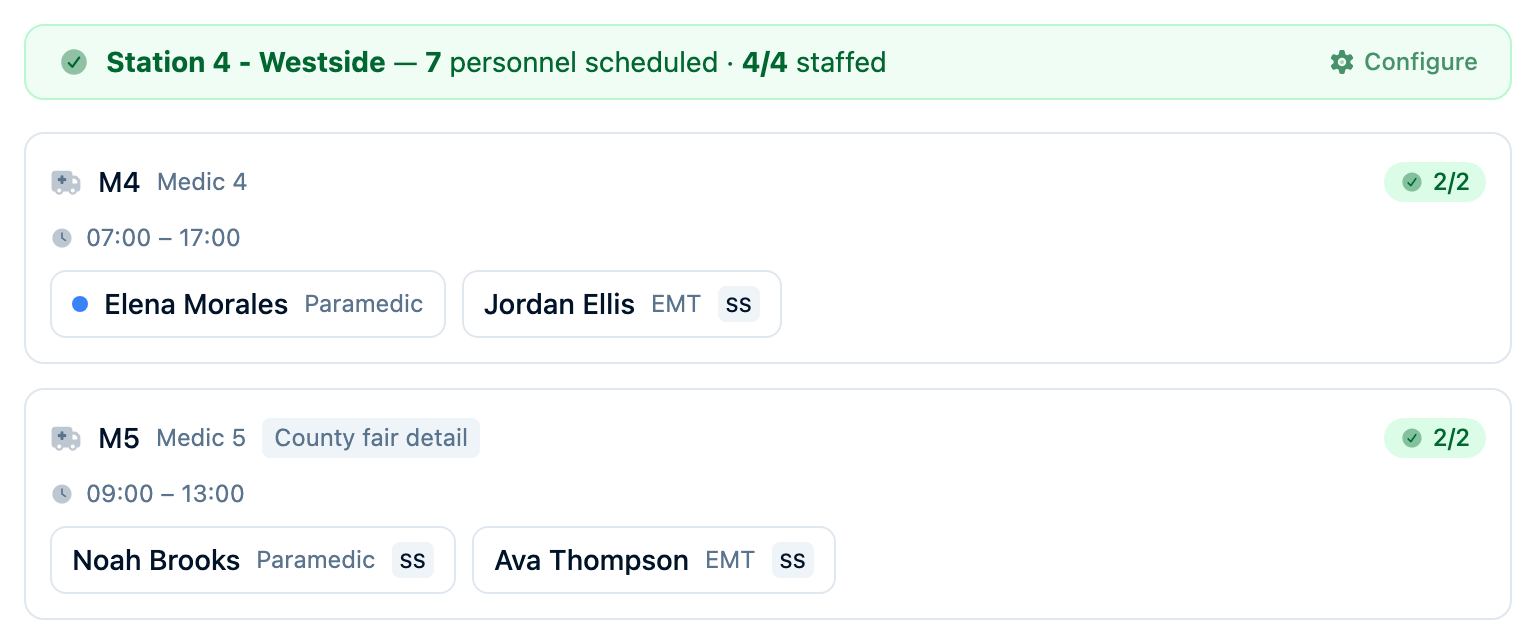
Before you finish, check a Tuesday or Thursday too: Maya should appear on Medic 4 from her regular assignment. Check a date after the fair to confirm the temporary requirement no longer applies.
Check payroll before exporting. Regular pattern hours feed Work Hours. The shifts you added here land in their own Scheduled Shift column: 10 hours for Jordan, 4 each for Noah and Ava. That column is separate from Overtime, which covers overtime and callbacks, so you can pay each at the rate that applies. If an added shift overlaps a member's regular shift, the overlapping hours count once, as Work Hours. See Running Payroll Reports. Duty crew signups do not currently add hours to these payroll reports.
When regular hours change later, create a new pattern and platoon, end the old personnel assignments, and start new ones on the following date. Editing a pattern already in use can also change past schedules and payroll totals.