
Running Payroll Reports in Command Established
Paying firefighters is rarely as simple as hours × rate. A 24/48 rotation means shifts that cross midnight. Kelly days pull members off the schedule. Vacation, sick, FMLA, and school time all need to be counted separately. Command Established's payroll report rolls it all up for any pay period you pick, then hands you a CSV you can drop straight into your payroll processor.
When to Use Payroll Reports
The payroll page handles any pay period you run:
- Bi-weekly — the usual cadence for most combination and career departments. Pick the two weeks with the date-range picker.
- Monthly — common for stipend-based volunteer departments. "Last month" gives you the full previous calendar month in one click.
- Custom ranges — pull any date range up to a year with the date-range picker. Useful for grant reporting, overtime reviews, or reconciling a single incident's staffing.
The report understands how your schedule is built. It counts who actually worked each shift the same way the schedule calendar shows it, through 24/48 rotations, Kelly-day patterns, trades, details, and callbacks. Overtime is broken out on its own so you can see exactly where it came from, and every time-off category — Vacation, Sick Leave, Personal, Bereavement, FMLA, Military, Comp Time, Injury, Administrative, Kelly Day, School Time, Jury Duty, Unpaid, and any your department adds — can have its own column.
How your department pays — who is paid for a traded shift, when overtime starts, which time off is unpaid — is set once in Settings › Payroll. See Setting Up Pay Rules. Until you set them, the report says "Pay rules aren't set up yet" and works the way it always has.
Who Can See Payroll
Payroll shows every member's hours, overtime, and leave, so it's restricted: Admins and Owners see it, and anyone else needs the Payroll read permission, granted individually or through a group (see Understanding Permissions & Groups). Payroll update access also lets someone change the department's pay rules and which time-off types get their own column. Without access, the Payroll button doesn't appear on the Schedule page.
Generating a Report
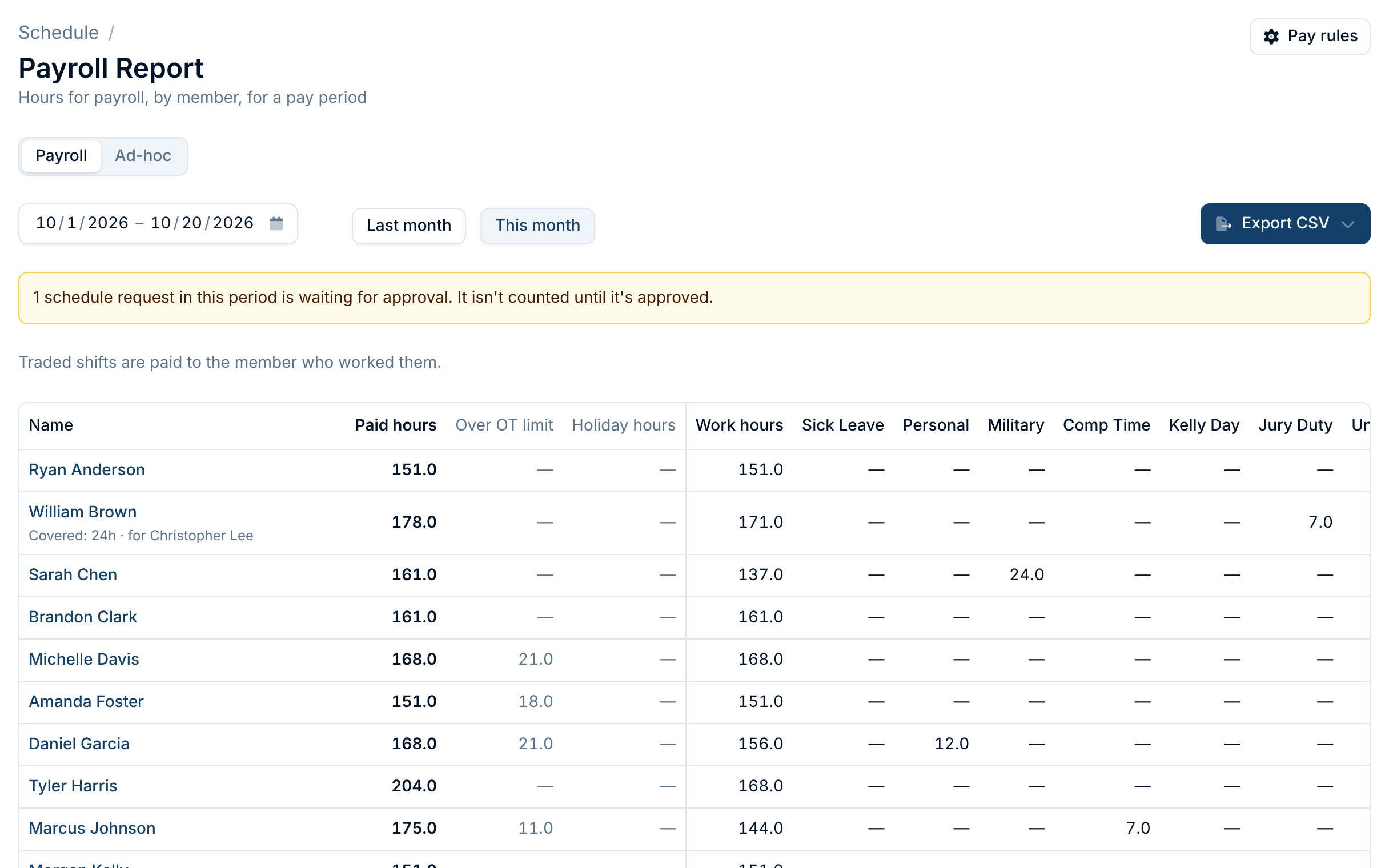
From Schedule > Payroll, the report opens on this month so far. Click Last month or This month, or use the date-range picker for any other period, such as a two-week pay period. As soon as the range is valid, the report generates. No "run" button.
If any time off, trade or added shift in the period is still waiting for approval, a notice above the table says how many. They aren't counted until they're approved, so approve or decline them before you export.
The Ad-hoc mode is for focused reports on a single category — say, you need a quick list of everyone who took FMLA last quarter. Switch modes, pick the categories you want, and you get a simplified Name / Category / Hours table instead of the full breakdown.
Reading the Report
Each row in the main table is one member. What to pay comes first:
- Paid hours — the member's total to pay: work, training, overtime, added shifts, duty crews, and paid time off. Time off of a type your pay rules mark unpaid is shown but left out.
- Over OT limit — hours worked past the member's overtime limit. Shows whenever your pay rules have one. These hours are already in paid hours: the column tells you how many of them to pay at the overtime rate.
- Holiday hours — hours worked on one of your department's holidays, when your pay rules mark them. Also already in paid hours.
Then the breakdown, which adds up to paid hours:
- Work hours — regular shift time from the member's rotation, less any time off. Administrative duty counts here: the member is working, just not on the line.
- Time-off columns — one per type with hours in the period, in your department's order. A type your pay rules mark unpaid is greyed and labelled unpaid. Types that don't have their own column (see Time-off columns) are added together as Other time off.
- Overtime — overtime and callback hours entered on the schedule. Appears whenever any member has some in the period.
- Scheduled Shift — added shifts, such as a per-diem fill for a vacant seat. Kept apart from overtime because the report can't know what rate they're paid at. Appears whenever any member has some in the period.
- Training — training entered on the schedule, whether it replaces part of a shift or falls on a day off. Appears whenever any member has some in the period.
- Duty crews — one column per duty crew on payroll, showing the member's hours and how many shifts they worked on it. Appears whenever any member worked that crew in the period.
Trades
Traded shifts show under the member's name on both sides of the trade: "Traded away: 24h · covered by Christopher Lee" on one line and "Covered: 24h · for William Brown" on the other. Whose paid hours the shift lands in depends on your pay rules: the scheduled member's, or the member who worked it. The line above the table says which.
An hour is only ever counted once. If an overtime or added shift overlaps a member's regular shift, or another added shift, the overlapping time isn't added again. Duty crew seats come last: only the part of a seat that isn't already paid as a regular, overtime, or added shift counts.
Duty Crews
A duty crew's seats show on the report once its schedule has Include on the payroll report turned on (see Set up a duty crew). Members don't need a rotation; someone who only takes duty shifts gets their own row.
Every crew gets both hours and a shift count, so you can pay hourly or a flat amount per shift:
- A shift counts once, on the day it starts, even if it runs past midnight. A shift that starts on the last night of a pay period counts in that period, while its hours after midnight go to the next period.
- A seat that's entirely covered by the member's regular or overtime shift adds no hours and doesn't count as a shift.
- A member who can't make a shift should give up their seat. Time off doesn't reduce duty hours, and a released seat doesn't count.
Archiving a duty schedule, or one of its shifts, takes its hours off every payroll report, including reports for past pay periods. To stop a crew but keep its hours on the record, give its shifts an end date instead. Shifts that were archived to retire them before duty crews could go on payroll don't appear either.
Members with zero hours across the board are filtered out, so you don't have to scan past people who didn't work the period.
Per-Person Detail
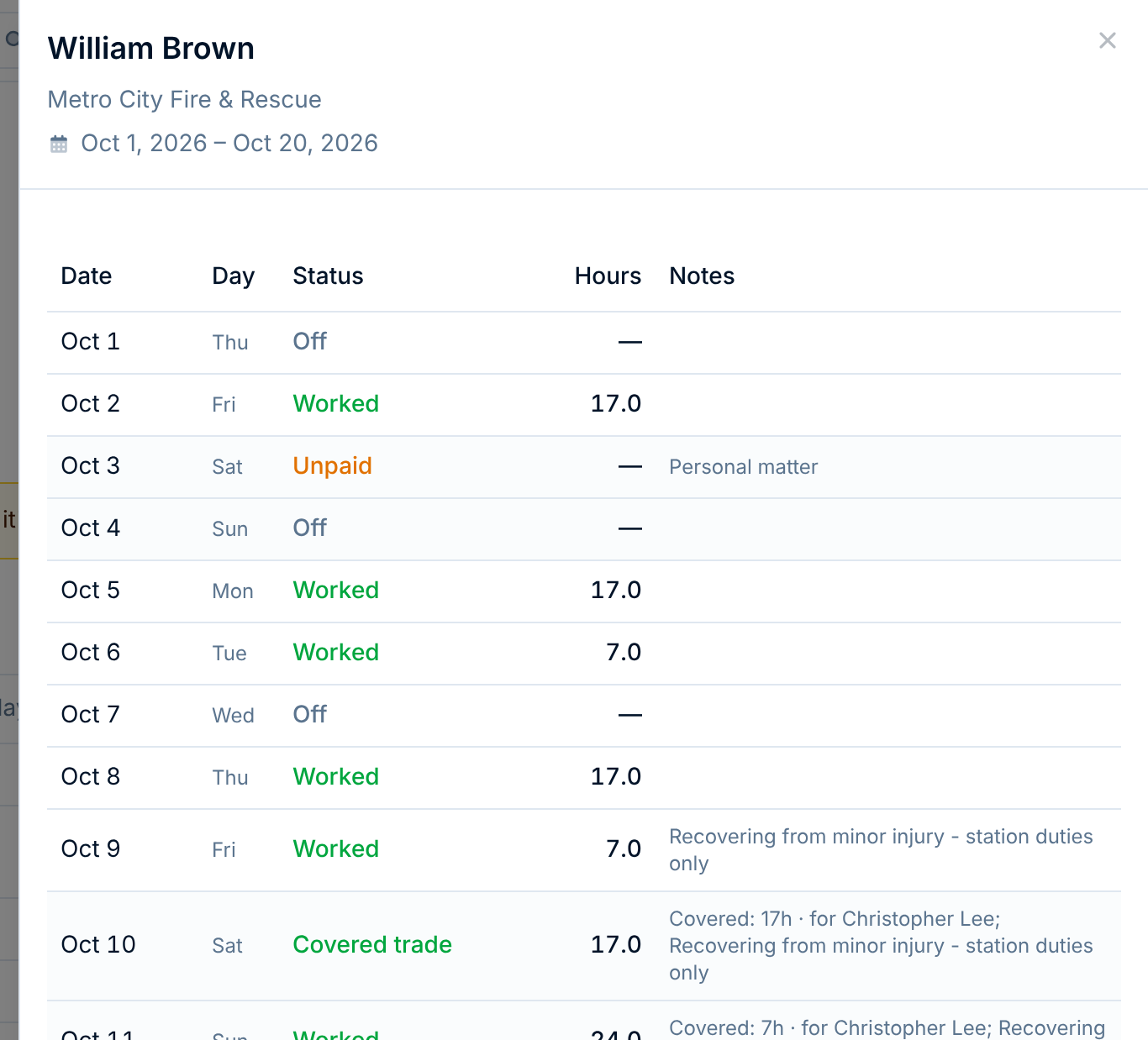
Click any member's name and their timesheet slides in from the side. It shows every day in the period:
- Status — Worked, Scheduled, Covered trade, Traded away, Overtime, Scheduled Shift, Training, a time-off type, a duty crew's name, or Off;
- Hours — the hours paid that day;
- Notes — trades, overtime and holiday flags, and the notes entered on schedule exceptions.
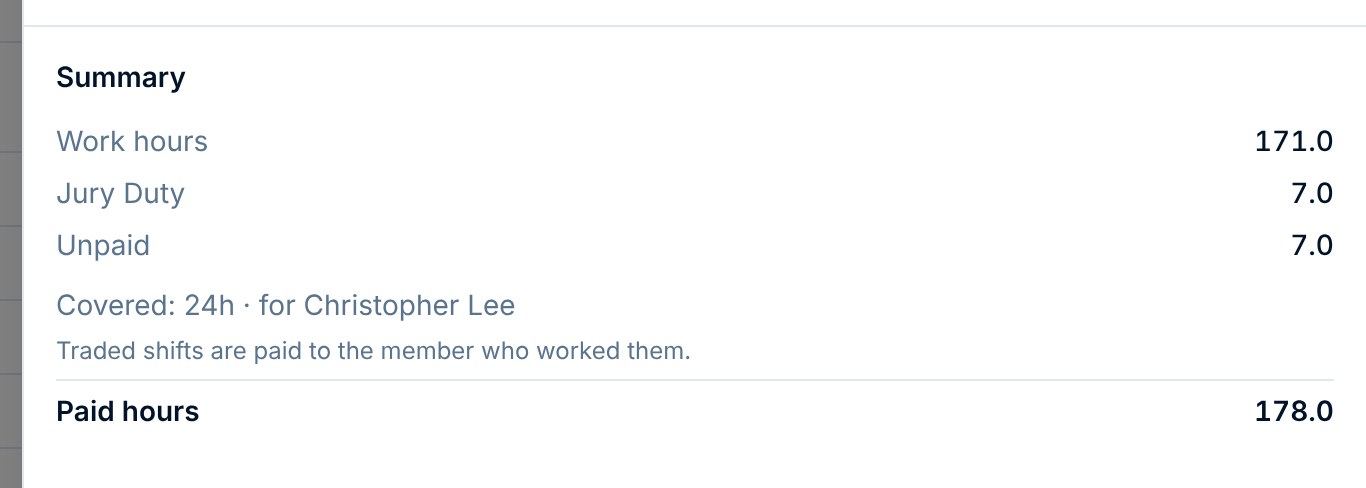
The summary at the bottom lists the member's hours by type, their trades, and their Paid hours. It always matches their line on the report. Print gives a paper copy for a member to sign.
Use it when a member questions their total, when an officer is spot-checking numbers, or when you're reconciling against a sign-in sheet. The timesheet is also the fastest way to catch a missing exception — if a sick day wasn't entered, the day shows as "Scheduled" with no hours, and the total comes up short.
Exporting to CSV
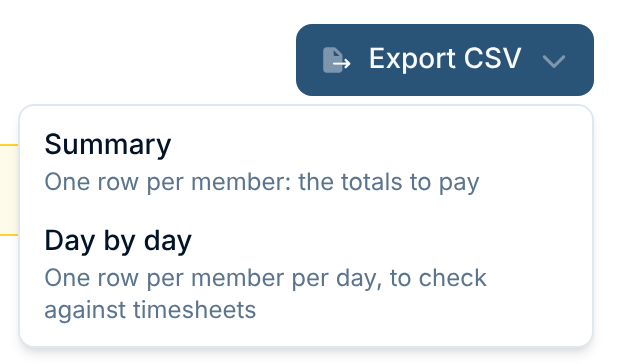
The Export CSV button (top-right) offers two files:
- Summary — one row per member: the totals to pay. This is the file for your payroll processor.
- Day by day — one row per member per day, to check against timesheets or sign-in sheets.
Both drop straight into most payroll processors and spreadsheets:
- UTF-8 with a byte-order mark — opens cleanly in Excel, Google Sheets, and every payroll importer we've tested.
- An
employee_idcolumn — the member's ID in Command Established, so an import can match rows to people even when two members share a name. - The summary's columns, in order: work hours, each time-off type with a column, overtime, scheduled shift and training hours, then any duty crews, then
total_hours(the paid hours). - Duty crew columns — when any crew is on payroll, an hours and a shifts column for each crew, named after it (
duty_weekend_crew_hours,duty_weekend_crew_shifts), thenduty_hoursandduty_shiftsfor all crews together. Every crew on payroll gets its columns, even in a period nobody worked it. Renaming a crew renames its columns, so update your import mapping if you do. - Trade and pay-rule columns, always last so an import set up before they existed still lines up:
traded_away_hours,trade_covered_hours,trade_notes,over_threshold_hours(over the overtime limit),holiday_hours, andother_time_off_hours. They're in every export, as zeros when they don't apply. - Filename includes the date range —
payroll_2026-04-01_2026-04-14.csv, so multiple exports don't overwrite each other in your downloads folder.
Hand the file to whoever runs payroll — your bookkeeper, your treasurer, or your service (ADP, Paychex, Gusto, your municipal finance office). The column layout is stable across runs, so a saved import mapping keeps working from one pay period to the next.
The pattern most departments settle into: pick the pay period that just ended, clear any requests still waiting for approval, glance at the totals, click any name whose number looks off to review their timesheet, and export the summary. Ninety seconds from page load to a file headed out the door.