
Personnel Rotation Scheduling: Each Member's Own Hours
Use personnel rotation scheduling when each member has their own repeating hours. It is useful for EMS services with different patterns for each employee, part-time personnel, alternating weekly schedules, and members who regularly work different units on different days.
In the app, this is Own rotation. You draw the person's shifts directly on their schedule; you do not need to create a shared shift pattern or a platoon for them. The rotation belongs to that person, so changing it does not change anyone else's hours. Your department can use individual rotations for everyone; its calendar and day roster work without platoons.
If a whole crew shares the same rotation, use Platoon Scheduling. For available shifts that members claim or request and officers assign, use Duty Crews. For occasional coverage with no repeating hours, add a Scheduled Shift. Start with the scheduling overview if you are choosing between them.
Before you start: An Admin or Owner sets up regular schedules. Your department needs the Scheduling module enabled and the member, stations, and apparatus already added. Shift times use the department's timezone.
Find the person and set their schedule
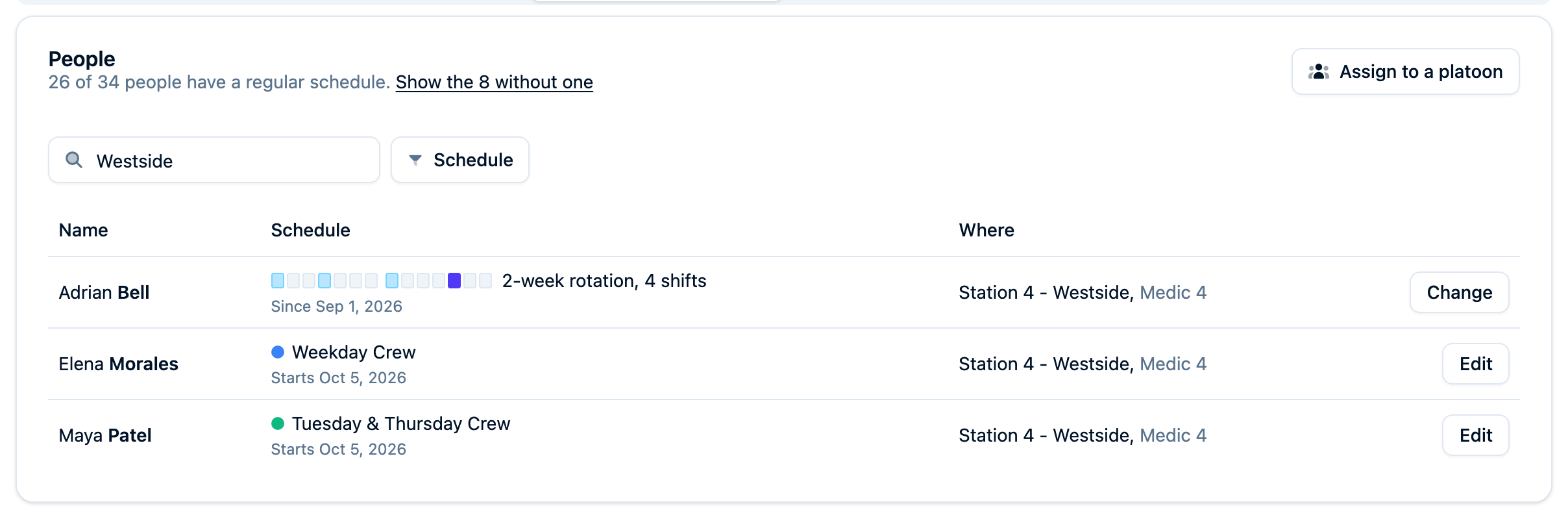
Open Schedule → Settings → People. Search for the member, or use the Schedule column filter to find people with No schedule. The same filter can show people with Own rotation or on a particular platoon.
Choose Set schedule on the person's row. You can also open their personnel profile, select Schedule, and choose Set schedule under Regular schedule.
Set Starts to the first date these hours apply. Choose Own rotation under Works if that choice is shown; departments without platoons open directly into the rotation editor.
Draw the repeating hours
The grid has one row per day in the rotation, with 24 hours across each row. Blank time is off duty.
- Set Repeats every to the number of days in the cycle, from 1 to 42. The 1 week, 2 weeks, 3 weeks, and 4 weeks buttons set common lengths.
- Check the field beside it that says the start date is day of the cycle. Use 1 when the schedule begins with the first day of the rotation. Use another day when the member joins a rotation already in progress.
- Drag across a row to add a shift. Dragging snaps to 15 minutes. A tap on blank time adds a 12-hour shift; Add shift also adds a shift you can adjust.
- Select a shift to set its exact Day, start time, and length in hours. You can also drag its ends to resize it. Use Delete shift to remove it.
- Check the dated rows and hours summary beneath the grid before saving.
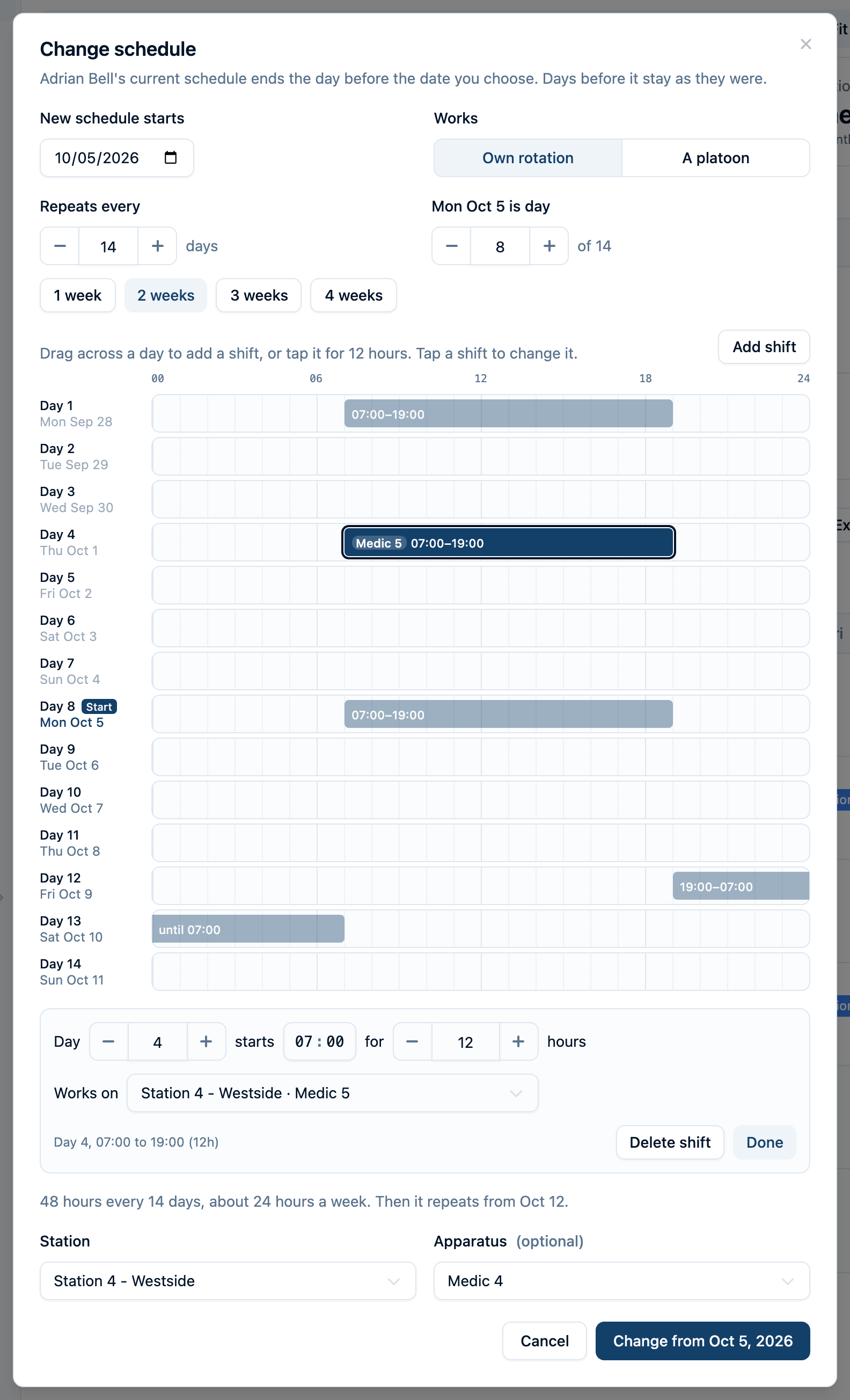
For example, Adrian's 14-day cycle has daytime shifts on the first Monday and Thursday and the following Monday, plus a Friday overnight in the second week. With the first Monday as day 1, add 7 a.m.–7 p.m. shifts on days 1, 4, and 8, then a 7 p.m.–7 a.m. overnight starting on day 12. After day 14, the same sequence repeats. Use the actual hours agreed for your member.
Overnight shifts can continue into the next row. A shift at the end of a cycle can continue into the next cycle. Overlapping shifts merge into one, so check the resulting times after an edit. A rotation supports up to 20 shifts, with each shift between 1 and 72 hours and no longer than the cycle itself.
Choose where the person works
Set the schedule's Station and, optionally, Apparatus below the grid. These are the default locations for its shifts. For an ambulance assignment, choose the ambulance under Apparatus so the person counts toward that unit's crew.
When a particular shift regularly works somewhere else, select its bar and change Works on. Choose a different station or apparatus for that shift. In the example, Adrian works most shifts on Medic 4 and the day 4 Thursday shift on Medic 5, without a second regular schedule.
Leave Works on at As scheduled for shifts that should follow the schedule's default station and apparatus. A shift with its own location keeps that selection, so review these overrides when changing the person's home station or unit.
Choose Save schedule, then check the member's Schedule tab and the department's day roster. The calendar and staffing checks place the member at the selected location for each shift.
Change future hours and keep the history
Use Change on the member's People row, or Change schedule on their profile, when their regular hours, station, or unit change from a particular date.
- Set New schedule starts to the first date of the new arrangement.
- Adjust the rotation and locations, or choose A platoon if the member is joining a shared crew.
- Check which cycle day the new start date represents.
- Save using Change from followed by the selected date.
The previous schedule ends the day before the new one starts. Earlier calendar dates and payroll keep the earlier schedule. The member's Regular schedule section shows Current, Upcoming, and Ended periods so you can review the change.
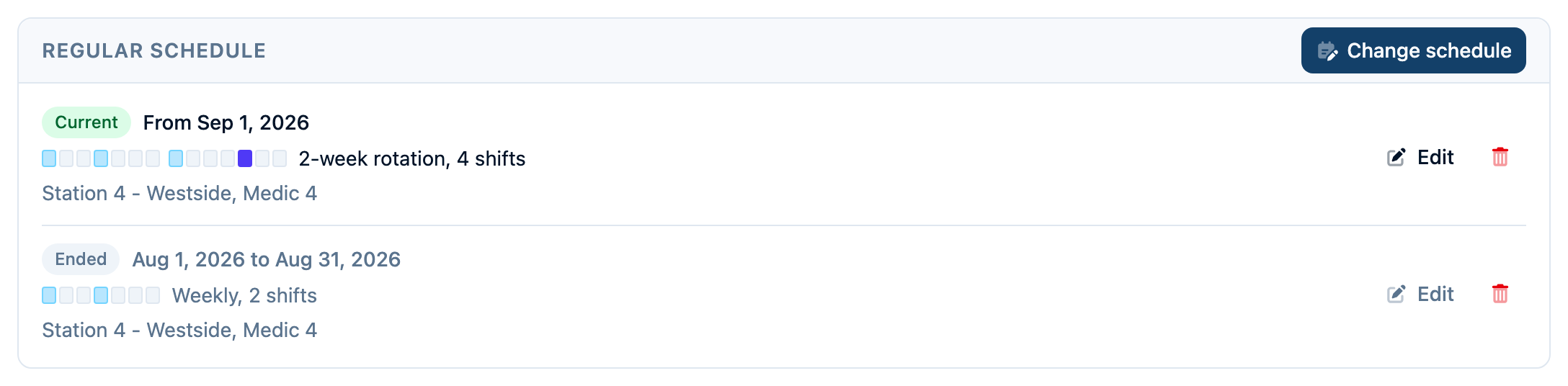
If an end date was already set, it carries over to the replacement schedule. Review it on the saved period and use Edit if the new arrangement should end on a different date or continue indefinitely.
Edit changes a period in place. Use it to correct a mistake or enter Ends when someone stops working that schedule without a replacement. Editing a period that has already started also changes past calendar dates and payroll. Removing a period removes its historical shifts too; set an end date when you want to retain the earlier days.
Handle one-off changes and check coverage
Keep repeating hours in the rotation. Put vacation, sick time, callbacks, trades, and temporary reassignments in Schedule → Exceptions. An approved exception changes the affected dates without redrawing the ongoing rotation.
Personnel rotations appear alongside platoon schedules in the same calendar, daily roster, staffing checks, and payroll reports. Set station or apparatus minimums under Settings → Staffing to find gaps. Staffing counts people working at the same time: a morning shift and an evening shift do not form a two-person crew together.
See the scheduling overview for shared calendar and exception workflows, or weekly crews and per diem coverage for filling a vacant seat and adding an extra unit for a detail.