
Shift Trades: Offer a Shift and Take a Colleague's
Can't make a shift? Post it, and let a colleague who's free take it. You don't have to find a partner first or text the whole crew. Everyone you offer it to is told, and the first person to take it works it. An officer approves the trade before it goes on the schedule, unless your department approves trades automatically.
This guide covers:
- For members: Offer a shift, manage your offers, and take a colleague's shift
- For officers: Review and approve trades, manage open offers, and approve trades automatically
How a shift trade works
- A member offers one of their upcoming shifts. It can go to everyone, or only to specific people.
- A colleague takes it. The first person to choose Take this shift and confirm gets it. The offer closes for everyone else.
- An officer approves it. Then the trade is on the schedule. If your department turns on automatic approval, this step is skipped.
Shift trades live on the Pick up tab of the Schedule page, next to open seats an officer needs filled. The number on the tab counts the open seats you can request and the open offers made to you.
Two kinds of trade
What happens to the hours depends on the shift being offered:
| You offer | When it's approved |
|---|---|
| A regular shift from your rotation or platoon | The taker covers it as a Shift Trade. The shift stays part of your regular schedule; the taker works it in your place. Who is paid for it depends on your department's pay rules. |
| A one-off Overtime or Scheduled Shift | It's a handover. The shift becomes the taker's own overtime or scheduled shift, and its hours count for them, not you. It comes off your schedule. |
Callbacks can't be offered.
For members
You need an account linked to your personnel record to offer or take shifts. Without one, you can see offered shifts but not act on them. Ask an admin to link your account.
Offer a shift
You can start an offer from either of two places:
- Schedule › Pick up: choose Offer a shift.
- The schedule calendar: select one of your own upcoming shifts, then choose Offer for trade. The offer opens with that shift already chosen.
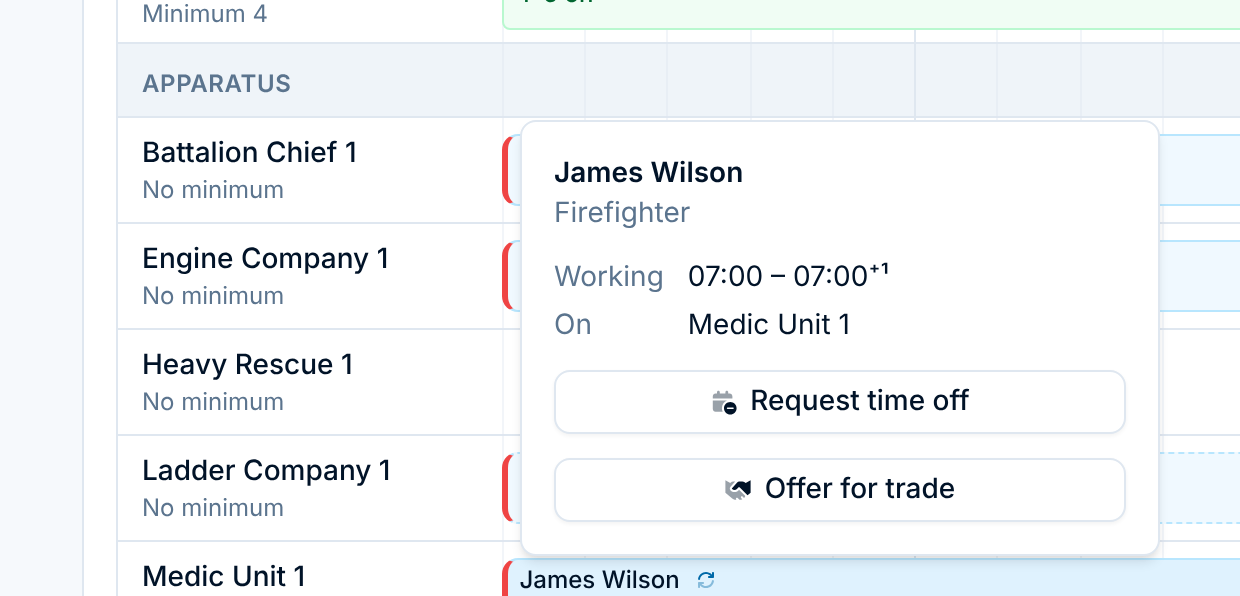
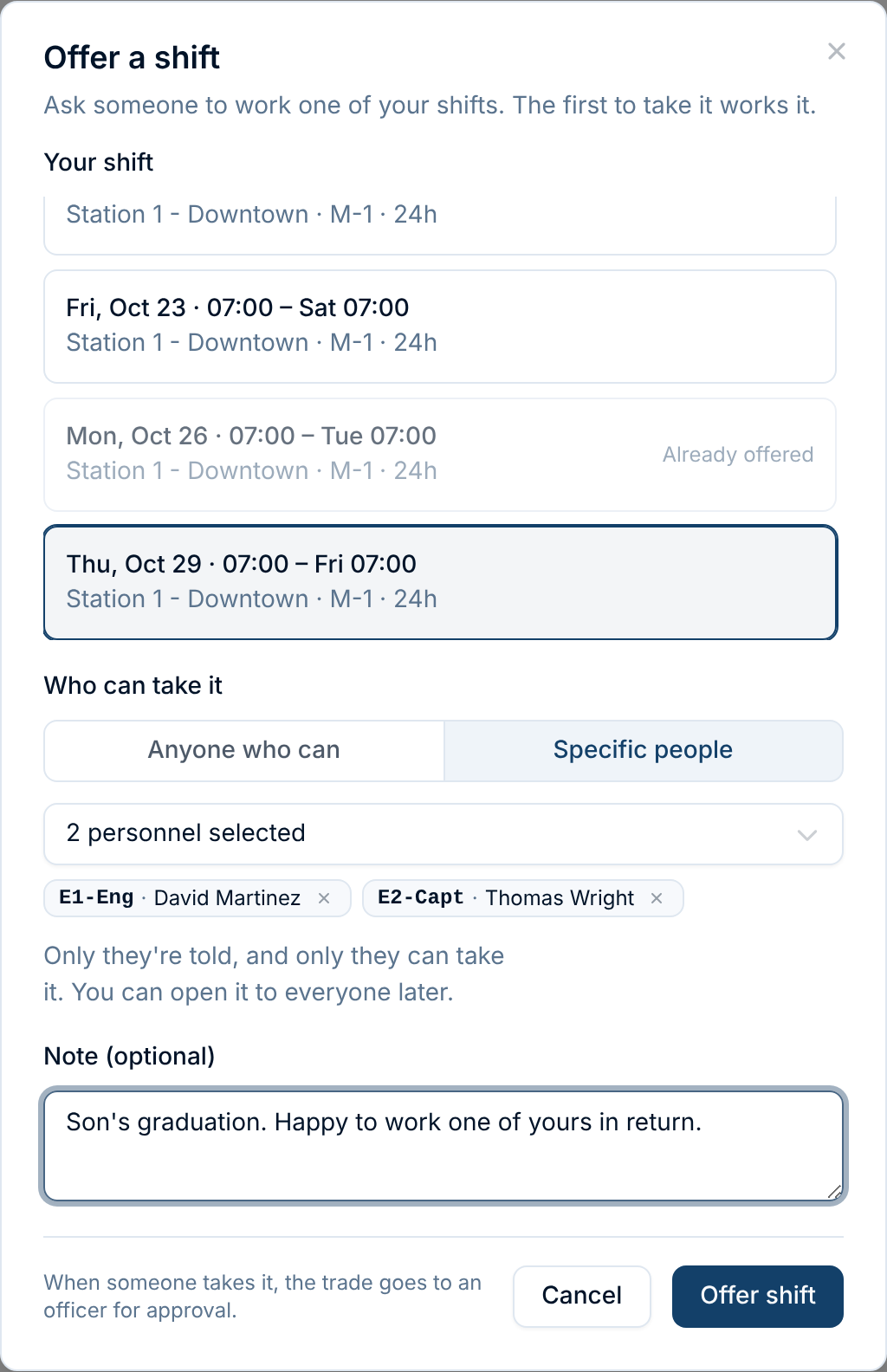
Then fill in the offer:
- Your shift. Choose one of your shifts from the next two months. Shifts you've already offered are greyed out and marked Already offered.
- Who can take it.
- Anyone who can: every active member with an account is told, and anyone free to work it can take it.
- Specific people: choose up to 20 people. Only they're told, and only they can take it. Use this when you've already talked to someone, or when the shift calls for particular qualifications.
- Note (optional). Say why, or offer something in return, like "Happy to work one of yours." Everyone who sees the offer sees the note.
- Choose Offer shift.
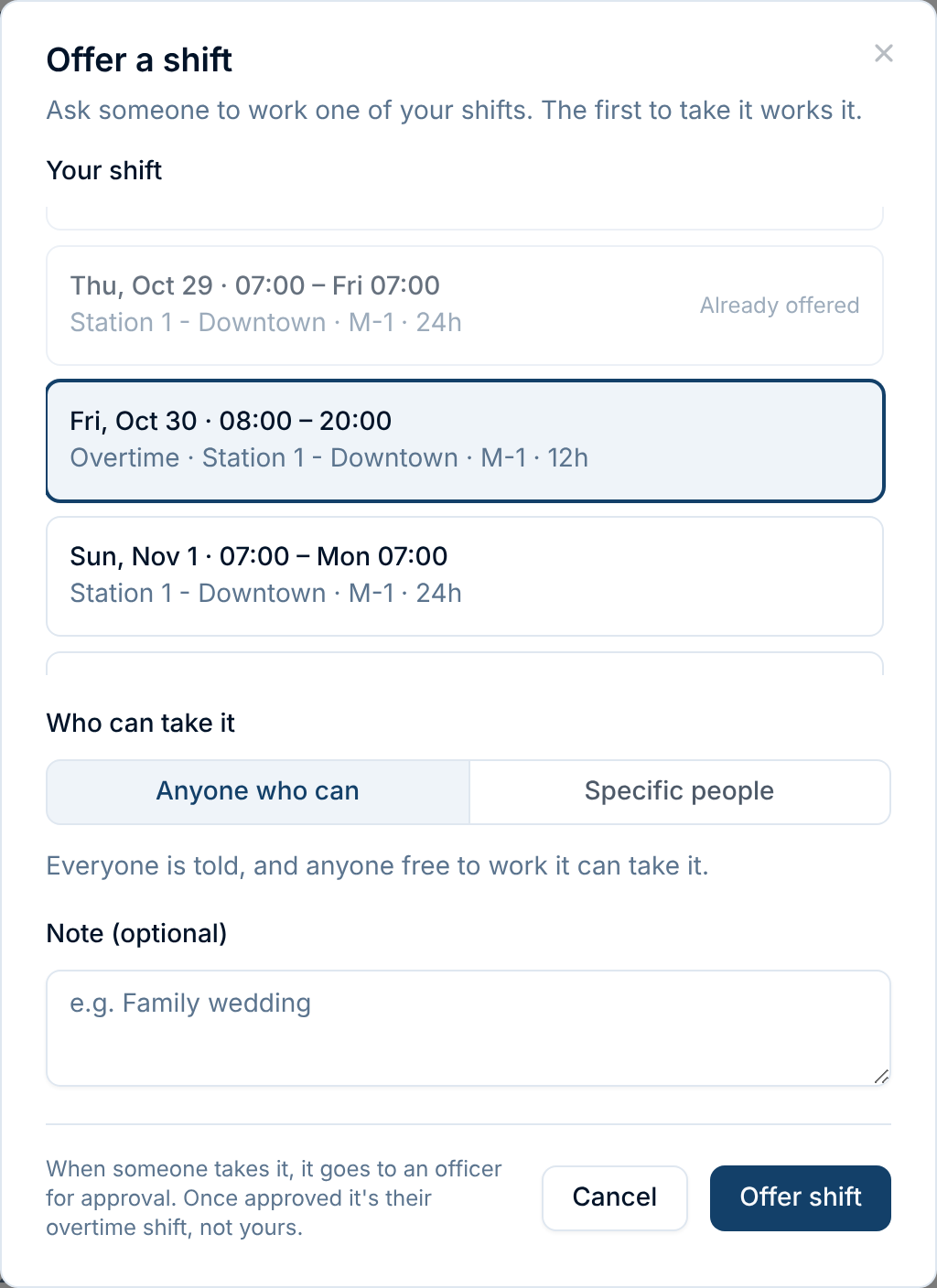
Your overtime and scheduled shifts are listed too, labeled with their type. When you pick one, the dialog reminds you that it's a handover: once it's approved, the shift is the taker's, not yours.
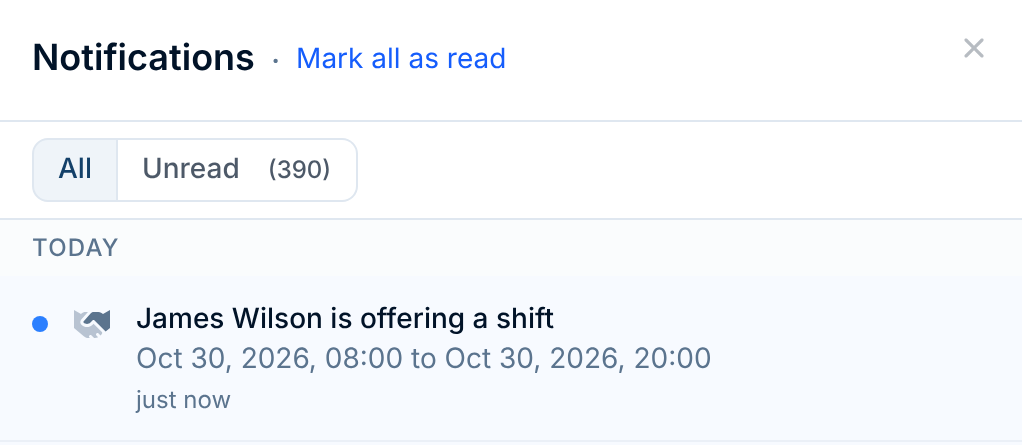
The people you offered it to get a notification right away:
A few limits keep the board useful:
- The shift must not have started yet, and can be at most about six months ahead.
- You can't offer the same hours twice while an offer for them is still open.
- You can post up to 20 offers a day.
Manage your offers
Your offers are pinned in Your offers at the top of Schedule › Pick up. On a phone the group starts folded; tap it to open it. Each offer says who it's offered to, or who took it and where the trade stands.

While an offer is open, you can:
- Change who can take it: add or remove people, or open it to everyone. Anyone newly added is told about it. Nobody is told about the same offer twice, however often you change it.
- Withdraw offer to take it down. You keep the shift.
Once someone takes the offer, it can't be changed or withdrawn. You're notified who's covering it, and the row shows where it stands:
- Awaiting approval: an officer hasn't reviewed it yet. Until it's approved, you're still on the schedule for that shift.
- Traded: approved. The taker works it.
- Denied or Called off: the trade didn't happen, and the shift is still yours. The exception is an overtime or scheduled shift whose handover was approved and then cancelled: it's already off your schedule, and cancelling doesn't put it back. The row tells you to check the schedule.
An open offer that nobody takes before the shift starts shows as Expired. The shift was never traded, so it's still yours to work.
Until a trade is approved, you're still responsible for the shift. Check Your offers before you plan to be elsewhere.
Take a colleague's shift
Offered shifts appear in Schedule › Pick up, grouped by day, alongside open seats. They're marked Trade and show whose shift it is, where, and any note. You only see offers made to you: offers to everyone, and offers that name you.
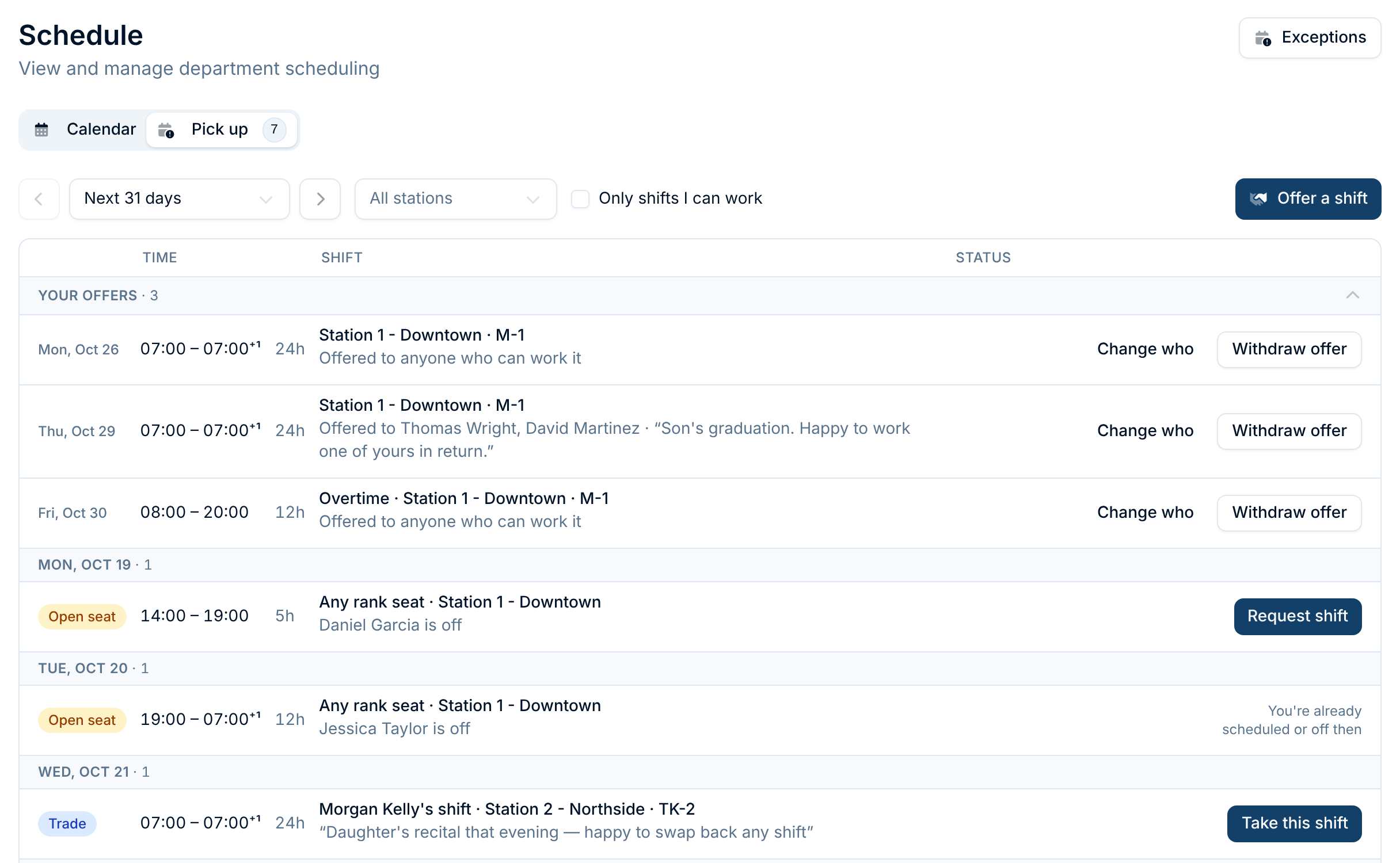
To take one:
- Choose Take this shift.
- Check the confirmation. It shows the hours you'd work, and for an overtime or scheduled shift, that it becomes yours.
- Choose Take shift.
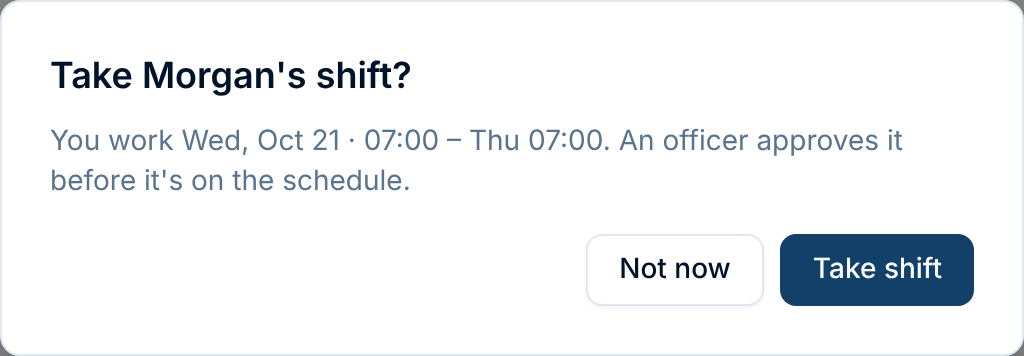
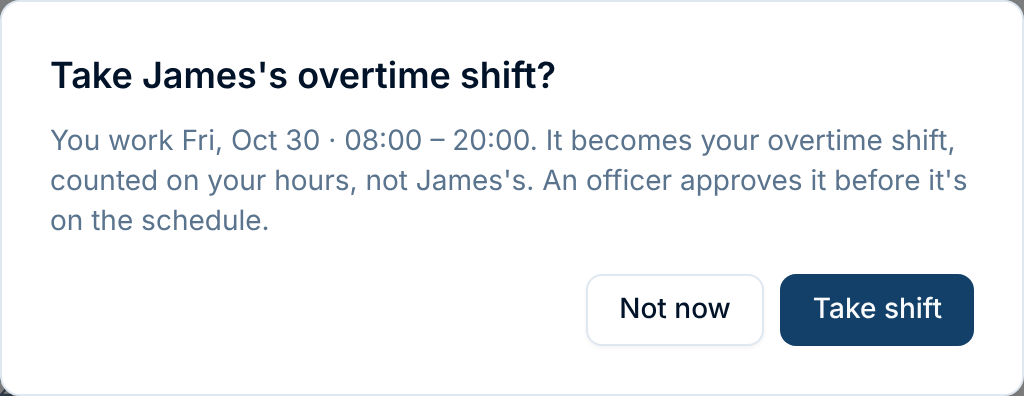
The offer closes for everyone else, and the row shows where your trade stands:

Once it's approved, the row says it's on the schedule. If an officer denies it, your schedule doesn't change.
Why can't I take a shift? If you're already working, off, or covering another shift during those hours, the row says so instead of offering the button. Taking a pending trade counts too: you can't take two offers for the same hours. Tick Only shifts I can work to hide everything you can't take.
Someone else got it first. Only one person can take an offer. If a colleague takes it a moment before you, you'll see "Someone else already took this shift."
For officers
Who can do what:
| To | You need |
|---|---|
| Approve or deny trades | Schedule Request Review, or Admin or Owner |
| See and withdraw everyone's open offers | Staffing Officer, or Admin or Owner |
| Turn automatic approval on or off | Schedule Builder, or Admin or Owner |
See Understanding Permissions & Groups to grant these. As with time off, a reviewer can't approve a trade they're part of. If they offered the shift or took it, another reviewer approves it.
Review and approve trades
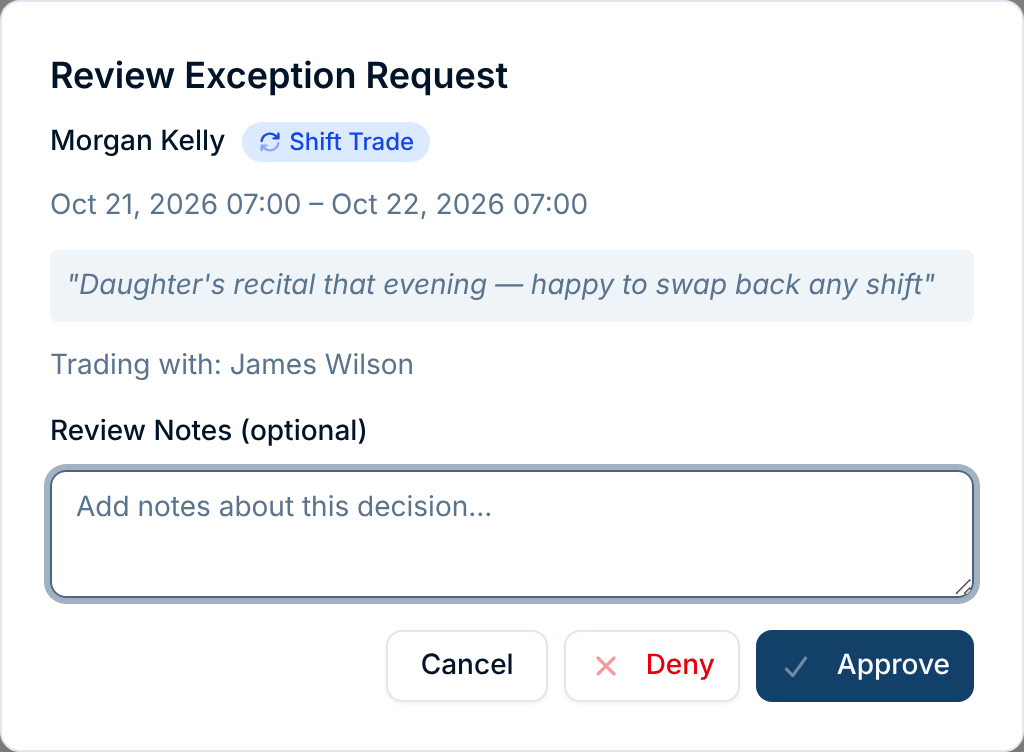
When someone takes an offer, reviewers are notified. Trades wait in Schedule › Exceptions › Pending, alongside time off and open-seat requests:
- A regular shift trade is listed under the name of the member who offered it, as a Shift Trade. Open it to see who's covering it under Trading with.
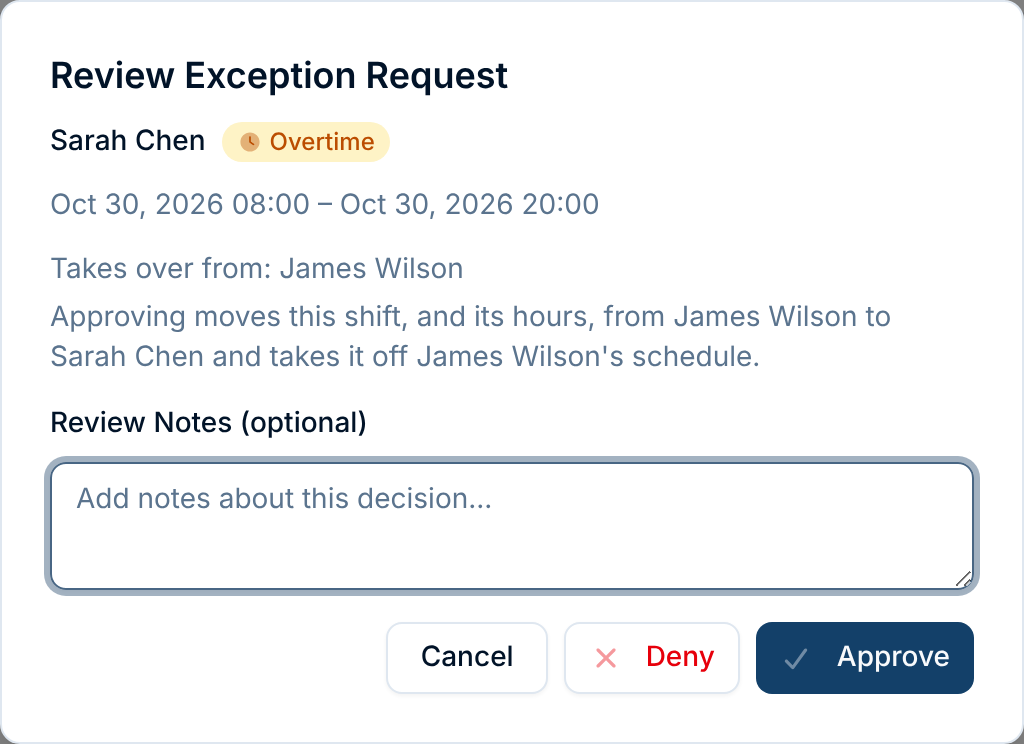
- A handover of an overtime or scheduled shift is listed under the member taking it, with the type of shift, and Takes over from the member who offered it.
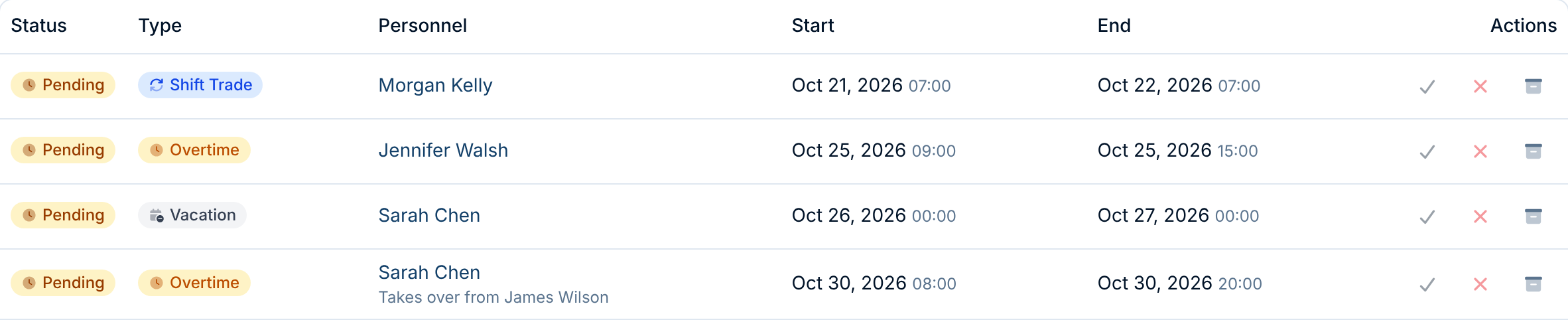
Choose Review to see the details, add review notes if you like, then Approve or Deny.
For a handover, the dialog spells out what approving does: the shift and its hours move from one member to the other, and the shift comes off the original member's schedule.
Approving checks the schedule as it stands now, not as it stood when the shift was taken. If the member who offered it no longer holds those hours, or the member taking it has since been scheduled, gone on leave, or asked for another shift at the same time, the trade can't be approved. You're asked to deny it instead. For a handover, the original shift also has to be unchanged.
Denying leaves everything as it was: the member who offered the shift still works it.
Once approved, a trade or handover is an ordinary schedule entry. A Staffing Officer, Admin, or Owner can edit or cancel it like any other exception, and the activity log records the change. One caution: cancelling an approved handover doesn't give the shift back to the member who offered it. After a handover, the original shift is gone, so cancelling leaves nobody on it. Check the schedule and fill the shift if you need to.
Manage open offers
Staffing Officers, Admins, and Owners see every open offer in Schedule › Pick up, including ones not made to them. Each row says Open to anyone or who it's offered to. Choose Withdraw offer to take one down, for example if the member is moving to another station or the shift is changing. The member keeps the shift.

An offer is not on the schedule. Staffing counts, open seats, and the review queue ignore it until someone takes it.
Approve trades automatically
By default, an officer approves every trade. If your department lets members arrange trades between themselves, turn on automatic approval:
- Go to Schedule › Settings and open the General tab. Admins can also find this under Settings › Schedules.
- Under Shift Trades, turn on Approve trades automatically.

With it on, a trade goes on the schedule as soon as someone takes it, and members are told so before they offer or take a shift. Handovers get the same schedule checks an officer's approval would. If a handover fails them, it waits in Pending for an officer.
Common questions
Does a trade change who gets paid? For a regular shift trade, your department decides, under Traded shifts in its pay rules. The hours go either to the member the rotation scheduled, who settles up with the taker, or to the member who works the shift. Either way, the payroll report shows the trade on both members' lines. A handover always moves the overtime or scheduled shift, with its hours, to the member who takes it.
Can I trade part of a shift? Not yet. An offer covers the whole shift you choose. For part of a shift, ask an officer to enter a trade in Schedule › Exceptions.
Can I swap shifts with someone, one for one? Offer your shift to that person by name, and they can offer one of theirs to you. Each offer is taken and approved on its own.
What if nobody takes my shift? It stays yours. The offer shows as Expired once the shift starts. If you can't work it, request time off instead.
I took a shift by mistake. Can I undo it? Ask an officer. They can deny a pending trade, or cancel an approved one.