
From a Failed Fire Inspection to a Verified Correction
The inspector finds pallets in an exit corridor. They document the obstruction and explain the correction to the property manager. Back at the office, someone still needs to issue the notice, contact the right person, schedule another visit, and preserve a clear record of what happened.
A useful fire inspection workflow connects those steps. It should answer three questions at any point: What did we find? What needs to happen next? Where is the record?
Follow Pacific Rim Shopping Center, a fictional occupancy in our Metro City demo. The names and documents are examples; use your jurisdiction's adopted requirements and department policy for inspection frequency, citations, and deadlines.
1. Start With the Right Occupancy
Before a visit, check the location's history, contacts, pre-plan, and open work. An address alone may not identify the business you intend to inspect: a shopping center can contain several occupancies, each with different contacts and inspection history.
In this example, the annual common-area inspection belongs to Pacific Rim Shopping Center. Property manager David Park is the contact for the shared service corridor. Reviewing that context first helps the inspector bring the right checklist and reach the person responsible for access and corrections.

In Command Established, Places brings this context together and lets an inspector start or schedule a visit with the location already selected.
2. Record the Condition So Someone Else Can Find It
During the walkthrough, the inspector finds two stacks of delivery pallets narrowing the rear exit corridor outside Suites 10–12. A useful finding identifies the condition and the specific location. It also records its severity, supporting evidence, and whether the problem was corrected during the visit.
“Blocked exit” gives the next inspector little to work with. “Two stacks of delivery pallets narrow the rear exit corridor to approximately 28 inches outside Suites 10–12” gives the property manager and the follow-up inspector a condition they can locate and check.
The checklist records the answer to the egress question. The finding records the particular condition that needs attention. In Command Established, inspectors can also attach photographs to form questions and review required answers before signing.
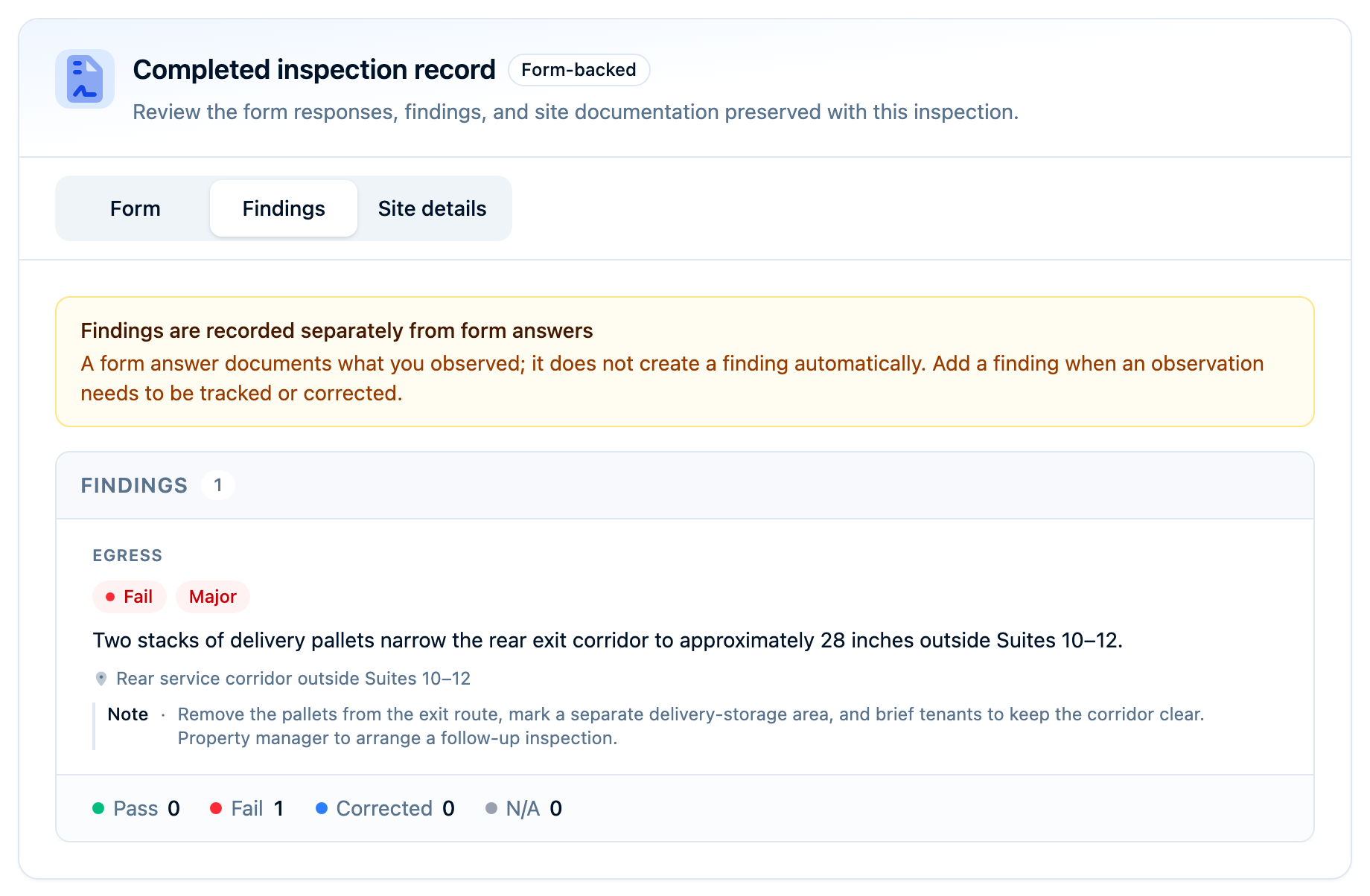
The signed inspection preserves the form version, answers, findings, and result used at completion. Publishing an updated checklist later does not rewrite the inspection that already happened. See how inspection forms and versions work.
3. Turn the Finding Into an Actionable Notice
An observation, a correction, and a deadline each do a different job. The notice should make all three easy to identify:
- Observed condition: pallets obstruct the corridor outside Suites 10–12.
- Required correction: remove the pallets, establish a separate delivery-storage area, and keep the exit route clear.
- Follow-up: identify the compliance deadline and how the property manager should arrange verification.
Use the applicable citation and wording your department has reviewed. In the demo, the notice uses a fictional Metro City code reference so it can show the workflow without presenting sample language as an adopted requirement.
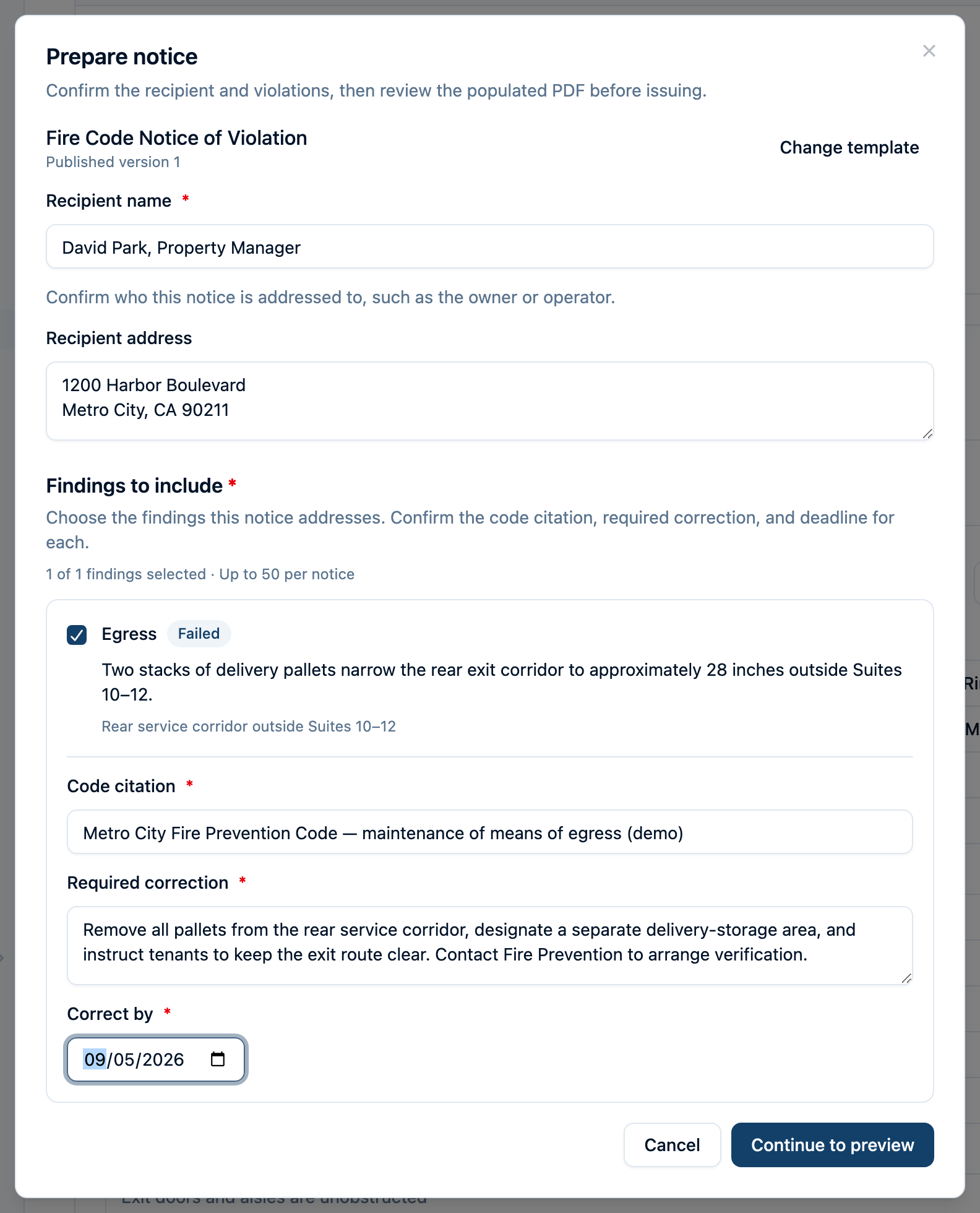
Command Established lets staff choose findings from a completed inspection, review the populated PDF, and issue a numbered document from a published template. The issued copy retains its template version. Later wording changes leave that PDF intact.
4. Give the Property Manager the Document and Context
Before sending, confirm that the recipient is responsible for this occupancy and that their contact details are current. A short covering note can explain the attachment and the next step, such as contacting Fire Prevention to arrange the follow-up visit.
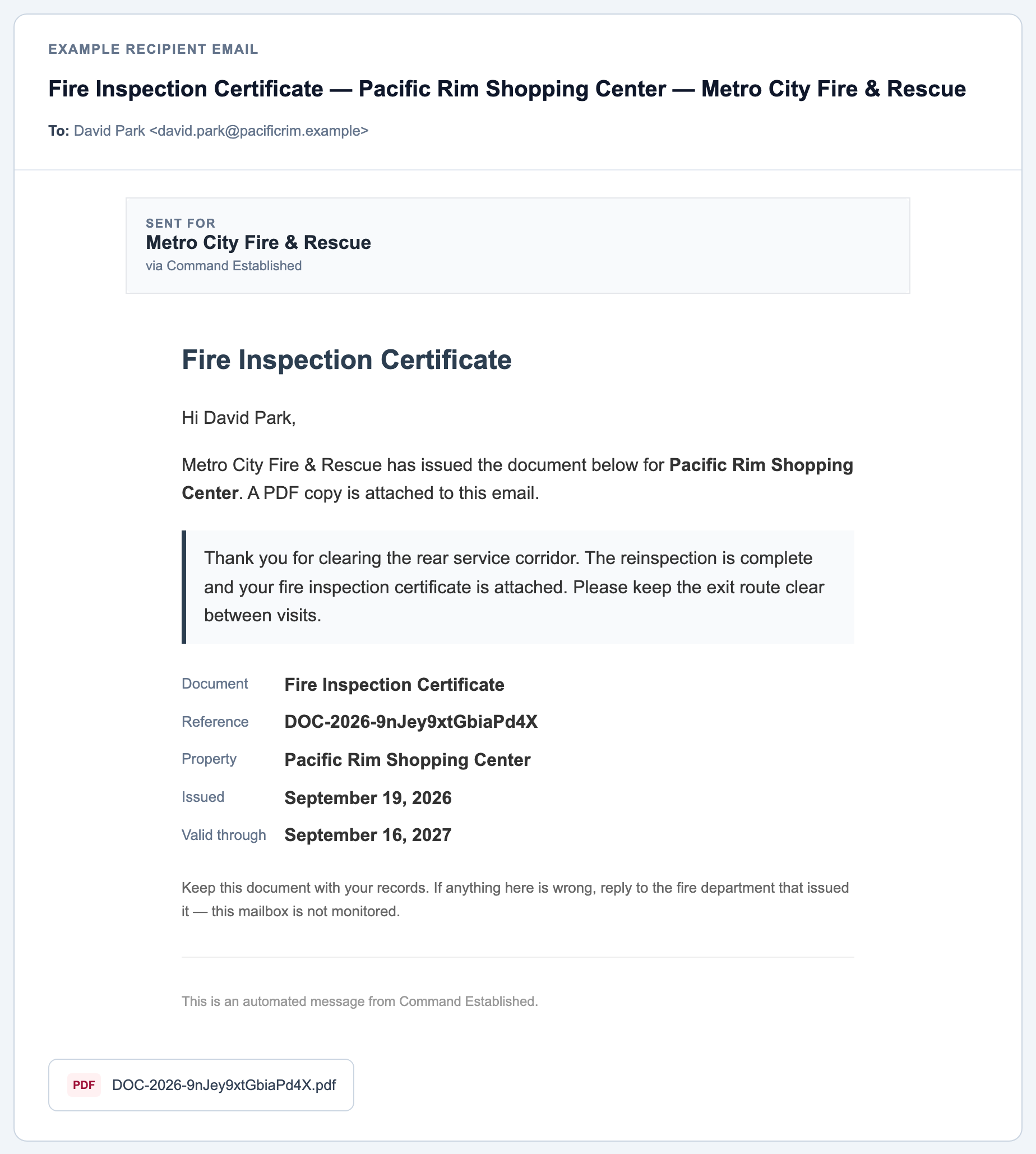
The application sends the saved PDF to each selected recipient separately. The recipient needs no account. Staff can review the send history and respond to failed or bounced messages. A delivery status records what happened to the email; it does not establish that the correction has been made.
The inspection-document guide shows the send dialog and an example recipient email, along with the steps for checking history and resending.
5. Give the Reinspection Its Own Record
Completing the first inspection records what the inspector found that day. Correcting the deficiency requires follow-up evidence. Keep the original signed failure available while documenting the later visit separately.
For Pacific Rim, the next visit checks the same corridor outside Suites 10–12 and records what the inspector actually observes. The property manager's report that the pallets were moved is useful context for scheduling; the reinspection documents the department's verification.
In Command Established, Schedule Re-inspection on a failed inspection opens a linked follow-up with the location and inspectors prefilled. Choose the next visit's date, optional time in the department's time zone, and form, complete the inspection, and sign its result. Where appropriate for your department's process, issue a certificate from that completed inspection.
This focused correction visit uses No form — record findings only. A department can instead select its published reinspection form when scheduling. The example carries the unresolved egress finding forward so the inspector can record the correction against it.
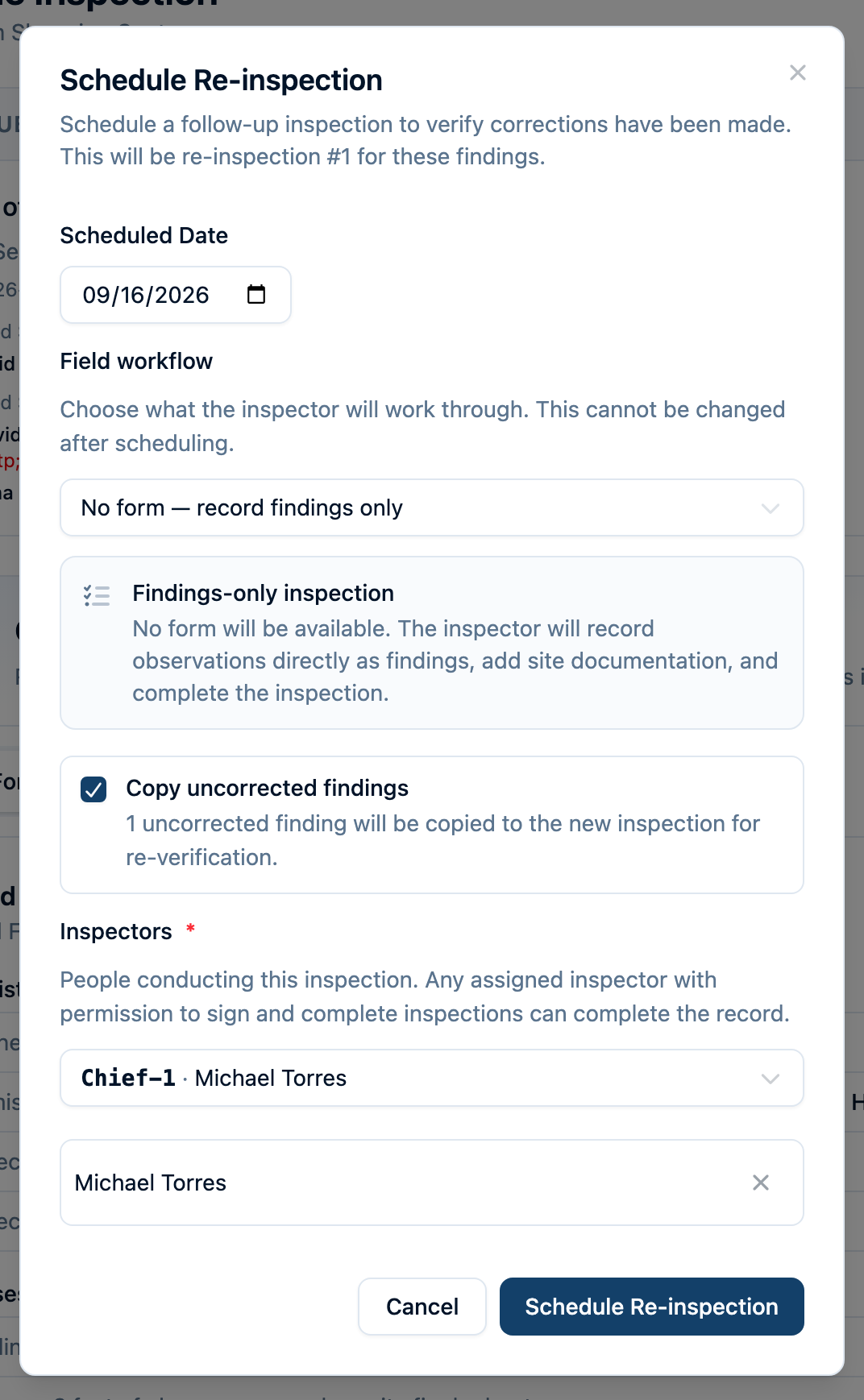
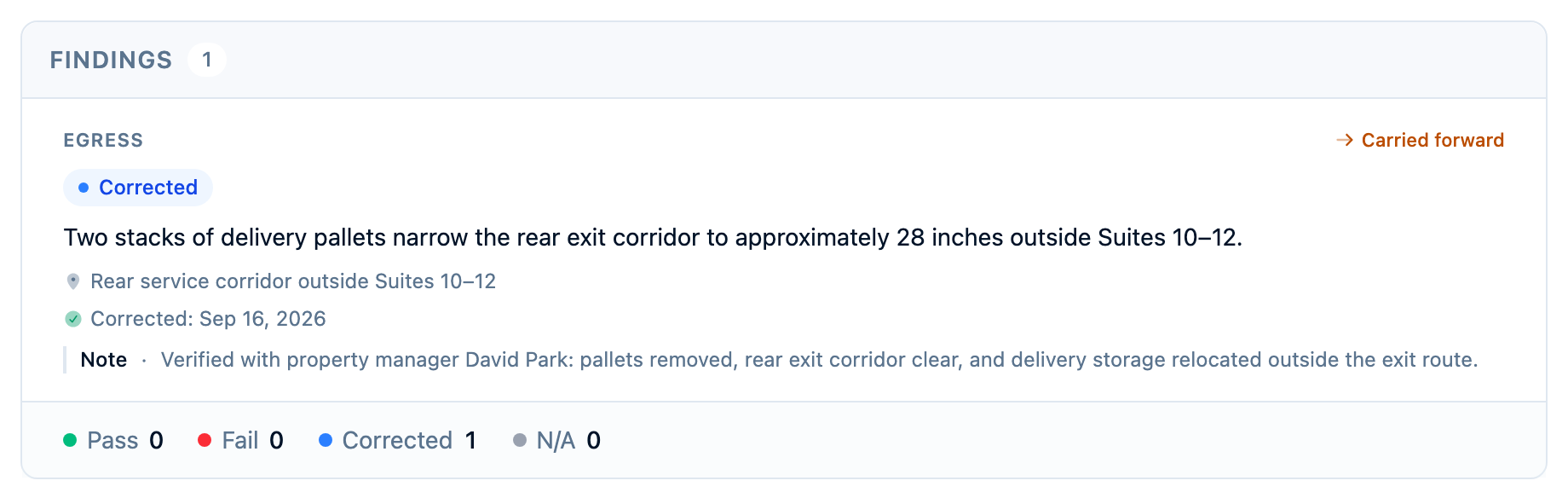
The result is a history that explains both visits: the original condition, the notice that communicated the correction, and the follow-up inspection. A later passing result does not erase the original failure.
Complete the Owner's Record
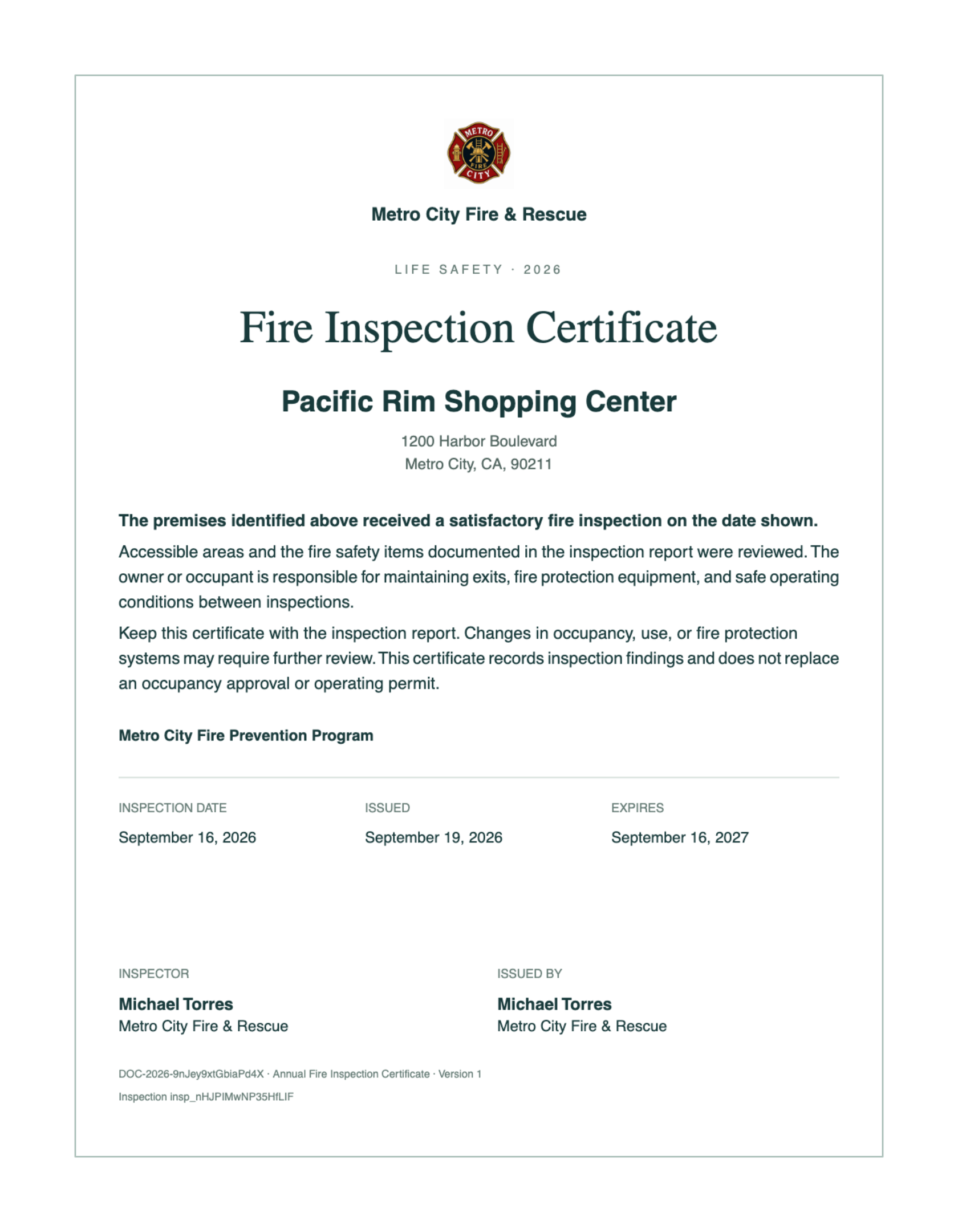
After the passing reinspection, the demo department issues its fire inspection certificate. Staff can reopen the exact PDF saved at issuance, with its document number, issue date, and expiration date.
6. Keep the Next Routine Cycle Separate From the Correction
A notice's correction deadline, the reinspection appointment, and the next routine inspection due date are separate dates. Confusing them can make an annual schedule look current while corrective work is still outstanding.
Use an inspection program for recurring work. In Command Established, a program connects a form and recurring schedule to enrolled occupancies. Its due queue helps staff schedule upcoming and overdue visits; completing a program visit advances the next routine cycle from the completion date, whether the result is passed or failed.
The inspection-program guide explains enrollment, inspector assignment, bulk scheduling, and how completion advances the schedule. Set these choices to match how your department actually operates.
Try the Whole Sequence When Evaluating Software
Bring a familiar checklist and one representative failed inspection to a demo. Follow the finding through a notice, the owner's document, and a reinspection. Open the occupancy history afterward and check that both visits are understandable. Also confirm field connectivity requirements and how your existing history will be imported.
In Command Established, saving inspection work requires a connection; offline access is read-only. Departments switching from MobileEyes can review the comparison and migration approach.
Explore fire inspection management · Schedule a workflow demo