
Inspection Forms: Build, Import & Publish
Turn your department's checklist into a form inspectors can complete during a visit. Organize the questions, add guidance and code references, and publish a version for use on new inspections. Each inspection keeps the version it started with, so later edits leave its questions and signed record intact.
For an example connecting the form to a property visit, findings, and an owner notice, see A Fire Inspection from Due Date to Follow-up.
Start with Your Checklist
Open Inspections > Forms. The catalog shows each form's published version and whether another draft is in progress.
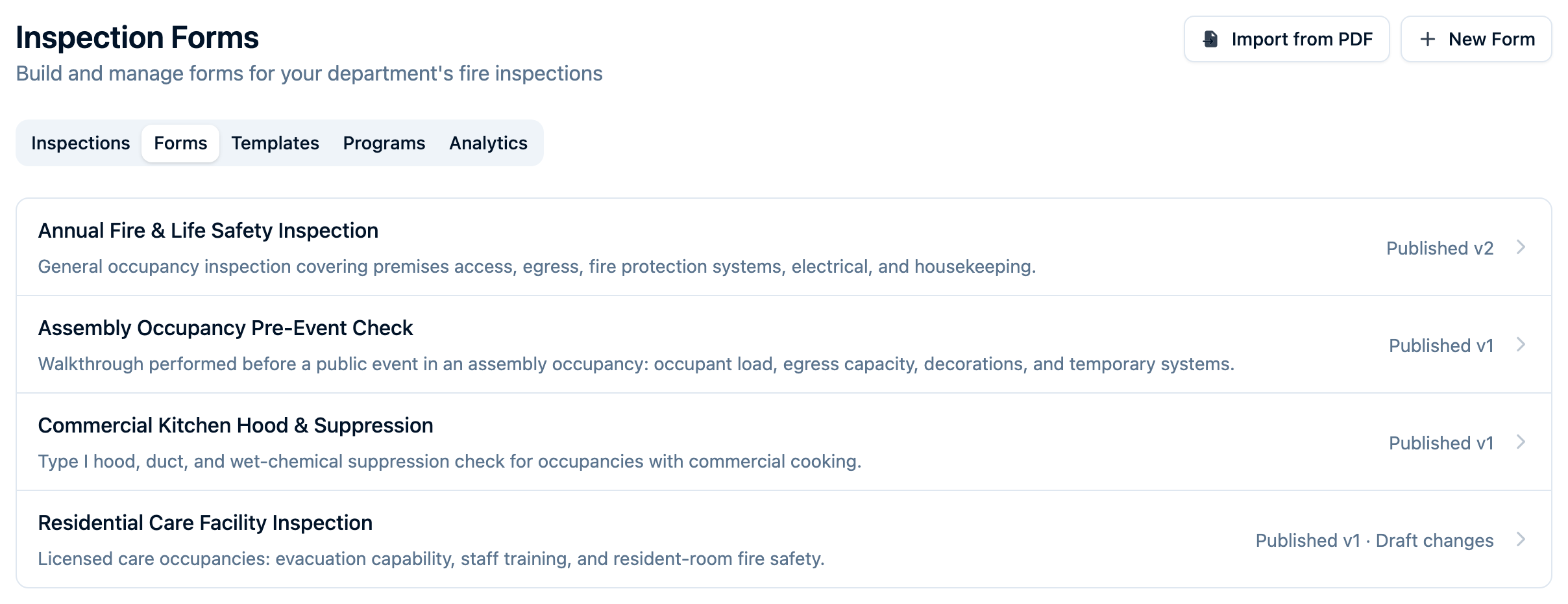
Choose either New Form to build a checklist or Import from PDF to start with an existing document. Creating and editing forms requires the relevant permissions; publishing also requires publication permission. An administrator can manage these through member or group permissions.
Build a Form
- Select New Form, enter a name and optional description, then choose Create and start building.
- Add a Form introduction if inspectors need the scope, code edition, or other instructions before beginning.
- Add sections in the order inspectors should work through the property. Use Add question for an answer and Add instruction for guidance that needs no response.
- Choose each question's answer type: Yes / No, Choose one, Choose any, Short text, Long text, Number, Date, or Photo. Mark required questions and configure the available options, units, or photo limits.
- Add question guidance and Code references where useful. Conditional questions can appear based on an earlier answer. For eligible fields, pre-fill settings bring existing record information into the worksheet.
- Select Save draft to keep your changes. Saving the draft does not publish it.
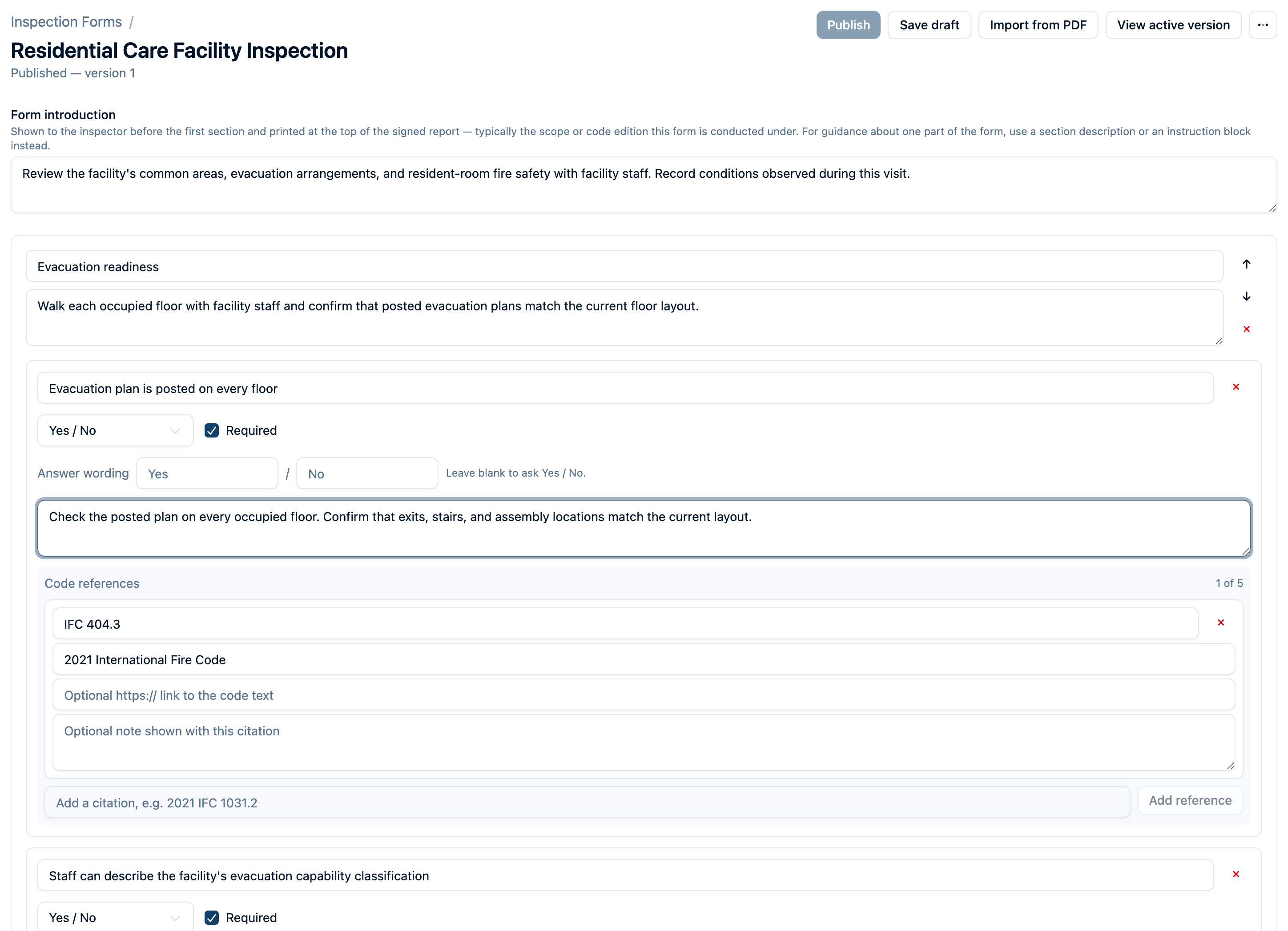
Code references are supplied by your department. Command Established does not include a licensed IFC or NFPA code library or determine which requirements apply to your jurisdiction. Review the wording, references, and permissions to use source material before publishing.
Import an Existing PDF
- Select Import from PDF in the forms catalog and upload your document. The limit is 15 MB.
- Review the proposed form name, section and question counts, code references, and items flagged for checking against the original PDF.
- Select Create form to save the proposal as a draft and open the builder.
- Compare every question with the original. Check answer choices, required items, conditional questions, guidance, and pre-fill settings. Resolve any Fix before publishing items and review Worth checking warnings.
- Save the corrected draft, then publish it when your department's review is complete.
AI extraction prepares a starting point; it does not publish the form. A PDF that contains only guidance may need questions added in the builder.
You can also import into an open draft using Import from PDF and Use this draft. This replaces the draft's existing content rather than adding to it; select Save draft to retain the replacement. On a previously published form, imported questions are treated as new questions for reporting across versions. For a small revision, edit a copy of the published form instead.
Publish the Reviewed Version
After saving the draft, select Publish. Enter What changed?, review the publication statement, and confirm that you are authorized to publish the form. Select Publish in the dialog to release the version.
The new version becomes available for inspections created from that point forward. Existing inspections retain their earlier version, including visits scheduled before the new publication. View active version and Published history let you inspect released versions.
To revise a published form, choose Edit a copy of the published form. Save and publish the replacement when ready; the existing version stays in service while you work.
Choose the Form When Creating the Inspection
Select the published form under Field workflow when scheduling or starting a new inspection. The form choice is fixed when the inspection is created: you cannot attach a form later, remove it, or replace it with another version. No form — record findings only creates a visit without a checklist.
Inspection programs handle this selection for recurring work. Each scheduled program visit uses the program's form and its current published version. A linked reinspection is new work: choose its form when scheduling that follow-up.
Inspectors complete the worksheet, attach evidence, and record findings as separate observations. Worksheet answers save while connected. Field inspection work requires an internet connection; offline access is read-only.
After completion and signing, the form and its answers become part of the retained inspection record.
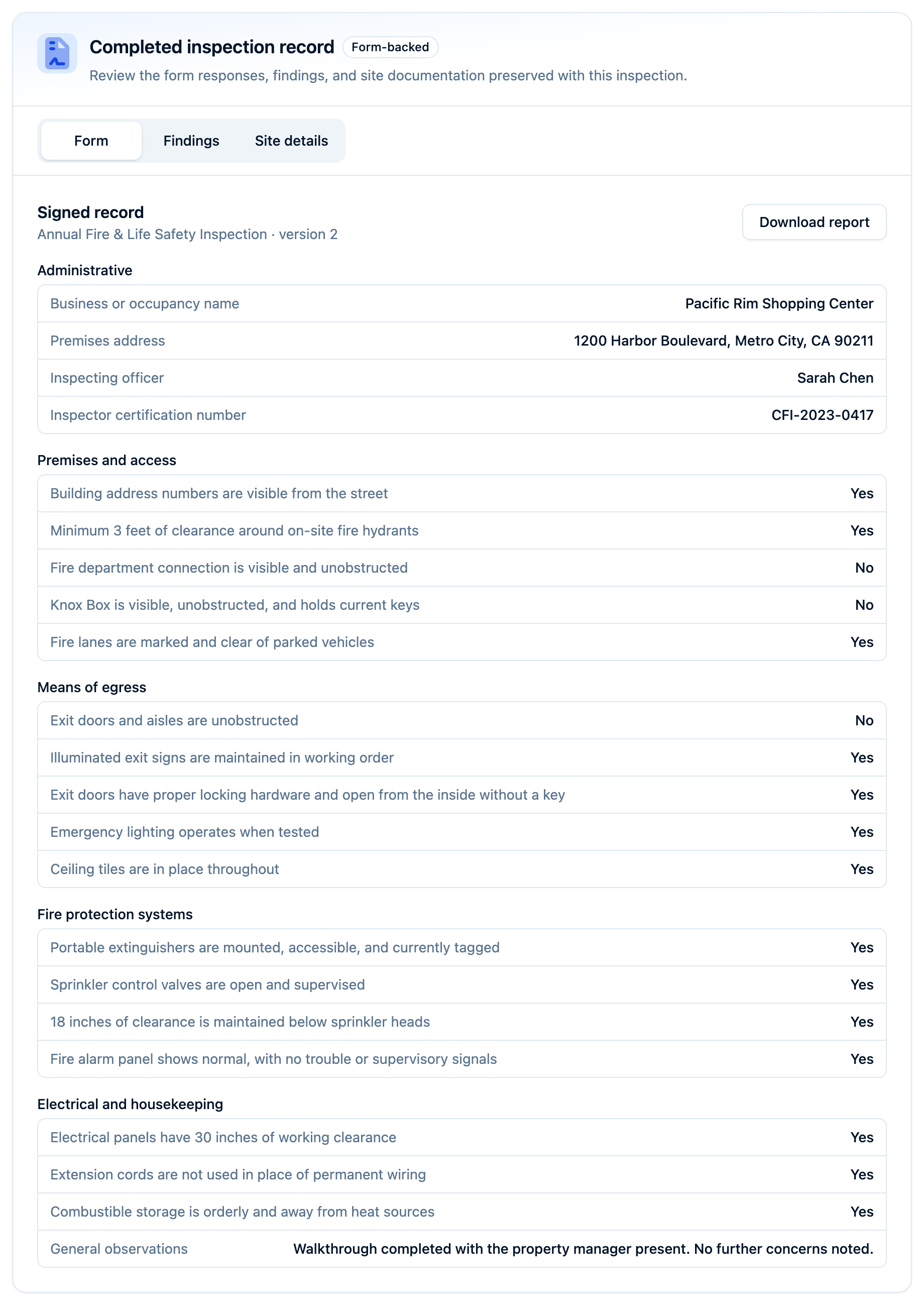
Use Inspection Documents to issue a certificate or notice of violation from the completed inspection and email the saved PDF to the property contacts.
Retire an Old Form
Use Archive form when it should no longer be selected for new inspections. Inspections already using it keep their version. If an active inspection program uses the form, archive that program before archiving the form. An administrator can restore an archived form through the activity log.
For the full product overview, see Fire Inspection Management. For recurring scheduling, continue with Inspection Programs.