
Inspection Programs: Enroll Properties & Schedule Visits
An inspection program connects a published form to a recurring schedule. Enroll the properties it covers, assign inspectors, and use the due queue to decide which visits to schedule. Completing a program visit calculates that property's next due date.
For example, a department might run annual business inspections alongside a separate kitchen hood program. A restaurant can belong to both, with its own cadence, assignment, and next due date in each program. For the larger workflow, see A Fire Inspection from Due Date to Follow-up.
Create a Program
First, publish the inspection form the program will use. Then open Inspections > Programs > Program list and select New Program.
- Enter a name inspectors will recognize, such as Annual Business Inspections, and an optional description of the properties it covers.
- Select the published Inspection form.
- Choose a Cadence, such as annual, every six months, quarterly, or a custom interval in days.
- Set a Default inspector, or leave it blank to assign inspectors when scheduling.
- Select Create program.
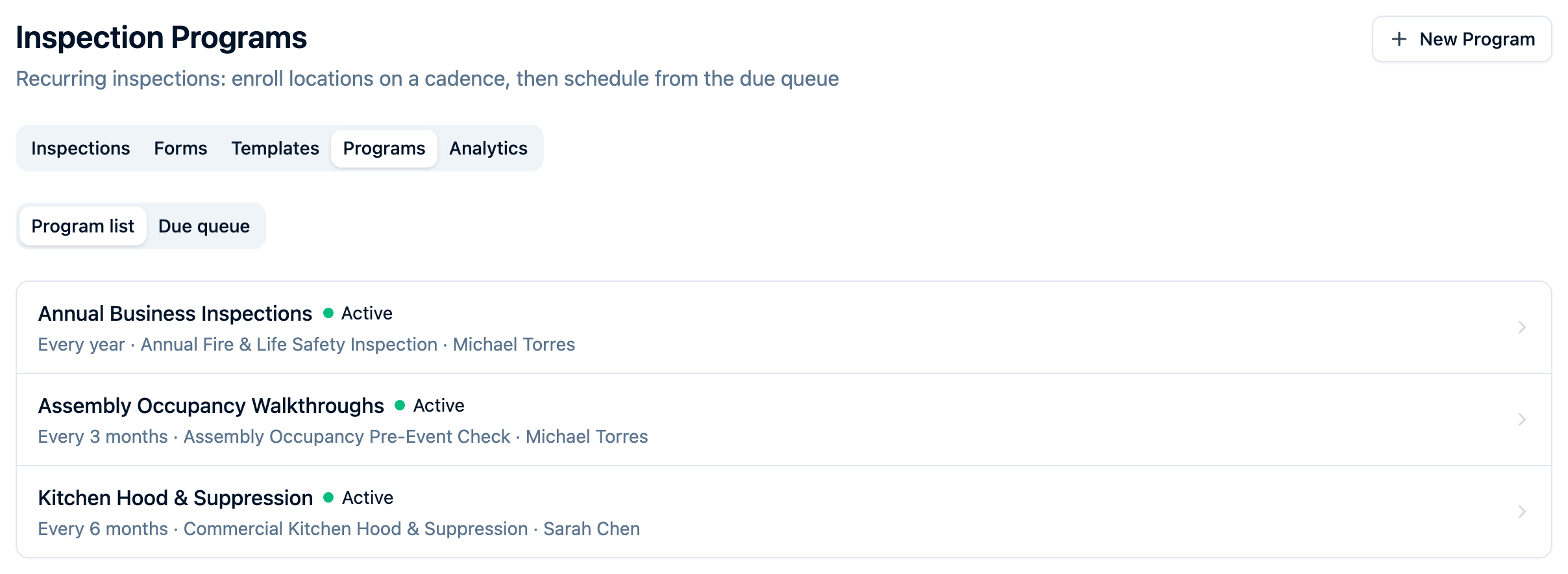
A program's form cannot be changed after creation. Create a different program to use another form. Publishing a new version of the same form is supported: newly scheduled visits use that version, while existing visits keep theirs.
Enroll the Properties It Covers
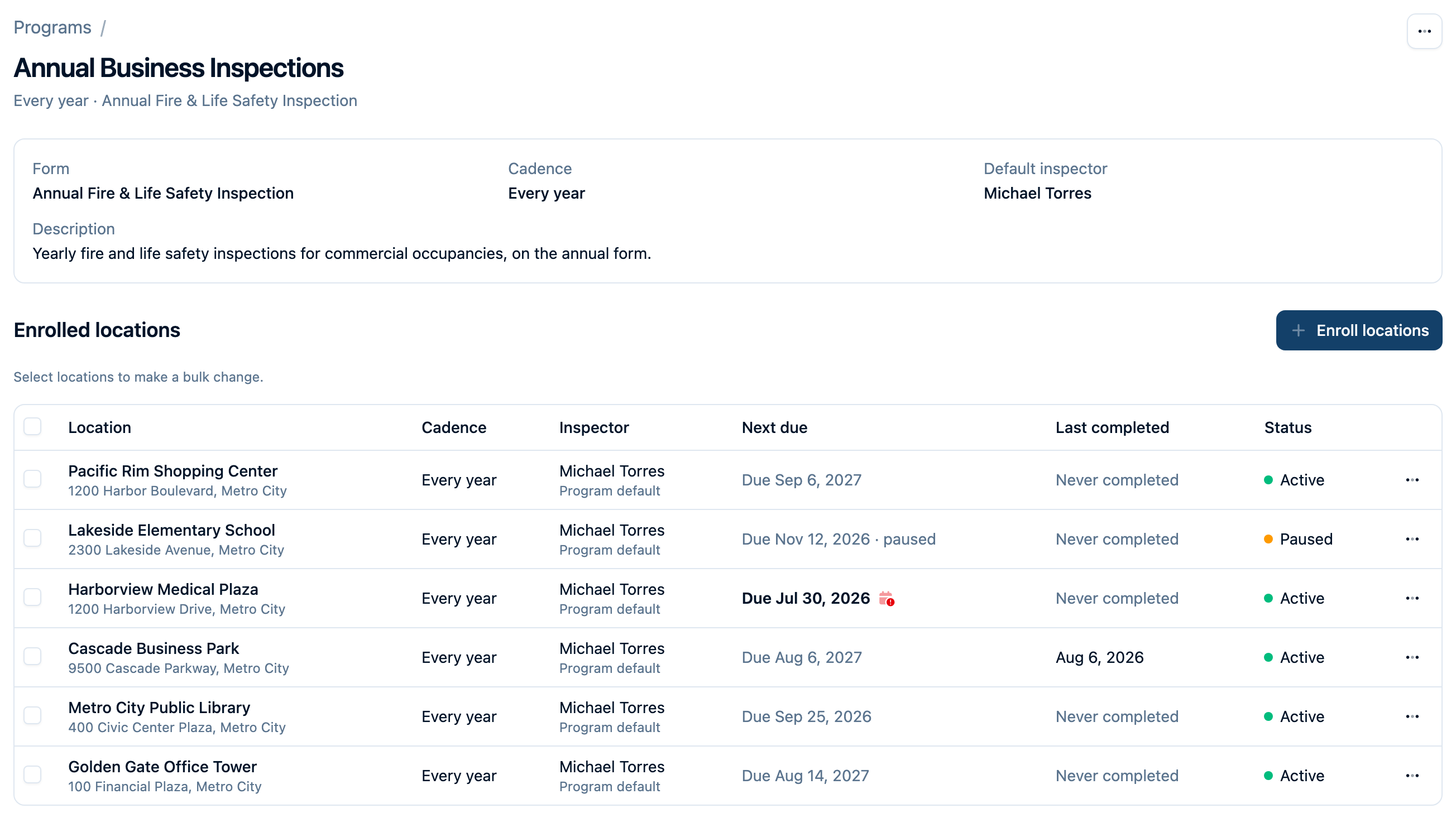
Open the program and select Enroll locations.
- Search by property name or address and select the locations to add. Selections stay with you as you move between pages; the table's select-all control selects available locations on the current page.
- Set a First due date for locations without an existing schedule. Leave it blank to start one cadence interval from today. You can change any location's due date after enrolling.
- Choose an Inspector override if these locations need someone other than the program's default inspector.
- If needed, select Override cadence for locations without an existing schedule and choose their interval.
- Review any existing-schedule migration notice, then select Enroll with the displayed location count. Check the results for any locations that need attention.
When a location already has an older inspection schedule, enrollment preserves its existing cadence and next due date and removes that older schedule. The dialog asks you to acknowledge that migration. The first due date and cadence you choose for new enrollments do not replace those existing schedules.
For a single property, open its Place and choose Enroll in the Inspection programs section. Select the program, review its settings, and enroll that property directly.
Turn Due Work into Scheduled Visits
Open Inspections > Programs > Due queue. Choose the date window and, if useful, filter by Program or Inspector. The queue shows eligible enrollments with due dates in that window. Widen the window when looking for older overdue work.
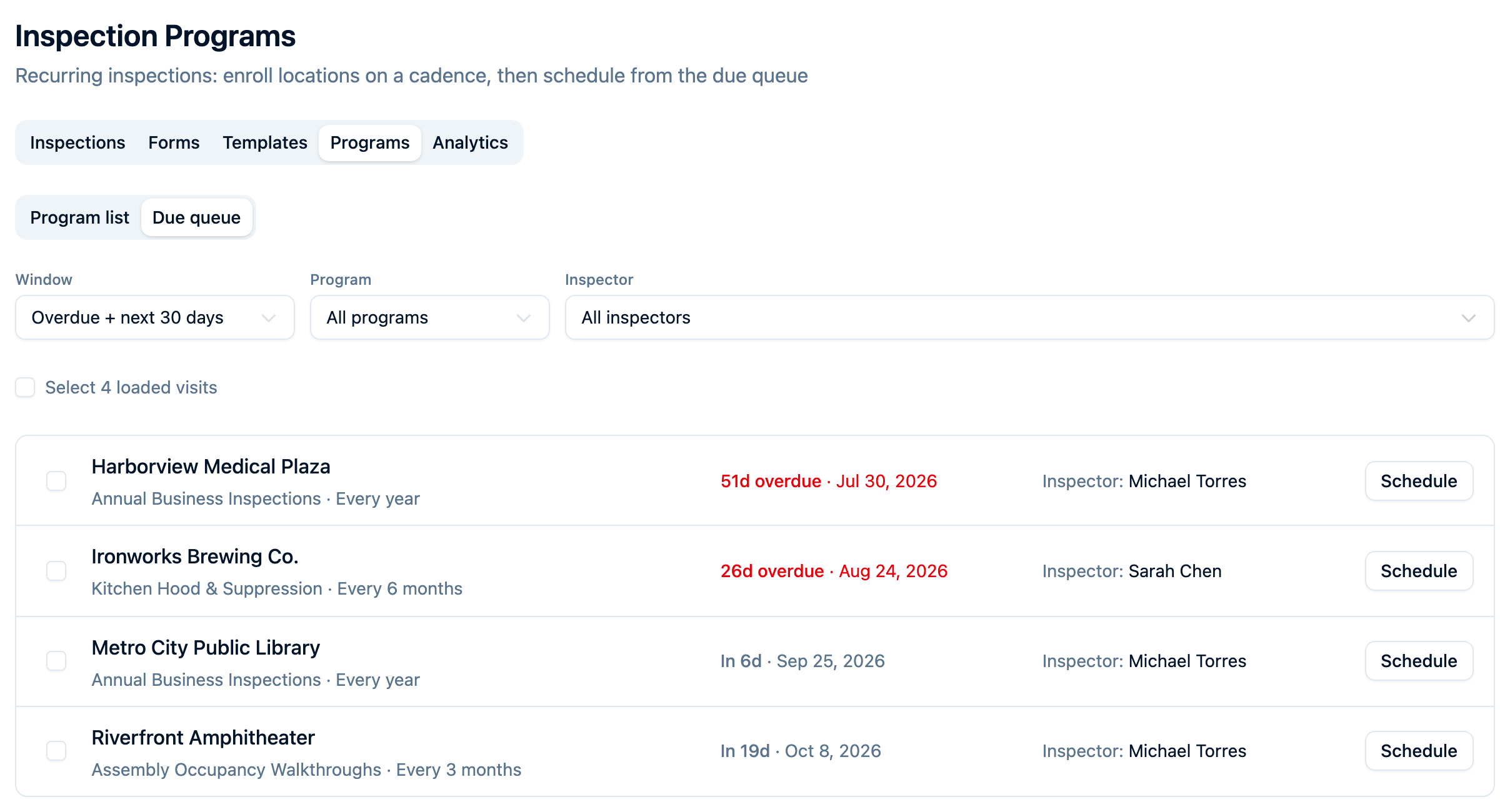
For one location, select Schedule. Confirm the inspector and select Schedule visit. The visit uses the due date unless you choose Schedule on a different date… and enter a reason for the change.
You can also enter a Scheduled Time in the department's time zone. Leave it blank to schedule only a date. You can add, change, or clear the time later by editing the inspection.
The assignment normally comes from the enrollment's inspector override, then the program's default. If neither is set, choose an inspector before scheduling. Changing the inspector for this visit does not replace the program or enrollment default.
To schedule several visits, select their rows and choose Schedule with the selected count. Bulk scheduling uses each location's due date and resolved inspector, with an optional time for each visit. Review the per-location results; a row that needs attention does not prevent the other visits from being scheduled.
Scheduling creates an inspection and removes that enrollment from the due queue while the visit is open. Open the scheduled inspection to conduct the visit; the program does not create an inspection merely because a due date has arrived.
What Completion Does to the Schedule
Completing and signing the scheduled program inspection advances its enrollment from the completion date, using the cadence recorded when that visit was scheduled. An annual visit completed on September 20, for example, is next due on September 20 the following year.
This happens for both passed and failed completed visits. A failed result can still require a correction visit: use Schedule Re-inspection on the failed inspection to create a linked follow-up. That follow-up is separate from the recurring program visit and does not advance its schedule again. Completing another inspection at the same property also does not satisfy the program's scheduled visit.
Use Inspection Documents to prepare a certificate or notice from an eligible completed inspection. Issuing or emailing a document is separate from completing the visit and advancing its program schedule.
If a scheduled program visit must be cancelled, use Cancel Visit on the inspection or Cancel scheduled visit in its enrollment actions. Cancellation freezes that worksheet and restores the original due date. An active enrollment becomes eligible for the due queue again; a paused one remains paused.
Manage Enrollments in Bulk
On the program page, select enrolled locations and use the available actions. Selections remain as you load more enrollments; the table's select-all control covers the rows already loaded.
| Action | Effect |
|---|---|
| Edit selected | Change inspector overrides or recurrence. Cadence changes leave existing next due dates intact. Clear an inspector override to use the program default. |
| Change due date | Give every selected enrollment the same next due date. After that visit is completed, the following due date is calculated from the completion date as usual. |
| Pause selected | Remove the enrollments from the due queue. Already scheduled visits remain open. |
| Resume selected | Reactivate paused enrollments on their retained due dates. |
| Unenroll selected | Remove the locations from this program while keeping inspection history and other program memberships. An administrator can restore enrollment through the activity log. |
To change one location's due date, choose Change due date in its enrollment actions.
Cancel an open scheduled visit before changing that enrollment's cadence or due date, or unenrolling it. After a bulk operation, successful rows are deselected and failed rows remain selected for review.
Changing the program's own cadence affects new enrollments. To update existing locations, select their enrollments and choose Edit selected. Scheduling and enrollment management have separate permissions, so an inspector may be able to schedule due work without being able to change program settings.
See Fire Inspection Management for the product overview, Inspection Forms for checklist setup, and Inspection Documents for certificates and owner notices.