
Acknowledgement Reminders
Members can see the policies and log entries waiting on their acknowledgement throughout Command Established. Your department chooses whether to show reminders they can open when convenient, or also open a review dialog when they enter the app.
The setting applies to everyone in the department. Each member sees only the acknowledgements waiting on them.
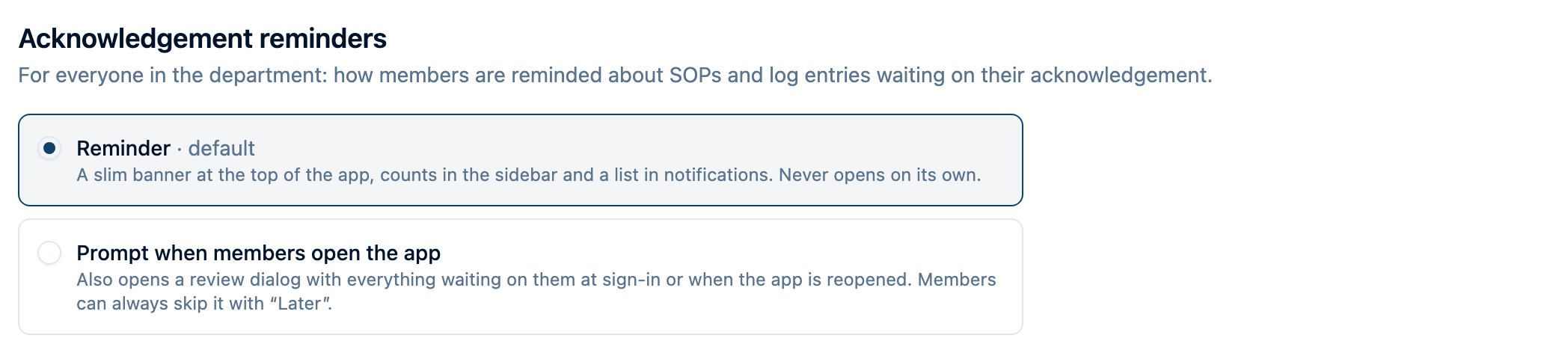
Choose Your Department's Reminder Setting
An owner or admin can change this setting:
- Open Manage → Settings → Notifications.
- Find Acknowledgement reminders at the top of the page.
- Select Reminder or Prompt when members open the app. The choice saves immediately.
The section appears when Policies & Procedures or Log Books is enabled for your department.
- Reminder is the default. Members see a banner at the top of the app, counts in the sidebar, and a Waiting on you list in notifications. Nothing opens automatically. Choose this when members should decide when to review their pending items.
- Prompt when members open the app adds a review dialog at sign-in or when the app is reopened, if something is waiting. Members can choose Later. Choose this when you want reviewing pending items to be part of opening the app.
Find What's Waiting on You
Both settings keep pending acknowledgements within reach:
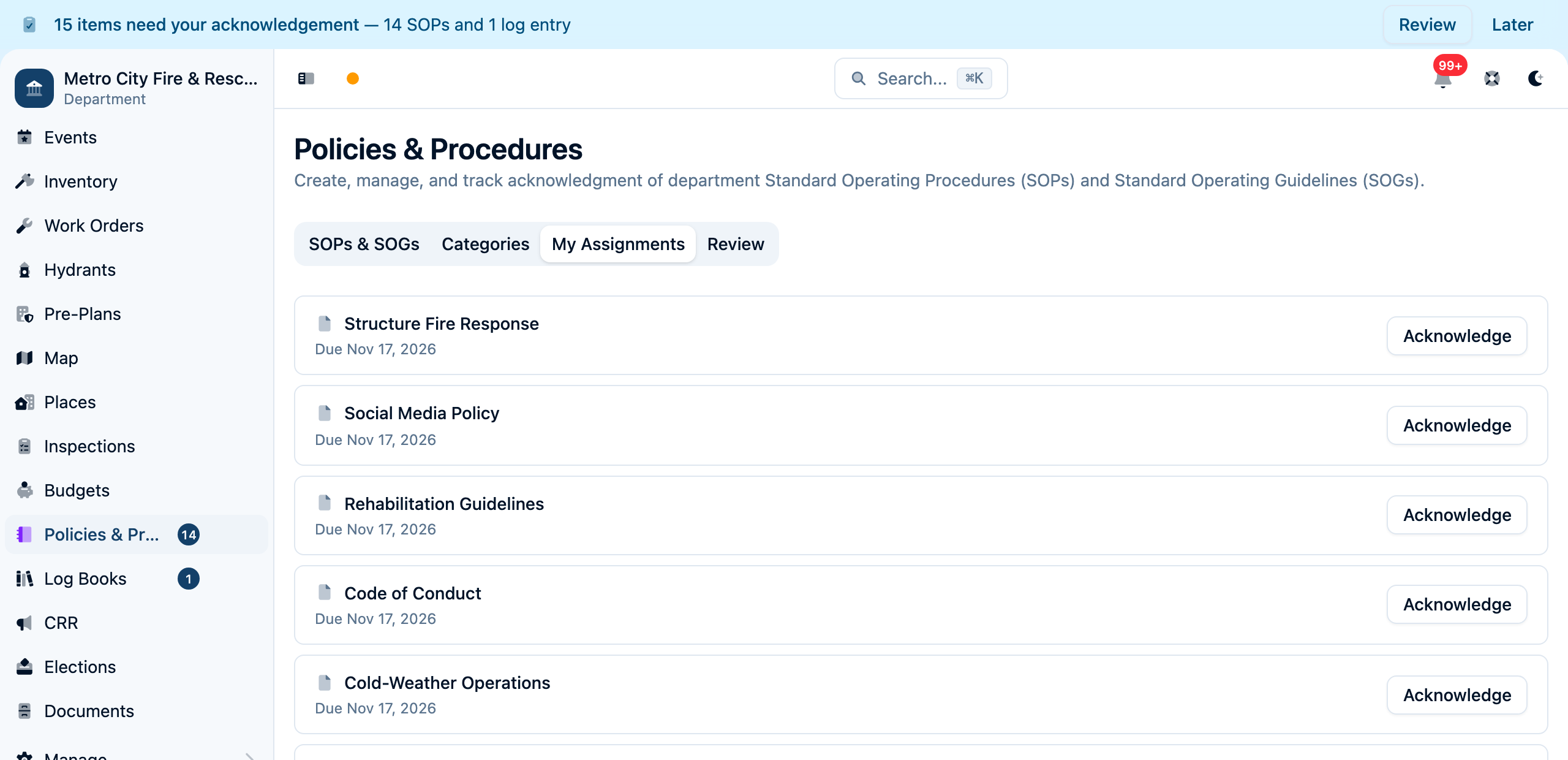
- The banner summarizes how many policies and log entries need your acknowledgement. Select Review to open notifications.
- Sidebar counts appear beside Policies & Procedures and Log Books. The policy count turns red when a policy is overdue.
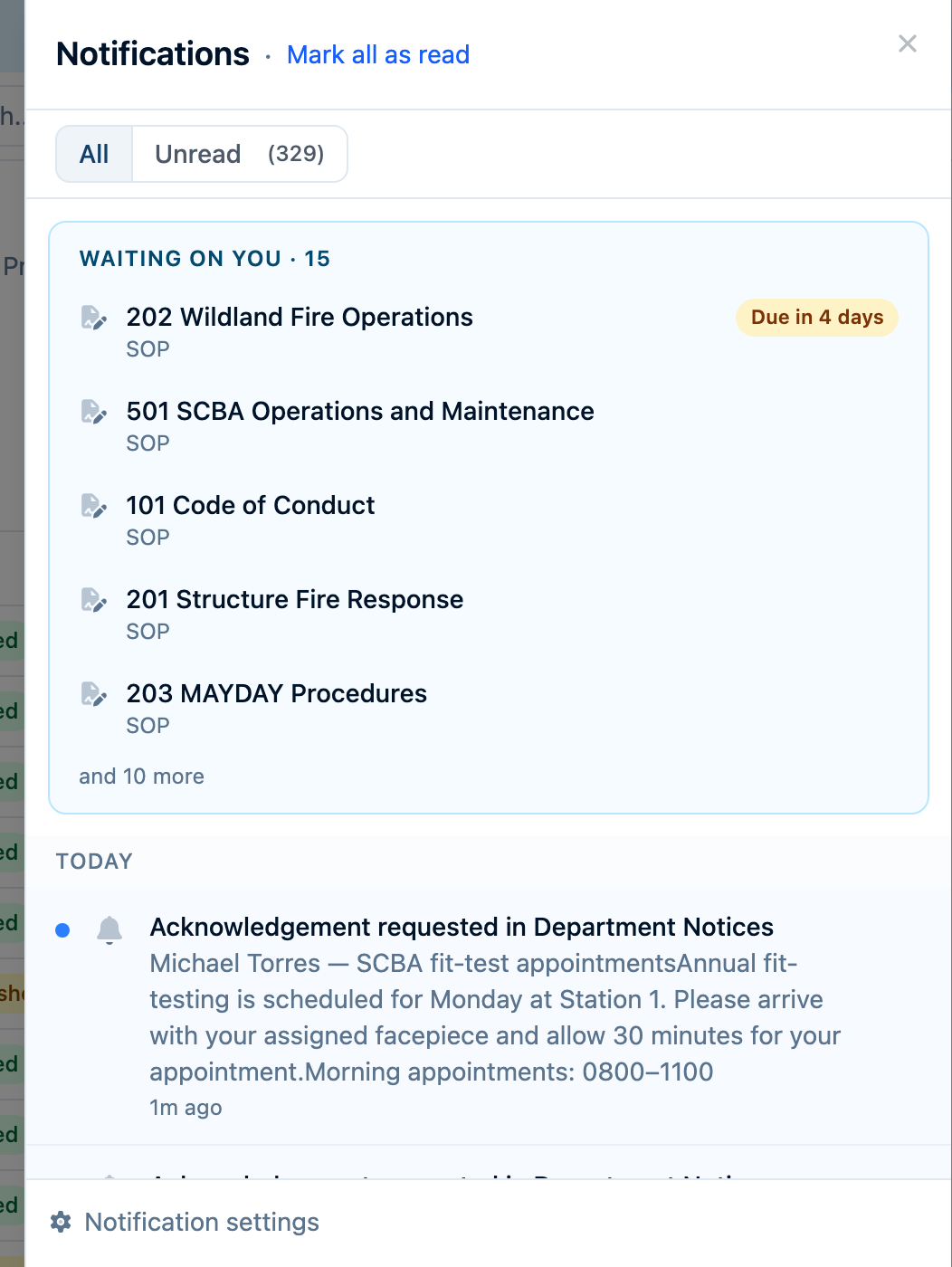
- Waiting on you, at the top of notifications, previews up to five pending items and shows a count when more are waiting. Open a listed item to complete its acknowledgement, or go to Policies & Procedures or Log Books to find the others.
The list includes SOP and SOG versions assigned to you and written log entries that request Everyone mentioned acknowledges and include you. A First reader acknowledges pass-on stays in its log book; it is not a request assigned to each member. See Log Book acknowledgements for how to request a response from specific people.
Work Through the Review Prompt
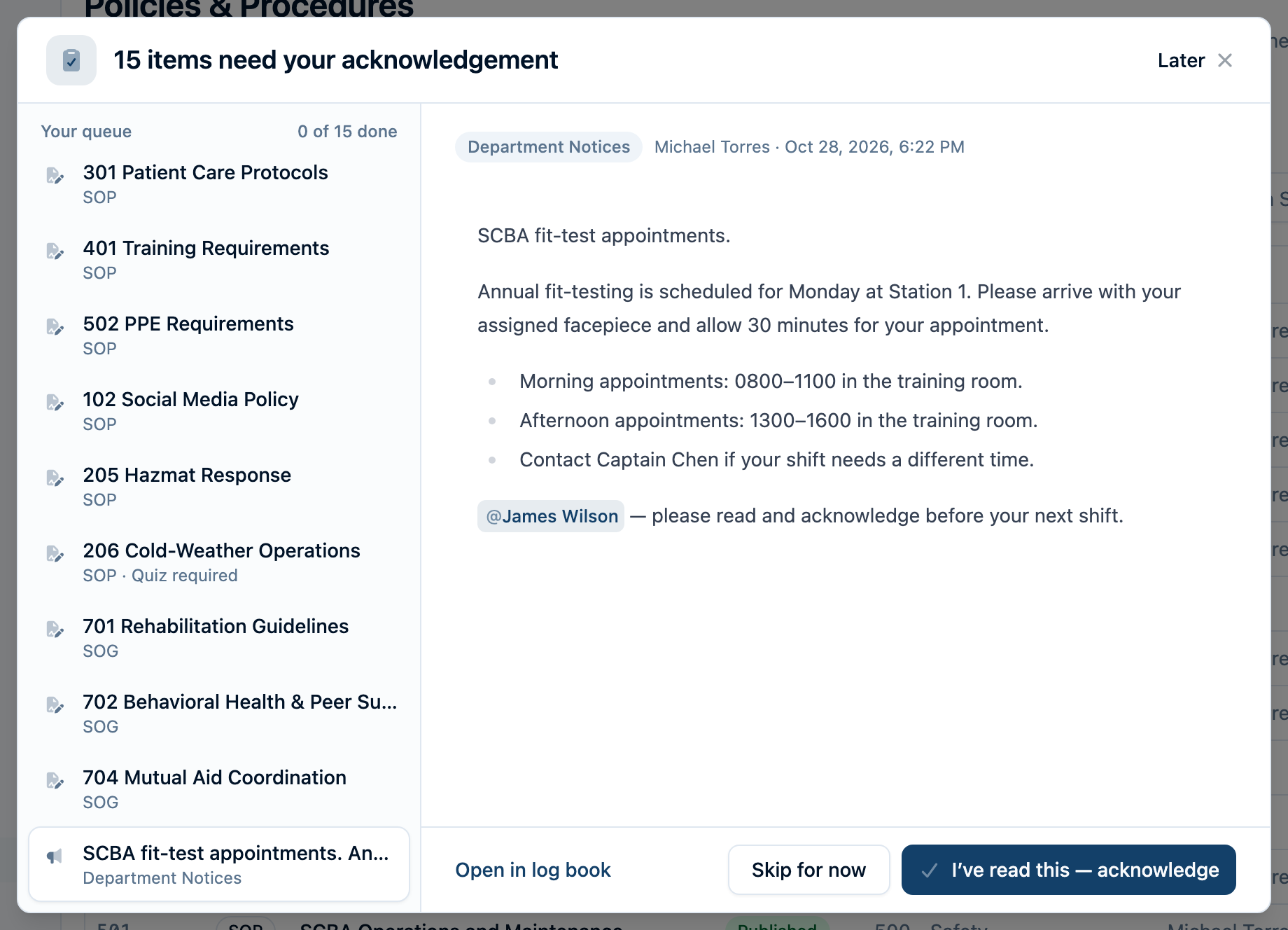
With Prompt when members open the app, pending items open in a review dialog. On a computer, the queue appears beside the current item. On a phone, the prompt shows one item at a time with a progress indicator.
- Log entries: Read the entry in the dialog, then select I've read this — acknowledge. The acknowledgement is recorded and the prompt moves to the next item.
- Policies: Select Read and sign to open the policy's acknowledgement page. If a required quiz is still waiting, select Continue to quiz first. The policy's quiz and signature requirements still apply.
- Skip for now: Move to another item without acknowledging this one. You can return to skipped items before finishing.
Come Back Later
Select Later on the banner or in the prompt to hide both for four hours on that device. Closing the prompt with Escape or by selecting outside it has the same effect. The pause applies across tabs for your account and department in the same browser.
Later does not acknowledge anything or change a due date. Sidebar counts and Waiting on you stay available, so you can return sooner. When the pause ends, remaining items can be shown again. If you finish the prompt with skipped items, select Review skipped to return to them, or Done to be reminded in four hours.
When Reminders Stay Out of the Way
The banner and automatic prompt wait during a live call and stay hidden on incident and response screens, and while you complete a policy's quiz or signature. Another app notice may also take the banner's place. You can still find pending items in notifications.
Personal acknowledgement reminders appear on your own sign-in. They do not appear on paired station devices, even while someone is using a tablet PIN, or during a View as a member preview.
This department setting controls reminders inside the app. To choose how notification emails and push alerts reach you, use your delivery settings on the same Notifications page. See Notification Emails and Digests and Enable Push Notifications.