
View the App as a Member
See exactly what your members see
As an owner or admin, you can see and change far more in Command Established than your members can. What they can do depends on their role, their permissions, and the groups they belong to. That makes it hard to answer questions like "Can our officers create incidents?" or "Why can't the Finance Committee see permits?" from your own account.
View as a member answers them directly. Choose a member with no group or a member of one group, and the whole app reloads with your access temporarily narrowed to what that member would have. You're still signed in as yourself; only your permissions change. It's the access the server actually enforces, not a mockup, so what you see is what they get.
- Who can use it
- Start a preview
- What you see while previewing
- Compare a group with no group
- Switch groups or exit the preview
- Troubleshooting group permissions
- Common questions
Who can use it
Only owners and admins can preview the app as a member. Members don't see the option.
The preview is for your own sign-in on your own device. It isn't available on a paired station tablet, which is already limited to member access.
Start a preview
- Open any page in your department, such as Incidents.
- In the header at the top of the page, select the eye button.
- Under View as a member, choose who to preview:
- Member with no group — a member with only the access every new member starts with.
- Member of a group — a member whose access comes from that one group. Every active group in your department is listed.
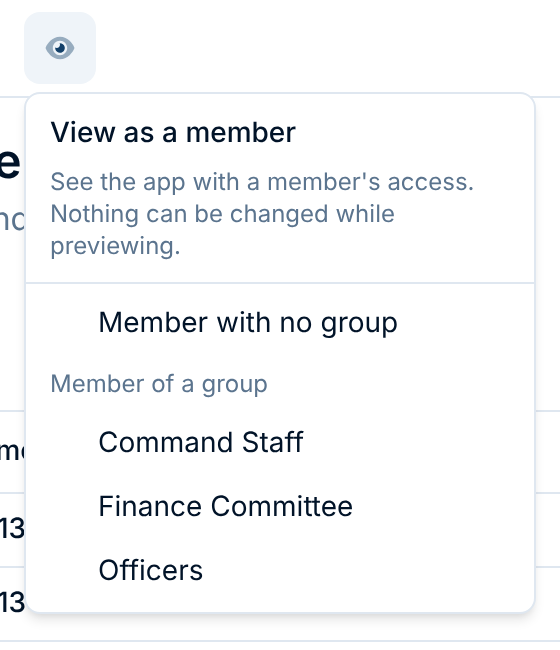
The page reloads right away with the access you chose. You stay on the same page, so you can see immediately whether that member can use it. If they can't open the page at all, you're taken where they would be.
What you see while previewing
You can always tell when a preview is on:
- A blue Member preview banner across the top of every page names the preview and says read-only.
- The eye button in the header becomes a chip naming the group you're previewing, or No group.
- The sidebar shows only what that member can open. Buttons and settings they can't use are gone.
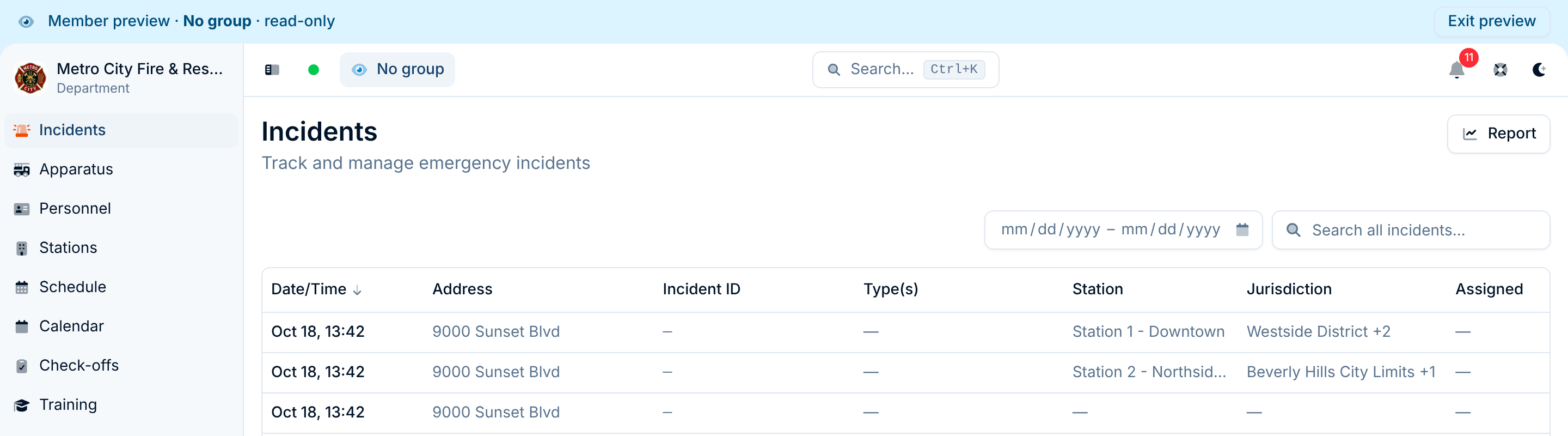
The preview is read-only
You can look at anything that access allows, but nothing can be changed while previewing. If you try to save something, Command Established stops you with "You're viewing as a member. Exit the preview to make changes."
A preview doesn't make you anyone else. You're still you, with fewer permissions for a while, so anything you open is logged as viewed by you, the same as always. Saving is blocked so a quick check can't change your real data by accident. When you're done looking, exit the preview to get back to work.
What the preview includes
A preview gives you the access of a typical member, not of a specific person:
- Member with no group includes only the default member permissions (viewing check-off templates and completing check-offs), plus everything visible to all members. See what members can see.
- Member of a group adds that group's permissions. It also covers access that depends on being in the group, such as log books the group can edit, document folders shared with the group, and work-order queues or check-off assignments for the group.
- Permissions granted to one person directly aren't included. To see those, go to Manage → Accounts and open Edit Permissions on their row. That dialog shows only their direct grants: a member's full access is those plus everything from each group they're in (see Understanding Permissions & Groups).
- A preview shows one group at a time. A member in several groups gets the combined access of all of them, so preview each group in turn.
Compare a group with no group
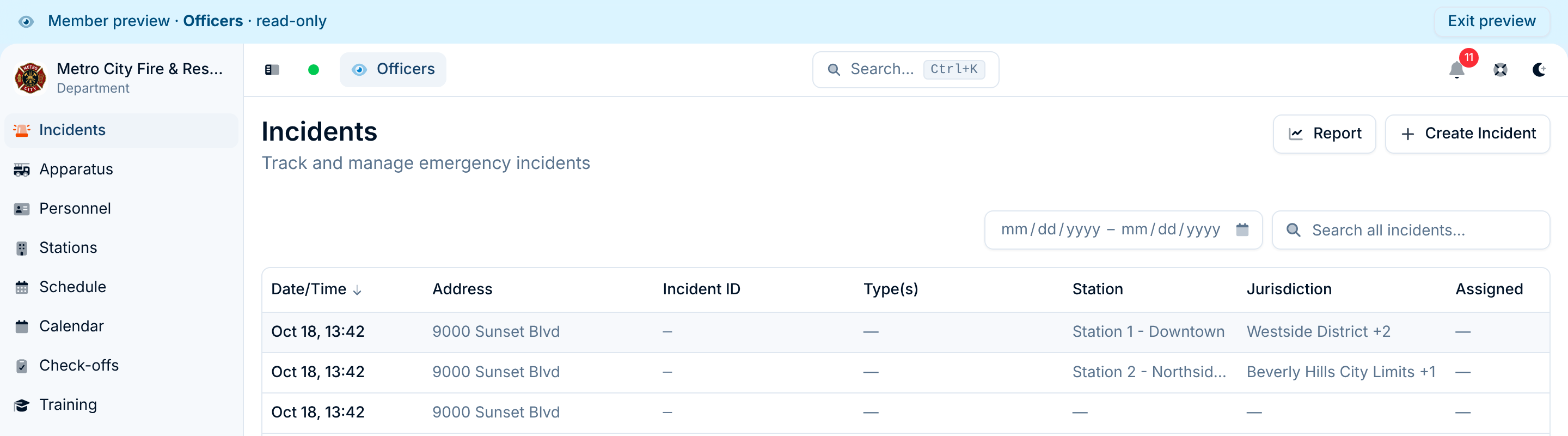
The quickest way to see what a group adds is to preview the same page twice: once with no group, once with the group.
In the example below, the Officers group has the Create permission for incidents. Previewing Officers on the Incidents page brings back the Create Incident button that the no-group preview didn't have.
Switch groups or exit the preview
To preview a different group, select the chip in the header and choose another option. The menu marks the one you're previewing now. The page reloads with the new access, and you can switch as often as you like.
To go back to your own view, either:
- select Exit preview on the right of the blue banner, or
- select the chip in the header, then Exit preview at the bottom of the menu.
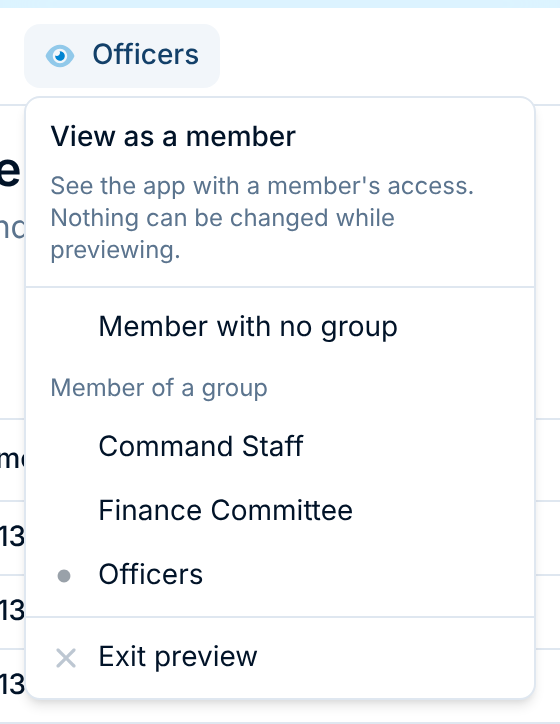
A preview also ends on its own when you sign out, and after 12 hours, so a forgotten preview never sticks.
Troubleshooting group permissions
Use a preview whenever a member reports that something is missing, or before you roll out a new group:
- Reproduce what the member sees. Preview the group they're in and open the page they asked about. If it's missing for you too, it's a permissions question, not a bug on their device.
- Check the group's permissions. Exit the preview, open Manage → Settings → Groups, and look at that group's permissions for the record type, such as Create for incidents or Read for a restricted record like budgets.
- Change the group, then preview again. Save the change, start the preview again, and confirm the page now looks right.
- Check the person, too. If the preview looks right but the member still can't see it, check that they're actually in the group (the group's card lists its members) and review any permissions granted to them directly.
Tip: Before you add someone to a new group, preview the group first. It's the fastest way to make sure it grants what you meant — and nothing you didn't.
Common questions
Can members see that I'm previewing? No. The preview happens only in your own browser, and nothing about it is shown to other people.
Does a preview change anything for my members? No. It changes only what you see, and it's read-only, so you can't change any records while it's on.
Can I preview a specific person, like "Firefighter Wilson"? Not directly. Preview the group they belong to; for permissions granted to them personally, go to Manage → Accounts and check Edit Permissions on their row.
Why did the preview drop me on a different page? The member you're previewing can't open the page you were on, so you were taken where they would land. Exit the preview to get back to it.
I archived the group I was previewing. What happens? The preview carries on as a member with no group. You never fall back to your own admin access while a preview is on.
Does the preview carry over to other departments? No. A preview applies only to the department you started it in. Switching to another department shows your normal access there.
Need Help?
Questions about setting up groups and permissions? Read Understanding Permissions & Groups, or contact our support team. We're happy to help you check that everyone has the access they need.