
Understanding the Activity Log
The Activity Log gives department administrators a complete, chronological record of every change made in Command Established — who did it, what they changed, and when.
Admin Access Required — The Activity Log is only visible to members with the Admin role or higher. If you don't see it in your navigation, contact your department administrator.
How to Access the Activity Log
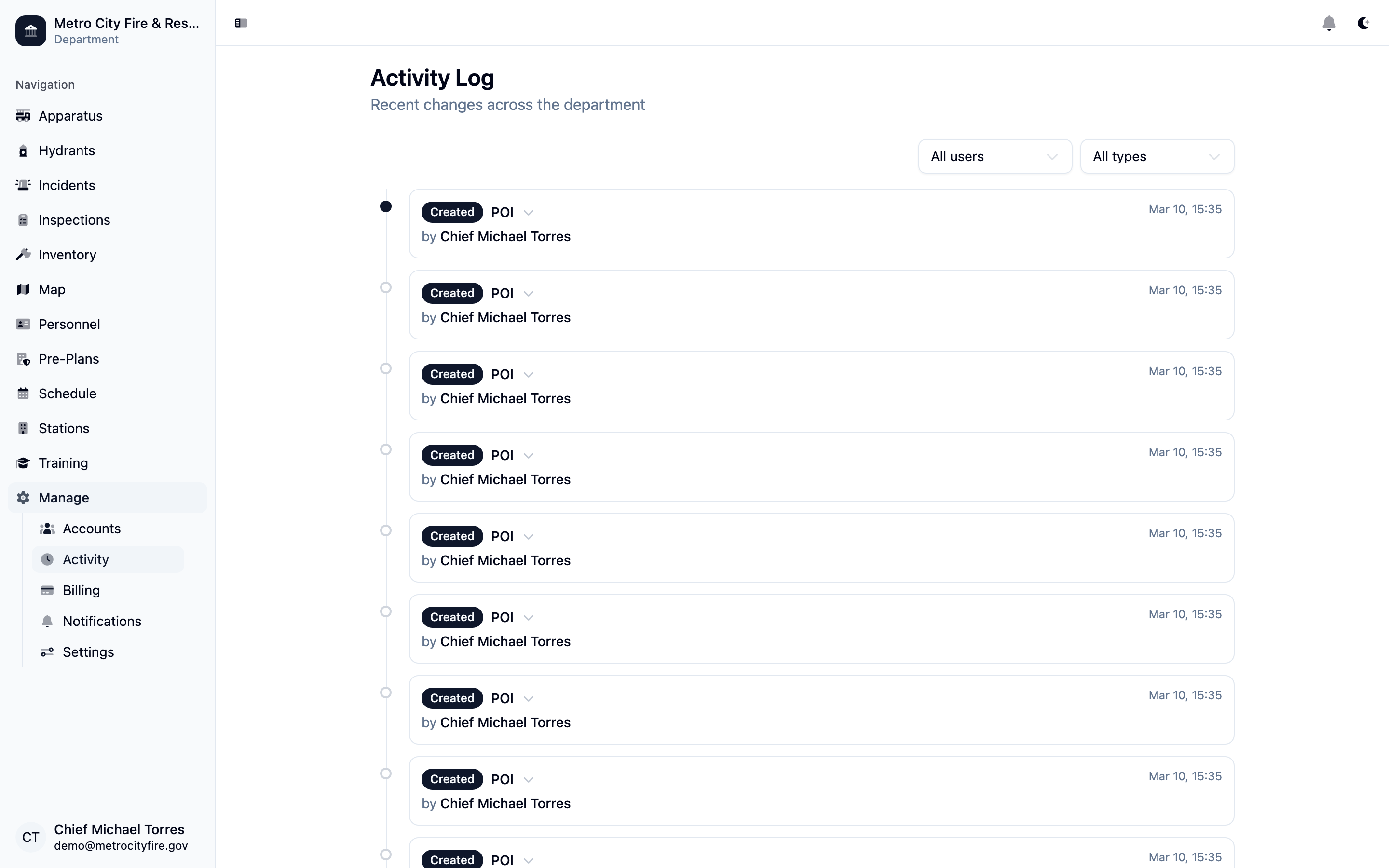
Navigate to your department in Command Established, then select Activity from the sidebar. The Activity Log opens as a chronological timeline of all changes to your department's data.
What Gets Tracked
Every record in Command Established is automatically audited. There is nothing to configure — tracking is always on. The log captures four types of events:
- Created — A new record was added — a new incident, a new personnel profile, a new apparatus, etc.
- Updated — An existing record was edited. The log shows exactly which fields changed and what the old and new values were.
- Archived — A record was removed from active use. Archiving is a soft delete — the data is retained and the action is logged.
- Restored — A previously archived record was brought back into active use.
Note: The Activity Log tracks changes across all record types: incidents, training, personnel, apparatus, stations, inventory, certifications, hydrants, hydrant inspections, flow tests, apparatus tests, inspections, inspection locations, checklists, pre-plans, schedules, groups, and department settings.
Reading an Activity Entry
Each entry in the timeline shows you the key facts at a glance, with more detail available on demand.
Summary row
The top of each entry shows the operation badge (Created, Updated, Archived, or Restored), the record type and name with a clickable link to that record, who made the change, and a short summary of which fields were affected.
Expanded detail
Click any entry to expand it and see the full change detail. For updates, each changed field is listed with its old value and new value side by side. For creates, the full contents of the new record are shown. For archives and restores, a short note confirms the action.
Timestamps
Each entry displays the exact date and time the change was made, shown in your local timezone.
Filtering the Log
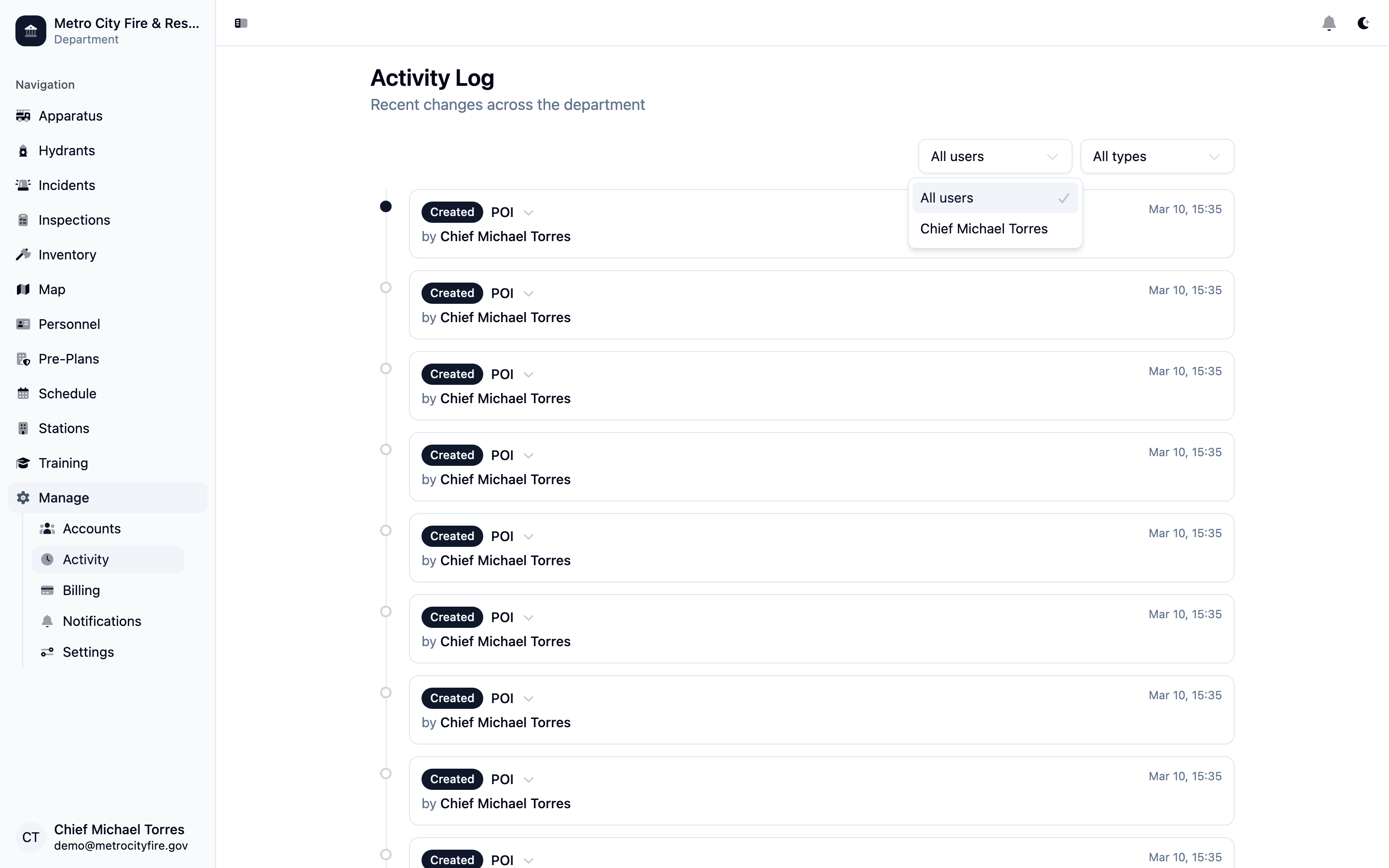
Two filters at the top-right of the Activity Log let you narrow down the results:
- Filter by user — Show only changes made by a specific member. Useful when investigating what a particular person has edited.
- Filter by record type — Focus on a specific category of records such as Incidents, Personnel, Apparatus, Inventory, Hydrants, Inspections, Pre-Plans, or Department settings.
Tip: Use the user filter together with the record type filter to answer precise questions like "What incidents did this member edit last week?"
Loading More Entries
The Activity Log loads the most recent entries first. When you reach the bottom, click Load more to fetch the next page of entries and continue scrolling back through history.
Frequently Asked Questions
Can members hide their changes from the log?
No. All changes are recorded automatically and cannot be suppressed, hidden, or deleted by any user — including administrators.
Does it track who viewed a record?
No. The Activity Log only records writes — creates, updates, archives, and restores. Read-only access is not logged.
What does "System" mean as the user on an entry?
Some changes are made automatically by Command Established itself — for example, when a CAD email triggers an incident update. These entries are attributed to System rather than a specific member.
How far back does the log go?
The Activity Log retains the complete history of all changes since your department started using Command Established. There is no expiration or automatic pruning.
I don't see the Activity page in my navigation.
The Activity Log is visible only to department admins and owners. If you need access, ask an administrator to update your role. See Understanding Permissions & Groups for more on how roles work.