
Using Department Reports
Department reports turn recorded activity into totals you can review by period, member, or apparatus. Open the report from its module, choose a date range, and switch views without losing the shared filters.
| Report | Open from | Views |
|---|---|---|
| Training | Training → Training report | Overview, Personnel, Instructors |
| Events | Events → Report | Overview, Personnel |
| Check-offs | Check-Offs → Report | Overview, Personnel, Apparatus |
| Incidents | Incidents → Report | Overview, Personnel, Apparatus |
| Inspections | Inspections → Report | Overview, Inspectors |
You need read access to the report's module. Training, event, and check-off reports do not require an administrator role; their Excel exports also require personnel read access. See Permissions & Groups if a report or export is unavailable.
Dates use your department's time zone. Use the date picker for the period you want; for several years of records, export one year at a time. A comparison with the prior period means the immediately preceding period of the same length, with the same shared filters. If a report says its results were truncated, narrow the date range before relying on its totals.
Training Report
The Training report counts completed, non-archived sessions scheduled within the selected period. Scheduled sessions that have not been marked completed do not contribute hours.
Overview
Review sessions, member-hours, people trained, and participation against the previous period. The charts show member-hours by month and breakdowns by training type, each training custom field, source, and format. The session log links to the underlying records.
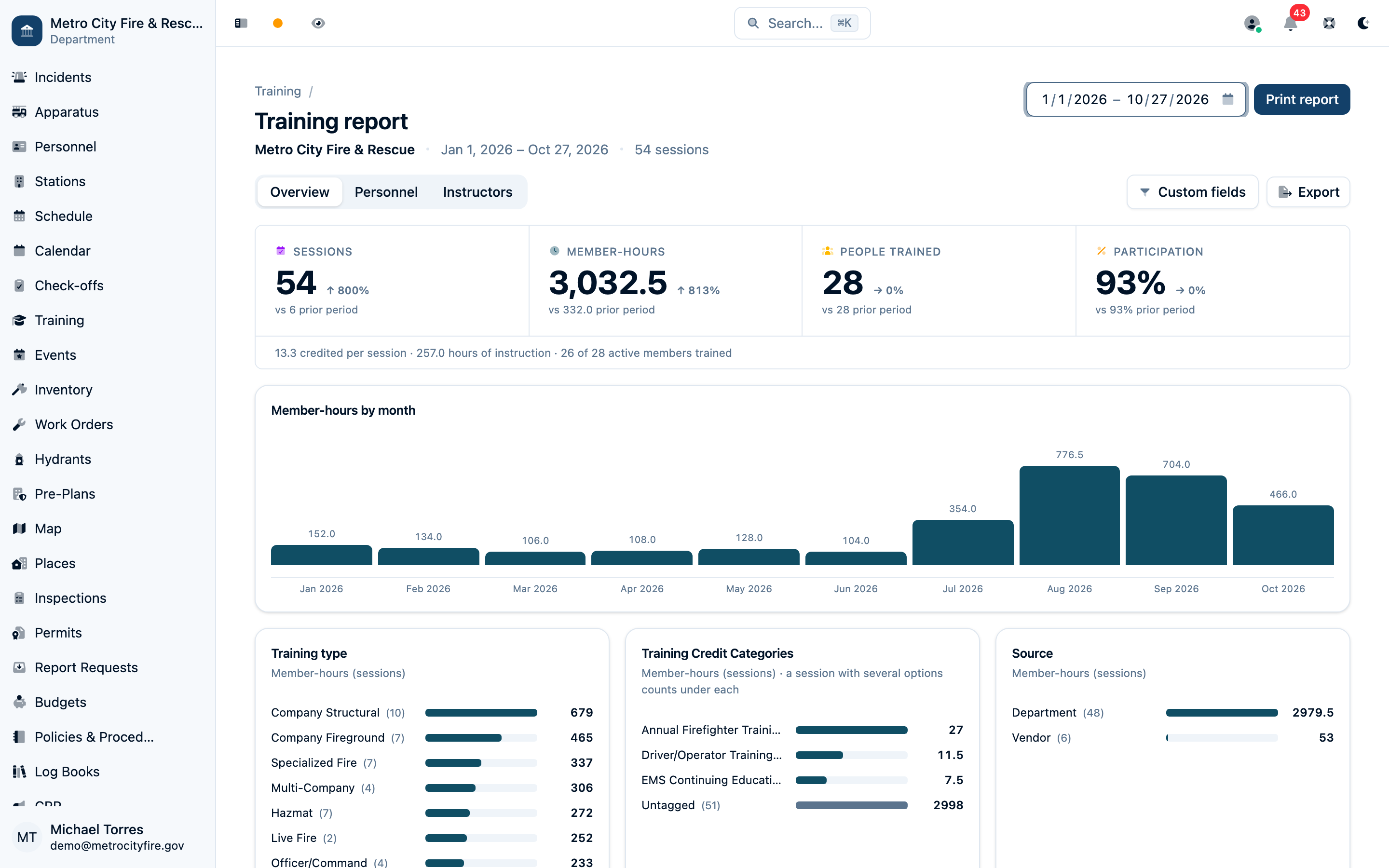
Member-hours adds each credited person's training time: a two-hour session attended in full by ten people contributes twenty member-hours. Each person's recorded minutes take precedence over the session duration, so late arrivals and early departures receive their recorded time. Department instructors receive credit for sessions they lead. Participation is the share of the active roster with training credit; outside attendees can contribute member-hours without increasing active-member participation.
Personnel
Every active member appears, including members with no training in the period. Former members and outside attendees appear when credited in the selected period. Each row shows hours, the prior period, the change, and sessions led. Expand a member for their hours by training type, custom field, and month.
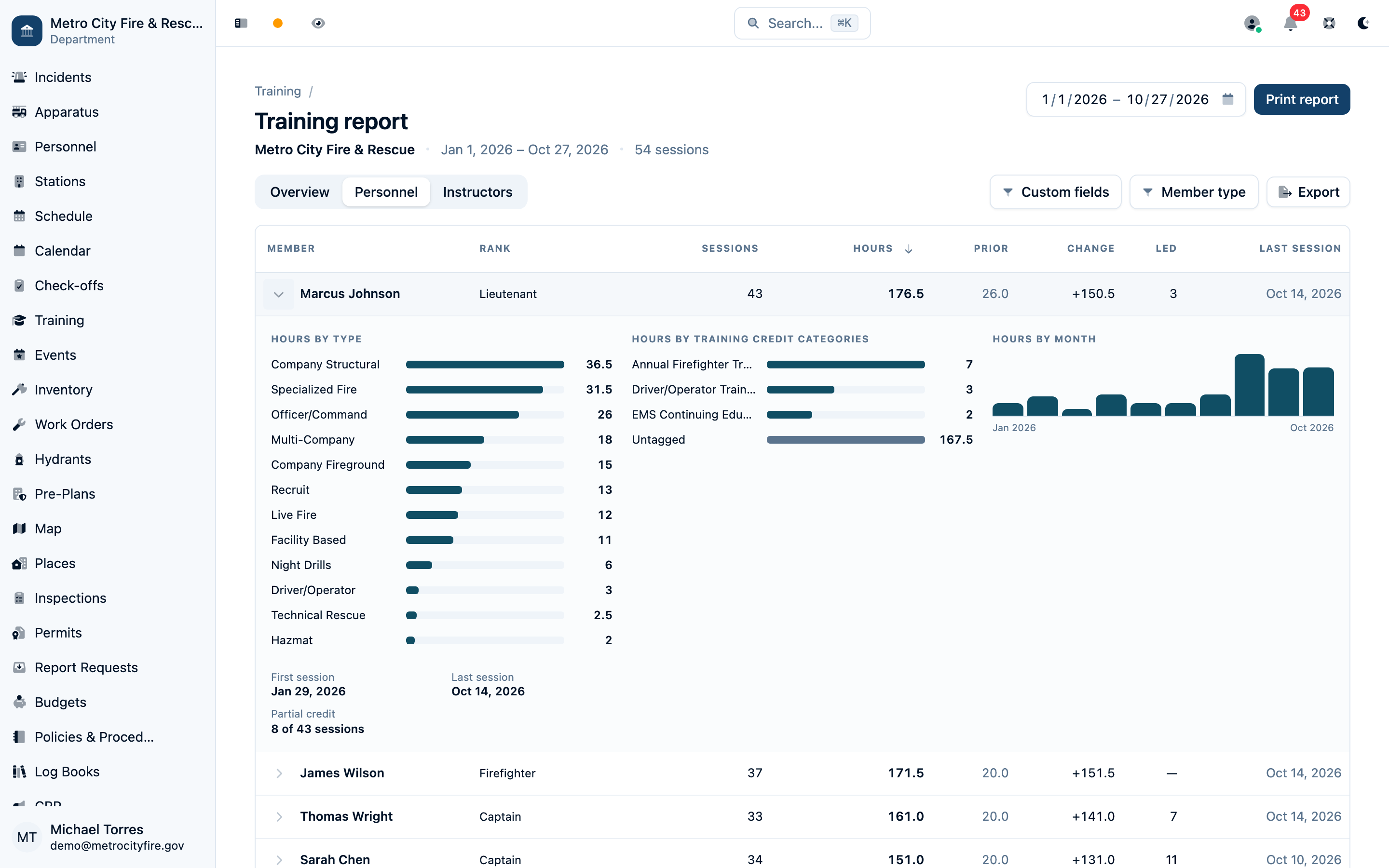
The Member type control narrows this on-screen table. It does not change the department totals or the people included in an Excel export.
Instructors
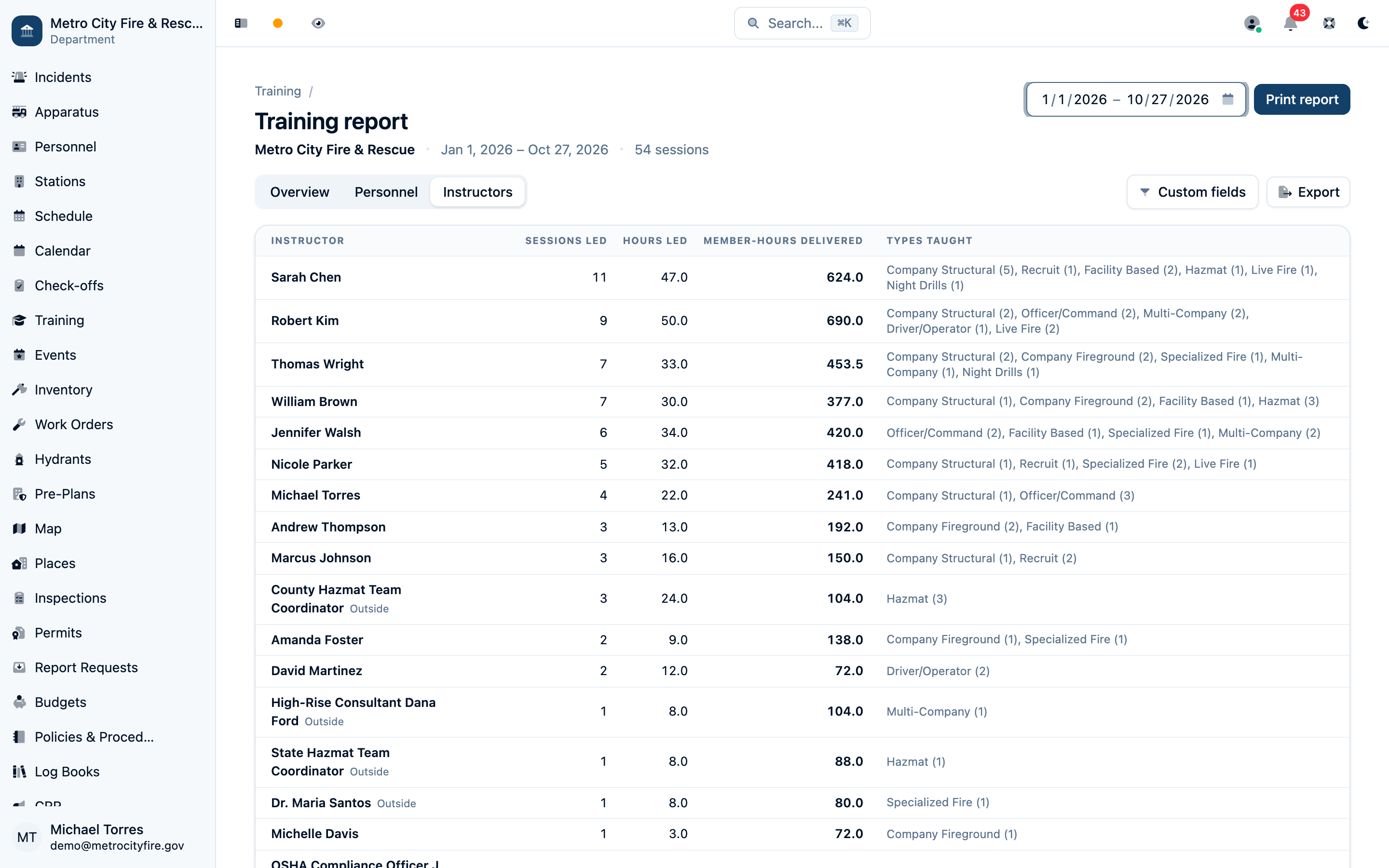
See department and outside instructors with their sessions led, hours led, member-hours delivered, and types taught. Hours led is the duration of the sessions taught. Member-hours delivered adds the credited time of everyone in those sessions, including department instructors. Outside instructors entered by name are tracked for teaching but do not receive attendance credit.
Filter, print, and export training
Use Custom fields to select the training options to include, such as your department's EMS education category. The control appears when a custom field applies to training. These filters apply to every view and to the prior-period comparison.
Print report prints the selected view. Export downloads an Excel workbook for the date range and custom-field filters, covering all views: Summary, Sessions, Members, Members x Type, Instructors, Attendance, By Month, and applicable custom-field sheets. Attendance contains one row per credited person per session. The workbook lists the applied filters; the Personnel table's Member type filter is not an export filter.
For recording sessions and attendance, see Training Management.
Event Report
The Event report counts completed, non-archived events scheduled within the selected period. Use Event type to focus on standbys, meetings, fire police details, or another event type. Event custom-field filters apply across both views and the prior period.
Overview
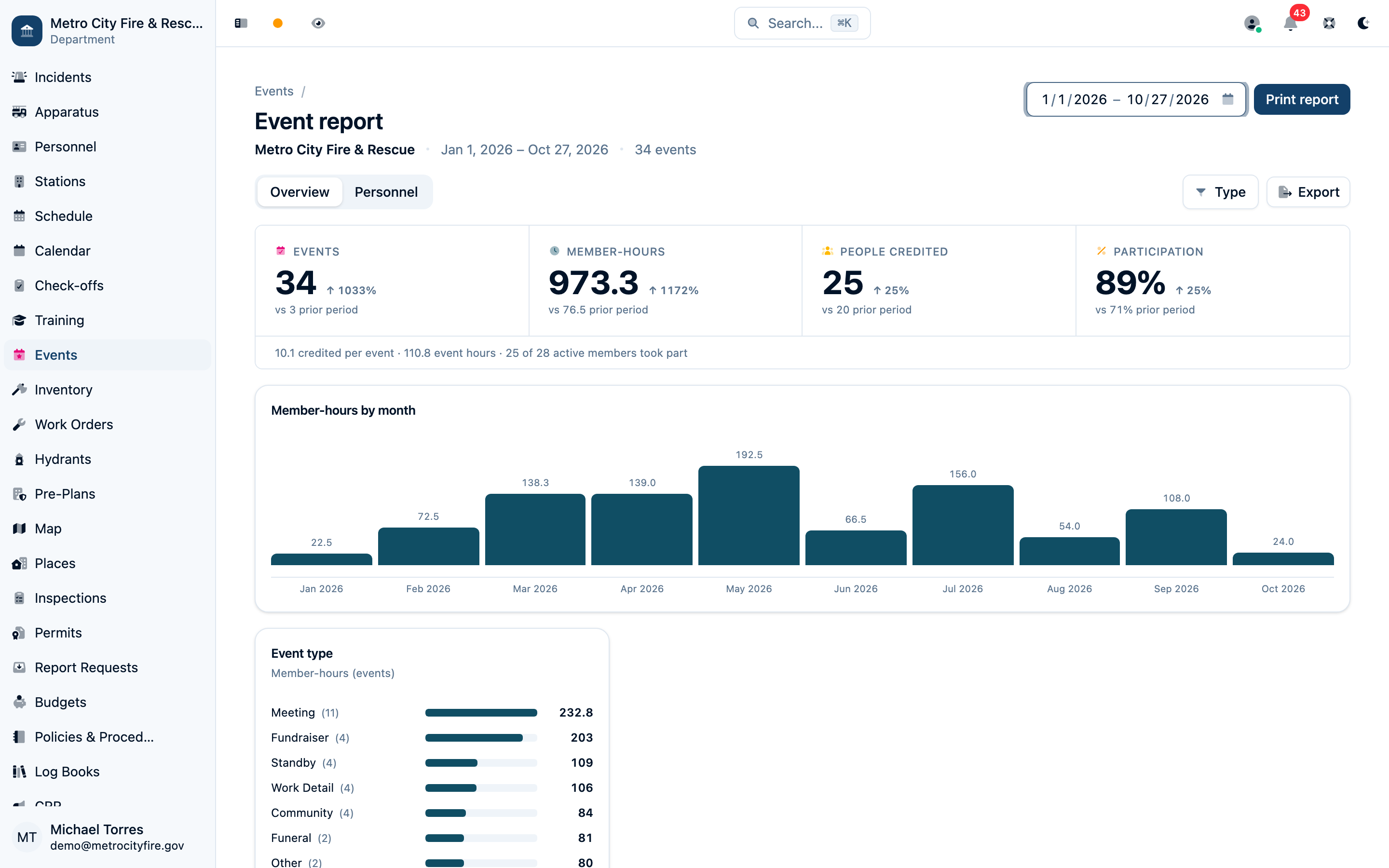
Review events held, member-hours, people credited, and participation. The report breaks down member-hours by month, event type, and your event custom fields. The event log includes each event's location and links to its record.
Personnel
See every active member, including members with no events, plus former members and outside attendees credited in the period. Expand a row for events and hours by type, custom field, and month. The Member type control narrows the on-screen table only.
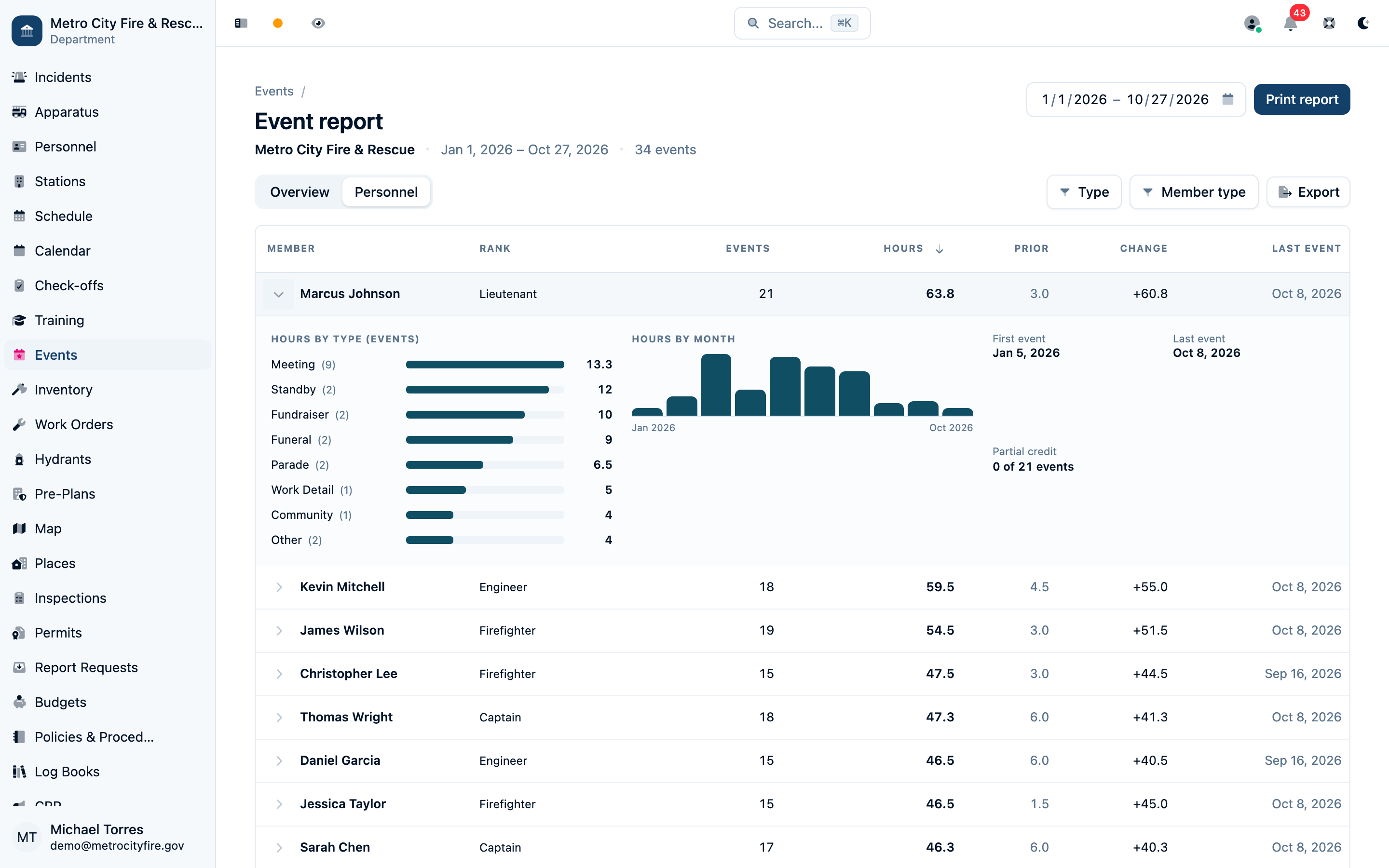
Hours use each person's recorded minutes, otherwise the full event duration, for every event type. An event attendance count and its credited hours are separate measures. Your LOSAP points program decides whether to score that activity per event or per hour and applies your point caps and qualification rules.
Print report prints the selected view. Export downloads a workbook covering both views for the date range, event types, and event custom-field filters. It includes Summary, Events with locations, Members, Members x Type, Attendance, By Month, and applicable custom-field sheets. Attendance has one row per credited person per event. The on-screen Member type filter does not narrow this workbook.
Check-Off Report
The Check-off report counts completed checks by their completion date in the department's time zone. Choose a range of up to 366 calendar days and filter by Station or Template.
A Station filter includes station-scoped checks and checks of apparatus currently assigned to that station. It excludes department-scoped checks. If a rig moved stations, its checks follow its current station when this filter is applied.
Overview
Review completed check-offs, items checked, item pass rate, checks with failures, critical failures, work orders raised, and median recorded time. Weekly activity separates apparatus, station, and department checks. The template table shows the checklists completed in the period.
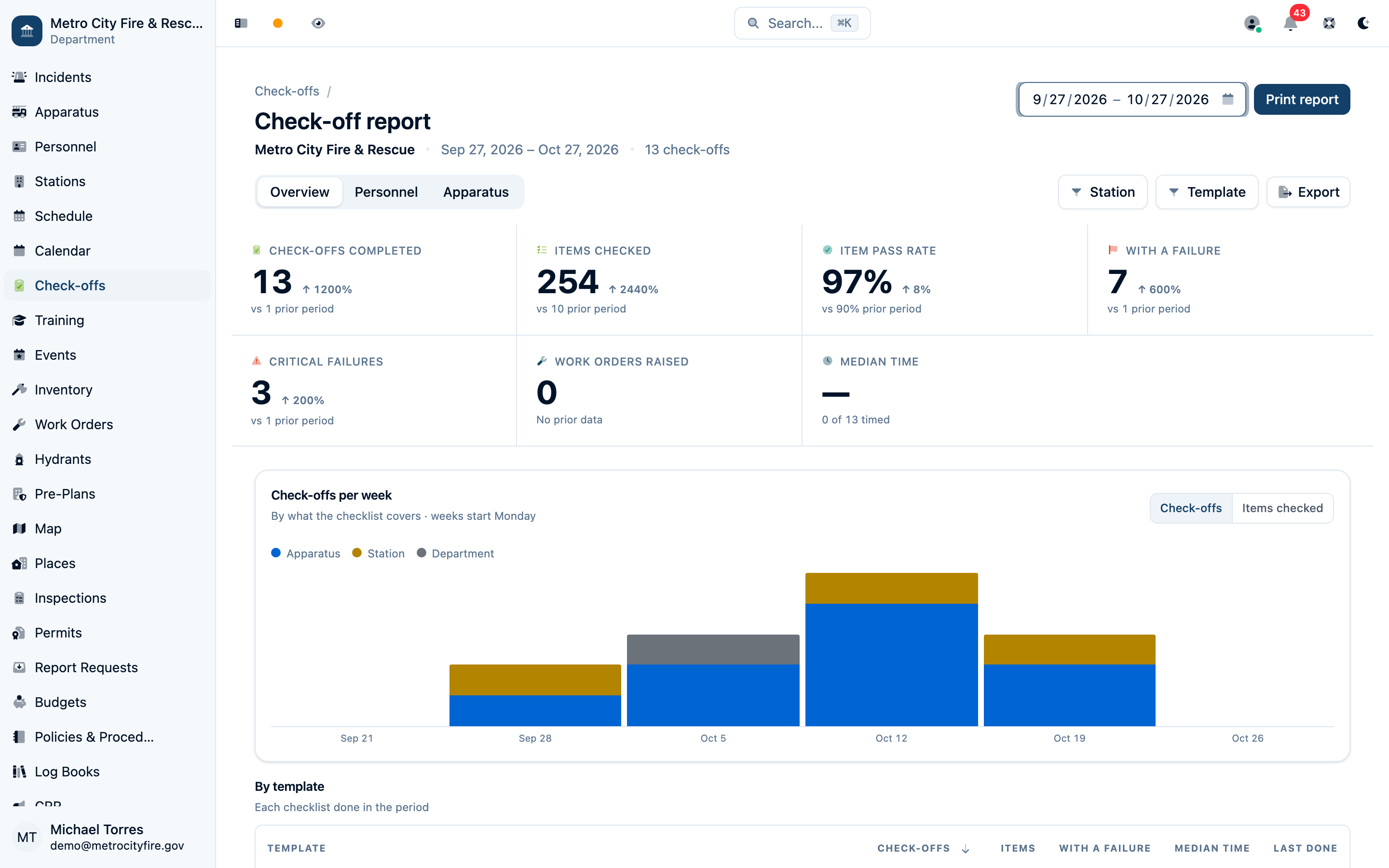
Median time is calculated from checks with usable timing data. The report identifies how many checks were timed; an older untimed check still counts as completed.
Personnel
A completion is credited to the person selected on a shared device, or otherwise the member who submitted it. The table shows credited checks, share, prior-period count, time, failure rate, and last check. Expand a row for template, apparatus, and weekly breakdowns. Turn on Include members with none to include active members with no recorded activity.
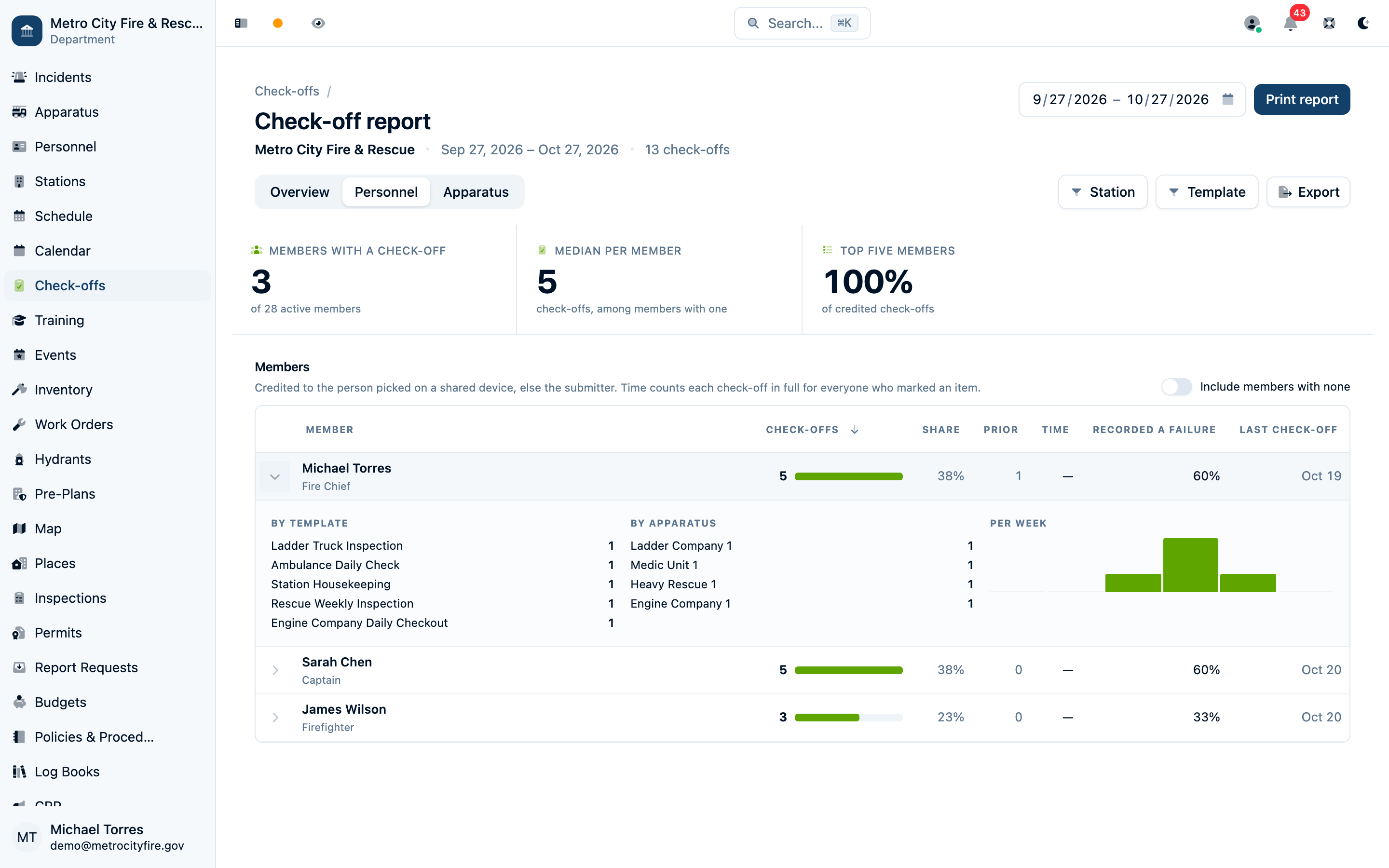
Time counts the check's full recorded active duration for the credited member and each member who marked an item. It does not split that duration among participants or measure each person's separate working time, so adding the member rows does not give the department's elapsed check-off time.
Apparatus
See rigs checked in the period, plus active rigs covered by a relevant active checklist even when no check was recorded. Expand a rig for day-by-day strips for its checklists, frequently failed items, and open work orders from check-offs.
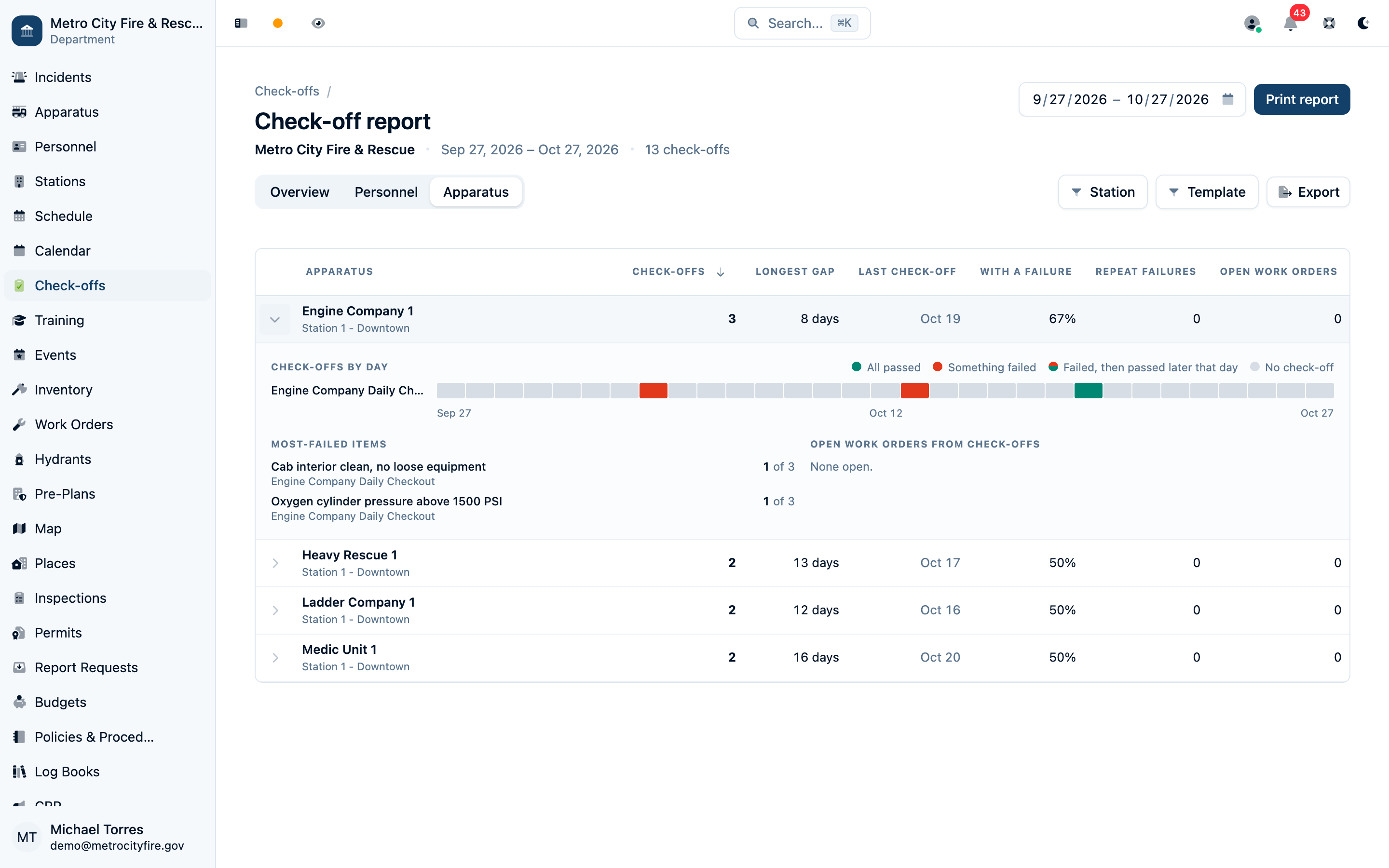
Longest gap counts consecutive calendar days in the selected range with no recorded check. It is not a count of missed scheduled work orders: a weekly checklist naturally has days without a completion. Repeat failures identifies checklist items that failed at least three times in the period.
Open work orders show the current follow-up queue, including orders raised by checks before the selected range. Viewing those orders requires work-order read access. Use the work-order record to review its current status.
Print and export check-offs
Print report prints the selected view. Export downloads all three views for the selected date range, station, and template filters: Summary, Templates, Members, Apparatus, and Check-offs. The last sheet has one row per completed check, including credit, item counts, failures, recorded minutes, and work-order count.
For template setup, shared checks, and individual results, see Check-Off Templates and Live Check-Offs.
Incident Report
Use Overview for department-wide call volume and response statistics, Personnel for member responses and credit, and Apparatus for unit activity. Expand member and apparatus rows for detail. Personnel includes active members with no responses and former members or outside responders who appear in the period; Apparatus also separates aid units.
The shared filters are Call type, Municipality, Box #, and incident custom fields. Municipality and Box # controls appear when the period contains values or a filter is already selected. These filters apply to all views and the prior-period comparison. Rank and Member type narrow the Personnel table on screen only.
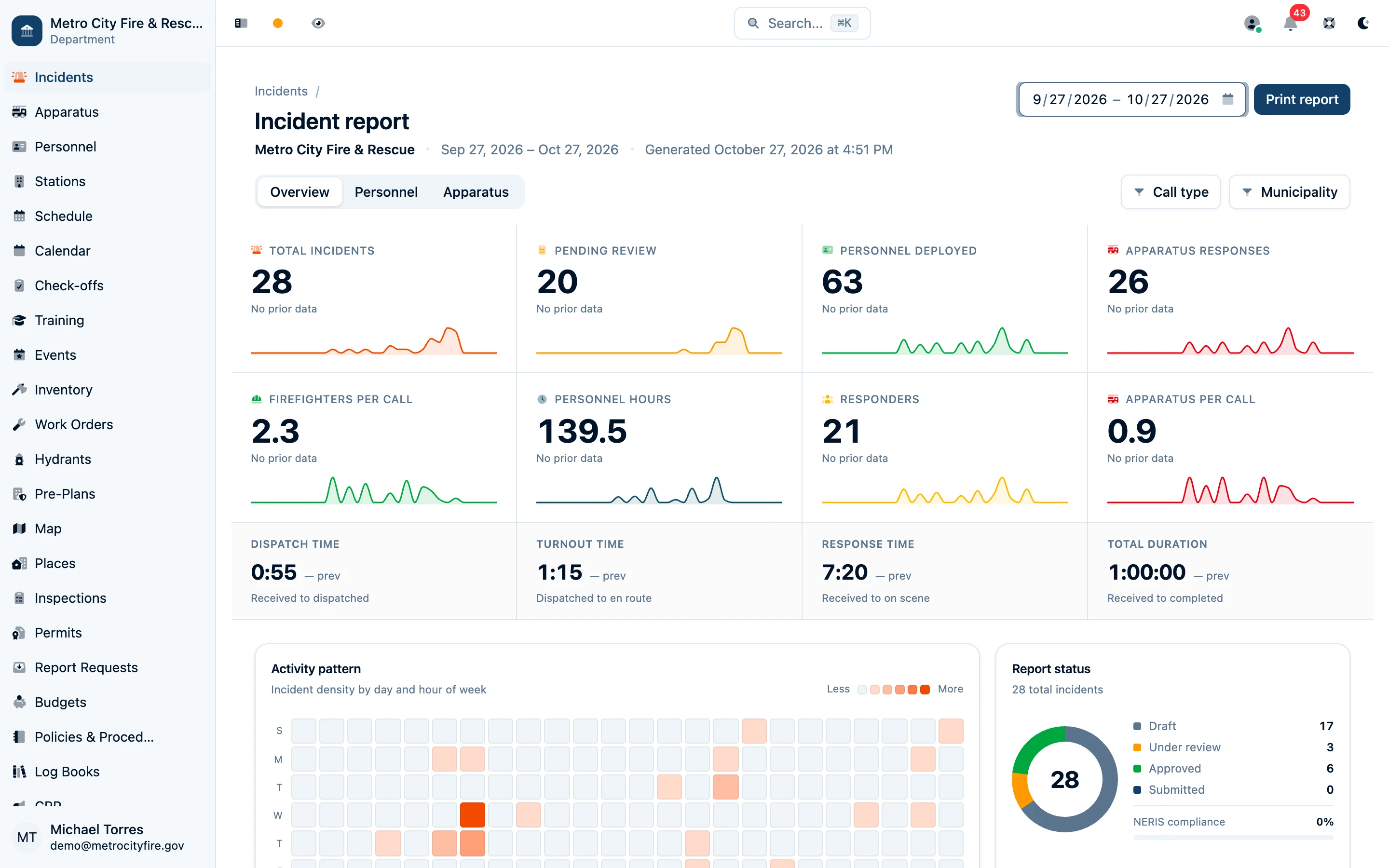
Use Print report on Overview. The Personnel and Apparatus views each offer Export for their own Excel workbook; the on-screen roster controls do not narrow the export.
This is the department's aggregate report. To review, approve, or submit a single incident to NERIS, open that incident's record and follow the Incident Review Workflow. For station responses, excused credit, and attendance rules, see Incident Personnel & Call Credit.
Inspection Report
The Inspection report has Overview and Inspectors views. Filter by Inspection type, Occupancy, Risk level, and Inspector, then choose the date basis:
- By completed date counts completed visits by when they were finished.
- By scheduled date selects visits by their scheduled date; completed-work metrics use the completed visits in that schedule.
Overview shows completed inspections, pass rate, violations, critical findings, corrections made on site, follow-ups, places inspected, and scheduled work not yet done. Inspectors shows each person's completed visits, prior-period comparison, results, findings, and open queue; expand a row for monthly activity, inspection types, and queue details.
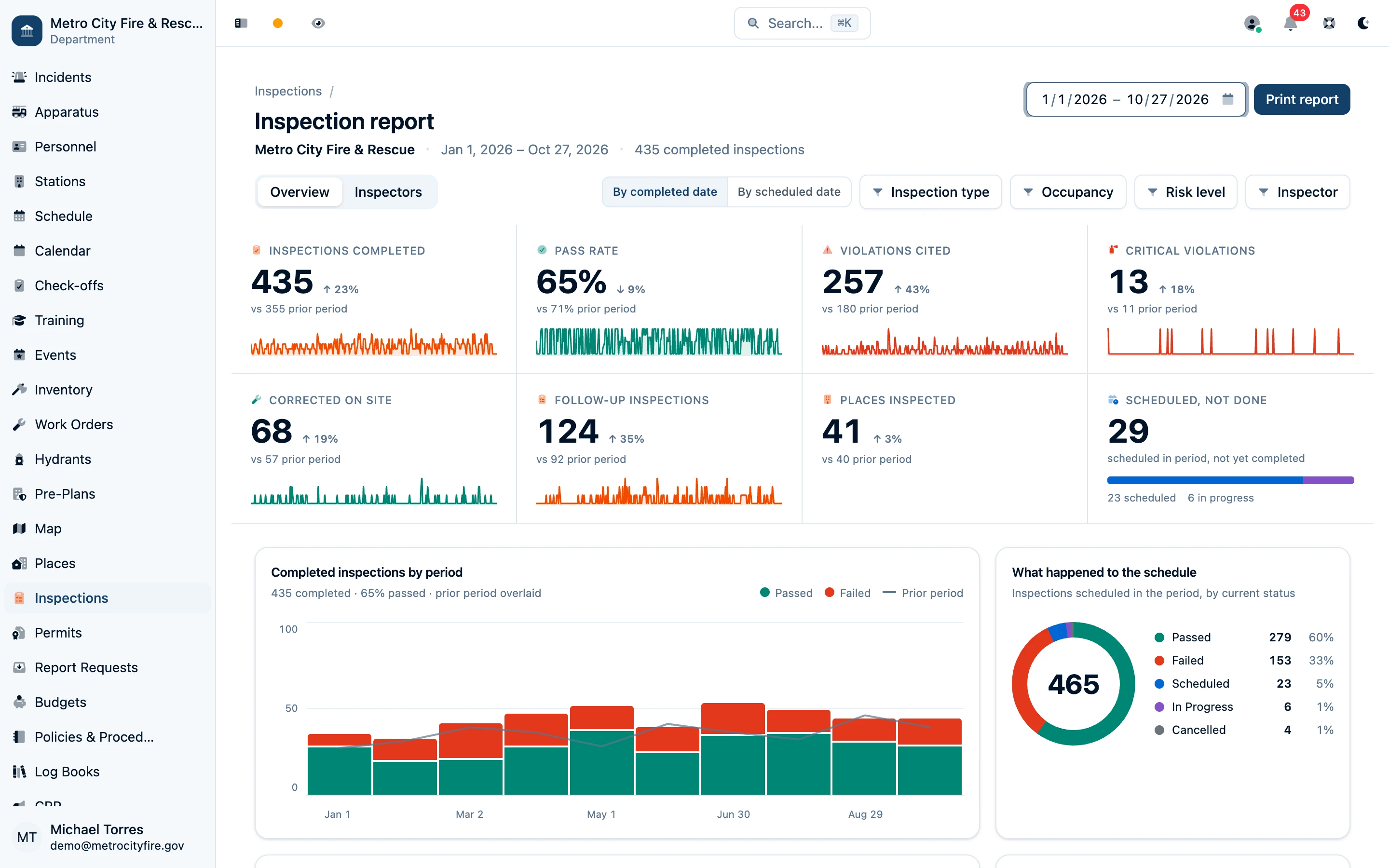
Scheduled work not yet done and the inspectors' open queues always use the scheduled date within the selected period, even when completed work is grouped by completion date. Each named inspector receives full credit for a shared visit, so adding inspector counts can exceed the department's number of inspections.
Print report is available on Overview. The Inspection report does not currently offer an Excel export. For the signed report for a single property visit, open that inspection instead; see Inspection Forms and Inspection Documents.