
LOSAP Points Tracking: Configure Length of Service Award Programs
Many volunteer fire departments participate in a Length of Service Award Program (LOSAP) that rewards members with retirement-style benefits based on annual service points. Tracking those points — across calls, training, meetings, standby shifts, officer duties, and more — is typically a year-end scramble of spreadsheets and manual tallying.
Command Established's compliance programs feature includes a Points mode built specifically for this. Define your LOSAP plan's categories, point values, and caps, and Command Established evaluates every member against them in real time. When the year ends, export the results for your LOSAP administrator or board.
This article walks through setting up a LOSAP program step by step. For general information about compliance programs, see Compliance Programs.
How Points Mode Works
A points-mode program scores members by converting their activity into points:
- Each requirement defines a category (e.g., "Alarms," "Training," "Meetings")
- Activity is converted to points using a points per unit and unit size formula — for example, 1 point per alarm, or 1 point per 2 hours of training
- Each category can have a maximum points cap so one category can't dominate the total
- A member qualifies by reaching a point threshold (e.g., 50 points)
- Optionally, the member must earn points in a minimum number of categories (e.g., at least 2)
Setting Up Your LOSAP Program
Step 1: Create the Program
- Go to Settings > Compliance Programs
- Click New Program
- Select the LOSAP Points Program template, or start from scratch
If you start from scratch, toggle the mode to Points.
Step 2: Set the Evaluation Period
Most LOSAP plans run on a calendar year (January–December), but if your municipality uses a fiscal year, select Fiscal year and choose the start month.
Step 3: Set the Point Threshold
Enter the total points a member needs to qualify. For example, if your plan requires 50 points per year, enter 50.
Step 4: Set the Minimum Categories (Optional)
If your plan requires members to earn points across multiple types of activity — not just pile up all their points from one source — set the minimum categories. For example, setting this to 2 means a member who earns 50 points entirely from alarms doesn't qualify; they need points from at least two different categories.
Step 5: Add Requirements (Point Categories)
This is where you map your LOSAP plan's point structure into Command Established. Add one requirement per scoring category.
Each requirement needs:
| Field | What it means | Example |
|---|---|---|
| Type | What activity this scores | Call count, Training hours, Event attendance, Rig checks |
| Category | The LOSAP category label | "Alarms", "Meetings", "Training" |
| Points per unit | How many points per unit of activity | 1 |
| Unit size | How much activity equals one "unit" | 1 alarm, 2 hours of training, 4 hours of standby |
| Max points | Cap per category per year | 40 |
Points are awarded per completed unit — partial units don't score — up to the category's maximum. At 1 point per 2 hours, 5 hours earns 2 points.
Example: Maryland-Style LOSAP
Here's a real-world LOSAP point structure and how to configure each line:
Alarms (1 point per alarm, max 40)
- Click Add requirement > Call count
- Leave "Minimum calls" at 0 (points mode doesn't use minimums for gating)
- In the Points scoring section:
- Points per unit: 1
- Unit size: 1
- Max points: 40
- Category: Alarms
Meetings (1 point per meeting, max 25)
- Add Event attendance
- Filter by event type: Meetings
- Set minimum events to 0
- Points scoring:
- Points per unit: 1
- Unit size: 1
- Max points: 25
- Category: Meetings
Standby (1 point per 4 hours, max 20)
- Add Event attendance
- Filter by event type: Standby
- Set minimum hours to 0
- Points scoring:
- Points per unit: 1
- Unit size: 4
- Max points: 20
- Category: Standby
Training Courses (1 point per 2 hours, max 20)
- Add Training hours
- Filter by format: Course (excludes drills)
- Set minimum hours to 0
- Points scoring:
- Points per unit: 1
- Unit size: 2
- Max points: 20
- Category: Training
Drills (1 point per 2 hours, max 20)
- Add Training hours
- Filter by format: Drill (excludes courses)
- Set minimum hours to 0
- Points scoring:
- Points per unit: 1
- Unit size: 2
- Max points: 20
- Category: Drills
Collateral Duties / Rig Checks (1 point per 3 checks, max 25)
- Add Rig checks
- Set minimum checks to 0
- Points scoring:
- Points per unit: 1
- Unit size: 3
- Max points: 25
- Category: Duties
Officer Bonus (25 flat points)
- Add Officer bonus (only available in points mode)
- Select the ranks that qualify as officers (Chief, Assistant Chief, Captain, Lieutenant, etc.)
- Set flat points to 25
- Category: Officer
Final Settings
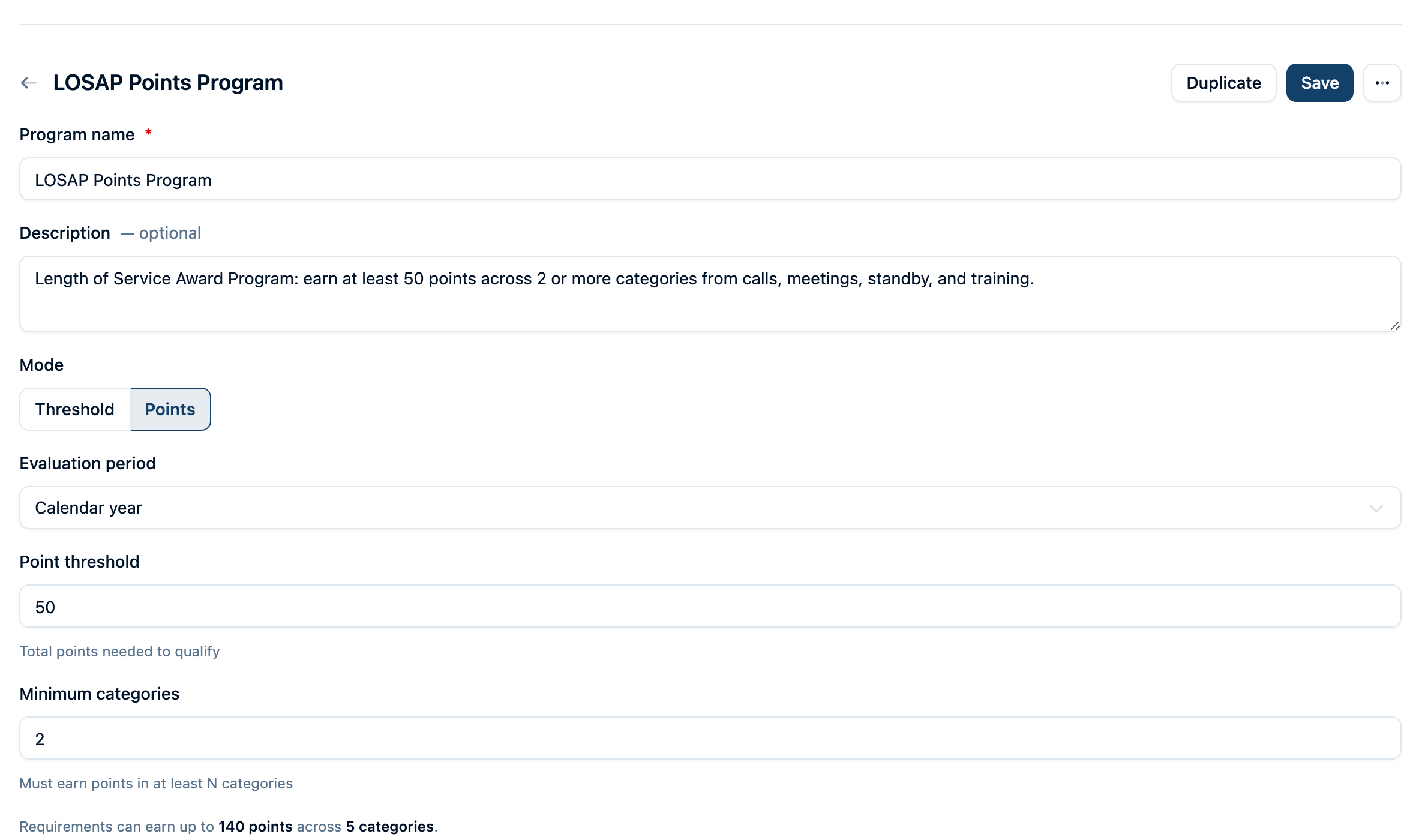
- Point threshold: 50
- Minimum categories: 2
This means a member qualifies by earning at least 50 total points across at least 2 of the 7 categories.
Step 6: Set Applicability
If LOSAP only applies to volunteers (not career members), filter by personnel type to Volunteer. If it applies to specific ranks, filter those too.
Step 7: Activate
Review the live preview to see how many members currently qualify. When you're satisfied, change the status to Active.
Using the LOSAP Dashboard
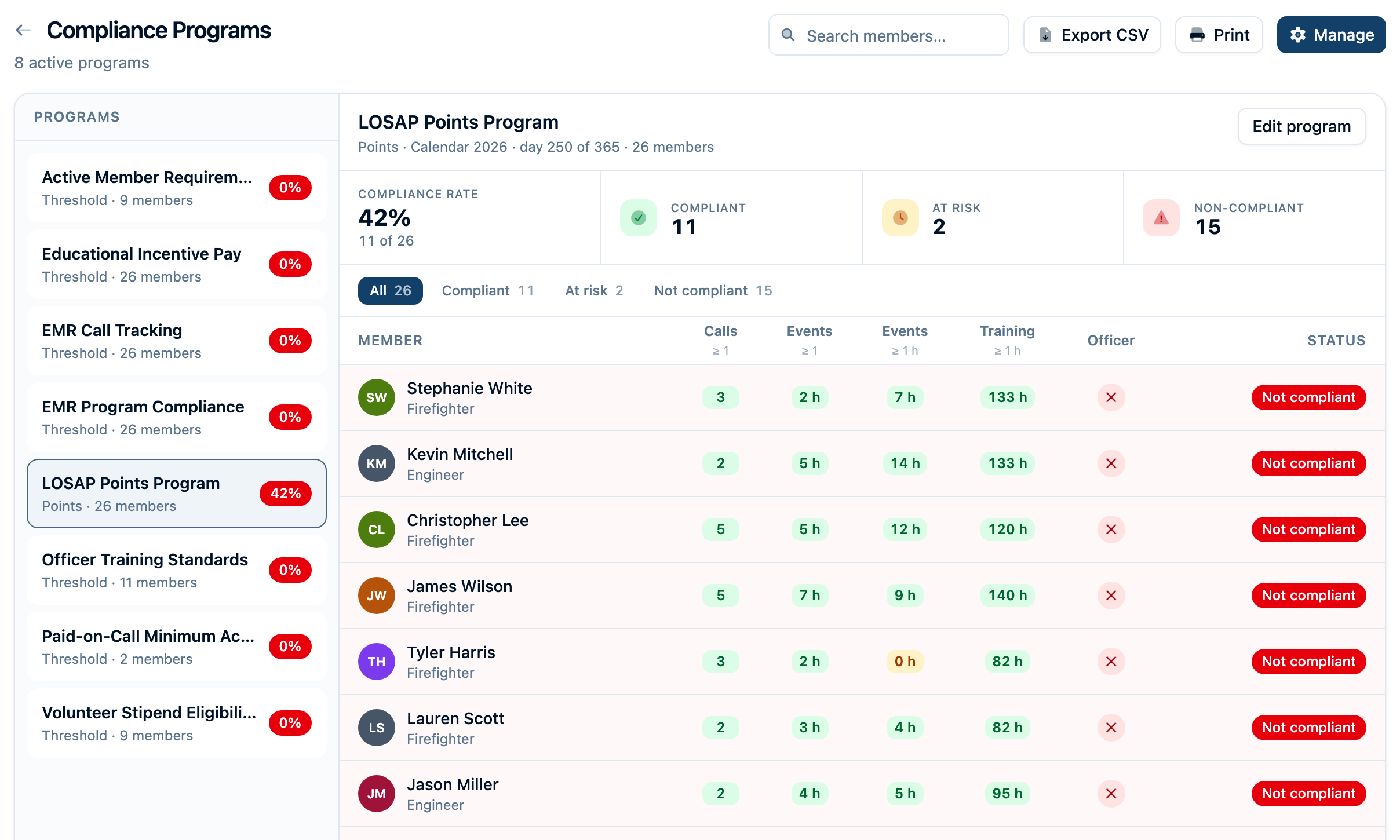
Once active, the compliance dashboard shows your LOSAP program with:
- Compliance rate — what percentage of applicable members have reached the point threshold
- Member matrix — each member's point progress across all categories, with a total points column
- At-risk members — members who are behind the expected pace (based on how far through the year you are)
- Filters — quickly show only members who haven't qualified yet
Reading the Dashboard
Members are sorted with non-qualifying members first so you can focus on who needs attention. Each requirement column shows the member's current point count in that category — green if they've hit the cap, amber if behind pace, blue for tracking-only categories.
Exporting for Your LOSAP Administrator
CSV Export
Click Export CSV on the dashboard. The file includes:
- Member name and rank
- Points earned per category
- Total points
- Qualification status (Compliant / Not compliant)
Open in Excel, filter and format as needed, and send to your municipality's LOSAP administrator.
Print Report
Click Print for a formatted report with your department name, program details, summary statistics, and the full member breakdown. This is formatted for board meetings — hand it to your board of trustees, township committee, or municipal council as-is.
Event Report
For the hours and attendances behind your event-based categories, open Events › Report. Pick a date range and filter by event type (for example, only standbys, or only fire police details) and by your event custom fields. The Personnel view lists every active member with their events and hours against the previous period, and Export downloads an Excel workbook with one row per person per event.
The report is available to anyone with event read access; exporting also requires personnel read access. The on-screen Member type filter does not narrow the workbook. See the illustrated report guide for Overview, Personnel, and the export contents.
Event hours are credited the same way here as in your LOSAP program: each member's recorded minutes when they arrived late or left early, otherwise the full event — for every event type. Whether a category scores per event or per hour is set on the requirement, as described above.
Stipends and Incentive Pay
Not every pay-related program uses points. For simpler eligibility tracking — "complete 50 calls to earn your annual stipend" or "complete 30 hours of training for the educational incentive" — use Threshold mode instead:
Annual Stipend
- Create a new program in Threshold mode
- Add a single Call count requirement with minimum calls set to your threshold (e.g., 50)
- Set applicability to the relevant members
- Activate
The dashboard shows exactly who qualifies. Export for payroll.
Educational Incentive Pay (e.g., Tennessee $600 Incentive)
- Create a new program in Threshold mode
- Add a Training hours requirement with the minimum hours (e.g., 30)
- Optionally filter by training type or custom field options if only specific training qualifies (e.g., "in-service training" only)
- Activate
Volunteer Incentive Pay (VIP)
- Create a new program in Threshold mode
- Add requirements for each criterion — training hours in specific categories, certifications, call counts
- All requirements must be met (AND logic) for the member to qualify
Tips and Best Practices
Start with a template, then customize
The LOSAP template pre-configures a realistic point structure. Adjust the numbers to match your plan rather than building from scratch.
Use categories consistently
In points mode, the Category label on each requirement is how points are grouped. Members must earn points in N categories — make sure each distinct activity type has a unique, clear category name. "Training" and "training" are treated as the same category, but "Training Courses" and "Drill Training" are different.
Separate drills from courses when your plan does
Many LOSAP plans score drills and classroom training separately. Add two training hours requirements — one filtered to "Drill" format, one to "Course" format — with different category labels.
Use NERIS type filtering for call-based categories
If your LOSAP plan only awards alarm points for certain call types (e.g., fire responses but not EMS), use the NERIS incident type filter on the call count requirement. See Compliance Programs for details.
Review quarterly
Run the compliance dashboard quarterly so members know where they stand. Early warnings give members time to pick up extra training or events before the year ends.
Keep draft programs for modeling
Before your municipality finalizes LOSAP parameters, create a draft program with the proposed structure and see how your members would score against it. The live preview shows exactly who would qualify — useful for board discussions about adjusting thresholds.
Frequently Asked Questions
Does Command Established calculate LOSAP payments?
No. Command Established tracks point accumulation and tells you who qualifies. Actual payment calculation, fund management, and disbursement are handled by your LOSAP administrator or pension fund. Export the qualifying member list and hand it off.
Can I have multiple LOSAP-style programs?
Yes. Create as many points-mode programs as you need. Some departments have separate programs for different benefit tiers or different member classes (e.g., one for line members, another for officers with different requirements).
What if our LOSAP plan changes mid-year?
Edit the active program to reflect the new rules. Compliance is re-evaluated immediately against the updated requirements. If you need to preserve the old rules for reference, duplicate the program first, then archive the original.
How do partial-year members work in points mode?
Members who join during the evaluation period accumulate points from their join date forward. Their point total reflects only the activity that occurred after they joined. If your LOSAP plan prorates the threshold for partial-year members, enable the prorate option on the program.
Can I track LOSAP points alongside threshold requirements?
These are separate programs. Create one program in points mode for LOSAP tracking and another in threshold mode for active member requirements. Members are evaluated against each independently, and both appear on the compliance dashboard and in member profiles.