
Live Check-Offs: Complete One Checklist Together
Several crew members can work on the same check-off at once. One person checks the cab, another checks the pump, and another checks the SCBA. Their answers appear on one shared sheet, with the crew's notes, readings, photos, and work orders carried into one completed record.
This guide covers running a check-off. For setup, see Check-Off Templates; for printing and posting codes, see QR Codes + Check-Offs.
Start or Join the Check
Open the checklist from the Station Hub, the apparatus's Check-Offs tab, a template's Start check-off action, or a scheduled work order. You can also scan its existing QR code.
The first person starts the shared check-off. Anyone else opening the same template joins it automatically while it is still in progress. There is no invitation step or separate code for each participant. Sign in with your department account, or use a paired rig tablet.
Each template has one shared check-off in progress at a time. Coordinate which sections each person will inspect, especially if the template covers several pieces of equipment.
Record Your Part of the Check
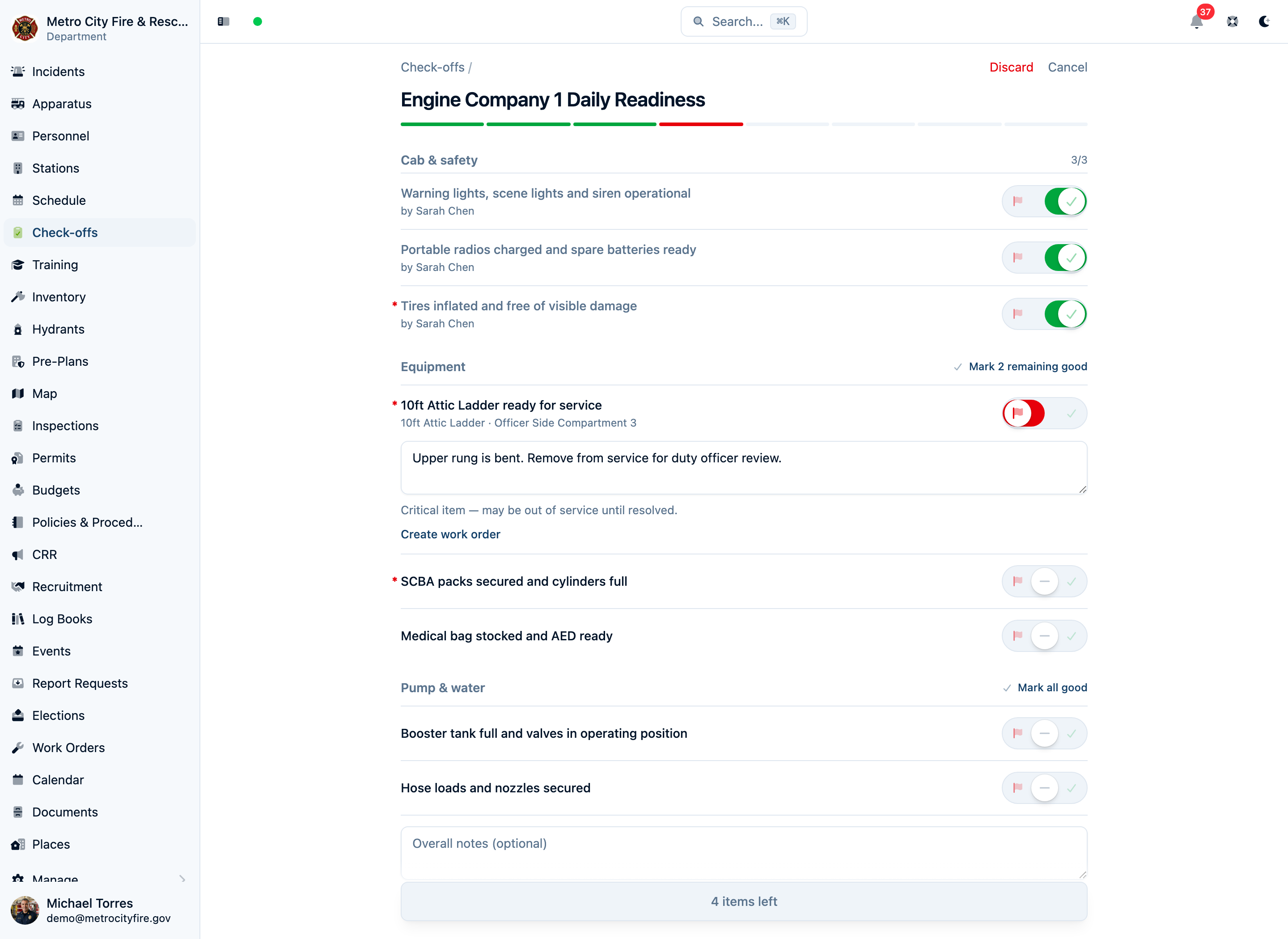
Each item has three positions: pass on the right, fail on the left, and pending in the center. Tap a side or drag the control to mark the result. A failed item opens a required What's wrong? note. Items configured to require notes also need a note when they pass.
The progress bar shows one segment for each item: gray for pending, green for pass, and red for fail. The bottom N items left button takes you to the next unanswered item.
After inspecting a section, Mark all good or Mark N remaining good marks its unanswered items as passed. It leaves existing failures alone. The confirmation offers Undo if you tapped it by mistake. Required notes still need to be filled in.
Answers save as you work; typed notes and meter readings save after you pause typing. Other participants see those changes on their own devices. If two people change the same answer or note, the latest saved change is shown, so divide the work and avoid editing the same note together.
If the template asks for meter readings, enter the apparatus's odometer, engine hours, and pump hours where offered. These are shared fields too: one crew member can take the readings for everyone.
Identify Equipment That Failed
A template can link its items to inventory using Link equipment, or create a separate check for each selected piece with Add from Inventory. Equipment details beneath the item help the crew identify what they are checking.
- If the failed item links to one piece of equipment, that piece is recorded automatically.
- If it covers several pieces, use Which equipment? to select the ones with the problem. You can leave it unselected if you cannot identify a specific piece.
- Equipment that is no longer assigned to the template's rig or station is not offered for selection.
For example, if one bottle-pressure check covers four SCBA packs and E1-SCBA-03 is low, fail the check, describe the pressure in What's wrong?, and select that pack under Which equipment?. This records which piece needs attention while keeping the other packs out of the failure.
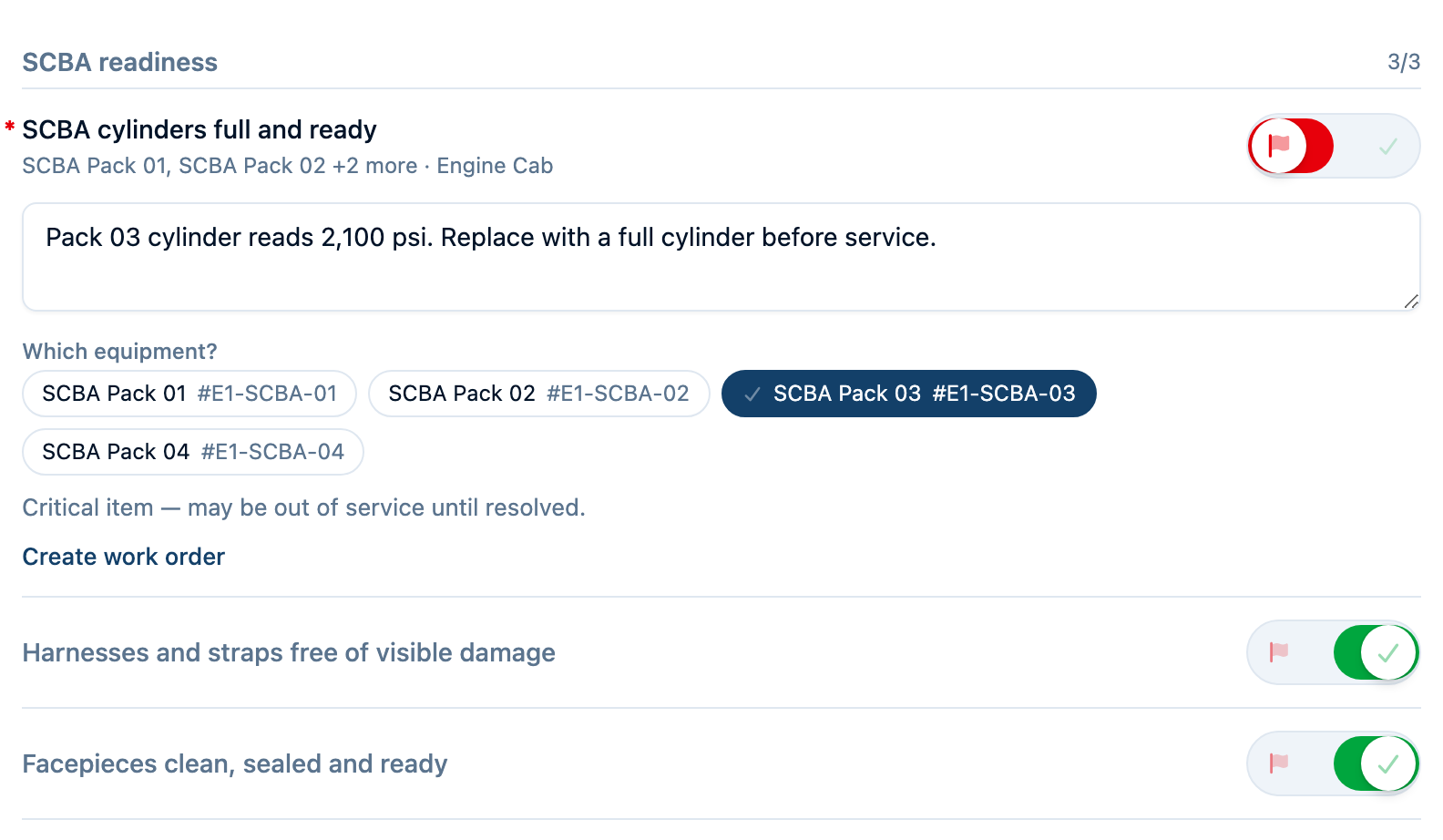
Where work orders are enabled and you have permission, choose Create work order beside a failure. A work order for one failed piece is linked to that inventory item. If the failure names several pieces, the order stays linked to the rig or station and lists the equipment in its description. Without a selected piece, it stays on the rig or station.
If a matching work order is already open, the sheet offers to add today's note when the check-off is submitted. Choose Don't add to skip the follow-up, or New work order for a separate problem. Work orders created by another participant count toward the same check-off, so check the row before raising another one.
Add Photos From Any Device
Choose Add photos near the end of the form to take a photo or choose an image. On a computer, you can also drop photos onto the page. The shared check-off holds up to 50 photos in total across the crew.
Photos upload while the check is in progress and appear for the other participants. You can remove a photo with its × button before submission. Let uploads finish before someone submits; the completed record includes photos already saved to the shared check-off, regardless of which device added them.
Leave and Come Back
Cancel leaves the page. It keeps saved progress available for the other crew members and for your return. Reopen the same template or scan the same QR code to rejoin.
If a check-off has had no saved changes for six hours, the next person to open the template starts a fresh check. Finish and submit before a long break if you need a completed record of that work.
Discard ends the unfinished check-off for everyone. A confirmation explains that the entered results will be thrown away; the next person to open the checklist starts fresh. No completed check-off is created. Work orders already created remain separate records and are not undone by discarding the check-off.
Submit Once for the Crew
When every item has a result, the bottom action becomes Submit check-off. Check that the crew is finished entering notes and uploading photos, then have one person submit. Required notes must be filled in before the form can finish.
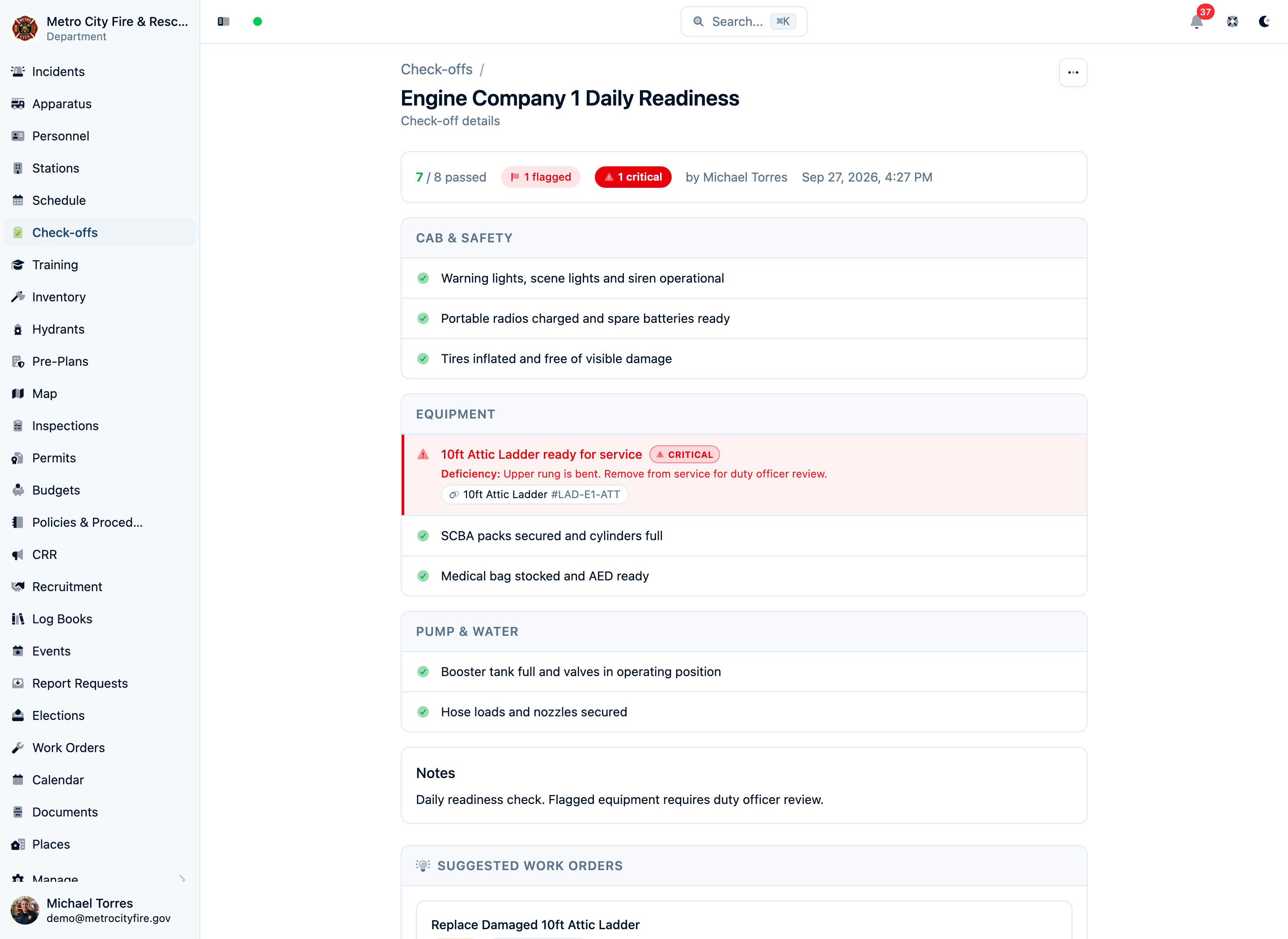
Submission creates one completed check-off with the shared results, notes, readings, photos, and work-order links. The other participants are taken to that completed record. Opening the template again starts the next check-off.
The completed record names the person who submitted it. On a paired tablet, the app asks Who completed this check-off? if nobody is selected. A tablet PIN verifies that person's identity; a selection without a PIN is shown as picked on a shared tablet. The names shown beside items while working identify their last editor and do not replace the completed record's Completed by attribution.
For a scheduled check, automatic work-order completion depends on the person submitting being allowed to close that order. See Running a scheduled check if the check-off is recorded but its scheduled work order stays open.
Common Questions
Do we need new QR codes?
No. The template's existing QR code opens or joins its current check-off. Everyone scanning that code works on the same in-progress check.
What happens if someone edits the template while we are checking it?
The in-progress check keeps the template as it was when the check started. New sections, reordered items, and other template edits take effect on the next fresh check-off.
Can we work without a connection?
Live check-offs need a connection to save and share changes. If a change cannot be saved, the app reports it and shows the latest saved check-off. Check the affected answer or note after reconnecting and enter it again if needed.
Can we each submit a separate check from the same template?
Opening a template while its check is in progress joins that shared check. To record another check, open the template after the current one has been submitted. Use separate templates for checks the department needs to run independently at the same time.