
Payroll from the Time Clock (or the Schedule)
Every payroll answers the same question: how many hours did each member work, and what kind of hours were they? Command Established can answer it two ways. This article explains both, helps you choose, and then walks through a pay period from the time clock, start to finish.
Two ways to count hours
From the schedule. Members are paid for the shifts the schedule had them on. If Pat was on A shift Tuesday, Pat gets 24 hours. Trades, overtime, time off and duty crews are all read from the schedule. Nobody clocks anything.
From the time clock. Members are paid for the time they actually clocked in and out at a station time clock, after an officer rounds the times. If Pat was held over 45 minutes on a call, that shows up. If Pat never came in, that shows up too.
| From the schedule | From the time clock | |
|---|---|---|
| Hours come from | The shifts the schedule planned | What members clocked, rounded by an officer |
| A shift trade is paid to | You choose: the scheduled member or whoever works it | Whoever clocks in |
| Held over on a call | Only if someone enters overtime on the schedule | Shows up on its own |
| A no-show | Only if someone enters time off | Shows up as a shift with no entry |
| Work each pay period | Approve requests, check, export | Close, settle and round entries, then check and export |
| Time off | From the schedule | From the schedule |
Which should you use? If your members are salaried, or paid for the shifts they're scheduled for whatever happens, stay with the schedule: it's less work. If you pay by the hour, pay held-over time, or your contract or auditors want punched times, use the time clock.
Either way, time off always comes from the schedule. Vacation, sick leave and Kelly days are entered there as they always were.
You can switch at any time, and the reports for every period follow the setting you have now. Keep the CSVs you sent to payroll as your record of what was paid.
Switch to the time clock
Go to Settings › Payroll, and under Hours worked, choose From the time clock. Save.
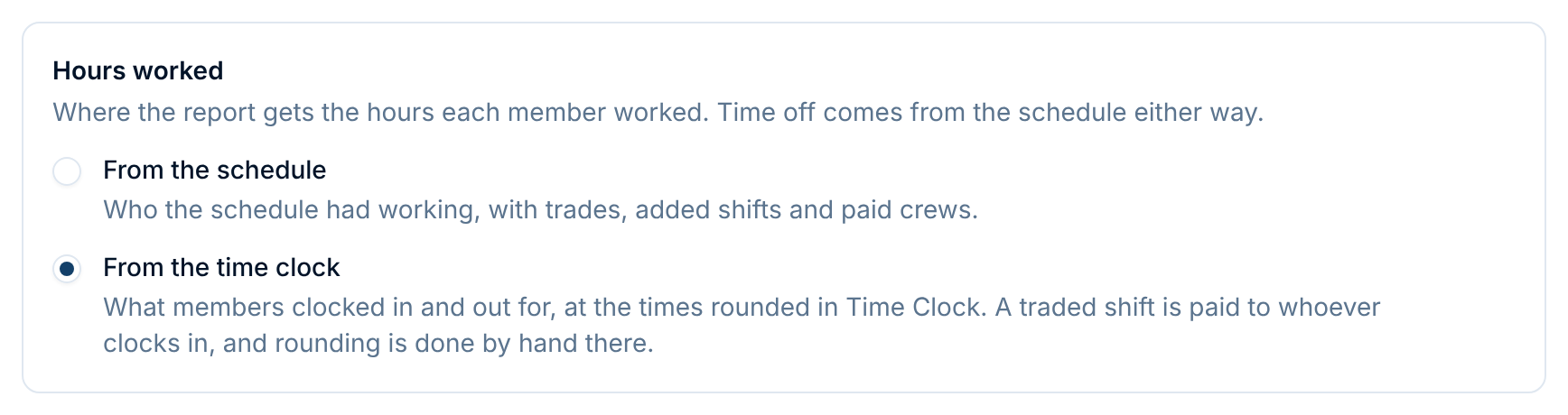
Two things on the page change when you do:
- Traded shifts disappears. Whoever clocks in for a shift is paid for it.
- Round each one disappears from callbacks. Each clocked time is rounded by hand instead (see Round the times).
Everything else, from your overtime limits to holidays and unpaid time off, works the same with either source.
Also check Pay periods at the top of the page. Each payroll day begins at should be your shift change, such as 07:00. Then a 24-hour shift stays on one day instead of being split at midnight, and the date range on every payroll page reads the way your crews think about it.
A pay period in five steps
From the time clock, Schedule › Time Clock becomes Payroll review: your pay period's entries, checked against the schedule, with how each one will be paid.
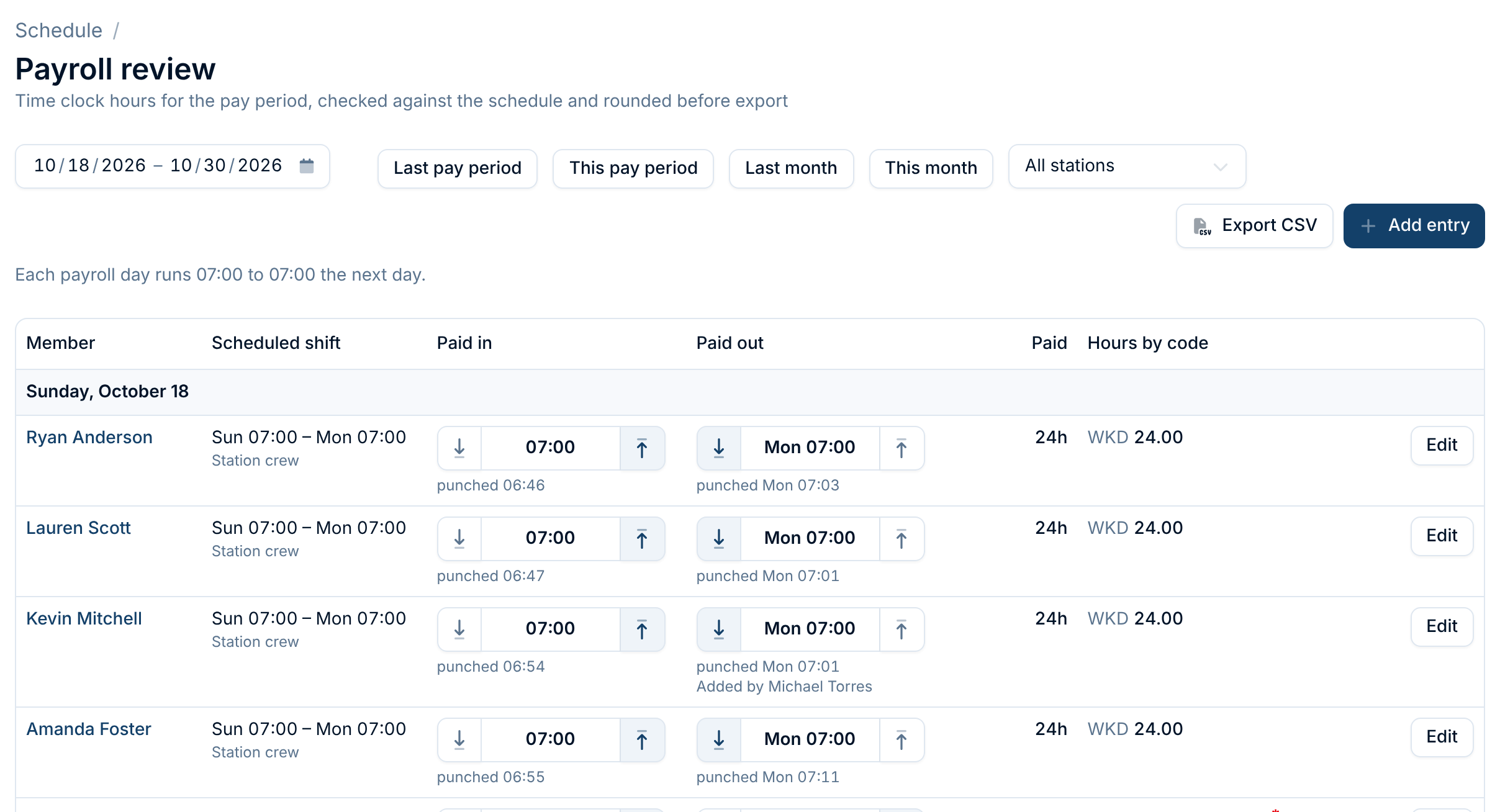
Click Last pay period and work down the page. Most entries need nothing. These steps cover the ones that do.
1. Close entries still open
An entry a member never clocked out of says Still clocked in, with when its shift ended. It isn't paid until it's closed.

Usually the member forgot. Click At shift end to fill in the scheduled end, then Clock out. If they stayed later, type the time instead.
Members can close their own forgotten entries at the tablet too: the next time they use it, it asks when they left.
2. Settle missing shifts
A shift on the schedule that nobody clocked in for shows No time clock entry. Payroll review puts these right in the list, so none slip through.

- They worked it, but didn't clock in: click Add entry. The shift and its times are filled in. Give a reason, such as Tablet was offline, and add it.
- They didn't work it: click Not worked. The row says so, and stops asking. Undo brings it back.

Not worked doesn't pay or dock anything. If the member was off sick, enter the sick leave on the schedule as usual, so it's paid as sick leave.
3. Round the times
Members arrive early and leave a few minutes after relief. You decide which of those minutes are paid. The arrows either side of each time round it to the quarter hour:
- ↓ rounds down: 07:03 becomes 07:00.
- ↑ rounds up: 06:46 becomes 07:00.

The usual pattern: round an early clock-in up to the shift start, and a few minutes past relief down to the shift end. Someone held over on a call: round their clock-out up to pay the time.
The punched time always stays underneath, the paid hours update straight away, and tapping the same arrow again pays the time as punched. Rounding is never automatic, because only you know whether those minutes were work.
A red * marks a time the member reported at the tablet instead of punching. Check any that look long.
4. Check the codes
Hours by code shows how each entry will be paid, using your pay codes, such as WKD 24.00 for a weekend shift. Click a member's name to open that entry in full.
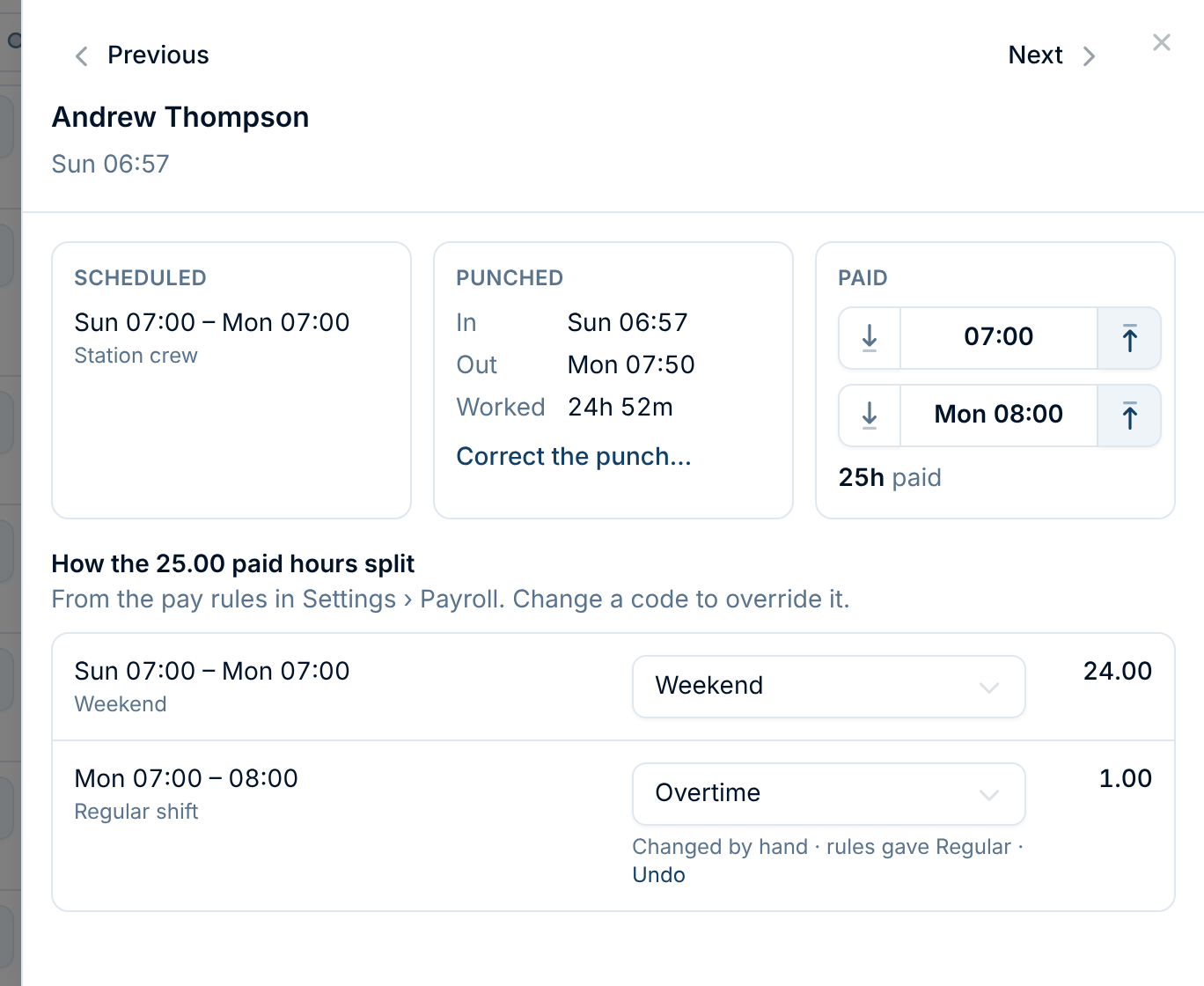
The entry shows three things side by side:
- Scheduled, what the schedule planned;
- Punched, what the time clock recorded;
- Paid, the rounded times, which you can change right here.
Below them, How the paid hours split lists each stretch of time and its code. To pay a stretch differently, pick another code. In the example, a member held over an hour on a call was coded Overtime instead of Regular. The row then says Changed by hand, with what the rules gave and an Undo. Use Previous and Next to walk through the period without closing the panel.
Changing a code changes only that entry. If you find yourself changing the same thing every period, change the pay codes grid instead.
Not paid is the code for time your rules don't pay, such as a volunteer duty crew seat. It still lists the hours, so you can see them. To pay one, pick a code for it.
5. Export
Open Schedule › Payroll. With hours from the time clock, the report adds up the rounded entries, with a column for each pay code.
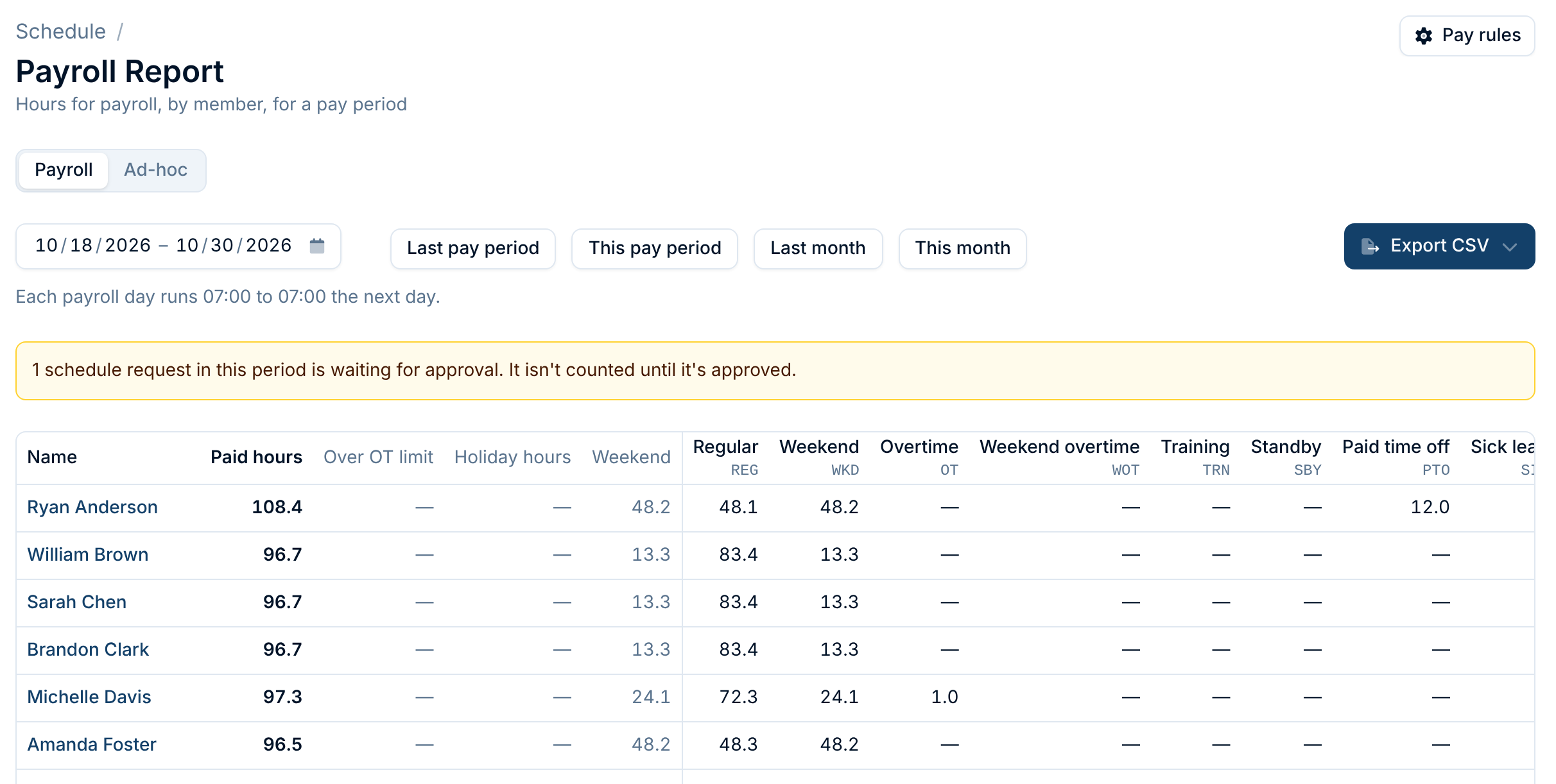
Click Export CSV:
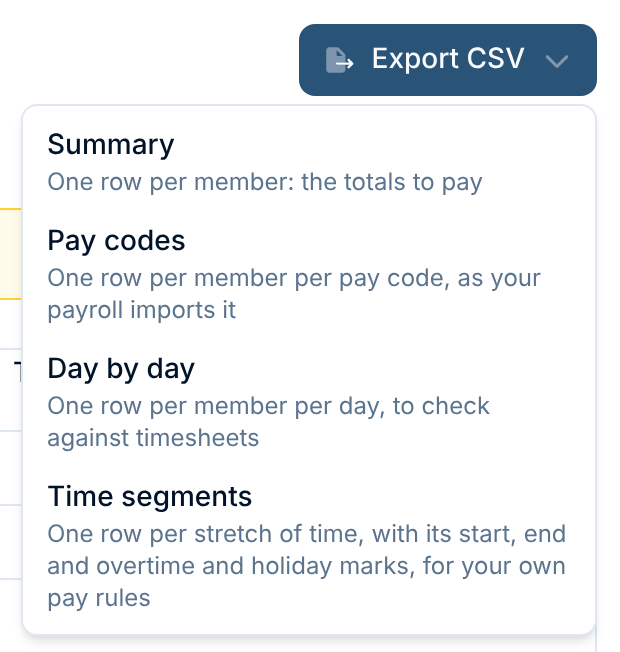
- Pay codes — one row per member per code:
employee_id, name,pay_code,pay_code_nameandhours. Most payroll services import exactly this. Codes with no hours are left out. - Summary — one row per member with every total, as described in Running Payroll Reports.
- Day by day — one row per member per day, to check against timesheets.
- Time segments — one row per stretch of time, with its start, end and overtime and holiday marks, for payroll systems that apply their own rules.
That's the period done.
Pay codes
A pay code is what your payroll service calls a kind of hour: REG for regular, OT for overtime, WKD for weekend. Set them once in Settings › Payroll › Pay codes and every entry is coded for you. Pay codes work the same whether hours come from the time clock or the schedule.
The grid
Each row is a kind of time worked. Each column is when it was worked. Each box is the code those hours get.
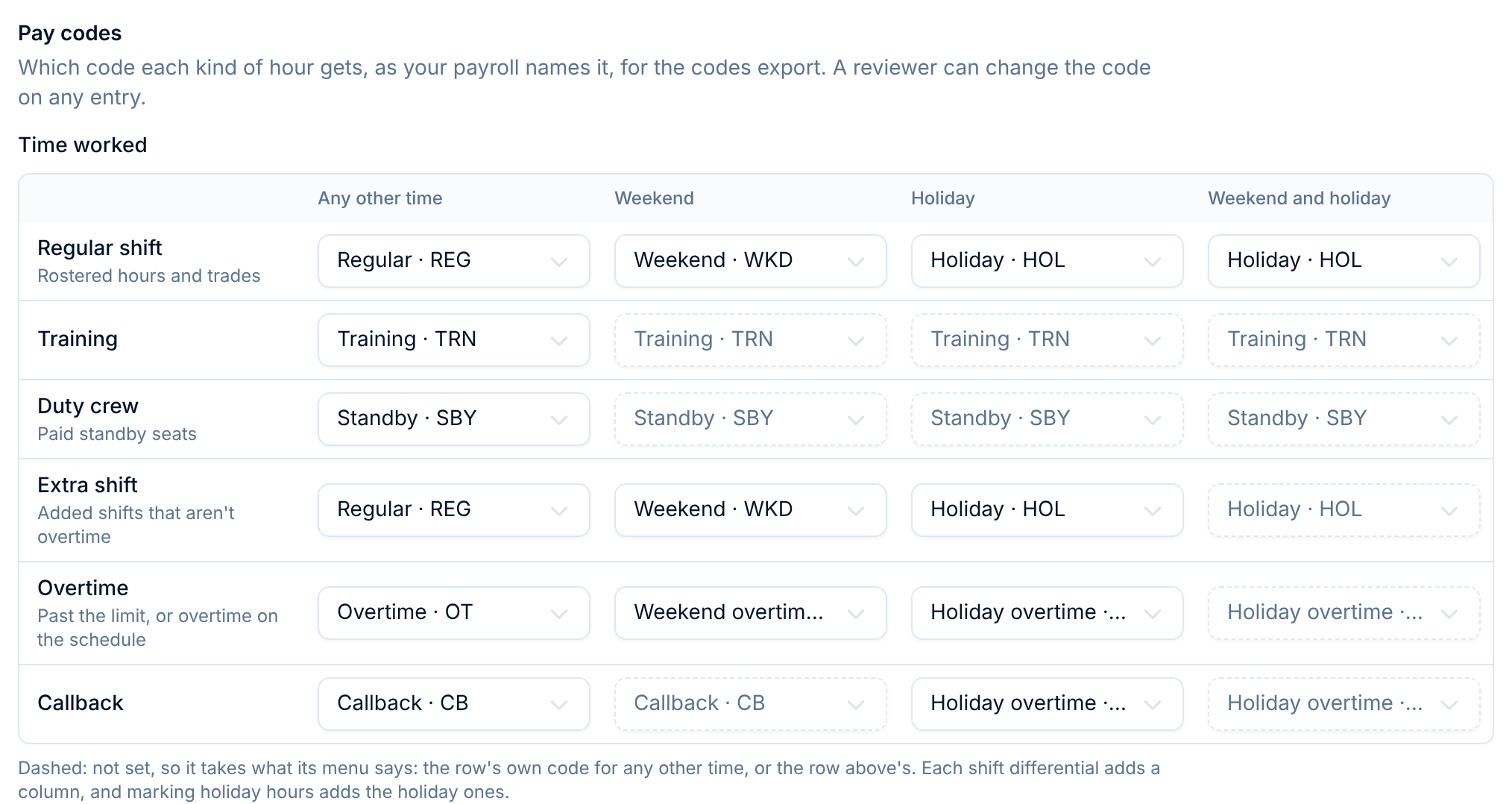
| Row | Means |
|---|---|
| Regular shift | Rostered hours and traded shifts |
| Training | Training entered on the schedule |
| Duty crew | Paid duty crew seats |
| Extra shift | Shifts added to the schedule that aren't overtime |
| Overtime | Hours past your overtime limit, or overtime entered on the schedule |
| Callback | Callbacks entered on the schedule |
The columns are Any other time, one for each shift differential, and Holiday if you mark holiday hours. Hours past the overtime limit use the Overtime row whatever kind of shift they were, so a long weekend shift past the limit is Weekend overtime. A callback stays a callback.
Dashed boxes follow
You don't have to fill in every box. A dashed box isn't set, and its menu shows the code it uses:
- first, the next plainer box in its own row: a combined column such as Weekend and holiday takes the row's Holiday code, and any other column takes the row's Any other time code;
- if the row has none of those set, the same box in the row above.
In the example, Training is set to TRN under Any other time, so weekend and holiday training are TRN too. Callback sets CB for any other time and HOT for holidays, so a callback on a holiday weekend is HOT, not CB. If you want a combined box to pay differently from the row's Holiday code, set it.
The gotcha: a row you leave entirely blank follows the row above, all the way across. Extra shift sits below Duty crew, so if you don't set it, extra shifts are paid as Standby. Set every row whose hours you pay differently from the row above. The text under the grid is always a reminder.
Codes and time off
Below the grid, Paid time off gives each time-off type its code, such as PTO for vacation and Kelly days and SICK for sick leave. Types left as No code are still paid and counted; the Pay codes export just leaves them out. Unpaid types aren't coded.
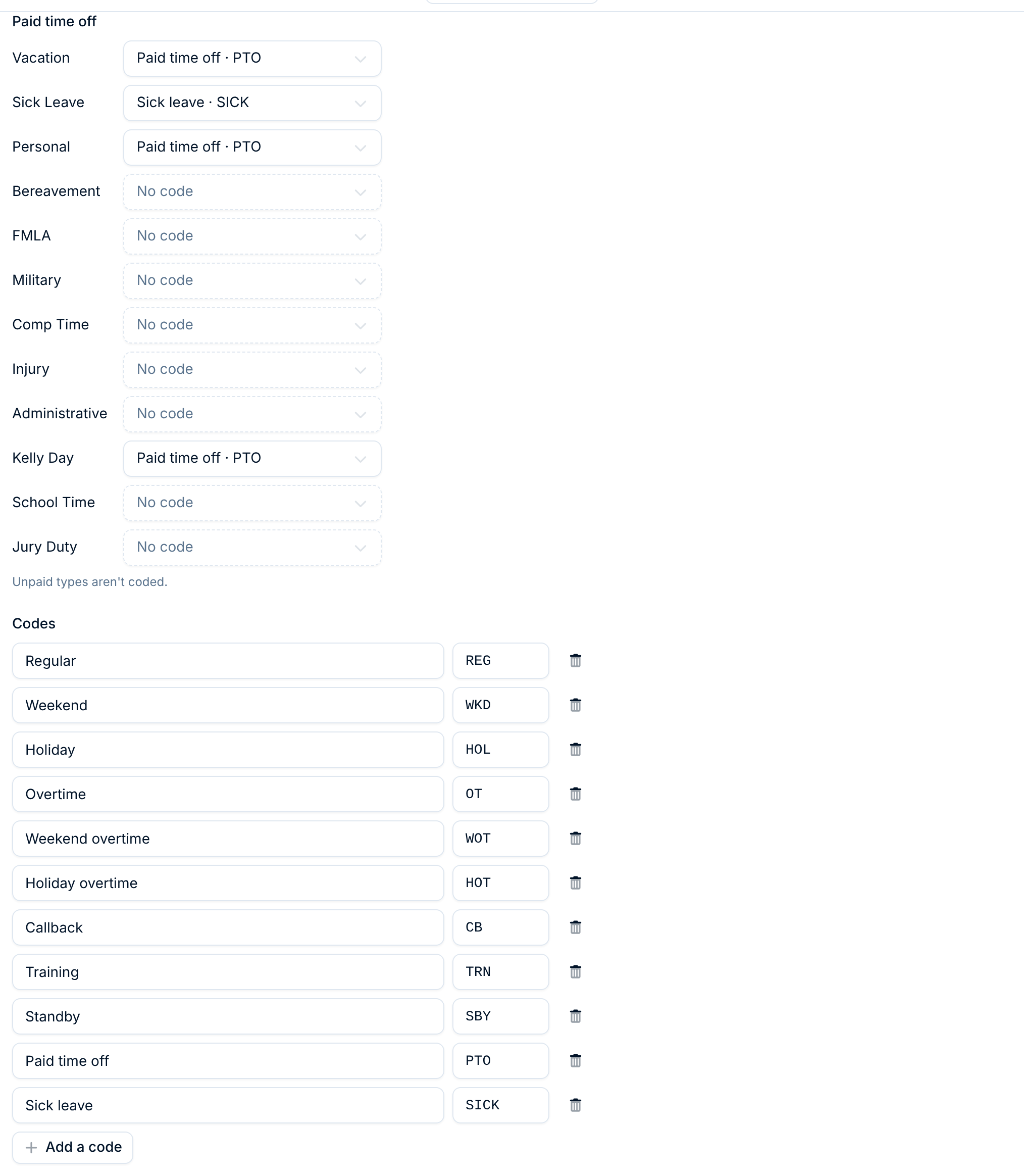
Codes lists every code: the name people see, and the export code your payroll imports. Add one with Add a code, or pick New code… in any box of the grid. Renaming a code changes it everywhere at once.
Shift differentials
A shift differential is a weekly window you pay differently, such as weekends or nights. Add one under Settings › Payroll › Shift differentials, name it, and set when it runs.
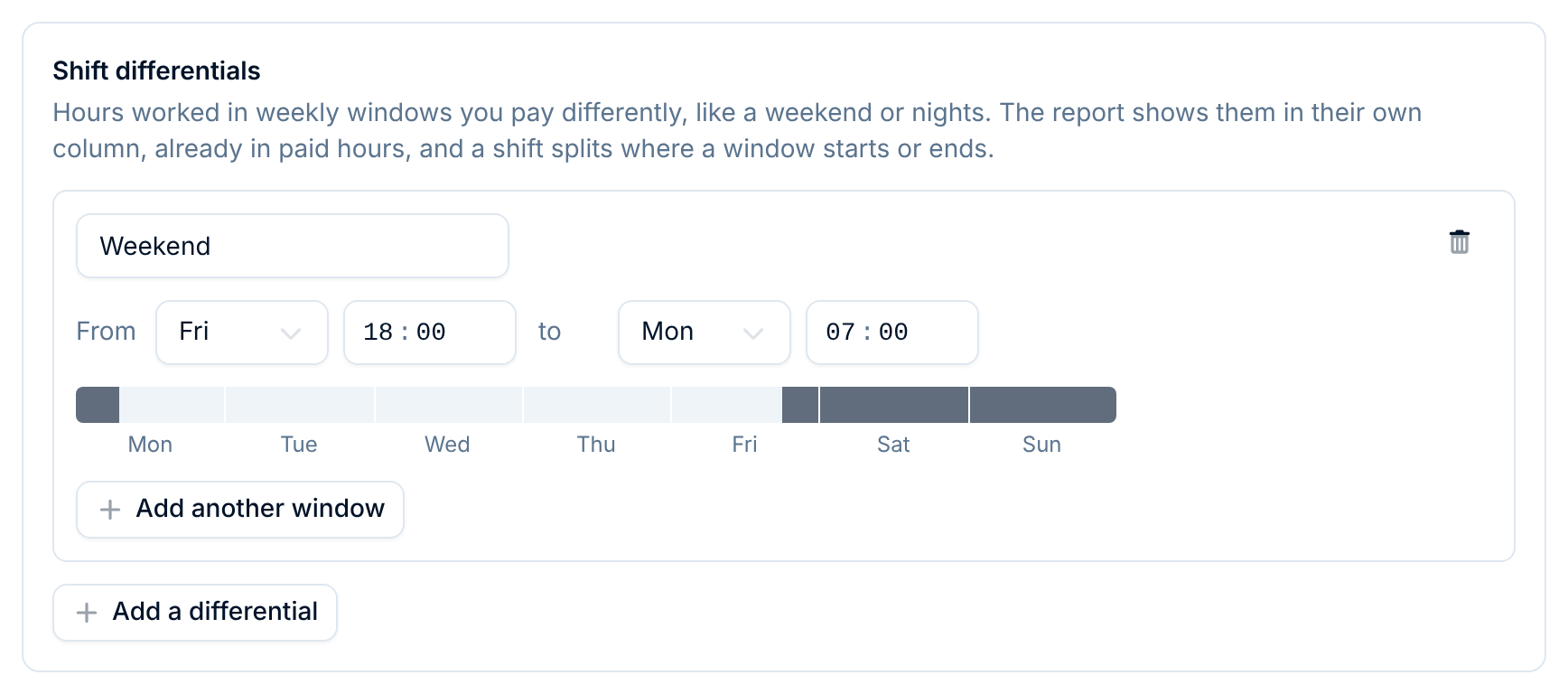
Hours worked inside the window are counted in their own column on the payroll report, and a shift that crosses its start or end is split there. With the window in the example, a 24-hour shift starting Friday at 07:00 is 11 regular hours and 13 weekend hours, while a Saturday shift is weekend hours from start to finish. The differential column shows hours that are already in paid hours: it tells you how many to pay at the differential rate, it doesn't add any.
Each differential adds a column to the pay codes grid, so you can give weekend hours their own code. Add another window covers a differential that runs at two times, such as weeknights and weekends.
Questions
Do members still need to be on the schedule? Not to be paid: an entry without a shift is paid for its clocked time. But the schedule is what payroll review checks entries against, what lets the tablet offer each member their shift, and where time off comes from. Keep it up to date.
What if a member clocks in for someone else's shift in a trade? They're paid for it. With hours from the time clock, whoever clocks in is paid.
Does overtime still work? Yes. Your overtime limits count the rounded clocked hours, so hours past the limit go to the Overtime row. Overtime entered on the schedule and clocked in for is coded as overtime from its first hour.
Is training paid? Training a member clocks in for is paid from the clock. Training on the schedule that nobody clocked in for is still paid from the schedule, so a class on a day off counts either way.
What does "callback minimum" do with the time clock? A callback entered on the schedule and clocked in for is paid at least the minimum you set, such as 2 hours, even if the member clocked out sooner.
We changed an entry after exporting. What now? Re-export the period. Every report and export is built fresh from the entries as they are now.
Who can do all this? Seeing entries needs Timecards read access, and fixing, rounding or recoding them needs Timecards update. Payroll review's hours by code, and the payroll report, also need Payroll read access. Admins and Owners have all of it. See Running a Time Clock.
Related articles
- Running a Time Clock: setting up station tablets, clocking in and out, and fixing entries
- Setting Up Pay Rules: overtime limits, holidays and the rest of Settings › Payroll
- Running Payroll Reports: reading the report and the member timesheet