
Running a Time Clock at Your Stations
A time clock answers one question the schedule can't: when did each member actually arrive and leave? In Command Established, the time clock is a tablet on the station wall. Members tap Clock in, pick their shift, and enter their own PIN. That's it. Officers see every entry on the Time Clock page, round the times for pay, and fix the ones that need it.
This article covers setting up the tablet, what members do at it, and what officers do afterwards. To pay from the time clock, see Payroll from the Time Clock.
How it fits together
| Who | Where | |
|---|---|---|
| Clock in and out | Every member | The tablet at the station |
| Check and fix entries | Officers with Timecards access | Schedule › Time Clock |
| Pay from it | Whoever runs payroll | Schedule › Payroll (how) |
The tablet only takes punches. It can't show anyone's timecard, so it's safe on a wall anyone walks past.
Before you start
You need four things:
- A schedule. The time clock offers each member the shifts the schedule has them on. It works without one (members can clock in without a shift), but it's much faster with one.
- Member accounts. Each member clocks in as themselves, so each needs a Command Established account linked to their personnel record.
- A tablet PIN for each member. Members set their own 4-digit PIN in their account settings. It's the same PIN they use on a shared rig tablet. See Tablet PIN.
- A tablet at each station. Any tablet with a web browser. Mount it where crews pass at shift change.
Set up the tablet
1. Add the device
Go to Settings › Paired devices and click Add Device. Name it after where it hangs, such as Station 3 Time Clock, and pick the Time clock access option.
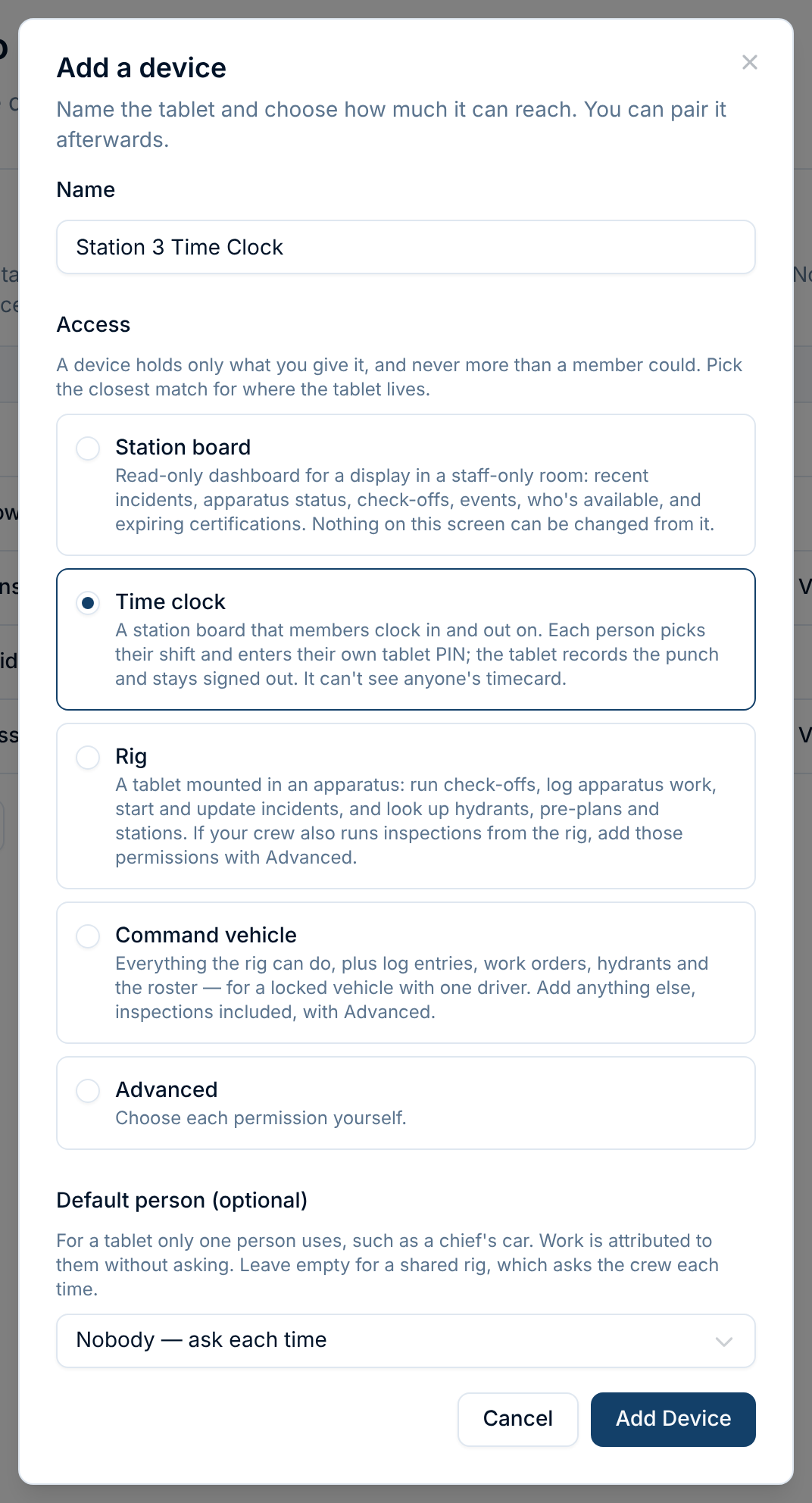
Time clock gives the tablet exactly what it needs: clocking members in and out, and the station board's glanceable widgets. Nothing else.
2. Pair it
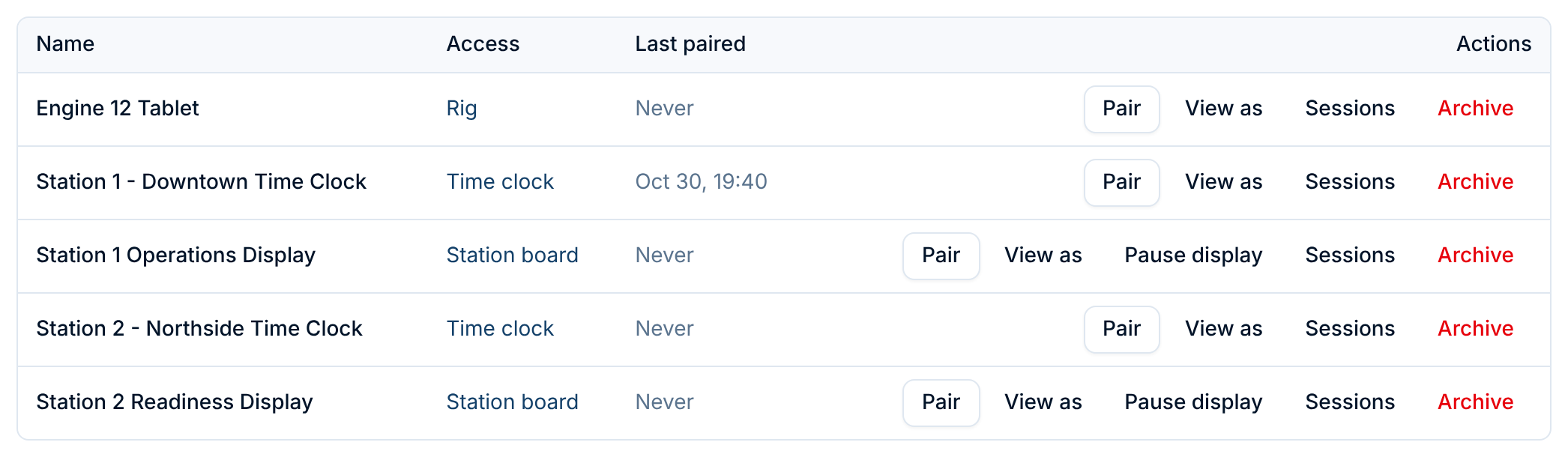
On the tablet, open Command Established and select Pair this device below the Login button. On your own phone or computer, click Pair next to the device, then Show pairing code, and type the code into the tablet. The tablet signs in as itself, not as you. Full details are in Paired Devices.
3. Check the station
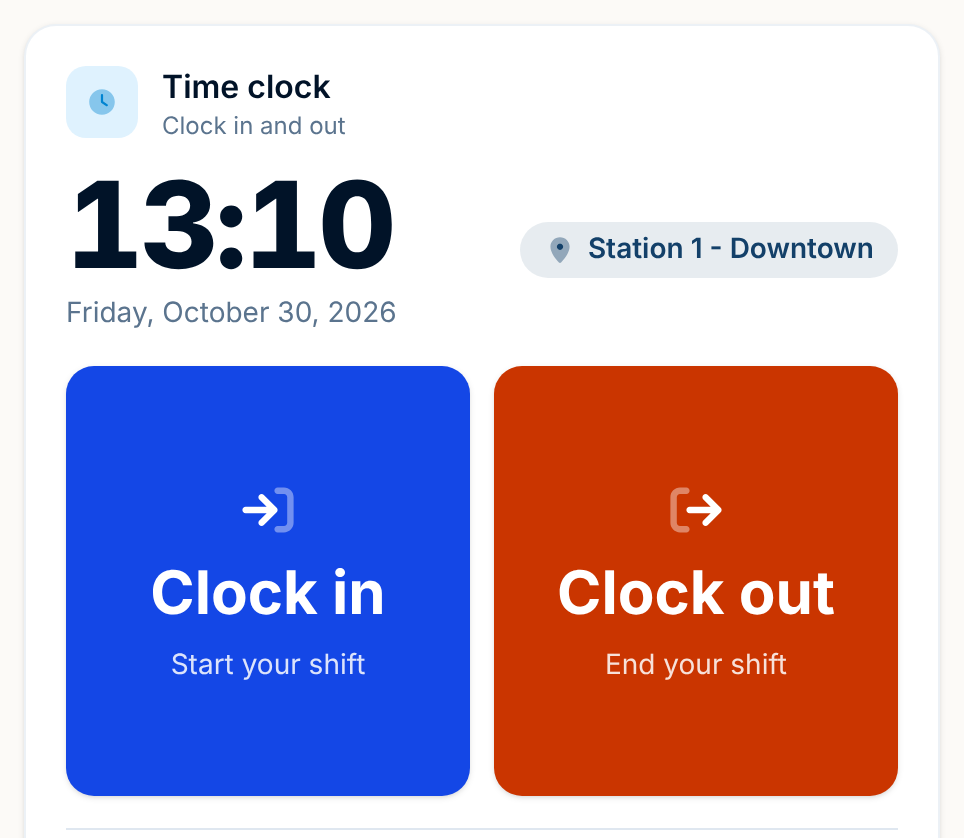
The tablet opens on the time clock, set to its station. If your department has more than one station, make sure it shows the right one: edit the tablet's dashboard and configure the Time clock widget to pick its station. The station decides which shifts the tablet offers.
That's the whole setup. Put up a tablet at each station the same way.
Clocking in
Three taps and a PIN.
1. Tap Clock in. The tablet lists the shifts starting soon or already running at this station, with each member's name on their shift. Shifts show up 2 hours before they start.
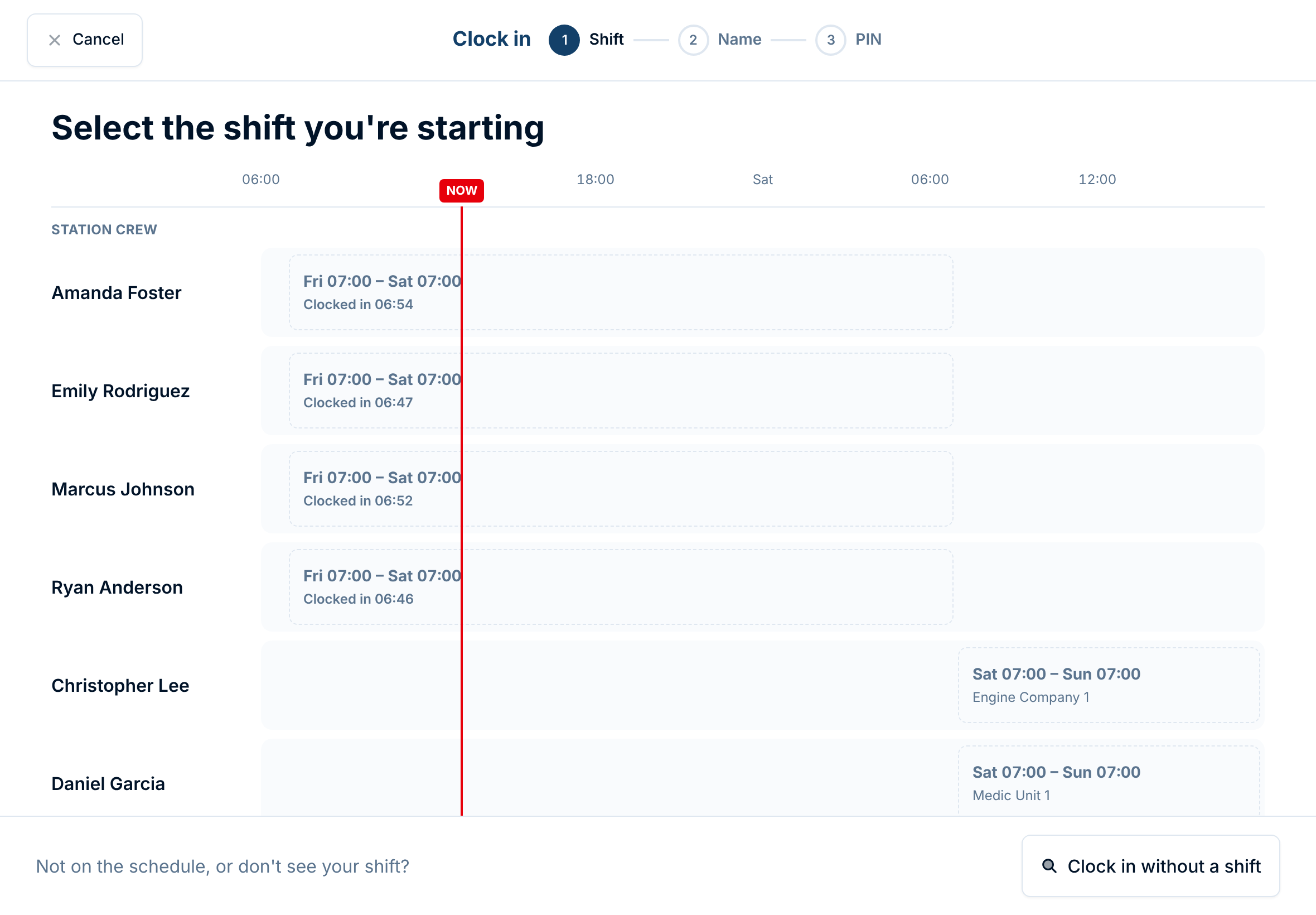
2. Tap your name on your shift. If you're working two shifts back to back, such as a day shift then an overtime night, you clock in once. The tablet offers to cover both.
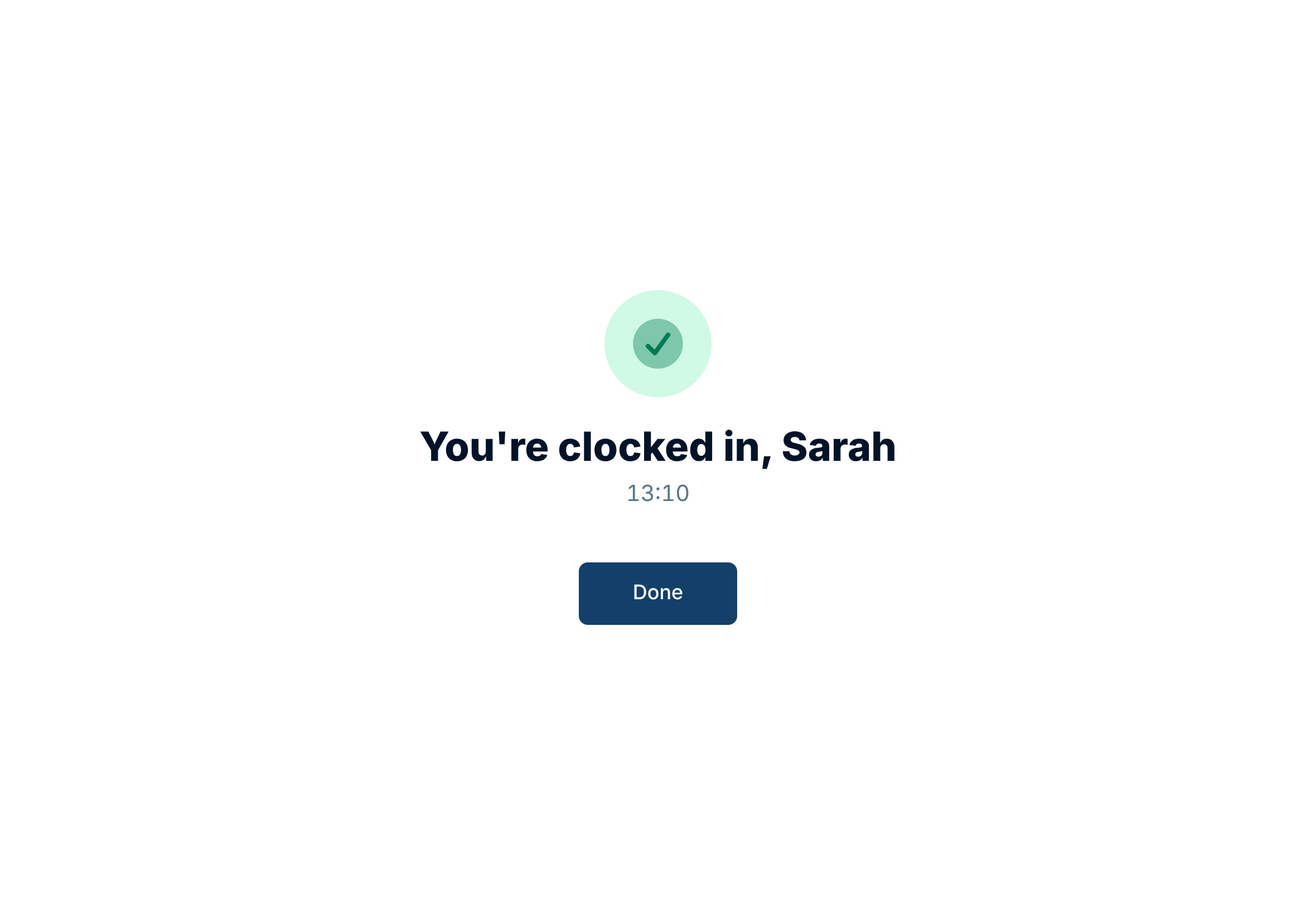
3. Enter your PIN and tap Clock in.
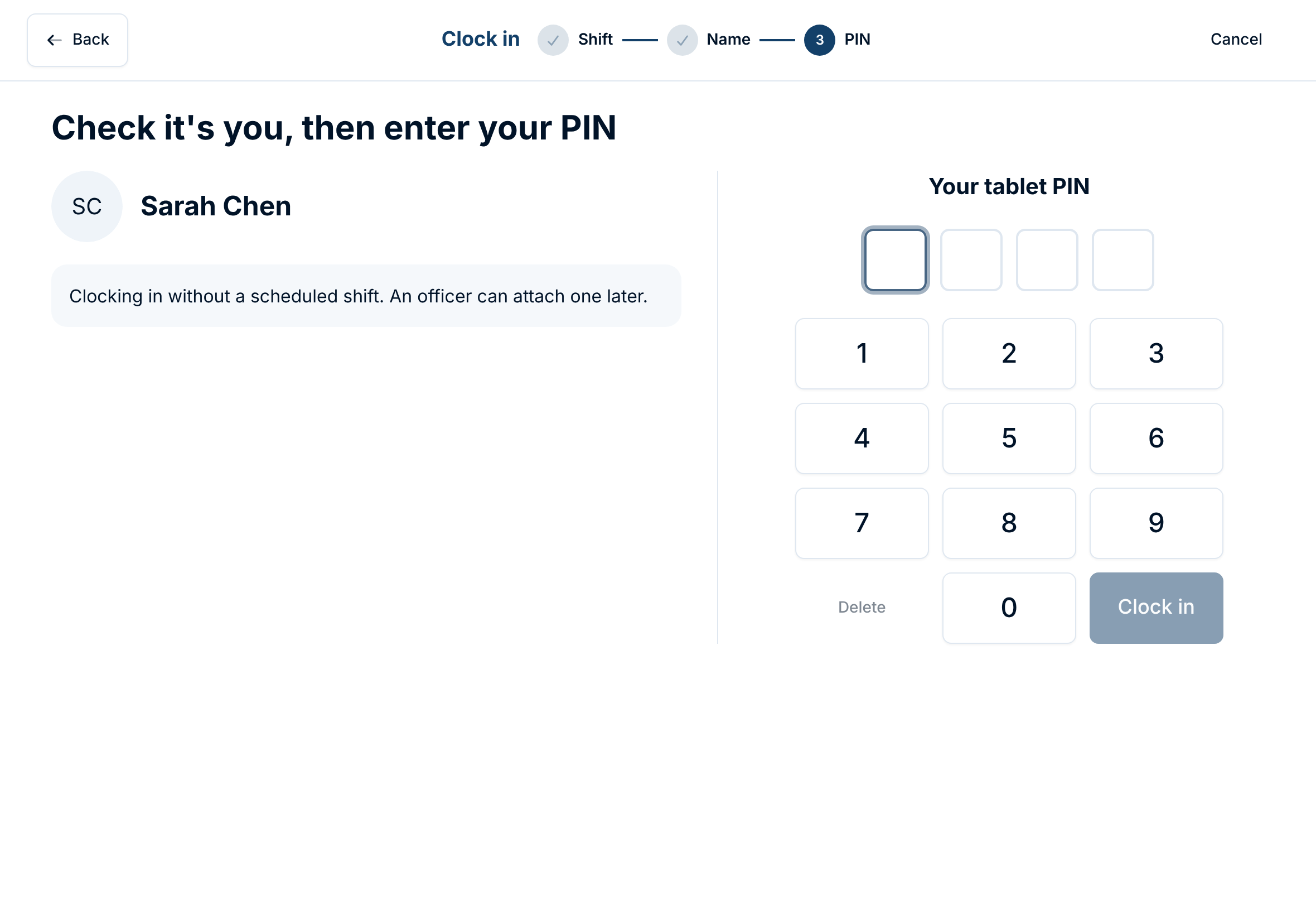
Not on the schedule? Tap Clock in without a shift at the bottom, search for your name, and enter your PIN. An officer can attach the right shift later. Use it for a callback, a detail, or a shift that was added after the schedule was printed.
Duty crews: members on a duty crew seat clock in to it the same way. The crew's name shows on their shift.
Clocking out
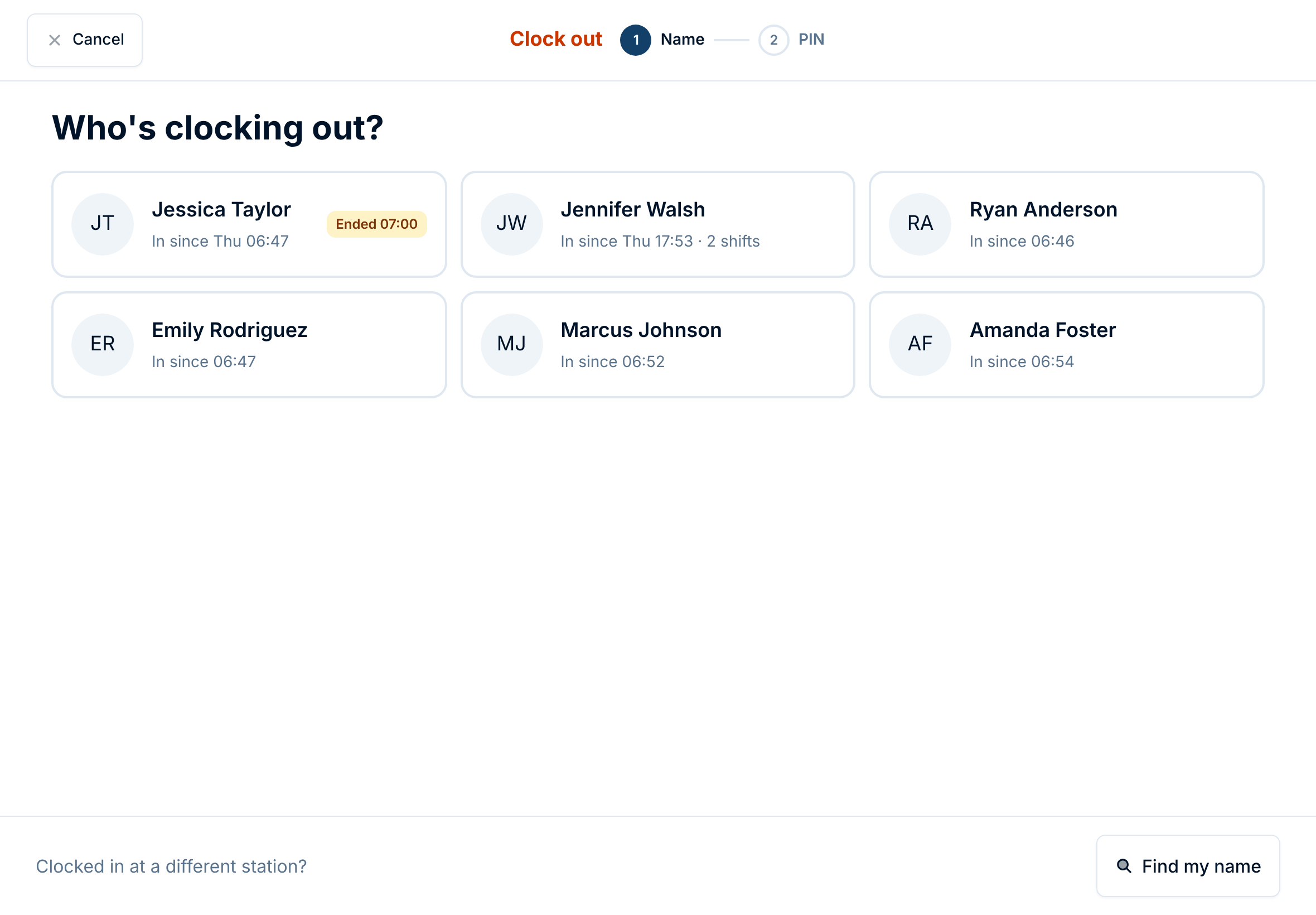
Tap Clock out, tap your name, and enter your PIN. Everyone clocked in at this station is listed. If you clocked in somewhere else, tap Find my name.
Forgot to clock out?
It happens. The next time that member uses the time clock, it notices the old entry is still open and asks When did you leave? before anything else:
- At shift end: the usual answer. The entry closes at the end of the shift.
- Just now: they really were working the whole time.
- Another time…: they pick the day and time they left.
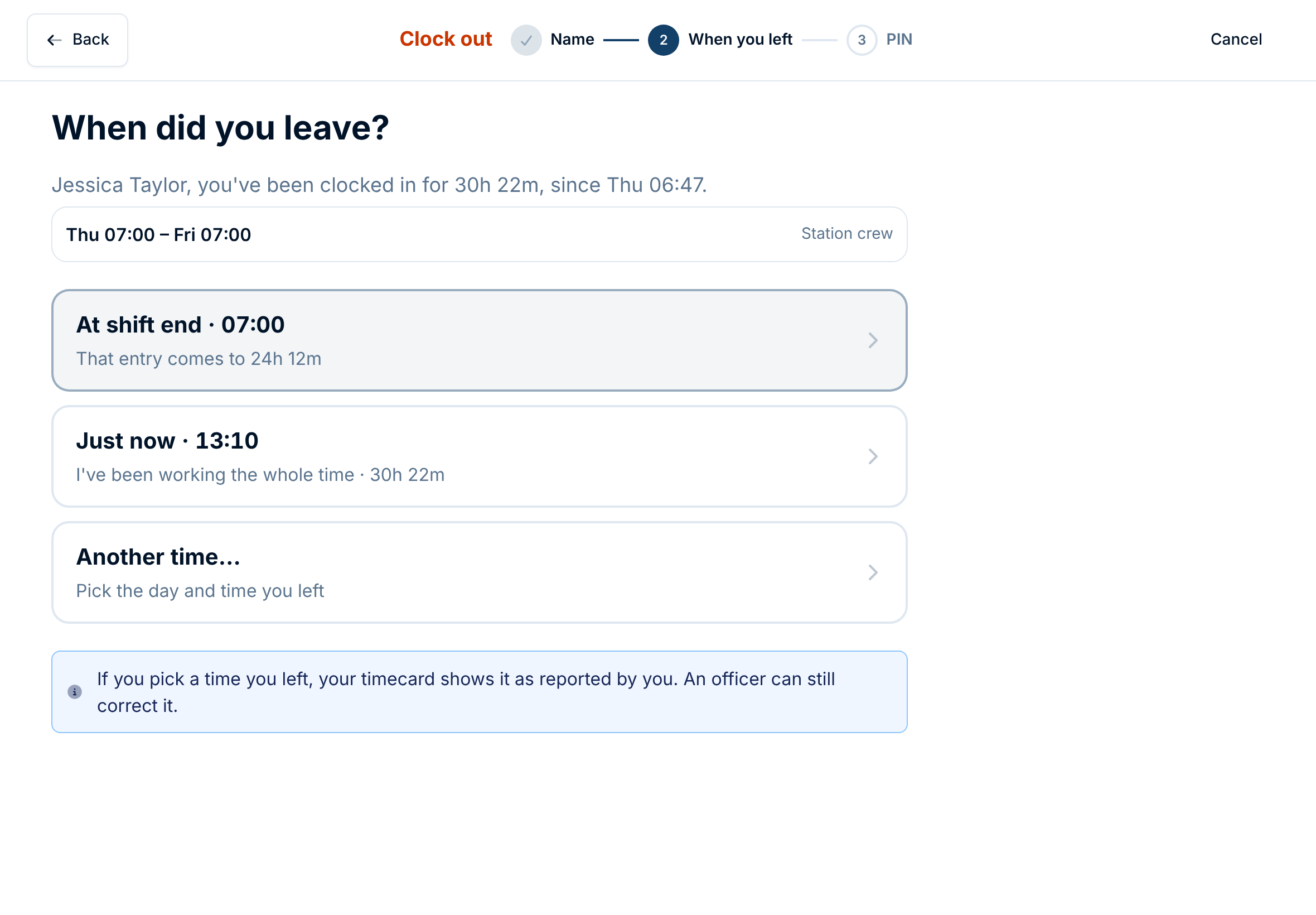
Then they carry on clocking in as normal. A time the member picks this way is marked reported by member on their timecard, so an officer can see it wasn't punched.
The Time Clock page
Officers find every entry under Schedule › Time Clock. Pick a pay period, or any date range, and filter by station.
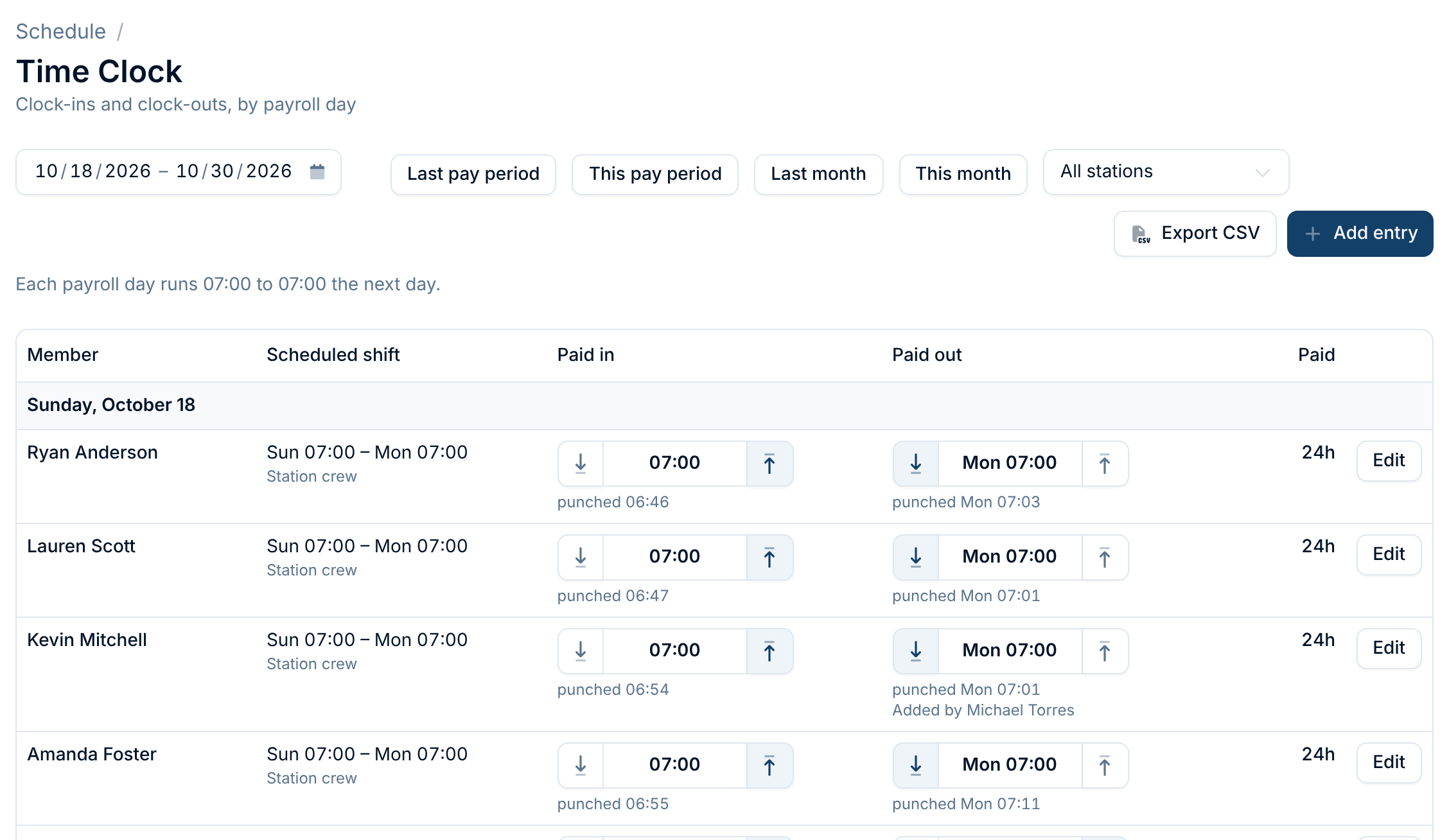
Each row is one entry:
- Scheduled shift: the shift the member picked when they clocked in.
- Paid in and Paid out: the times the member is paid for, with punched showing the time they actually tapped.
- Paid: the hours between them.
Days run from the time your payroll day starts, set in Settings › Payroll. With a 07:00 start, a 24-hour shift sits on one day instead of being split at midnight.
Rounding times for pay
Members rarely punch exactly on the hour. Someone who clocks in at 06:46 for a 07:00 shift usually shouldn't be paid for those 14 minutes. The arrows on either side of each time round it to the quarter hour:
- ↓ rounds down, for example 07:03 to 07:00;
- ↑ rounds up, for example 06:46 to 07:00.
Tap the same arrow again to pay the time as punched. The punched time always stays visible underneath, and nothing about the original punch changes.
Rounding is a judgment call: a member held over on a call should be paid for it, a member who wandered in early shouldn't. That's why it's done by hand and never automatically. Payroll from the Time Clock covers it in more detail.
Reported clock-outs
A red asterisk next to a time means the member reported it on the tablet instead of punching it. Hover over or tap the asterisk to see.

Most reported times are fine. Check any that look long.
Correcting an entry
Click Edit to change an entry: its shift, clock-in or clock-out. A reason is required and stays with the entry, and the CSV export includes it. Use shift end fills in the clock-out from the scheduled shift in one tap.
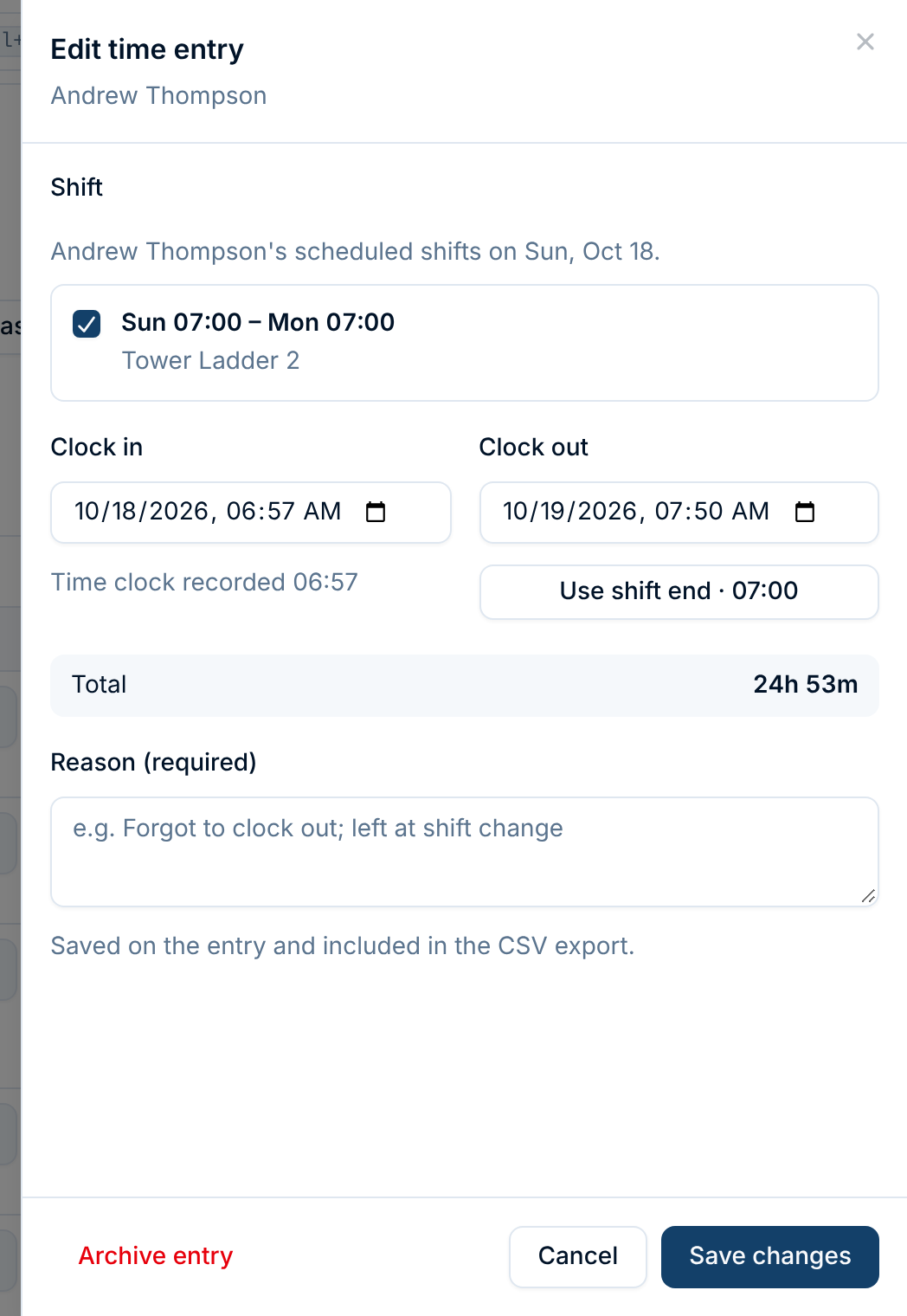
Archive entry takes an entry off the timecard completely, for one made by mistake. Like everything else in Command Established, it's kept in the record.
Adding a missed entry
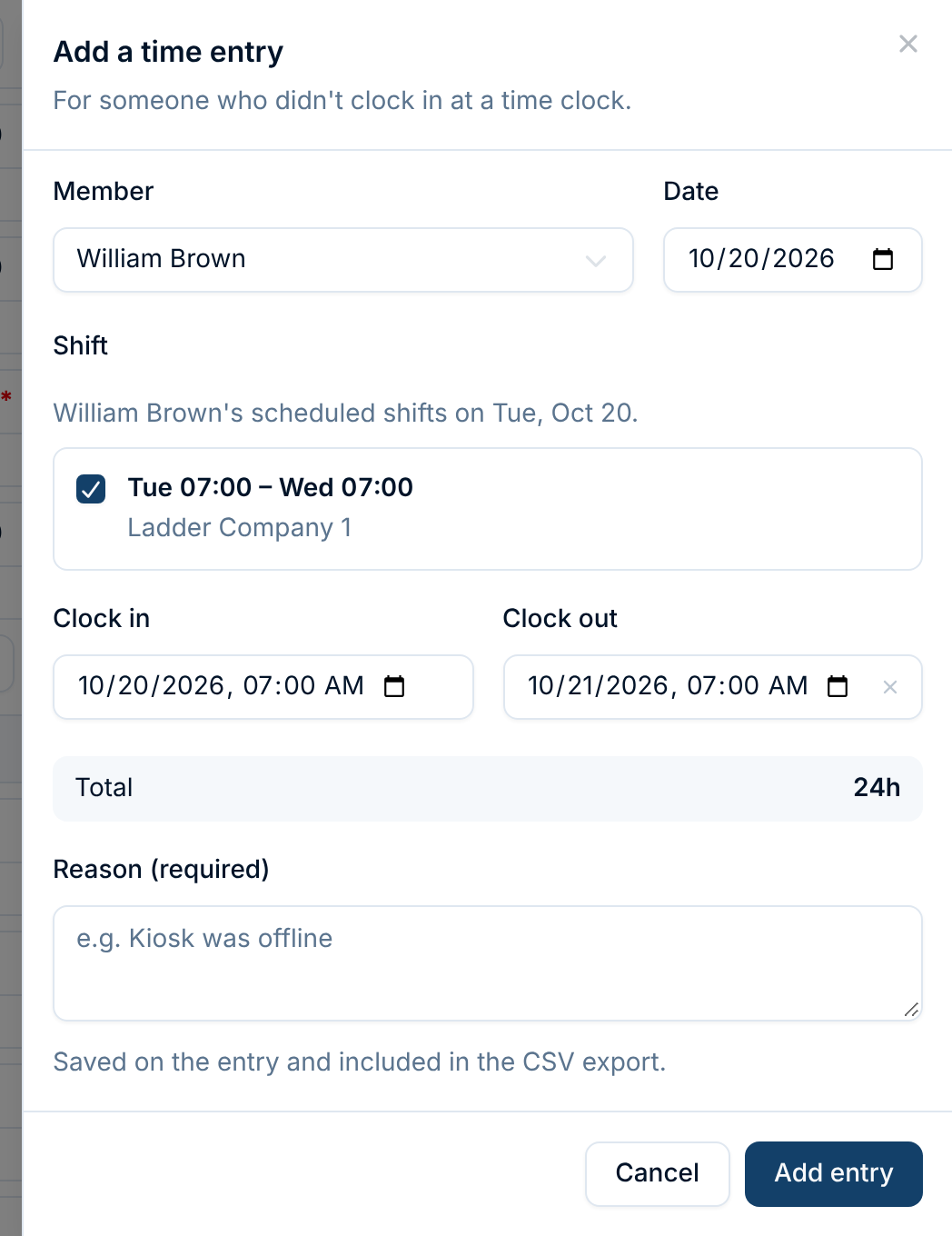
The tablet was down, or someone forgot to clock in at all: click Add entry. Pick the member and the day, tick their shift, and the times fill in from it. Change them if needed, give a reason such as Tablet was offline, and add it.
Exporting
Export CSV downloads the entries in the range: one row per entry, with the punched and paid times and hours, how the clock-out was recorded (time clock, reported by member, or entered by an officer), the scheduled shift, and who changed it and why. Use it for your own records or a payroll system that wants raw punches.
Who can see what
The Time Clock page shows everyone's hours, so it's restricted by the Timecards permission (see Understanding Permissions & Groups):
| Permission | Lets someone |
|---|---|
| Read | See the Time Clock page and export it |
| Create | Add missed entries |
| Update | Edit entries and round times |
| Archive | Archive entries |
Admins and Owners have all of them. A member without Read doesn't see the Time Clock button on the Schedule page. Members don't need any of these to clock in: they only need a tablet PIN.
Troubleshooting
"You can't use the time clock yet." The member hasn't set a tablet PIN. They set one in their account settings from any phone or computer. See Tablet PIN.
"Your PIN is locked." Too many wrong tries. The member chooses a new PIN in their account settings.
My shift isn't listed. Shifts appear 2 hours before they start. Check the tablet is set to the right station, and that the member is on the shift in the schedule. Otherwise, use Clock in without a shift.
"Already clocked in." The member has an entry still open, maybe at another station. Clock out first, or have an officer fix the open entry.
"These times overlap another entry." When editing or adding, an entry can't overlap another one for the same member. Change the other entry instead.
The tablet asks "Which station is this?" Edit the tablet's dashboard and configure the Time clock widget with its station.
Related articles
- Payroll from the Time Clock: paying from what members clocked, step by step
- Paired Devices: pairing a tablet and choosing what it can reach
- Tablet PIN: setting and resetting a member's PIN