
Member Pay Rates for Payroll
The payroll report counts hours, and pay codes sort those hours into the kinds your payroll service pays differently: REG, OT, WKD and so on. Pay rates add the last piece: what each member is paid an hour under each code. With them, the report and its exports show what to pay, not just how many hours.
Pay rates are optional. Until you set any, the report and every export work exactly as before, with no pay columns.
Before you start
Pay rates are set per pay code, so your department needs pay codes first. Set them up under Settings › Payroll › Pay codes (see Pay codes). Until it has some, the Pay Rates section doesn't appear on personnel records.
Each code has its own hourly rate. If you pay overtime at time and a half, the overtime code's rate is one and a half times the member's regular rate. You can type that amount, or enter a formula such as #REG * 1.5 and let it follow the regular rate. Weekend, holiday and other differential codes work the same way.
Who can see and set pay rates
- Admins and Owners set and change every member's rates.
- Anyone with Payroll read access can see every member's rates, since they see the priced report anyway. They can't change them. Payroll update access covers the department's pay rules, not what each member earns.
- Each member can see their own rates on their personnel record, read-only.
Everyone else never sees a member's rates. They don't appear on the roster, in search, or on anyone else's screen.
Setting a member's rates
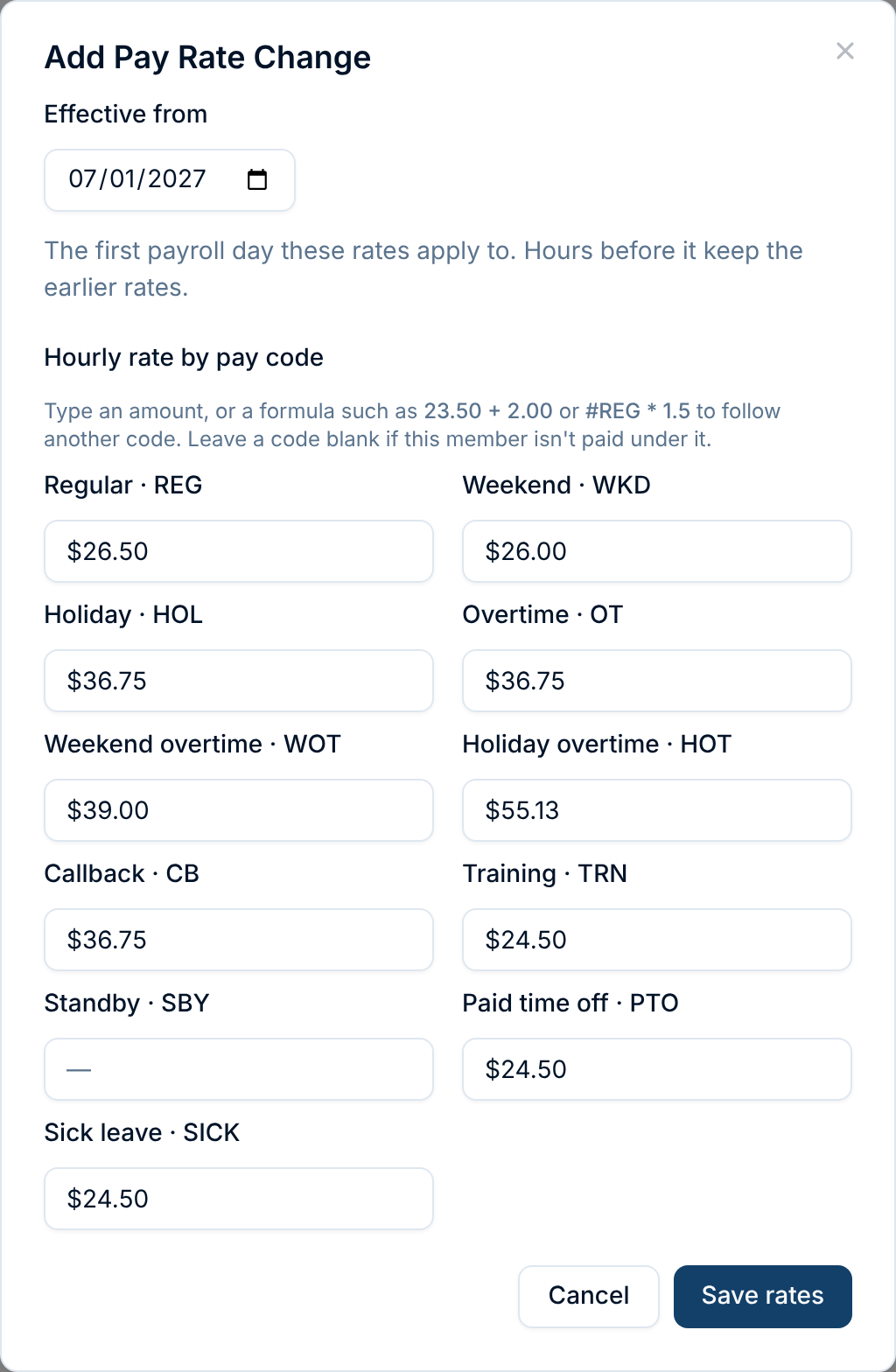
- Open the member's personnel record. Pay Rates is on the Details tab.
- Click Set rates (or Add change once they have some).
- Choose Effective from: the first payroll day the rates apply to.
- Enter an hourly rate for each code the member is paid under, as an amount or a formula. Leave a code blank if they aren't paid under it.
- Click Save rates.
A new change starts from the rates the member has today, so for a raise you only edit the codes that change.
Formulas
A rate box works like a spreadsheet cell: type an amount, or a formula that works the amount out.
- Add things up.
23.50 + 2.00is a base rate and a stipend, kept apart so you can see each. - Follow another code.
#REG * 1.5is one and a half times whatever the member's REG rate is. Type#and the code's export code, in any case. - Combine them. Use
+,-,*,/and parentheses:(#REG + 1.25) * 1.5.
The box shows what the formula comes to, with the formula underneath. Click into it to change the formula. On the member's record, the formula is listed under the rate it produced.
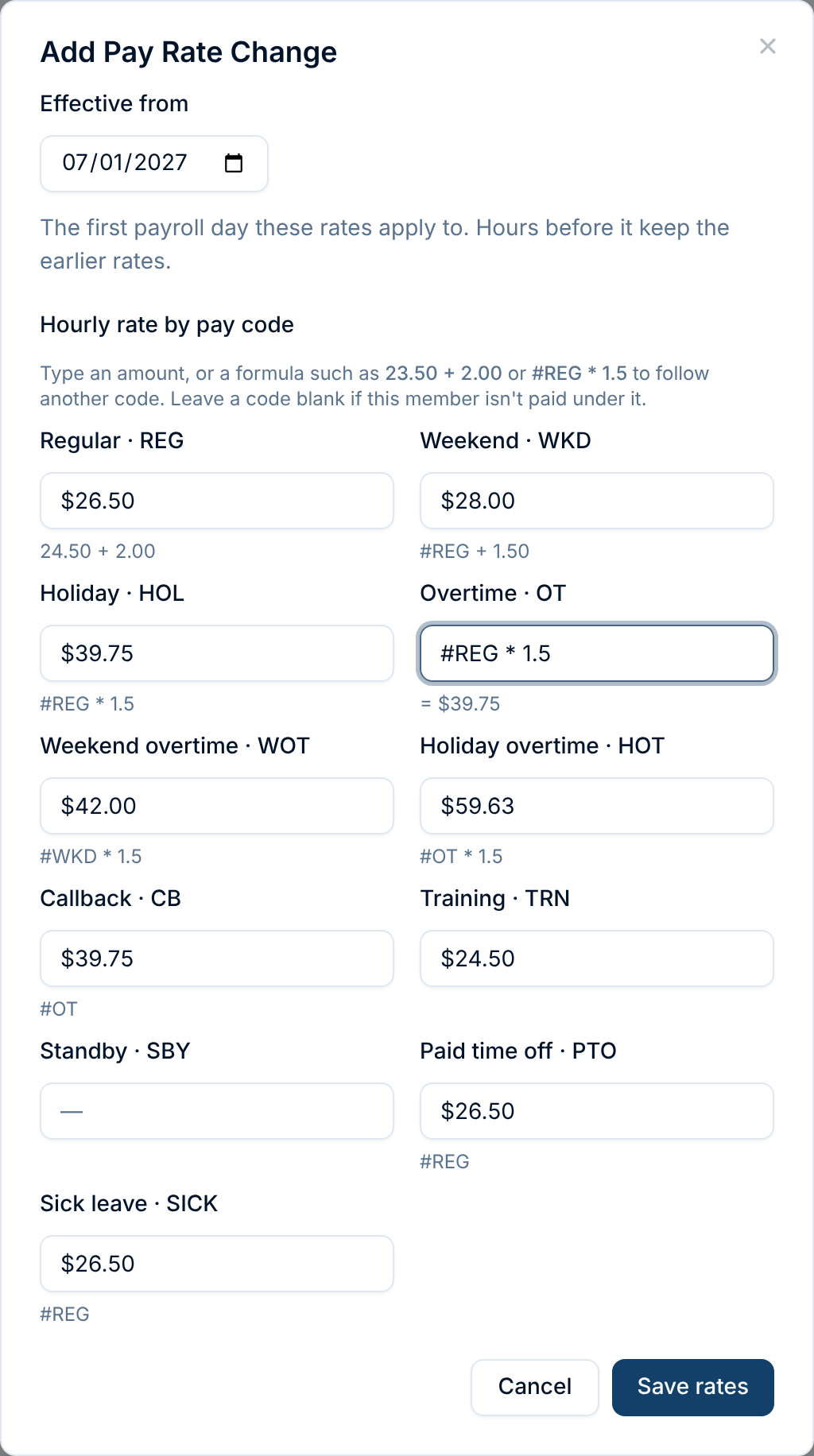
A formula reads the other codes in the same rate change. So when a raise comes, add a change, edit the base rate, and every rate worked out from it follows.
Each rate is rounded to the cent, with half a cent rounding up, and a formula that reads another code reads its rounded rate. 23.37 * 1.5 is 35.055, so the rate is $35.06.
If a formula can't be worked out, the box says why and the change won't save until it's fixed. That covers a typing mistake, a code that has no rate, or two rates that each depend on the other.
Formulas are a convenience for entering rates. The payroll report and the exports show and use the rate each formula came to, exactly as if you had typed it.
Raises and history
Rates are effective-dated. Each change is the member's complete set of rates from its date until the next change:
- Current is the change in effect today.
- Upcoming is a change dated in the future. Enter a raise ahead of time and it takes effect by itself.
- Show earlier rates lists the history behind the current rates.
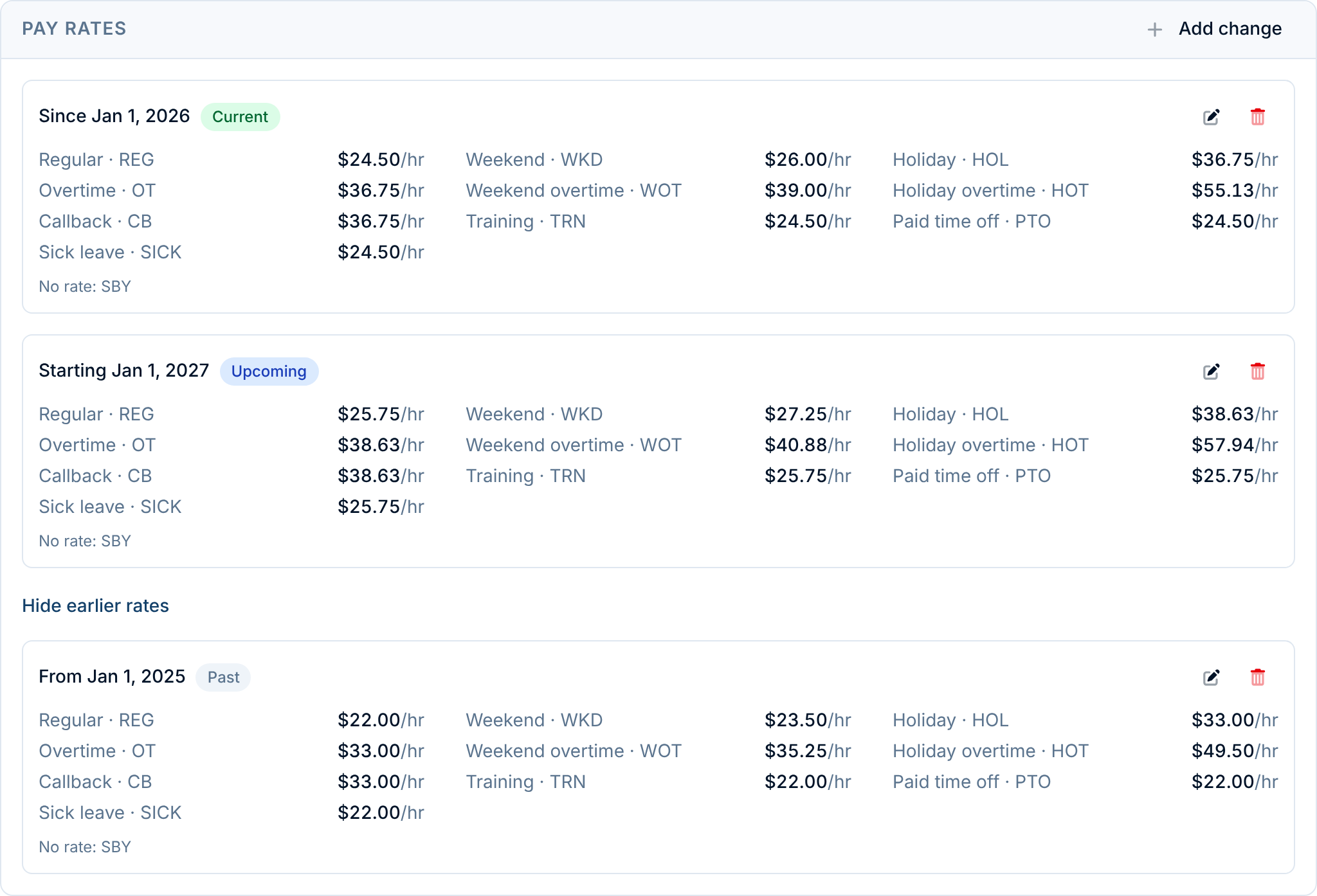
Because every hour is priced at the rate in effect on the payroll day it was worked, a raise never reprices the past. Re-running a pay period from before the raise gives the same amounts it did then. A pay period that spans a raise prices the days before it at the old rate and the days after at the new one.
To fix a mistake, edit the change, or remove it with the bin icon. Removing a change means its days are priced at the change before it, so re-exported periods change to match. Every save is recorded in the activity log.
What the payroll report shows
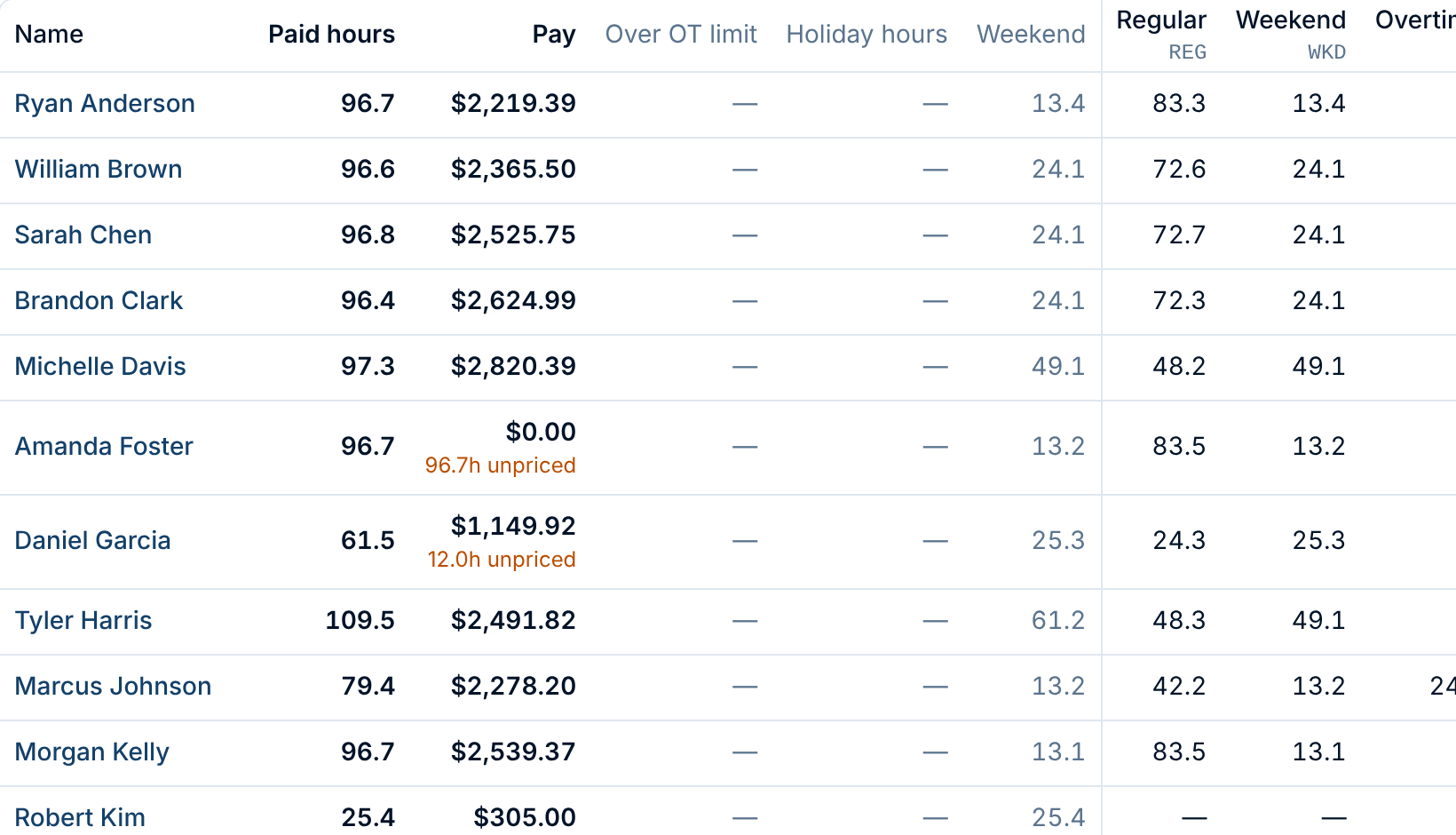
Once any member has rates, the payroll report adds a Pay column beside Paid hours: each member's coded hours priced at their rates. Hours the report couldn't price are called out under the amount, such as 12.0h unpriced. That's paid time with no pay code (a time-off type you haven't coded, say) or under a code the member has no rate for on that day. So a partial total is never mistaken for the whole.
Click a member's name for their timesheet. Its Pay section breaks the amount down by code, hours, rate and amount, with a row per rate when their rate changed during the period.
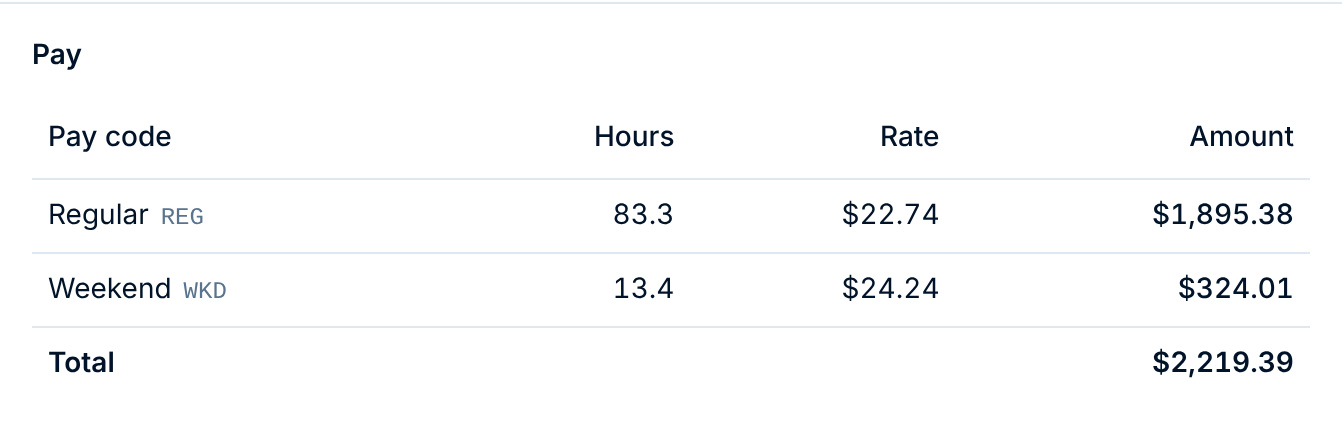
Each amount is worked out from the exact minutes and rounded to the cent once, so it can differ by a cent or two from the rounded hours shown times the rate. The amounts always add up to the total.
What the exports include
Pay columns appear in every export once any member in your department has rates, and always come last, so an import mapping set up before rates still lines up:
- Summary:
pay_amountandunpriced_hoursfor each member. - Pay codes:
pay_rateandamounton each row. A member whose rate changed in the period gets a row per rate, and hours under a code with no rate get a row with both left blank. - Time segments:
pay_rate, the member's rate for the segment's code on its day.
Amounts are plain numbers with two decimals and no dollar sign (1234.50), the way payroll importers expect them. Day by day shows hours only.
Questions
Does Command Established run payroll? No. It works out hours and, with rates, amounts. Your payroll service still pays people, withholds tax and handles deductions.
What about salaried members? Leave them without rates, or give them only the codes paid by the hour. Their hours still show, as unpriced.
We removed a pay code. What happens to rates under it? They stop pricing anything, since no hours are coded to it, and they no longer show on the member's record. They stay in the history, so if you add the code back, its rates come back with it. A formula that read the removed code keeps the rate it came to. The next time you edit that rate change, the formula asks to be fixed, since the code it named is gone.
What can an export code be? One to six letters, such as REG or OT, and each pay code needs its own. A formula names a code by it, so it has to be a single short word. If one of yours is longer, has digits or punctuation, or matches another code's, Settings asks you to change it the next time you save your pay codes.
Related articles
- Running Payroll Reports: reading the report, the per-member timesheet, and exporting
- Payroll from the Time Clock: setting up pay codes
- Setting Up Pay Rules: overtime limits, trades and unpaid time off
- Understanding Permissions & Groups: who can see payroll