
Compliance Programs: Track Member Requirements, LOSAP Points & Pay Eligibility
A compliance program is a set of requirements your department defines, and Command Established evaluates every applicable member against them in real time. Instead of cross-referencing spreadsheets, call logs, and training records at the end of the year, you define the rules once and the system tells you who's meeting them and who isn't — every day, automatically.
Use compliance programs for anything where your department needs to know which members qualify:
- Active member requirements — the calls, training, and certifications a volunteer must maintain to stay active
- Pay eligibility — annual stipends, volunteer incentive pay (VIP), or educational incentive pay tied to specific activity
- LOSAP points — length of service award programs that score members across multiple activity categories
- Certification programs — EMR, EMT, or other programs requiring a combination of CEUs, credentials, and licenses
- Custom programs — any combination of requirements your department tracks
This article covers creating and configuring programs. For a focused walkthrough of setting up LOSAP point tracking, see LOSAP Points Tracking.
Creating a Program
- Go to Settings > Compliance Programs
- Click New Program
- Choose a starting template or start from scratch
Templates
Command Established offers five templates to get you started quickly. Each pre-populates a program with common requirements that you can then adjust:
- Active Member Requirements — 50+ calls, 24 hours training, active CPR, valid driver's license
- EMR Program Compliance — 30 hours training, CPR, state EMS license, valid DL
- Annual Stipend Eligibility — 50+ calls
- VIP (Volunteer Incentive Pay) — 30 hours training
- LOSAP Points Program — Points-mode program with categories for calls, meetings, standby, training, drills, duties, and an officer bonus
Templates are starting points — change any field, add or remove requirements, adjust thresholds to match your department's rules.
Threshold vs. Points Mode
Every program operates in one of two modes. Choose the one that matches how your department evaluates the requirement.
Threshold Mode (AND Logic)
Each requirement has a target, and a member must meet all of them to be compliant. This is the right mode for programs where the answer is simply "yes, they qualify" or "no, they don't."
Examples:
- Active member: 50+ calls AND 24+ training hours AND active CPR AND valid DL
- Stipend eligibility: 30+ hours of approved training
- EMR compliance: training hours AND CPR AND state license AND DL
Points Mode (Additive Scoring)
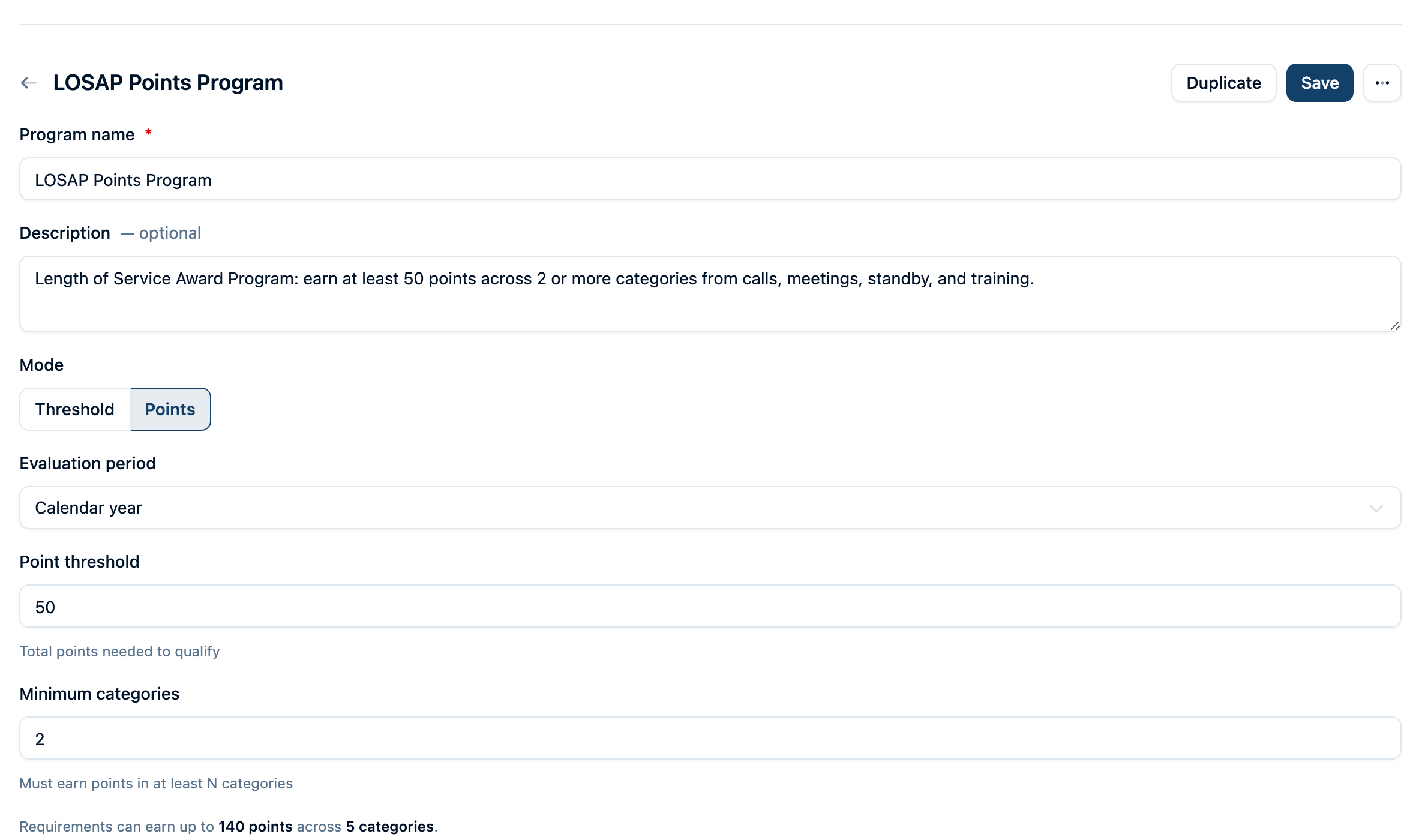
Each requirement earns points based on activity, with optional caps per category. A member qualifies by reaching a point threshold across a minimum number of categories. This is the right mode for LOSAP and any scoring system where different activities contribute different amounts.
Example (Maryland-style LOSAP):
- 1 point per alarm responded to (max 40 points)
- 1 point per meeting attended (max 25 points)
- 1 point per 4 hours of standby (max 20 points)
- 1 point per 2 hours of training courses (max 20 points)
- 25 flat points for officers
- Threshold: 50 points across at least 2 categories
When you select Points mode, additional fields appear:
- Point threshold — total points needed to qualify (e.g., 50)
- Minimum categories — the member must earn points in at least this many distinct categories (e.g., 2)
A live summary shows the maximum achievable points and warns you if requirements can't reach the threshold or if the minimum categories exceeds what's configured.
For a detailed walkthrough of configuring points programs, see LOSAP Points Tracking.
Evaluation Period
Choose when the compliance clock starts and stops:
- Calendar year — January 1 through December 31. The most common choice for departments that evaluate annually.
- Fiscal year — starts on a month you choose (e.g., July 1 through June 30). Use this when your department's reporting period doesn't align with the calendar year.
- Rolling 12 months — always evaluates the trailing 12 months from today. Use this for programs where compliance is evaluated continuously rather than annually.
When you select Fiscal year, a month picker appears so you can set the start month.
Example: October through September reporting
If your department's annual calls and training reports run from October through September, choose Fiscal year and set Start month to October. The program will count activity from October 1 through September 30, rather than January 1 through December 31.
Who Does This Apply To?
By default, a program applies to all active members. Use the applicability filters to narrow it:
- Statuses — Active, Inactive, On leave. Empty means active members only.
- Personnel types — Career, Volunteer, Paid On-Call, Part-Time, Per-Diem. Empty means all types.
- Ranks — Select specific ranks. Empty means all ranks. Ranks are populated from your department's rank definitions.
As you adjust filters, a live count updates to show how many members the program currently applies to.
Example: Emergency Medical Program Audit
For an Emergency Medical Program Audit that applies only to medically trained personnel, select the ranks that represent those members (for example, EMR, EMT, or Paramedic). Only active members in at least one of the selected ranks appear in the program's dashboard, exports, and compliance calculations.
For help creating and assigning those rank titles, see Managing Personnel Ranks.
Requirement Types
Each requirement evaluates one dimension of a member's activity or credentials. A program can have up to 20 requirements.
Activity Requirements
These count how much a member has done during the evaluation period.
Training Hours
Counts hours of training a member has attended. You can filter by:
- Training types — restrict to specific types (e.g., only company structural, only hazmat). Empty means all types count.
- Custom field filters — restrict to department-defined training options (e.g., "EMS", "Fire Operations"). This is useful when your department classifies training into buckets that don't map directly to the built-in types. An empty filter counts all options.
- Formats — restrict to drills only, courses only, or both. This matters for LOSAP programs that score drills and classroom training separately.
When training types and custom field filters are selected, training must match a selected type and at least one selected option in every filtered field.
Call Count
Counts incident responses in the evaluation period. You can filter by NERIS incident type to restrict which calls count — for example, counting only fire responses or only EMS calls. The NERIS type picker shows all incident types grouped by category, with NFIRS legacy codes displayed alongside for reference. Empty means all incidents count.
Response and excused-call credit use the incident's dispatch time. If there's no dispatch time, they use the call received time. If neither is recorded, they use the record's creation time. The department's timezone determines which period contains that date. For historical incidents, enter the actual dispatch or received time so credit falls in the response period.
See Advanced Filtering below for details.
Event Attendance
Counts attendance at department events. You can filter by event type (meetings, standby, fundraisers, etc.) and set targets by event count, hours, or both.
Rig Checks
Counts completed apparatus check-offs during the evaluation period. See Check-Off Templates for how to set up apparatus check-offs.
Credential Requirements
These check whether a member holds a specific credential — they're boolean (yes/no), not counted.
Certification Active
Checks that a member holds a current, non-expired certification. You can select from:
- Certificate definitions your department has created — these are specific, named certifications like "Tennessee EMR License" or "NFPA 1001 Firefighter I"
- Legacy certification types — broad categories like CPR, EMT Basic, Paramedic, HazMat Awareness, Firefighter I, Firefighter II
Use certificate definitions when you need to match a specific credential. Use legacy types when any certification of that type qualifies.
Driver's License Valid
Checks that the member has a current, non-expired driver's license on file. No configuration needed.
Skill Check-Off
Checks that a member has passed a specific skill check-off. Optionally require it within a specific number of months (1–120). If no time limit is set, the check-off must fall within the evaluation period.
Skills are defined under Training. If your department hasn't created any skills yet, the editor will prompt you to create one first.
SOP Acknowledgment
Checks that a member has acknowledged current SOPs. You can select specific SOPs, or leave empty to require acknowledgment of all current published SOPs.
When set to "all current SOPs," the requirement checks that the member has acknowledged the current version of each SOP. If a newer version was published without requiring re-acknowledgment, an acknowledgment of the version it replaced still counts. Once a version requires re-acknowledgment, older acknowledgments no longer count.
Points-Mode Only
Officer Bonus
Awards flat points to members who hold specific ranks. Only available in points mode. Configure which ranks qualify and how many points they earn. Useful for LOSAP programs that give officers credit for their leadership role.
Gating vs. Tracked Requirements
In threshold mode, each activity requirement (training hours, call count, events, rig checks) has a "Track only" option.
- Gating (default) — the requirement has a target and the member must meet it to be compliant. Appears as green (met) or red (not met) on the dashboard.
- Tracked — the requirement reports the member's current count but does not affect their compliance status. Appears as a blue pill on the dashboard. Use this for metrics you want to monitor alongside the compliance program without making them pass/fail criteria.
Example: You require 50 calls and 24 training hours (gating), but you also want to see each member's event attendance (tracked). A member with 50 calls and 24 hours is compliant even if they attended zero events — but you can still see and export the event count.
Advanced Filtering
Custom Field Filters
Create department-defined classifications in Settings > Custom Fields and apply them to trainings, incidents, or department events. For example, a training field can offer "EMS Continuing Education," "Fire Suppression," and "Technical Rescue" options. See Custom Fields for setup instructions.
In a compliance requirement, select the custom field options that qualify. A record must match at least one selected option within each filtered field, and it must match every filtered field. Training type and format filters also apply. A training tagged with multiple matching options still counts only once.
Departments that previously used Training Credit Categories will find their migrated classifications in a training custom field with that name. Existing training assignments and compliance filters carry over. Archived options remain visible on historical records and existing rules.
NERIS Incident Type Filtering
Call count requirements can be filtered by NERIS incident type to count only specific kinds of calls. This is useful when:
- A stipend program should only count fire responses, not EMS calls
- An EMS compliance program should only count medical incidents
- A specialized program tracks only hazmat or technical rescue responses
The NERIS type picker shows incident types grouped by category (Fire, EMS, Hazmat, etc.) with the NFIRS legacy code displayed alongside each type for reference. You can search by name or code. Select as many types as needed — a call counts if it matches any selected type.
When no types are selected, all incidents count regardless of type.
Incidents that don't match the filter still appear in the member's evidence detail (marked as "not counted") so you can see why a specific call wasn't included.
The Compliance Dashboard
Navigate to Compliance Programs from the sidebar (under Personnel) to see the dashboard.
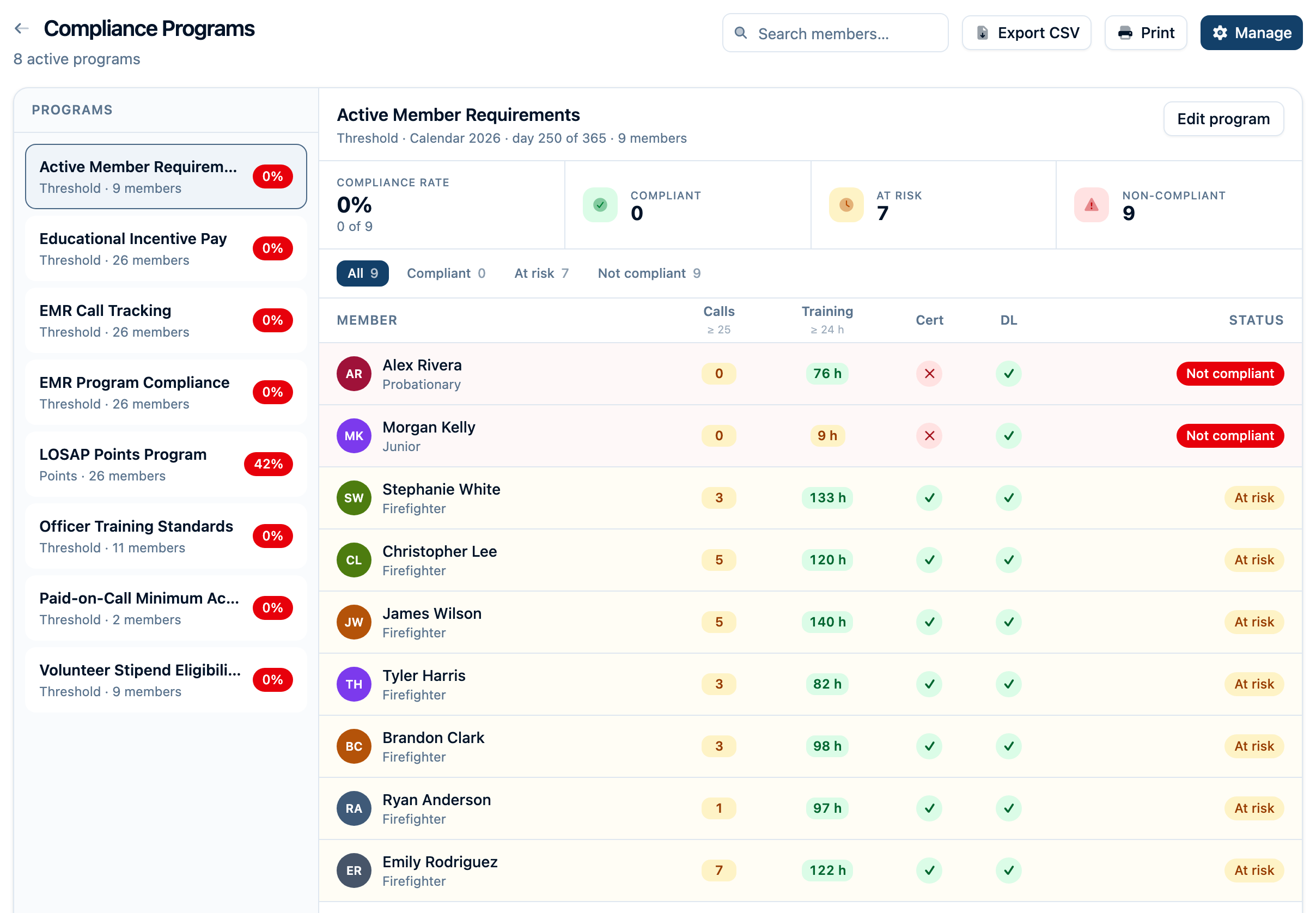
Program Selector
The left rail lists all active programs with:
- Program name
- Mode and member count
- Compliance rate badge (green above 80%, yellow above 50%, red below 50%)
Click a program to see its details.
Summary Tiles
Four tiles at the top of the detail view:
- Compliance rate — percentage and count (e.g., "85% · 34 of 40")
- Compliant — members meeting all requirements (green)
- At risk — members on pace but not yet met (amber)
- Non-compliant — members who have not met requirements (red)
Member Matrix
A table showing every applicable member with a column for each requirement:
- Activity columns show progress as colored pills: green (met), amber (at risk), red (not met), or blue (tracked)
- Credential columns show a check mark (met) or X (not met), with expiration dates for expired certifications
- Status column shows the overall compliance status
Click any member row to open a detail view showing the evidence behind each requirement — which training sessions counted, which calls, which certifications, etc. Evidence items link back to the original record.
Filtering and Search
Use the filter bar to show only compliant, at-risk, or non-compliant members. The search box filters by member name.
Exporting
- CSV — downloads a spreadsheet with one row per member and one column per requirement, showing met/not-met status with counts. Opens cleanly in Excel.
- Print — generates a formatted report suitable for board meetings, LOSAP administrators, or state agencies. Includes department name, program details, summary statistics, and the full member matrix.
Personnel View
Each member's profile includes a Compliance tab showing their status across all active programs they're enrolled in:
- Not compliant programs appear first with a red indicator and a breakdown of which requirements are met and which aren't, with progress bars for activity requirements
- In progress programs show current progress toward each requirement
- Compliant programs show a compact green confirmation
Click any program card to see the full evidence detail — every training session, call, event, and credential that was evaluated.
A badge on the Compliance tab header shows how many programs the member is not compliant with, so you can spot issues at a glance from the personnel list.
Dashboard Widget
Add the Compliance Programs widget to your department dashboard to see compliance rates at a glance. The widget shows up to four active programs with progress bars and compliance percentages. Click the widget to jump to the full compliance dashboard.
Draft vs. Active Programs
Programs start in Draft status. Draft programs:
- Are visible only in Settings, not on the compliance dashboard
- Can be edited freely without affecting live compliance evaluation
- Let you preview how many members would qualify before going live
When you're satisfied with the configuration, change the status to Active. Active programs appear on the compliance dashboard, in member profiles, and in the dashboard widget.
To retire a program, archive it from the program editor. Archived programs are hidden from all views but preserved for historical reference.
Frequently Asked Questions
Can I duplicate an existing program?
Yes. Each program card in Settings has a Duplicate action that copies all settings and requirements into a new draft program. This is useful when you need a similar program with minor adjustments — for example, the same requirements with different applicability filters for career vs. volunteer members.
How often is compliance evaluated?
Compliance is evaluated live every time you view the dashboard, a member's profile, or the dashboard widget. There's no batch job or delay — the status you see reflects the current state of your department's records. If a member completes a training session and attendance is recorded, their compliance status updates immediately.
What happens to mid-year hires?
Members who join during the evaluation period are evaluated from their join date forward. If a program has a prorate setting enabled, activity targets are scaled proportionally — a member who joins halfway through the year needs half the calls, half the training hours, etc.
Does the compliance dashboard replace the ISO training dashboard?
No. The ISO training compliance dashboard (under Training) continues to work as before — it tracks training hours against ISO/PPC categories with the specific scoring semantics ISO requires. Compliance programs are a separate, more flexible system for tracking any combination of requirements. Your department gets both.
Can members see their own compliance status?
Members with access to the compliance dashboard can see status for all applicable members. Individual compliance status also appears on each member's personnel profile under the Compliance tab. The level of access depends on your department's permission settings — see Understanding Permissions & Groups.
Who can create and manage compliance programs?
Creating, editing, and archiving compliance programs requires admin access. Viewing the compliance dashboard and member compliance status is available to any member with the appropriate personnel permissions. See Understanding Permissions & Groups.
What's the difference between training types and custom fields?
Training types are the built-in classifications (company structural, hazmat, officer command, etc.) that align with ISO categories. Every training session has a type.
Custom fields let you define options to classify training however you need — "EMS CEUs," "Fire Suppression," "Technical Rescue," etc. Training sessions can select one or more options, up to the field’s selection limit.
In a compliance requirement, you can filter by either or both. Use training types when your requirement aligns with the built-in categories. Use custom fields when you need a custom grouping that doesn't map to the built-in types.
Can I track something without making it a pass/fail requirement?
Yes. In threshold mode, check the "Track only" box on any activity requirement. The member's count is displayed on the dashboard (in blue) and included in CSV exports, but it doesn't affect whether the member is compliant or not. This is useful for monitoring metrics alongside a program without making them hard requirements.