
Build an Incident or Accident Report Form
This example follows Accident & Injury Reports, a Form log book in the fictional Metro City demo department. Members report collisions, injuries, property damage, and near misses through the same form. Questions appear when they apply to the event, and Command Staff can review all submitted reports while other submitters see only their own.
The worked report concerns Tower Ladder 2 contacting a bollard while backing into Station 2. The screenshots show the real application with fictional demo records. Use the example to build your department's own questions and access rules.
This is an internal department report in Log Books. It does not create a response incident or submit a NERIS incident report.
1. Create the Form Book and Set Its Audience
Sign in as a department owner or admin, then open Log Books → New log book.
- Enter Accident & Injury Reports as the name and add a description of the events members should report.
- Under Entries, choose Form.
- Set Scope to Department so the book can collect reports from across stations.
- Set Who can submit reports to Everyone.
- Set Who can see submitted reports to Restricted and add Command Staff under Reviewer groups.
- Click Create log book.
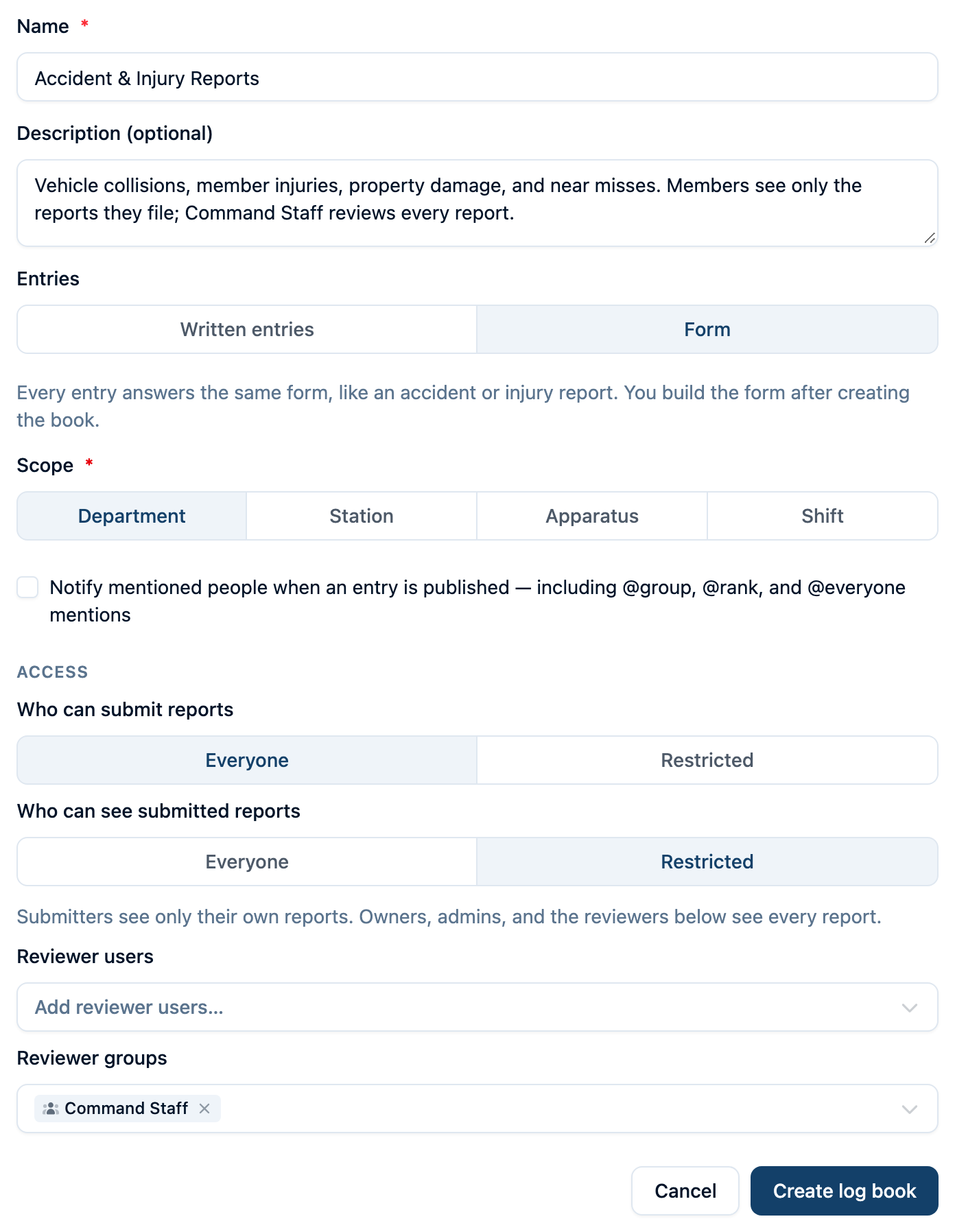
Everyone means department members, not the public. Owners and admins can see all submitted reports. To limit who files, choose Restricted for submission and add Submitter users or Submitter groups independently of the reviewer list.
The entry format cannot be changed after creation. A Form book has no written-entry template; you build its questions on the Form page, which opens after creating the book. Choose Edit form if the form draft is not already open.
2. Build the Core Questions
Enter Accident & injury report in Title. In Instructions for the whole form (optional), explain when members should file and what context to include. For example:
File this report after a vehicle collision, injury, property damage, or near miss, on a call or in quarters. Describe what you observed and the follow-up taken. If patient care was involved, reference the patient care report instead of repeating patient details here.
Use Add section to create Occurrence, then Add to section to add these questions. Turn on Required for the information every report needs.
| Question | Answer type | Setup |
|---|---|---|
| Location | Short text | Required; ask for the address, intersection, or station and room |
| Related incident | Short text | Optional; record identifying details if it happened on a call |
| What happened? | Multiple choice | Required; Vehicle collision, Member injury or illness, Civilian or patient injury, Property damage, Near miss, Other |
| Describe the other category | Short text | Required only when Other is selected |
| Activity at the time | Single choice | Required; include response, driving, fireground, EMS, training, and station duties |
| Apparatus involved | Apparatus | Allow multiple selections if several units may be involved |
| Members involved | Personnel | Allow multiple selections if several members may be involved |
Related incident is a text question in this example. It records context without creating or linking an incident record. The Personnel and Apparatus questions let the reporter choose existing department records.
3. Show Follow-Up Questions Only When They Apply
Add a Vehicle collision section after Occurrence. Under the section title, choose Show only when an earlier answer matches. Select What happened? and Vehicle collision. This whole section now appears only for that category.
Add these questions:
- Was the apparatus backing? — required Yes/No.
- Was a spotter in position? — required Yes/No. Turn on Show conditionally and set it to show only if Was the apparatus backing? is Yes.
- Other party — required Long text, with guidance to describe the other vehicle/person or the fixed object struck.
- Police report number — optional Short text.
- Damage description — required Long text.
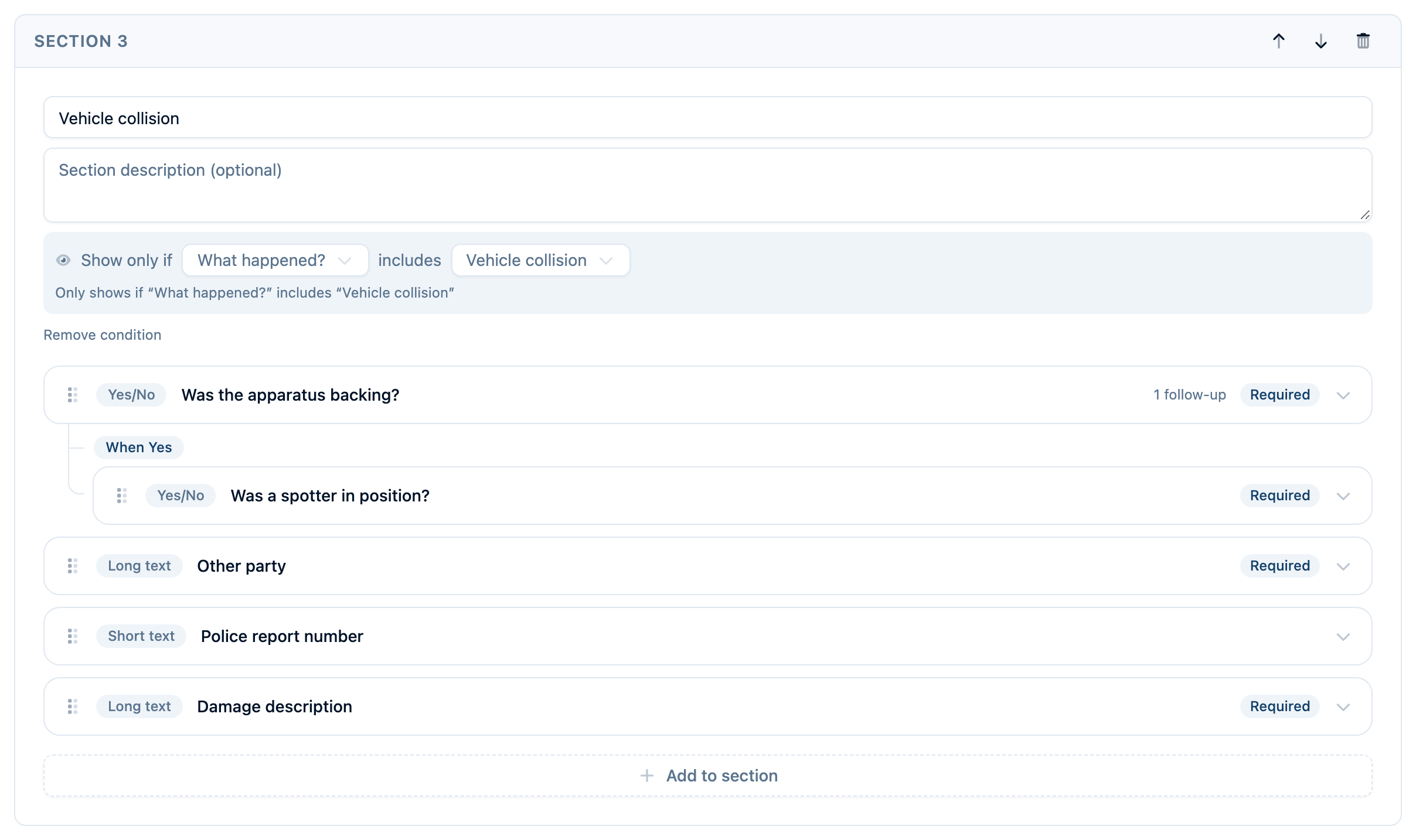
Use the same approach for Member injury or illness, with questions such as injured member, body part affected, nature of injury, care received, and current duty status. A report that selects both collision and member injury can display both sections.
Put the controlling question before its follow-up. A section condition uses a choice or Yes/No question from an earlier section. Describe the other category can similarly depend on What happened? including Other.
4. Add Witnesses, the Narrative, and Notification Details
A repeating group handles a variable number of witnesses without separate “Witness 1”, “Witness 2”, and “Witness 3” questions.
- Create a Witnesses section.
- Choose Add to section → Repeating group and name it Witnesses.
- Set the row label to Witness, At least to 0, and At most to 10.
- Use Add to group to add Name as required Short text and Contact information as optional Short text.
The zero minimum allows an event with no witnesses. When the reporter adds a witness row, its required Name must be answered.
Then add two more sections:
| Section | Questions |
|---|---|
| Narrative | What happened and Corrective actions taken or recommended, both required Long text |
| Supervisor notification | Officer notified, required Personnel with a single selection; Notified at, required Date and time |
Recording Officer notified and Notified at documents a notification that happened through your department's normal process. Selecting an officer does not send a notification or grant that officer access to the report.
5. Preview, Save, and Publish
Choose Preview and fill in a few trial answers:
- Select Vehicle collision and check that the collision section appears.
- Answer Yes to backing and check that the spotter question appears. Change it to No and check that the follow-up disappears.
- Select Member injury or illness and check its section separately, then try both event categories together.
- Add a witness and check the name and contact fields.
Preview answers are for testing only; they do not become a report. Return to Build to adjust the form. Use Save draft to preserve your authoring work, then Publish. Resolve any messages under Fix these before publishing, and confirm Publish when the form is ready.
Members can start entries after the first version is published. The Published versions list identifies the current version. Saving an unpublished revision does not change the form members use.
6. Complete the Backing-Collision Report
Open Accident & Injury Reports and click New entry. Set When did this happen? to the occurrence time, using your department's timezone.
For the example, the reporter enters:
- Location: Station 2 — apparatus bay, Bay 2 apron.
- What happened?: Vehicle collision and Property damage.
- Activity at the time: Non-emergency driving.
- Apparatus involved: Tower Ladder 2.
- Members involved: Jason Miller.
- Was the apparatus backing?: Yes.
- Was a spotter in position?: No.
- Other party: The fixed steel bollard beside Bay 2.
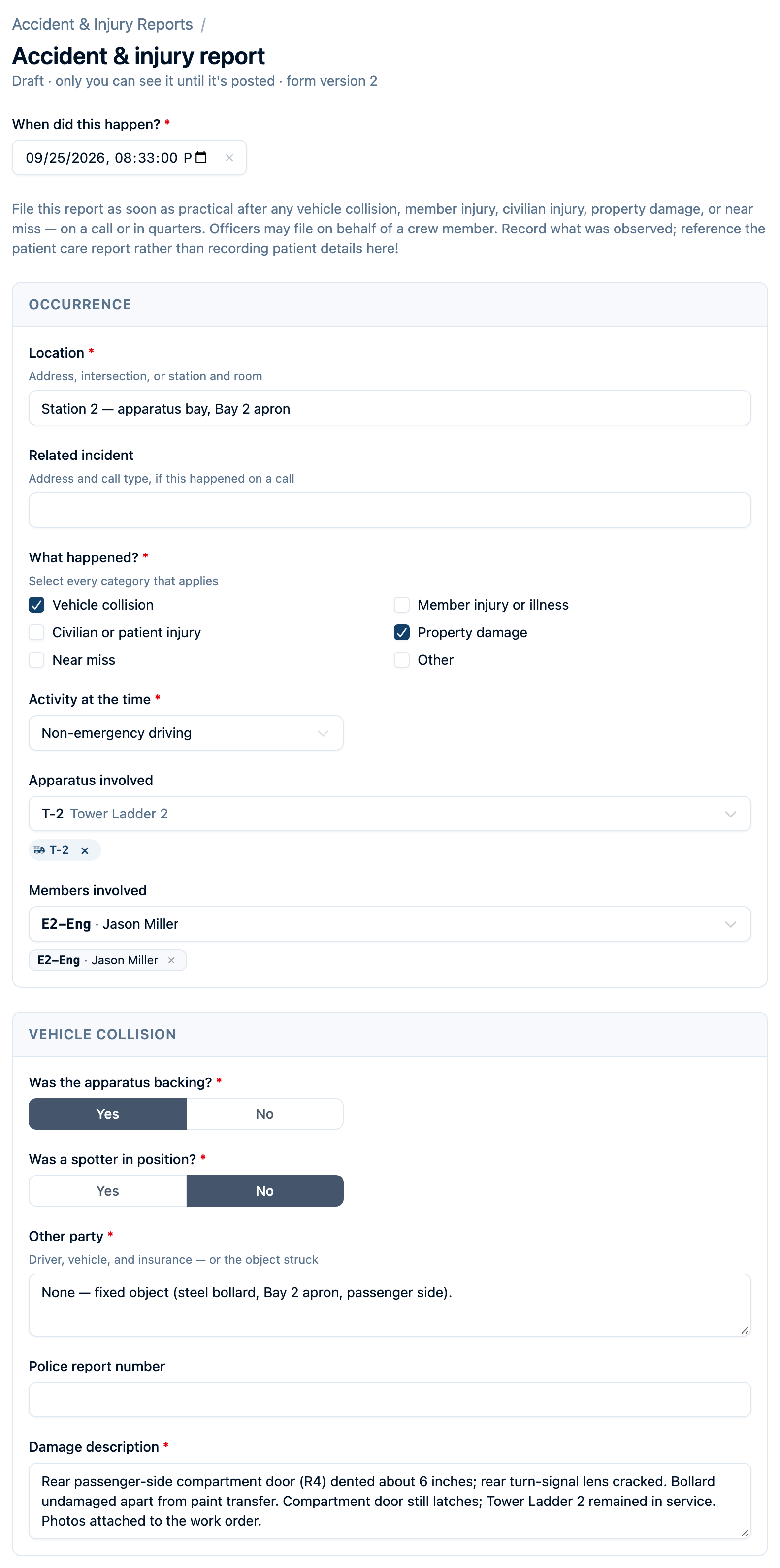
The narrative describes the unit returning from fuel, the spotter leaving view, and the continued backing movement into the bollard. The damage and corrective-action answers record the dented compartment door, cracked signal lens, work order follow-up, and review of the backing procedure. Michelle Davis is recorded as the officer notified.
Answers autosave while you work. Wait for Saved, or use Save draft, before leaving. Reopen the draft from Your unfinished draft in the book; unfinished answers stay out of the posted-entry list and search. Reviewer access does not grant access to another person’s draft; owners and admins are an exception.
7. Check the Answers, Post, and Review the Record
Re-read the completed answers, then choose Review & submit. The application checks the saved draft for missing required answers and other problems. Fix any highlighted fields and try again.
If you answered a question and later changed an earlier answer so it no longer applies, the confirmation lists the answers that will be left out. For example, changing backing from Yes to No excludes the spotter answer. Choose Keep editing to make a correction or Post to submit.
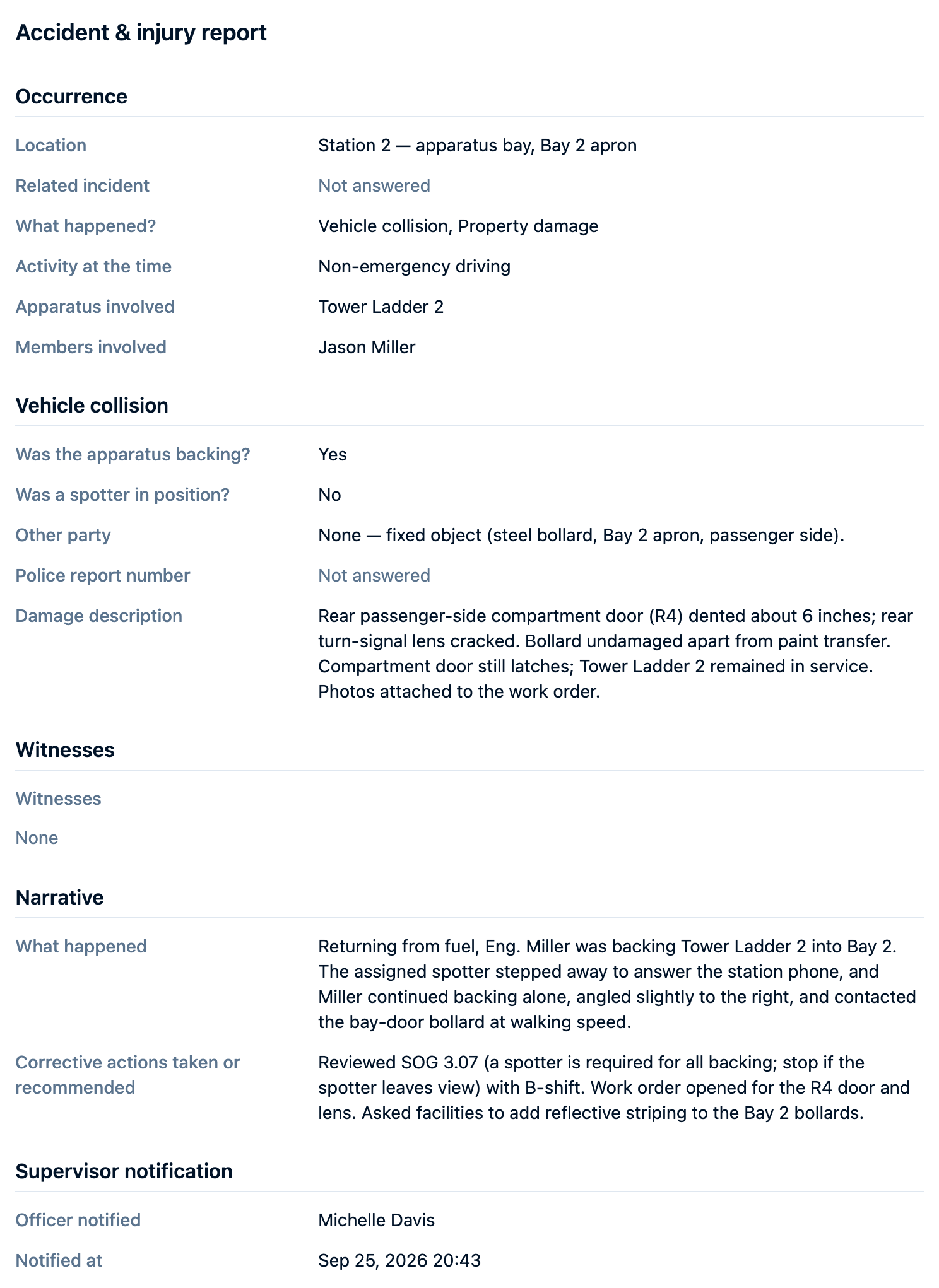
Posted form reports cannot be edited in place. With this book's Restricted visibility, submitters see their own reports; owners, admins, and Command Staff reviewers can open all reports in the book. Reviewer access is read access to submitted reports, not a separate approval or sign-off workflow.
Keep the Form Useful as Your Process Changes
An owner or admin can return to Form → Edit form, revise the questions, preview, and publish a new version. New entries use the latest published version. A draft already started keeps the version it began with, and posted reports retain their original questions and answers.
Keep these distinctions in mind when adapting the example:
- A form draft needs Save draft; a member's report draft autosaves.
- Form reports do not have photo/file upload fields, signatures, @-mentions, or written-entry acknowledgements.
- A person named in an answer is not automatically a submitter or reviewer.
- Restricted controls access inside Command Established. Follow your department's reporting, retention, and disclosure procedures for the record itself.
For written journals, templates, pass-ons, and acknowledgements, see the Log Books guide. For a product overview, see Digital Log Books.