
Connect Active911: From Page to NERIS Report
Your department already gets toned out through Active911. Connect it to Command Established and that same alert starts the incident report: the call number, address, map location, call type, and dispatch time are filled in before the first truck is back in quarters.
Active911 pages you. Command Established picks up the call from there, keeps the incident current as more information arrives, and carries it through to a finished report that you submit to NERIS.
A Call, Start to Finish
Here's what happens to a single call once Active911 is connected.
1. The page goes out
Your dispatch center sends the call to Active911, and Active911 alerts your members' phones and pagers the way it always has. At the same moment, Active911 sends a copy of the alert to Command Established.
2. The incident starts itself
Command Established reads the alert and creates an incident with:
- Incident number: the CAD call number from the alert
- Call type: the call description, exactly as dispatch sent it (for example
1050orSTRUCTURE FIRE) - Location: the street address, city, and state, plus the map pin Active911 placed on the call
- Dispatch time: when the alert went out
- Narrative: a starting draft from the dispatcher's details, along with the cross street, priority, and units when the alert includes them
Command Established fills in the ZIP code from the address. The original alert is attached to the incident's Files tab as an Active911 Alert, so the source is always one click away.
Members get the same new-incident notification they'd get from a CAD email, so everyone knows the report is open.
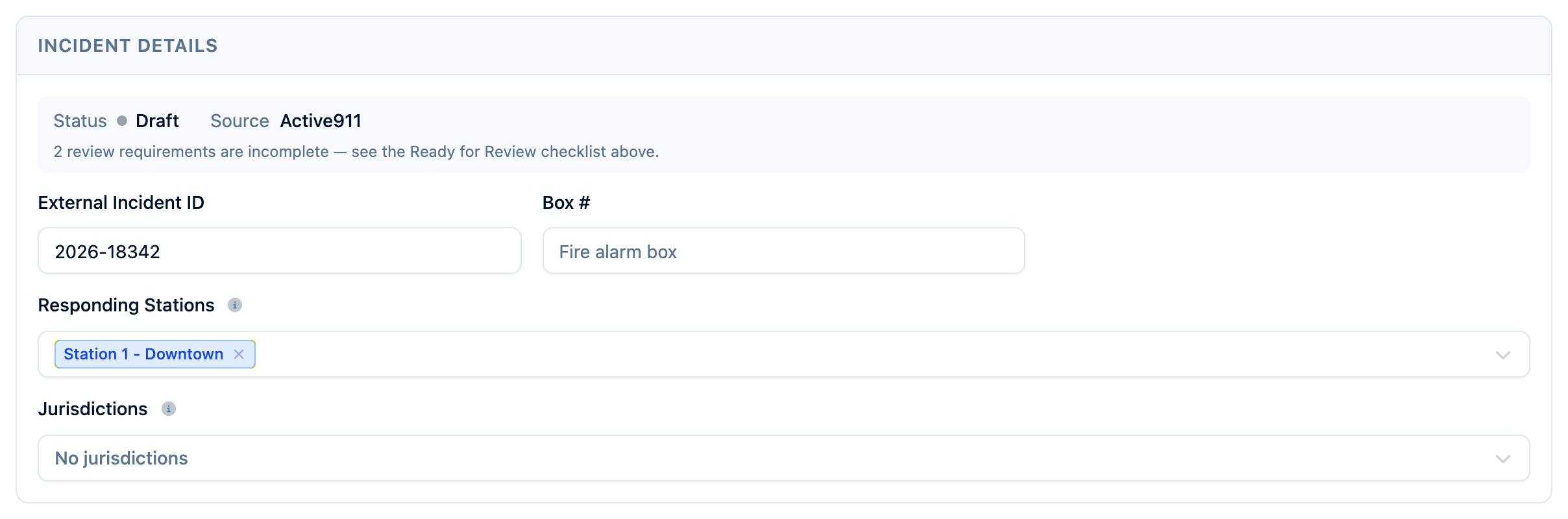
3. It stays current
Calls change after the first page. If Active911 sends another alert for the same call number, Command Established updates the incident you already have instead of creating a second one. New information from dispatch is added as it arrives. A narrative your crew has written and a NERIS incident type your officer has chosen are never replaced by a later alert. If dispatch moves the call to a different street, the incident's address moves with it.
If your department also receives CAD emails, the two work together. When a CAD email and an Active911 alert carry the same call number, they land on the same incident, and each fills in what the other left blank.
4. Your crew finishes the report
When the call is over, the incident is already waiting with the dispatch facts in place. Your officer adds what only the crew knows: the responding apparatus and personnel, their times, what they found, and what they did. Choose the incident's NERIS incident type on the Basic Info tab. Active911's call codes vary from one dispatch center to the next, so the type is left for the officer to pick.
The NERIS Incident Reporting guide walks through each tab.
5. Submit to NERIS
Open the NERIS tab. It checks the incident as you work and lists anything NERIS still needs. When the list is clear, submit. Active911 dispatched the call, and Command Established submits the report.
If your department isn't set up for NERIS yet, start with Enroll in NERIS.
Requirements
- You must be a department admin to connect Active911.
- The Incidents module must be turned on for your department. Alerts are received and listed either way, but incidents are only created while the module is on. Check this under Settings > Modules.
- You need access to your agency's settings in Active911, or someone who does.
Step 1: Create a Webhook URL
- Go to Settings in your department.
- Select the CAD tab.
- Under Active911, click Create webhook URL.
- Click the copy icon next to the new URL.
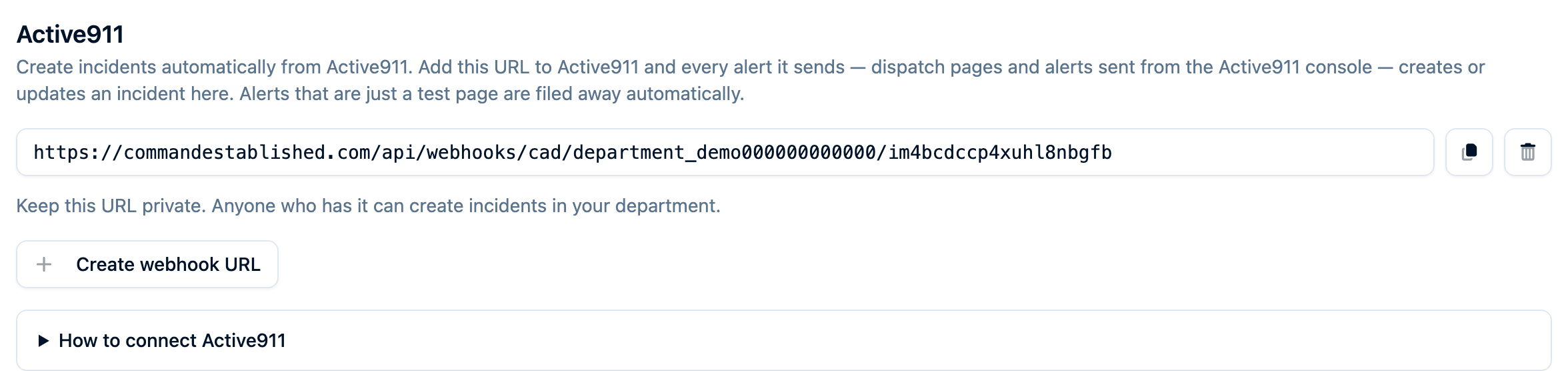
Important: Keep this URL private. Anyone who has it can create incidents in your department.
You can have up to 2 URLs at a time, so you can switch to a new one without missing a call: create the new URL, add it in Active911, then revoke the old one.
Step 2: Add It in Active911
- In Active911, open Agency and scroll to Integrations.
- Choose Add New Integration.
- Pick the type other and paste the URL you copied.
Any integrations you already have in Active911 keep working alongside this one.
Step 3: Watch the Next Alert Arrive
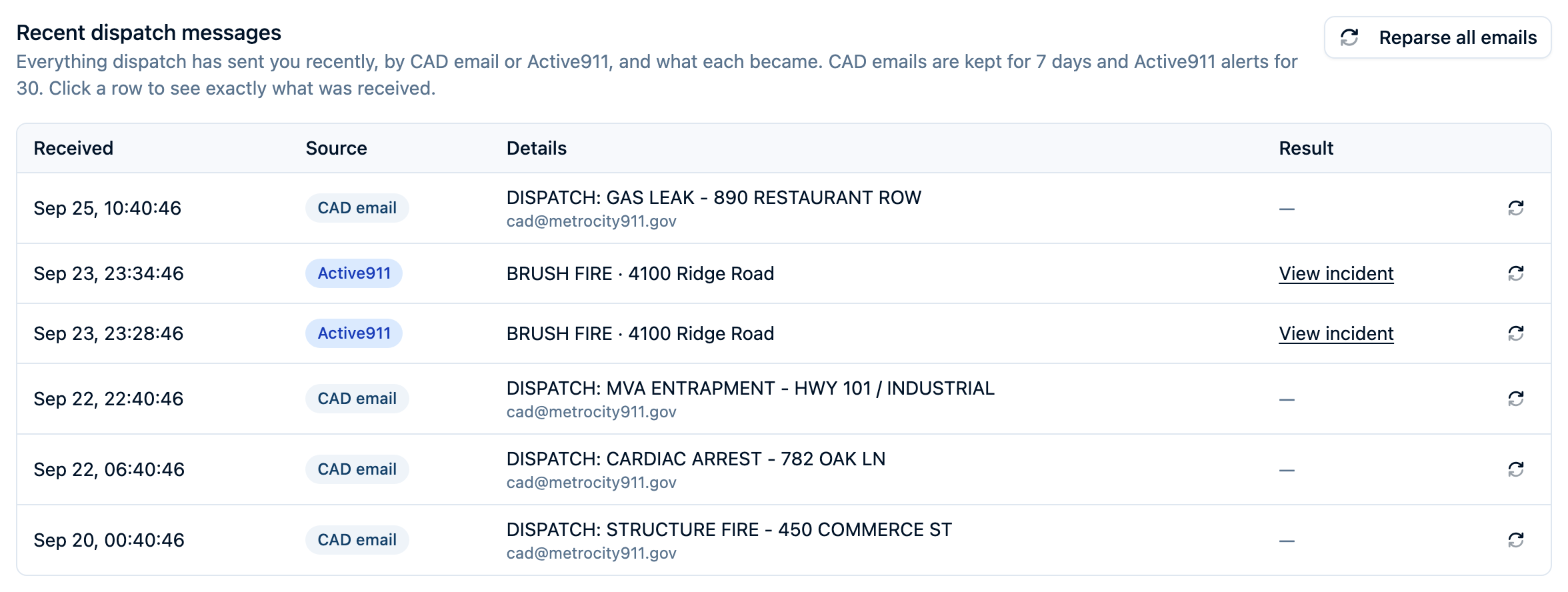
Back on the CAD settings tab, Recent dispatch messages lists everything your department has received from Active911 and from CAD email, newest first. The Source column shows where each message came from.
When your next alert arrives, its row shows a View incident link to the incident it created. Click the row to see the full alert exactly as Active911 sent it.
Every alert is listed for 30 days, including ones that didn't become an incident. Those show the reason instead of a link.
Test Pages
Many departments send a test page from the Active911 console now and then. When an alert's call type or details say only "Test", "Pager test", "Test page", "Radio test", or "System test", Command Established records it and archives it right away. It never shows up in your incident list, and nobody gets a new-incident notification for it.
An alert that mentions a test as part of a real call (for example "Testing smoke alarm, 123 Main St") is treated as a normal call.
If a real call was archived by mistake, an admin can restore it from the Activity Log using Unarchive. If a test slipped through as an incident, archive it from the incident's menu.
Alerts Sent From the Active911 Console
Alerts your officers send by hand from the Active911 console are handled like dispatch alerts. They usually don't have a CAD call number, so each one becomes its own incident, and a later CAD email for the same call may not be matched to it automatically.
Troubleshooting
Nothing shows up in Recent dispatch messages
- Confirm the integration in Active911 uses the URL shown on your CAD settings tab, copied in full.
- Check that the URL hasn't been revoked. Only URLs listed under Active911 are active.
- Active911 sends alerts to Command Established as they go out. Earlier alerts aren't sent retroactively, so wait for the next page.
An alert is listed, but no incident was created
Open the alert's row to see the reason:
- Incidents are turned off for this department: turn on the Incidents module under Settings > Modules, then use the reprocess button on the alert's row to try it again.
- Couldn't read this alert or Failed: use the reprocess button on the row. If it still doesn't work, contact support.
- Not an Active911 alert: something other than Active911 sent a message to this URL. If you didn't expect that, create a new URL, update Active911, and revoke the old one.
The same call shows up as two incidents
Compare their incident numbers. If one came from a console alert (no CAD number) and the other from dispatch, they couldn't be matched automatically. Archive the extra copy from its menu.
Can I use Active911 and CAD email together?
Yes. Calls that carry the same call number in both end up on one incident. Both sources appear in Recent dispatch messages, so you can see what each one delivered.
Does Command Established see who's responding in Active911?
Not today. The alert tells Command Established about the call, but responses members mark in the Active911 app aren't included in it. Record the responding personnel on the incident's Resources tab, as described in Incident Personnel and Call Credit.
I accidentally shared the webhook URL
- Click Create webhook URL to make a new one.
- Replace the old URL in your Active911 integration with the new one.
- Revoke the old URL with its trash icon. Alerts sent to it stop creating incidents immediately. Incidents already created aren't affected.
Need Help Getting Set Up?
If you'd like a hand connecting Active911, reach out to our support team. We're happy to walk you through it.