
How to Enroll Command Established in NERIS
This guide will walk you through the process of enrolling Command Established as a third-party integration in your NERIS (National Emergency Response Information System) account.
Command Established Client ID
You'll need to copy and paste our Client ID into the NERIS enrollment form. Click the button below to copy it to your clipboard:
d07ece19-0e3f-4d1b-8735-3d606aa9fab0
Step 1: Navigate to Enrollments
Log in to your NERIS account at neris.fsri.org. Once logged in, navigate to the Enrollments page:
- Click on Account in the left sidebar
- Select Enrollments from the Account menu
Note: The Enrollments page shows all third-party integrations that can connect with NERIS. You'll see a form to add a new enrollment at the top of the page.
Step 2: Enter the Client ID
On the Integration Enrollments page, you'll see a section for your department with a Client ID input field:
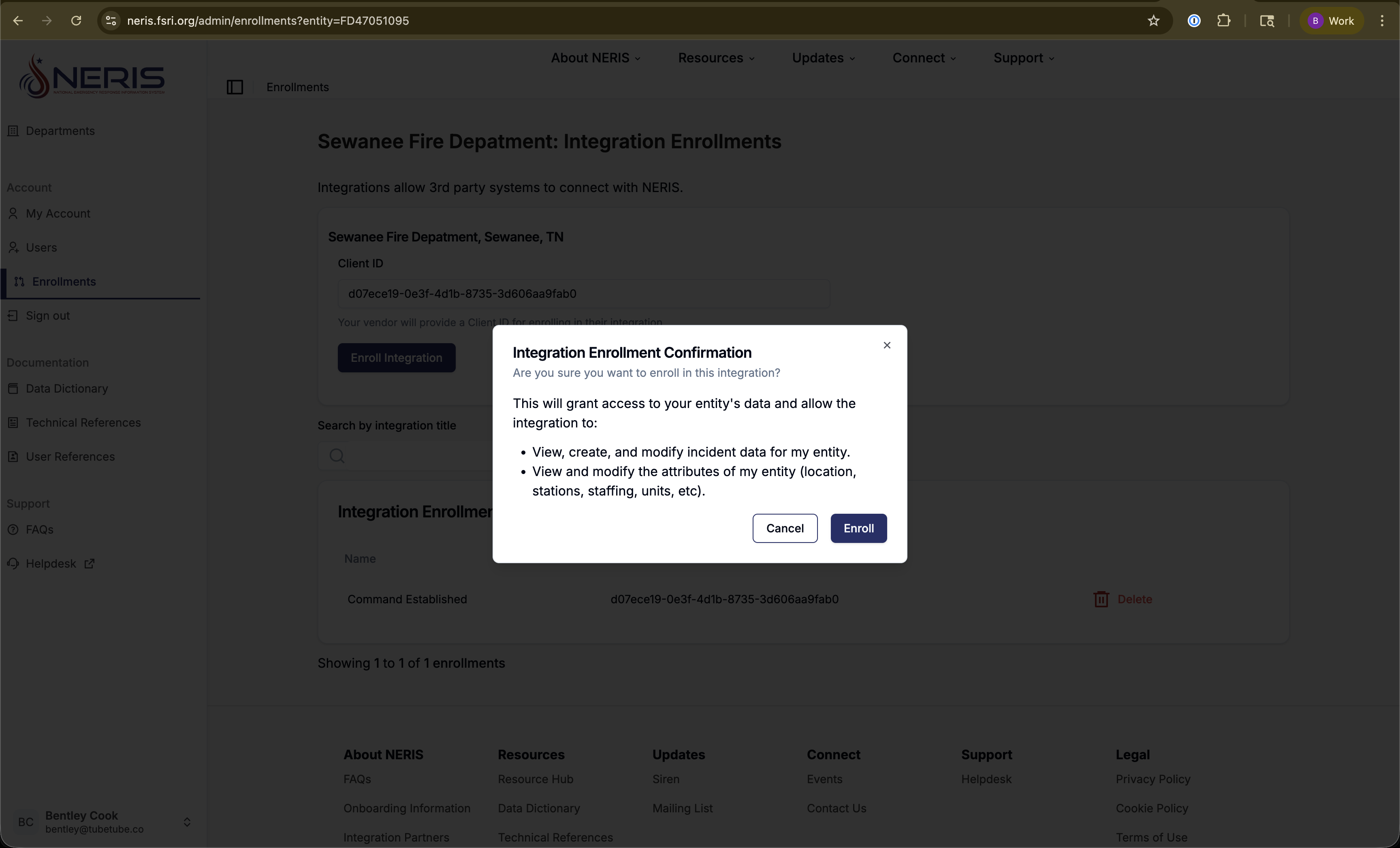
- Paste the Command Established Client ID into the Client ID field
- The field should show:
d07ece19-0e3f-4d1b-8735-3d606aa9fab0
Tip: Use the copy button above to easily copy the Client ID to your clipboard, then paste it into the NERIS form.
Step 3: Click "Enroll Integration"
After entering the Client ID, click the blue Enroll Integration button below the Client ID field.
Step 4: Review Permissions and Confirm
A confirmation dialog will appear showing the permissions that Command Established will have:
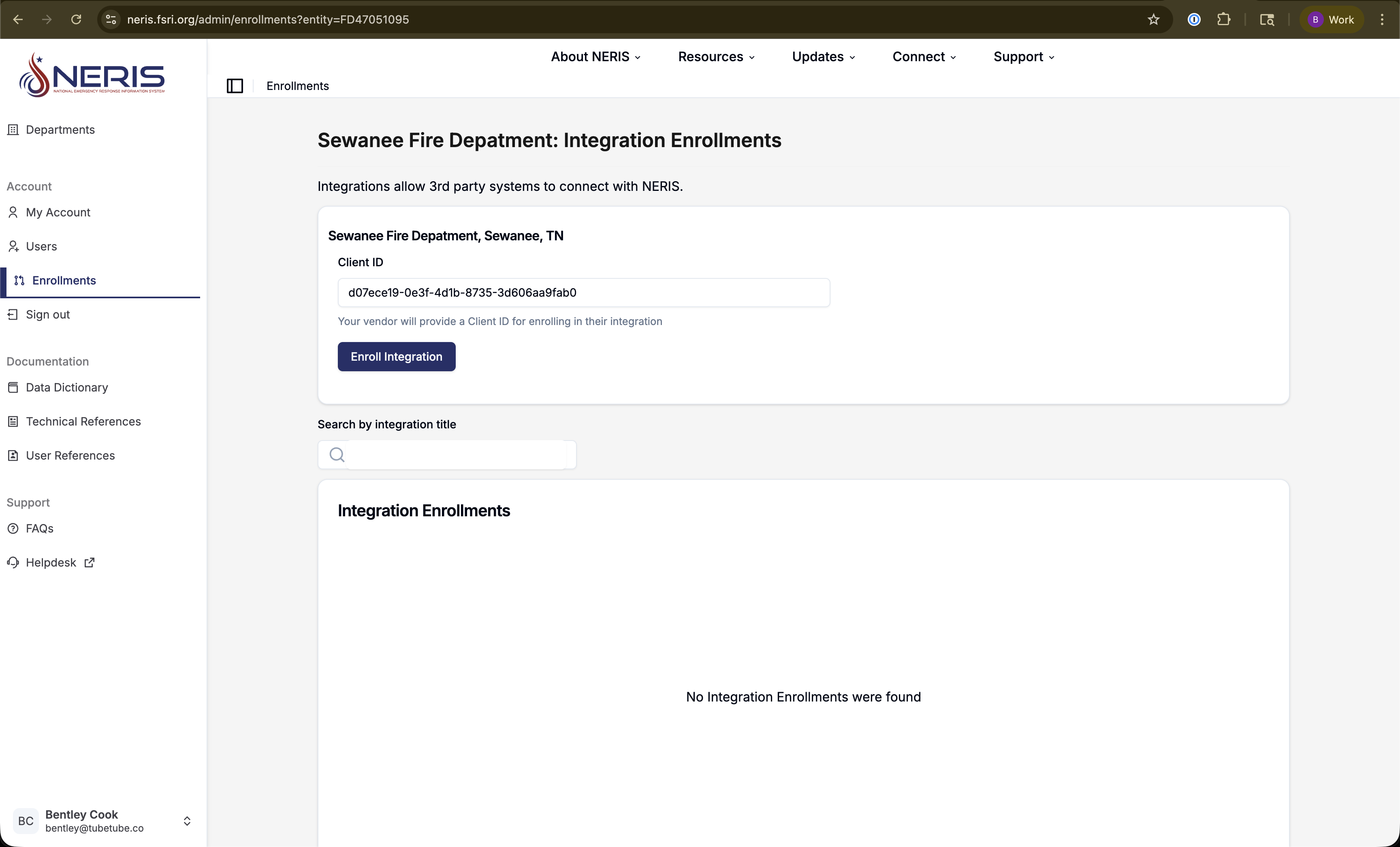
- View, create, and modify incident data for your entity
- View and modify entity attributes (location, stations, staffing, units, etc.)
Review these permissions carefully. If you're ready to proceed, click the Enroll button in the dialog to complete the enrollment.
Important: These permissions allow Command Established to sync incident data and department information with NERIS. This is necessary for automatic NERIS reporting functionality.
Step 5: Verify Enrollment
After confirming, you should see "Command Established" appear in your Integration Enrollments list. The enrollment is now complete!
You can now configure Command Established to sync with NERIS. Go to your department settings in Command Established and enter your NERIS Entity ID to begin syncing.
Troubleshooting
Can't find the Enrollments page?
Make sure you're logged in with an account that has administrative permissions for your NERIS entity. Only administrators can enroll integrations.
Enrollment button is disabled?
Verify that you've entered the complete Client ID correctly. The ID should be a UUID format (36 characters with hyphens).
Need additional help?
If you encounter any issues during enrollment, please contact NERIS support or reach out to Command Established support for assistance.