
Set Up CAD Email Integration
Command Established can automatically create incidents from your CAD (Computer-Aided Dispatch) system's email notifications. When your dispatch center sends a CAD email, the system parses the message and creates a fully populated incident record — no manual data entry required.
How It Works
Your CAD system sends dispatch emails to a unique email address assigned to your department. Command Established receives the email, uses AI to extract structured data (incident number, address, type, responding units, narrative, etc.), and creates or updates the corresponding incident. If a second email arrives for the same incident number, the existing incident is updated rather than duplicated.
Each department gets its own email address generated from a secret key, so only your CAD system can create incidents in your department.
Requirements
- You must be a department admin to configure CAD email integration.
- The Incidents module must be enabled for your department. CAD emails are received regardless, but incidents will not be created unless the module is active. You can check this under Settings > Modules.
- Your CAD system must be able to send dispatch notifications via email. Most modern CAD systems support this — check with your dispatch center or CAD vendor.
Step 1: Generate an Email Secret
- Go to Settings in your department.
- Select the CAD tab.
- Under CAD Email Addresses, click Generate New Secret.
- A new email address will appear in the format:
cad-inbound+xxxxxxxxxxxxxxxxxxxx@email.commandestablished.com - Click the copy icon next to the address to copy it to your clipboard.
Important: Keep this email address confidential. Anyone who knows it can create incidents in your department.
You can have up to 2 active email addresses at a time. This allows you to rotate secrets without downtime — generate a new one, update your CAD system, then delete the old one.
Step 2: Configure Your CAD System
Provide the generated email address to your dispatch center or CAD administrator. They will need to add it as a notification recipient in your CAD system.
The exact steps depend on your CAD vendor, but the general process is:
- Contact your dispatch center and let them know you want CAD dispatch emails forwarded to a specific email address.
- Provide the email address you copied in Step 1.
- Request that all dispatch notifications (toneouts, incident updates, and incident closures) be sent to this address.
Some CAD systems allow you to configure email recipients directly. Others require a dispatch administrator to set it up. If you're unsure, reach out to your CAD vendor for instructions on adding an email notification recipient.
Step 3: Select Your CAD System Type (Optional)
Some CAD systems require additional configuration details to improve parsing accuracy. Select your system type and fill in any fields that appear.
- On the CAD settings tab, find CAD System Type.
- Select your system from the dropdown. If your system isn't listed, leave it set to Generic — the AI parser handles a wide variety of CAD email formats automatically.
- If additional fields appear (such as an agency code), fill them in and click Save. These details help the parser correctly identify your department's incidents and units in multi-agency emails. The agency code field also appears once you turn on Separate incident number per agency — see below.
Step 4: Verify the Integration
After your CAD system is configured to send emails:
- Wait for a real dispatch. When your department is toned out, a CAD email will be sent to your Command Established address.
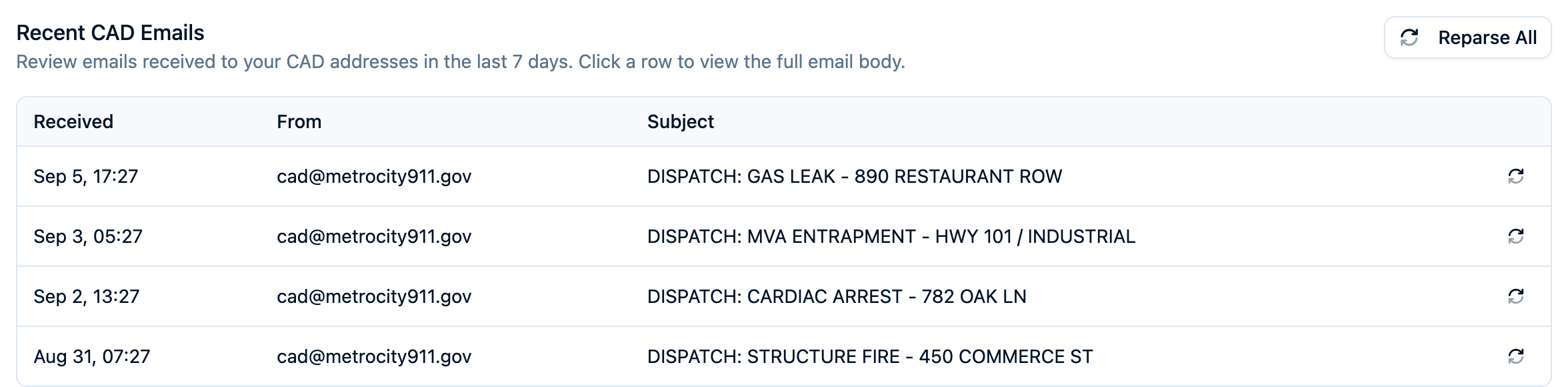
- Go to the CAD settings tab and check Recent CAD Emails at the bottom of the page. You should see the email listed within a few minutes of dispatch.
- Click on the email row to view the raw email body and confirm it was received correctly.
- Navigate to your Incidents page to verify that a new incident was created with the correct details (address, type, responding units, etc.).
If the incident data doesn't look right, you can click the reparse button next to the email in the Recent CAD Emails table to reprocess it.
Rotating Secrets
If you need to change your email address — for example, if it was accidentally shared — you can rotate your secret without missing any dispatches:
- Click Generate New Secret to create a second email address.
- Update your CAD system to send to the new address.
- After confirming the new address is working, click the trash icon next to the old address to delete it.
Reparsing Emails
The Recent CAD Emails section shows all emails received in the last 7 days. If an incident wasn't created correctly or was missing data, you can reparse individual emails or all emails at once:
- Single email: Click the refresh icon on the email's row.
- All emails: Click the Reparse All button at the top of the table.
Reparsing re-runs the AI parser on the original email and updates the linked incident with any newly extracted data.
Forwarding CAD Run Sheets by Hand
Not every dispatch center can send emails automatically. If yours prints CAD run sheets as PDFs, a member can forward them to your Command Established address by hand — one sheet or several in the same email. The PDFs themselves are the payload; the email body can be empty.
- Up to 20 PDFs per email are parsed. An email with six run sheets creates (or updates) six incidents. Each sheet is handled on its own, so one sheet that can't be read doesn't stop the others. Attachments past the twentieth are ignored — on reparse too — so split larger batches across several emails.
- Two sheets for the same incident number — for example a dispatch printout and its closing report — update a single incident rather than creating a duplicate.
- Larger batches take longer. Sheets are parsed a few at a time, so give a multi-sheet email a couple of minutes before checking on it.
To see what each sheet became, open the email from Recent CAD Emails. The review modal lists every attachment under Attachments, with its size and the incident number it was parsed into. The filename is a link that opens that incident's files tab. A sheet that couldn't be parsed shows as plain text with no link, so a partly-parsed batch is easy to spot at a glance. If the email had no text body, the modal says so rather than showing an empty box.
Links between attachments and incidents are recorded when the email is parsed, and a reparse adds links for any sheet that only succeeds on the retry. Reparsing also backfills links for older emails whose attachments were recorded but never linked. Only emails from before attachments were recorded at all show attachments without links — those can't be recovered.
How CAD Units Are Matched to Your Apparatus
When a run-sheet PDF, a completed-call email, or a response-request notification lists responding units, Command Established tries to match each one to an apparatus in your roster so the incident records the right trucks with their en route, on scene, and cleared times. An apparatus is added with the times from the first sheet or email that matched it; a later sheet for the same incident (for example the closing report after the dispatch notice) doesn't overwrite times already recorded for that apparatus. Matching is driven entirely by what you've entered on each apparatus — the Call Sign (also called the designation) and the Name — so there is no hard-coded list of abbreviations to learn.
Each CAD unit is checked in order:
- Exact call sign. If the CAD unit matches an apparatus call sign exactly (ignoring letter case), that apparatus wins.
- Relaxed match on call sign or name. Otherwise, the CAD unit is compared against both the call sign and the name of every apparatus, ignoring case, spaces, and punctuation.
ENGINE 21matches an apparatus named Engine 21 even though its call sign isEN21, andE-1matches a call sign ofE1. - Agency prefix removed. If there's still no match and the CAD unit carries an agency or district prefix —
HCFD-02-ENGINE 21,HCSO-541,HCFD-12 STATION-ENGINE 12— the prefix is stripped and step 2 runs again on what's left. The whole name is always tried first, so an apparatus you've genuinely named with an agency-style call sign still matches on its full name. Only prefixes of three to six letters are stripped; short groups likeTK-2orBR-2are treated as part of the unit's own name, and a longer code such asHARDINFD-02-ENGINE 21is left intact (set the call sign to what CAD sends in that case).
Two safeguards keep the matcher from guessing:
- Ambiguous relaxed matches are skipped. If a CAD unit could match more than one apparatus in step 2 or 3 — say a roster with both
HA1"Hazmat 1" andHAZMAT1"Haz Mat 1" — neither is chosen. A wrong truck on an incident is worse than a missing one. This safeguard doesn't cover two apparatus with the same call sign (differing only in letter case): an exact match picks the first one found, so keep call signs unique. - Bare numbers don't match by coincidence. A station number like
12won't match Engine 12, and units belonging to other agencies on the sheet (EMS, law enforcement) resolve to nothing unless they're in your roster. The matcher doesn't know which agency a unit belongs to, though — if a neighboring department'sHCFD-02-ENGINE 21appears on a sheet and you also have an Engine 21, the prefix is stripped and it will match yours. If that happens regularly, give your apparatus a call sign that outside units won't collide with.
What to do when CAD says ENGINE 21 and your rig is EN21: usually nothing. As long as the apparatus Name is "Engine 21" (with or without the space), the relaxed match handles it. If CAD uses a spelling that doesn't line up with either field — for example E21 when your name is "Engine 21" and your call sign is EN21 — change the apparatus call sign to what CAD sends, or contact support if you'd rather keep your call sign as-is. Once you've updated the roster, use reparse on the affected email to re-run the match.
Response Time Units
Dispatch sheets often list every agency on a call. Under Response Time Units on the CAD settings tab, you can choose which unit categories (FIRE, EMS, LAW) count as yours when recording an incident's en route and on scene times. Leave all of them unchecked to count every unit.
The same filter decides when an incident is considered complete: the call is marked complete once every one of your units has cleared, so a transporting ambulance that never clears on the CAD sheet doesn't hold your incident open. (If a sheet lists no category for any unit, the filter can't apply and every unit counts. If only some units have a category, no completion time is derived from unit clears at all — the incident completes from the sheet's closed time or by hand.)
Separate Incident Numbers Per Agency
Some dispatch centers give every responding agency its own incident number for the same call, printed as a tagged list:
Incident Number:[2026-00006428 NSTAR], [2026-00001410 73001]
When your department is toned out, your own number usually doesn't exist yet, so your slot shows a placeholder like "Incident not yet created". The page that reaches us therefore carries no number for you — and the closing report, sent after the call, carries a different one. Read as two numbers, that is two calls: you get the same run twice in your incident list, and the copy you were paged on holds only a dispatch time while the en route and on scene times sit on a second record you never opened.
If that describes your dispatch emails, turn on Separate incident number per agency on the CAD settings tab. Calls are then matched by location and time as well as by number, so the page and the closing report land on one incident, and your own number is filled in as soon as dispatch assigns it. Fill in Agency Code with the code your dispatch center uses for your department (the one printed beside your number) so we take yours rather than a neighbouring agency's.
Leave it off if your dispatch center gives each call a single number — most do. With it off, two different numbers are always treated as two different calls, which is what you want.
This setting only affects calls dispatched after you turn it on. Duplicates already in your incident list stay as they are; archive the copy without times, or contact support if there are more than a handful.
NERIS Incident Types from CAD
When a dispatch call type clearly maps to a single NERIS incident type — a dispatched "FIRE ALARM", for instance — the parser fills in the incident's NERIS type automatically so incidents created from CAD arrive pre-classified. Call types that could mean several things (a bare "STRUCTURE FIRE" or "MEDICAL EMERGENCY") are deliberately left blank for the officer to classify during review.
A NERIS type suggested from CAD never overwrites a classification that already exists on the incident, whether it was set by a person or by an earlier CAD email. It only fills in incidents that have none.
Pager and System Tests
Many dispatch centers page the department on a schedule to test tones or radios, and some CAD systems send those tests as run sheets. When a sheet identifies itself as a test (for example "PAGER TEST" or "WEEKLY TEST" in the call type or narrative), Command Established records it but archives it immediately, so it never appears in your incident list and nobody gets a new-incident alert for it.
If a real call was archived this way by mistake, an admin can restore it from the Activity Log using Unarchive. If a test slipped through as a normal incident, archive it from the incident's menu.
Troubleshooting
No emails are showing up in Recent CAD Emails
- Confirm with your dispatch center that the email address is correctly configured and that a dispatch has been sent since setup.
- Double-check that you copied the full email address, including the
cad-inbound+prefix and the@email.commandestablished.comdomain. - Emails typically appear within 1-2 minutes of being sent. If nothing appears after several dispatches, contact support.
Emails are received but no incident is created
- Click the email row in Recent CAD Emails to view the body. If the email content doesn't contain dispatch information (e.g., it's a test email or system notification), the parser may intentionally skip it.
- Try clicking the reparse button to reprocess the email.
- If your CAD system uses an unusual format, contact support so we can improve parsing for your system.
Incident data is missing or incorrect
- The AI parser extracts what it can from the email content. Some CAD systems include more detail than others.
- Try reparsing the email — parsing accuracy improves over time as the system learns new formats.
- Check that the correct CAD System Type is selected in your settings.
- If you consistently see incorrect data, contact support with an example email so we can tune parsing for your CAD format.
The same call appears as two incidents, and one is missing its times
- Open both copies and compare their incident numbers. If they're different numbers for the same address and time, your dispatch center is likely numbering each agency separately — turn on Separate incident number per agency on the CAD settings tab and fill in your Agency Code. See Separate Incident Numbers Per Agency.
- The setting applies to calls dispatched after you turn it on. Archive the older duplicate — the copy holding only a dispatch time — from the incident's menu.
- If both copies show the same incident number, that's a different problem: contact support with the incident numbers so we can look at the emails.
I sent one email with several run sheets, but only one incident was created
- Open the email in Recent CAD Emails and check the Attachments list. Each sheet that parsed links to its incident number. A sheet without a link usually didn't parse — but occasionally the incident was created and only the link failed to record, so search Incidents for the CAD number before assuming the sheet was lost.
- Check whether the sheets share an incident number. Multiple sheets for the same CAD incident (a dispatch and its closing report) update one incident rather than creating several — that's expected.
- Confirm the attachments are PDFs. Only PDF attachments are parsed as run sheets.
- Try reparse on the email. If a specific sheet still doesn't parse, contact support with the email so we can look at that sheet's layout.
A responding unit didn't match any of my apparatus
- Compare what CAD sent (visible in the email body or run sheet) to the apparatus's Call Sign and Name. Matching ignores case, spaces, punctuation, and a leading agency prefix, but the letters and digits have to line up with one of those two fields.
- Check for two apparatus that reduce to the same name once spaces and punctuation are removed (for example
HA1"Hazmat 1" andHAZMAT1"Haz Mat 1"). An ambiguous match is skipped on purpose — rename one so they're distinct. - Units that belong to other agencies, or bare station numbers, are expected not to match.
- After fixing the roster, reparse the email to re-run the match.
I accidentally shared the email address
- Generate a new secret immediately by clicking Generate New Secret.
- Update your CAD system to use the new address.
- Delete the compromised address by clicking its trash icon.
Can I use this with multiple CAD systems?
You can generate up to 2 email addresses, and each one receives emails independently. If your department receives dispatches from two different CAD systems, you can give each system its own address.
Can I put six run sheets in one email?
Yes. Every PDF attached to an email is parsed, and each sheet becomes its own incident (or updates an existing one if it shares an incident number). One sheet that can't be read doesn't affect the others. Larger batches take a little longer to process.
CAD calls it ENGINE 21 but our rig is EN21 — will it match?
Yes, as long as the apparatus Name is "Engine 21". Matching falls back to comparing the CAD unit against both the call sign and the name, ignoring case, spaces, and punctuation, and strips agency prefixes like HCFD-02-. If CAD uses a spelling that matches neither field, update the apparatus call sign to what CAD sends and reparse the email.
How do I tell which incident each attached sheet became?
Open the email from Recent CAD Emails. The Attachments section lists each sheet with the incident number it was parsed into, and the filename links directly to that incident's files tab. Sheets that didn't parse appear without a link.
Need Help Getting Set Up?
If you run into any issues or would like a hand configuring your CAD integration, reach out to our support team — we're happy to walk you through it.
If your department shares a dispatch center across multiple agencies and receives CAD updates for all of them, you may need customized email handling to filter incidents correctly. Contact us to discuss custom CAD email integration for your setup.