
Merging Duplicate Places
If a building's pre-plan is on one Place and its inspections are on another, merge the duplicate records to bring the work together. The preview shows which Place stays, which duplicate is archived, and which linked records move before you confirm.
This guide follows Cedar Grove Community Center, which also appears as Cedar Grove Recreation Center at 425 Cedar Grove Road, Metro City, NY 10001. They describe the same community center. Director Maya Patel is on the first record; facilities coordinator Daniel Brooks and a scheduled community safety open house are on the duplicate.
Before You Start
You must be a department Admin or Owner to merge Places. Both Places must be active. If you are editing a Place, finish or cancel the edit to return to its actions menu.
Check that both records describe the same building or occupancy. Different businesses, tenants, or units can share an address and should keep separate Places. A matching street address alone does not make two records duplicates.
A merge cannot be undone. Review the kept Place, the duplicate, and every warning before selecting Merge Places. The duplicate is archived, and its existing links open the kept Place.
Open the Merge Action
- Go to Places and open one of the duplicate records.
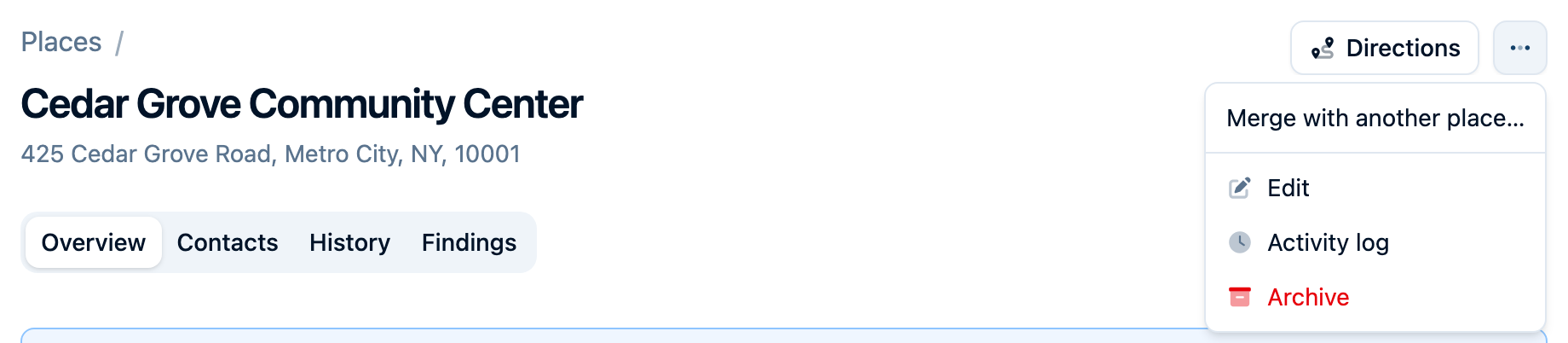
- Open the three-dot More actions menu in the Place header.
- Select Merge with another place….
Choose the Duplicate
Under Duplicate place, search for the other record by name or address. Select the matching Place and check its address, then select Review merge.
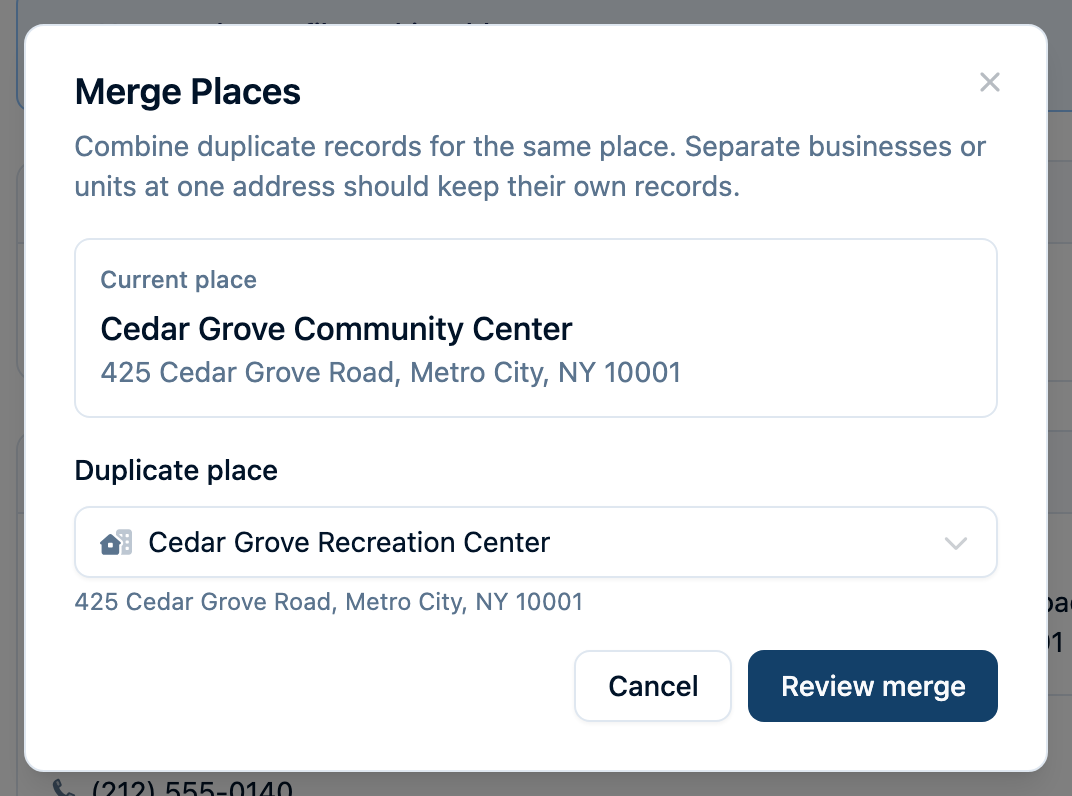
Selecting Review merge only prepares the preview. It does not merge or archive either Place.
Review Which Place Stays
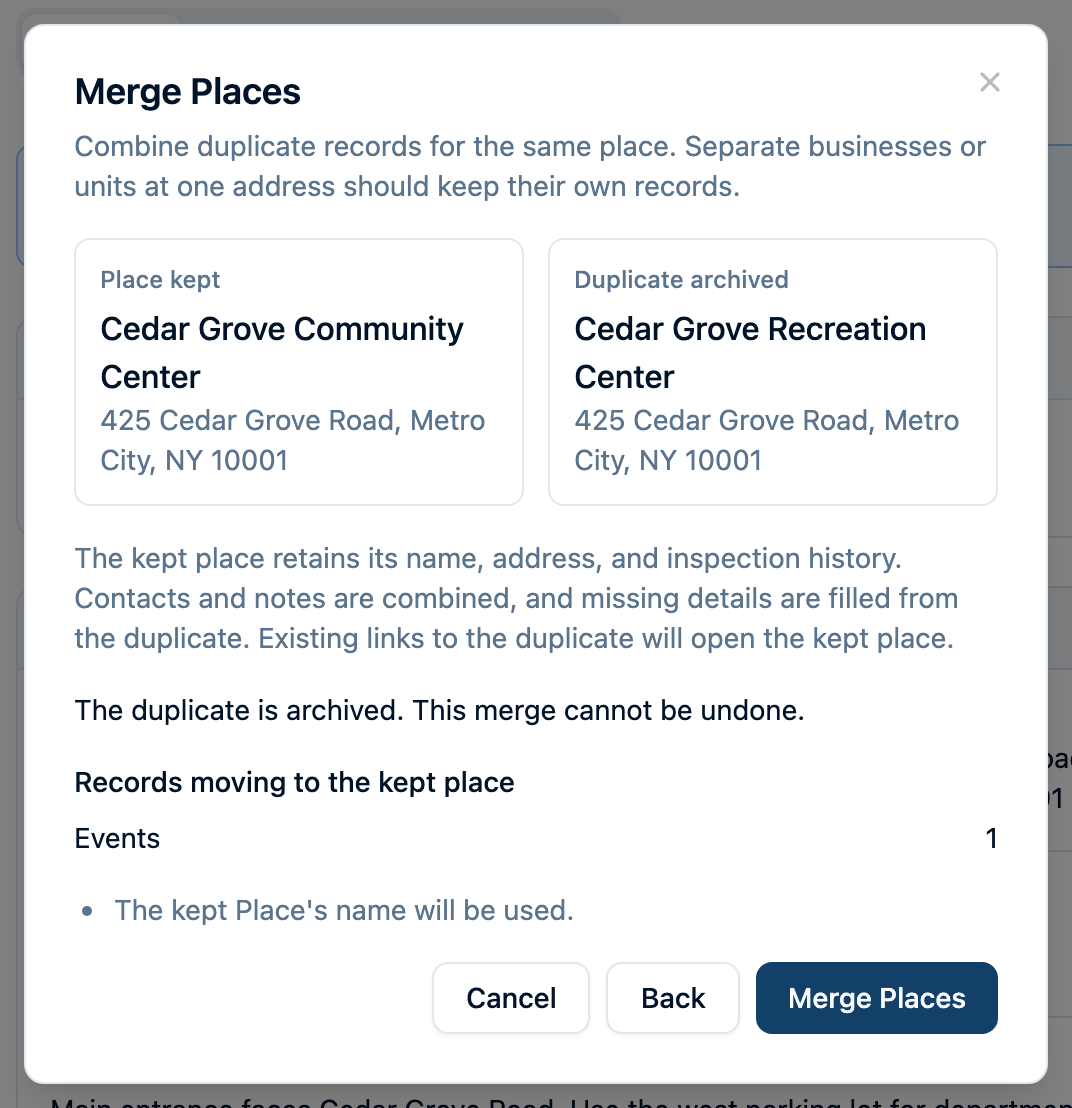
The preview labels the two records Place kept and Duplicate archived. Always read these labels: opening a Place first does not guarantee that it will be kept.
- If only one Place has inspections, inspection program enrollments, or issued inspection documents, that Place is kept. Archived history also counts.
- If neither Place has any of that history, the Place where you opened the merge action is kept.
- If both Places have that history, the merge is blocked. Contact support for help preserving both records' history.
In this example, neither record has inspection history, so Cedar Grove Community Center stays because that is where we opened the merge action. The preview shows Events: 1 for the scheduled open house moving from Cedar Grove Recreation Center.
What Happens to the Details
| Information | What the merge does |
|---|---|
| Name, address, occupancy classification, and risk level | Keeps the values from Place kept. The preview warns when values differ. |
| Phone, email, website, and map pin | Fills missing values from the duplicate. When both Places have different values, keeps the kept Place's value and shows a warning. The other value remains in the archived duplicate. |
| Contacts | Combines contacts and avoids repeating matching contact details. Different phone numbers or email addresses are retained even when names match. The kept Place's existing primary contact remains primary. |
| Notes | Combines the notes. When both Places have different notes, the added section identifies the duplicate by name. |
| Pre-plans | Moves the duplicate's linked pre-plans to the kept Place. They use that Place's address and shared contacts. Multiple pre-plans remain separate documents. |
| Permits, CRR requests and activities, events, and trainings | Moves the duplicate's linked records to the kept Place, including archived records. The preview lists the number moving in each category. |
| Inspections, inspection program enrollments, and issued inspection documents | Keeps them on their existing Place. Signed inspection evidence and previously issued documents remain unchanged. |
The preview's Records moving to the kept place counts describe records coming from the duplicate. They do not count everything already on the kept Place, and categories with no records to move are omitted.
If a warning shows an unexpected name, address, or contact value, use Cancel to check and correct the records. Use Back to choose a different duplicate. When neither Place has inspection history, you can cancel and start from the other Place to keep its name and address instead.
What happens to inspection schedules and pre-plan map pins?
An existing inspection frequency stays on the kept Place. If only the duplicate has a frequency, it can transfer to the kept Place. Different frequencies block the merge until you reconcile them. A duplicate's frequency also cannot transfer to a Place that already uses active inspection program enrollments.
Pre-plans that follow a Place's map pin continue to follow the kept Place. A pre-plan's independently chosen pin is retained.
Confirm and Check the Result
When the preview is correct, select Merge Places. Command Established opens the kept Place and shows Places merged.
- On Overview, check the pre-plans and upcoming work you expected to bring across. In this example, the community safety open house belongs on the kept Place.
- Open Contacts and check the combined list and primary contact. In this example, both Maya Patel and Daniel Brooks should be available.
- Open History to review the location's activity. Any existing inspections remain on the kept Place.
The duplicate is archived; it is not a second active Place. Existing links to the duplicate open the kept Place. The changes are recorded in the department's Activity Log.
If the Merge Is Blocked
The preview displays These places cannot be merged yet when an issue needs attention. Read the explanation before changing either record.
| Message or situation | What to do |
|---|---|
| Both Places have protected history | Contact support. Inspections, inspection program enrollments, and issued inspection documents cannot be moved from one Place to another by this merge. Archiving that history does not remove this restriction. |
| Too many contacts or conflicting saved contact details | Review both contact lists and consolidate unnecessary duplicates or correct the conflicting contact. The combined Place can have at most 20 distinct contacts. |
| Combined notes are too long | Consolidate the notes on the two Places, then review the merge again. |
| Different inspection frequencies, or a schedule conflicts with inspection programs | Decide which schedule should apply and resolve the duplicate schedule before retrying. |
| Too many linked records, or the merge is too large | Contact support for an assisted merge. The automatic merge supports up to 45 transferred linked records; other size limits can also require assistance. |
| A Place or linked record changed | Select Review merge again and check the fresh preview before confirming. |
If the message says The merge could not be confirmed, use Merge Places again as directed to check whether it completed. Do not create replacement Places while the result is uncertain.
If the merge action is missing, check your department role, confirm the Place is active, and leave edit mode. For a blocked merge you cannot resolve, contact support with the two Place names, their addresses, and the message shown.
For related workflows, see Places, Pre-Plan Reviews, and Inspection Certificates & Notices.