
Certificates: Upload, Review & Manage Definitions
Members upload their certificates. An administrator checks the document, chooses the right certificate type, and approves the record. The approved certification then appears on the member's record and in the department roster.
This guide follows that process, then explains how to keep your certificate catalog and renewal list organized.
- Upload your own certificate
- Enter a certificate by hand
- Review a member's submission
- Manage certificate definitions
- Track renewals and expiration dates
Upload your own certificate
- Open Personnel, then your own personnel page.
- Select the Certifications tab, then Add Certification > Upload certificates. On a small screen, Add Certification may appear as a plus icon.
- Select Add certificates, or drag your certificates into the Submit Certificates dialog. On a phone, choose Take Photo to photograph a paper certificate. You can select up to 25 files, with one certificate in each file.
- Check the file list, then select Submit N files. The number matches your selection. Keep the dialog open while the files upload and are analyzed.
- Each successful file shows Submitted for approval. When the uploads finish, select Done. If any files failed, select Retry failed to retry just those files; certificates already submitted are kept.
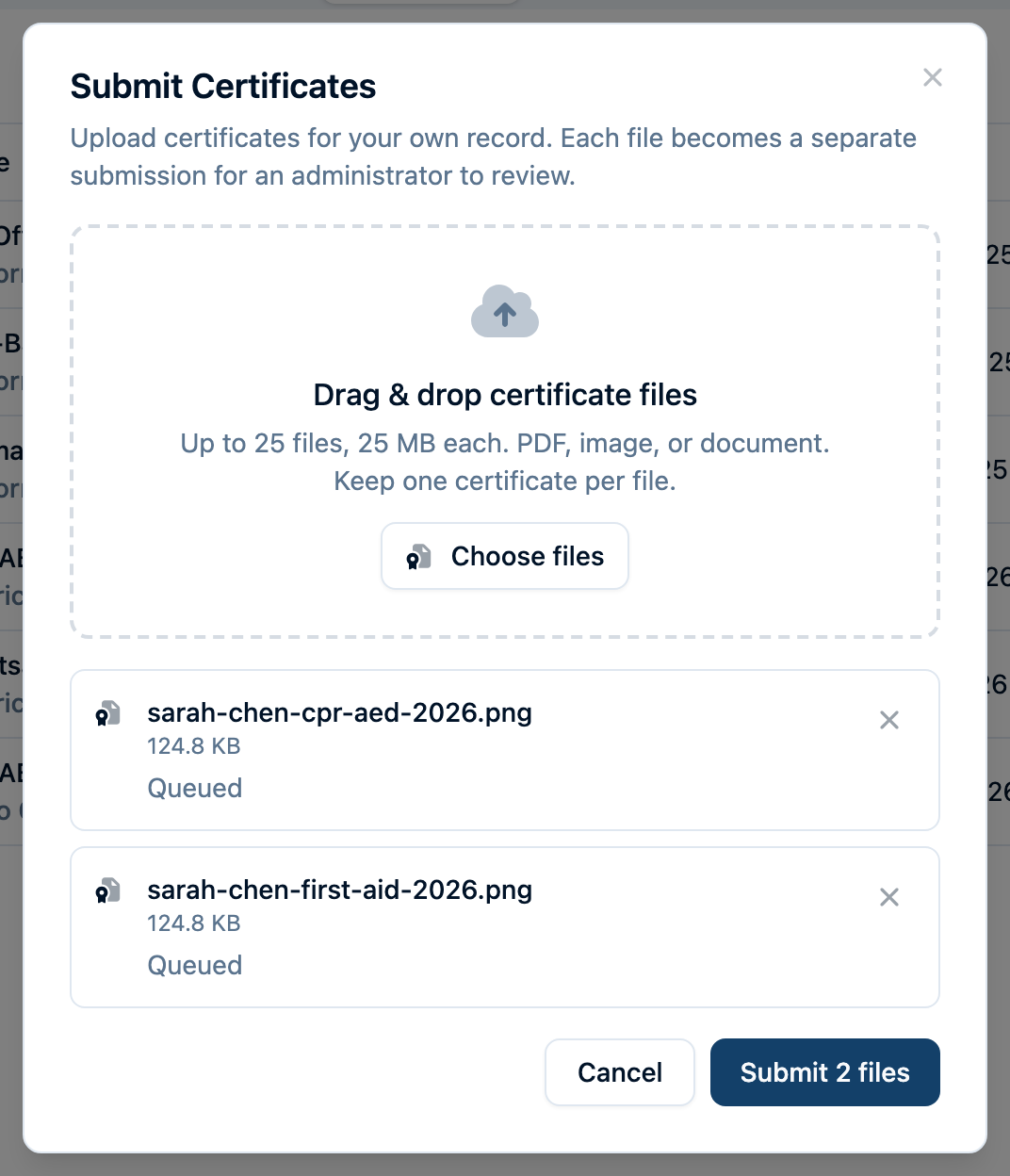
Each file creates a separate submission assigned to you automatically. It appears with a Pending status while an administrator reviews it. Pending certificates do not count toward certification requirements in compliance programs.
You do not need to enter the dates or choose a certificate type. Command Established tries to read those details from your document; the administrator checks and corrects them before approval.
Administrators see the same Add Certification menu. On your own record or a member's, Upload certificates sends the files to Pending review for you to confirm; Enter details adds the record directly. To upload a stack of certificates for many members at once, use Bulk Certificate Upload.
Enter a certificate by hand
No PDF or photo? Type the details instead.
- On your own personnel page, open the Certifications tab and select Add Certification > Enter details.
- Choose the Type. If your certificate isn't listed, type its name and select Use "…"; an administrator adds the new type when approving.
- Enter the Name and Issue Date, plus the Expiration Date, Certification #, and Issuing Authority if you have them.
- Optionally, select Attach photo or PDF to include a copy.
- Select Submit for Approval. The record shows as Pending until an administrator reviews it.
Prepare a clear file
- Use the original PDF when you have it. For a photo, lay the certificate flat, use good light, and avoid glare or shadows.
- Show the whole certificate. Keep the member's name, credential, issuing authority, dates, and certificate number readable. Include both sides of a wallet card in one PDF if both sides contain important details.
- Keep one certificate per file. A file containing several different certificates becomes one submission, not several records.
- Check your existing records first. Avoid uploading the same certificate again while it is already pending or approved.
PDF, JPG, PNG, WebP, and HEIC files can be read automatically. Word documents can be attached, but the reviewer must enter the details manually. You can submit up to 25 files at a time, with a limit of 25 MB per file.
After you submit
Check your Certifications tab for the status. Open a certification to view it; select More details to open the full record and supporting documents.
If a submission is Rejected, the full record shows the reason. Follow those instructions and submit a clearer or corrected certificate when requested. A new upload creates a new pending submission; it does not replace the rejected record. If the details need a small correction, ask your administrator to review them.
For a renewal, upload the new certificate and let the reviewer know it renews an existing credential. Uploading a renewal does not update the earlier certification automatically.
Review a member's submission
Administrators review certificates under Training > Certifications. Use the View control to select Pending review. This queue includes both Self-submitted certificates and Bulk import files.
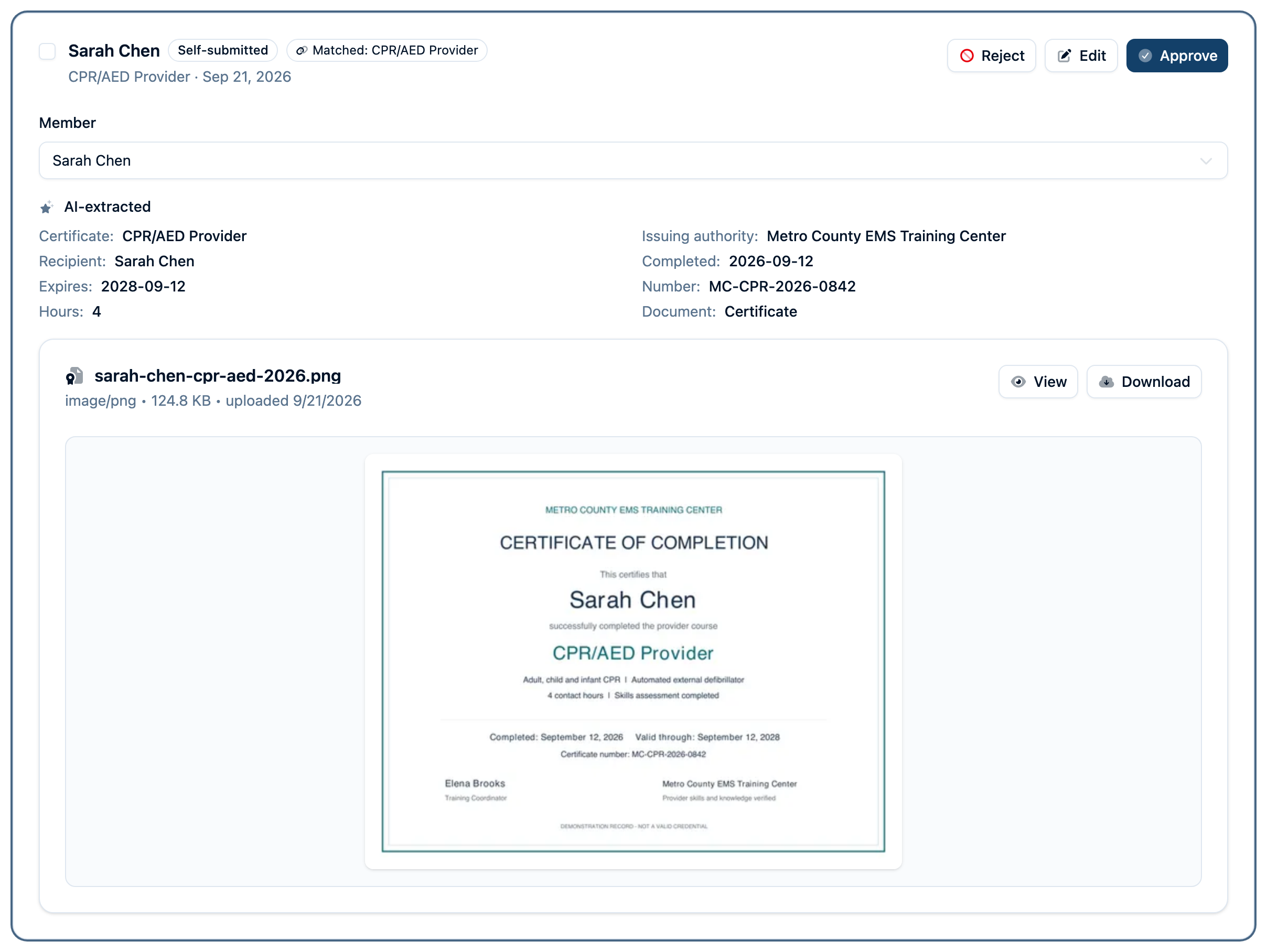
Work through each certificate in this order:
- Read the attached document. Compare it with the AI-extracted details. A confidence percentage is a reading aid, not proof that every field is correct.
- Check the member. Self-submissions start with the uploader assigned. For bulk uploads, confirm the selected member; use the Member dropdown if the card says Needs a member or names the wrong person.
- Select Edit. Check the certificate name, Issue Date, Expiration Date, Certification #, issuing authority, and hours against the document. Fill in missing details. Always verify the issue date: a submission can show the upload date when the original date could not be read.
- Choose the Type. Use the existing definition for that credential when possible. The next section explains the type labels.
- Check Also log this as a training. It is usually on when hours were read from the certificate. Keep it on only if this course still needs a training record; turn it off if those hours are already recorded. If on, verify the hours, source, category, date, and training name.
- Select Approve, or Approve & log training.
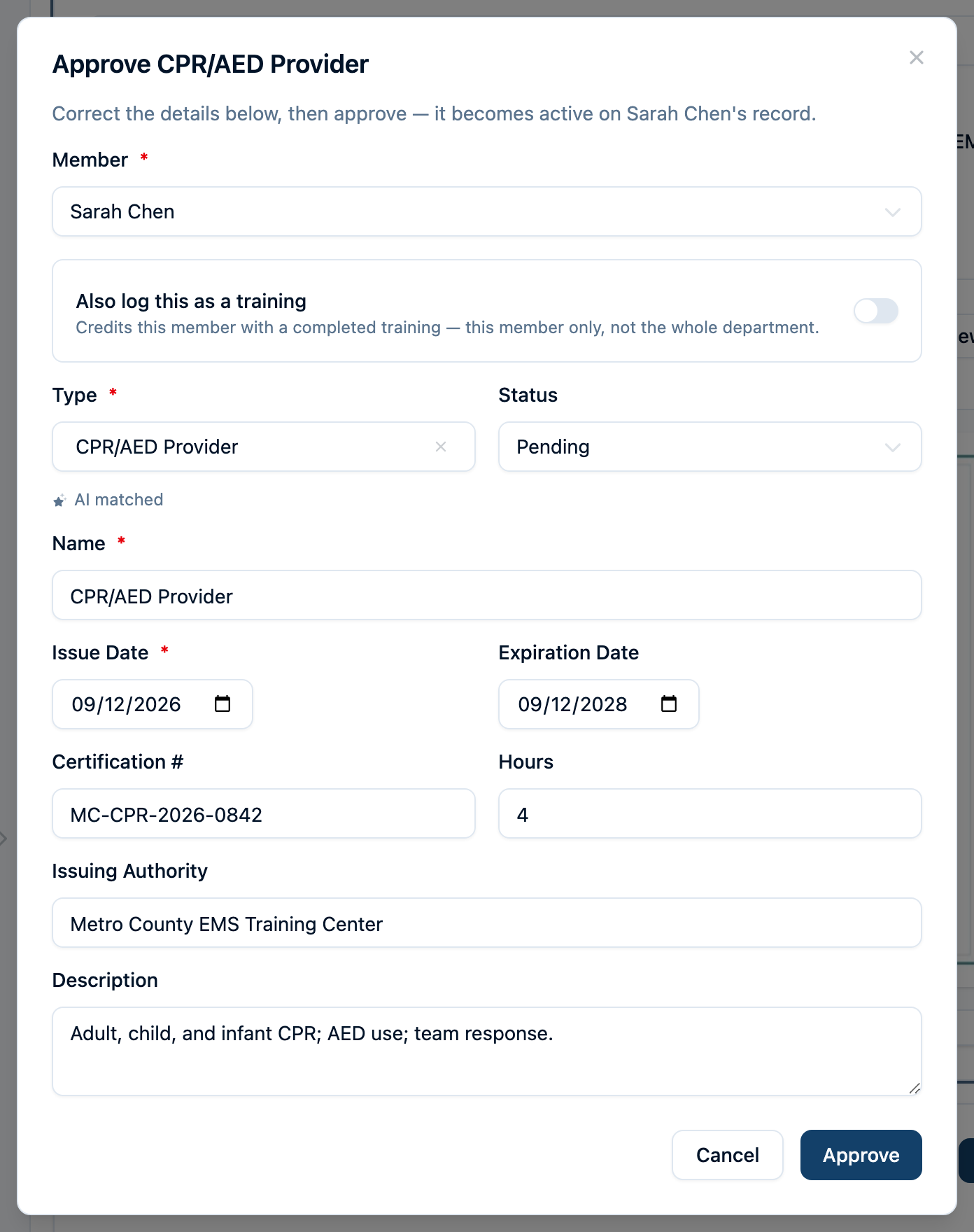
Choose the right type
A certificate definition is a shared catalog entry, such as CPR/AED Provider. A certification is one member's record of holding it, with that member's dates, certificate number, and document. Many members can use the same definition.
| Label on the review card | What to do |
|---|---|
| Matched: [definition] | The file was linked to an existing type. Confirm that it represents the same credential and level. |
| Suggested: [definition] | Open Edit to confirm the suggested type or choose a different one. |
| New type: [name] | Search your catalog first. If this is a new credential, review the proposed name, issuing authority, and renewal period before adding it. |
| No type label | Open Edit and select or create a type. |
In Edit, a proposed type has a Create this definition on approve checkbox. Adjust its details before approving, or select or pick an existing type to use your catalog.
If the document and all details are already correct, Approve on the card accepts them as shown. Add type & approve also accepts the displayed new type. Neither card button logs a training; use Edit if the course needs a training record.
Adding a type approves only this certificate; other certificates proposing the same type still need their own review. An existing definition with the same name and issuing authority is reused; if it was deprecated, accepting the proposal reactivates it.
For large queues, Select matched and Batch approve approve eligible records with an assigned member and a resolved type. Batch approval does not create definitions or training records. Review suggested and proposed types individually. See the bulk upload guide for details.
Correct, retry, or reject
- Readable document, wrong details: Open Edit, correct the fields, and approve.
- Analysis failed: Select Retry Analysis, if available, or open Edit and enter the details from the document. A failed analysis does not remove the uploaded file; it appears beside the form for manual review.
- Unreadable, incomplete, or wrong certificate: Select Reject and give a specific reason, such as “The expiration date is cut off. Please upload a photo of the complete card.”
The rejection reason is saved on the record. Contact the member through your normal department process when you need a replacement; rejection does not currently send an automatic notification.
Managing Definitions
Administrators manage the catalog under Training > Certifications > View > Definitions. Good definitions help reviewers choose consistently and let the roster and compliance programs recognize the same credential across members.
- Check whether the credential already has a definition before creating another one.
- Select Add Definition, or open an existing definition and select Edit.
- Enter a clear Name, plus the Issuing Authority, Jurisdiction, Renewal Period (months), and Description when known.
- Select Add Definition or Save Changes.
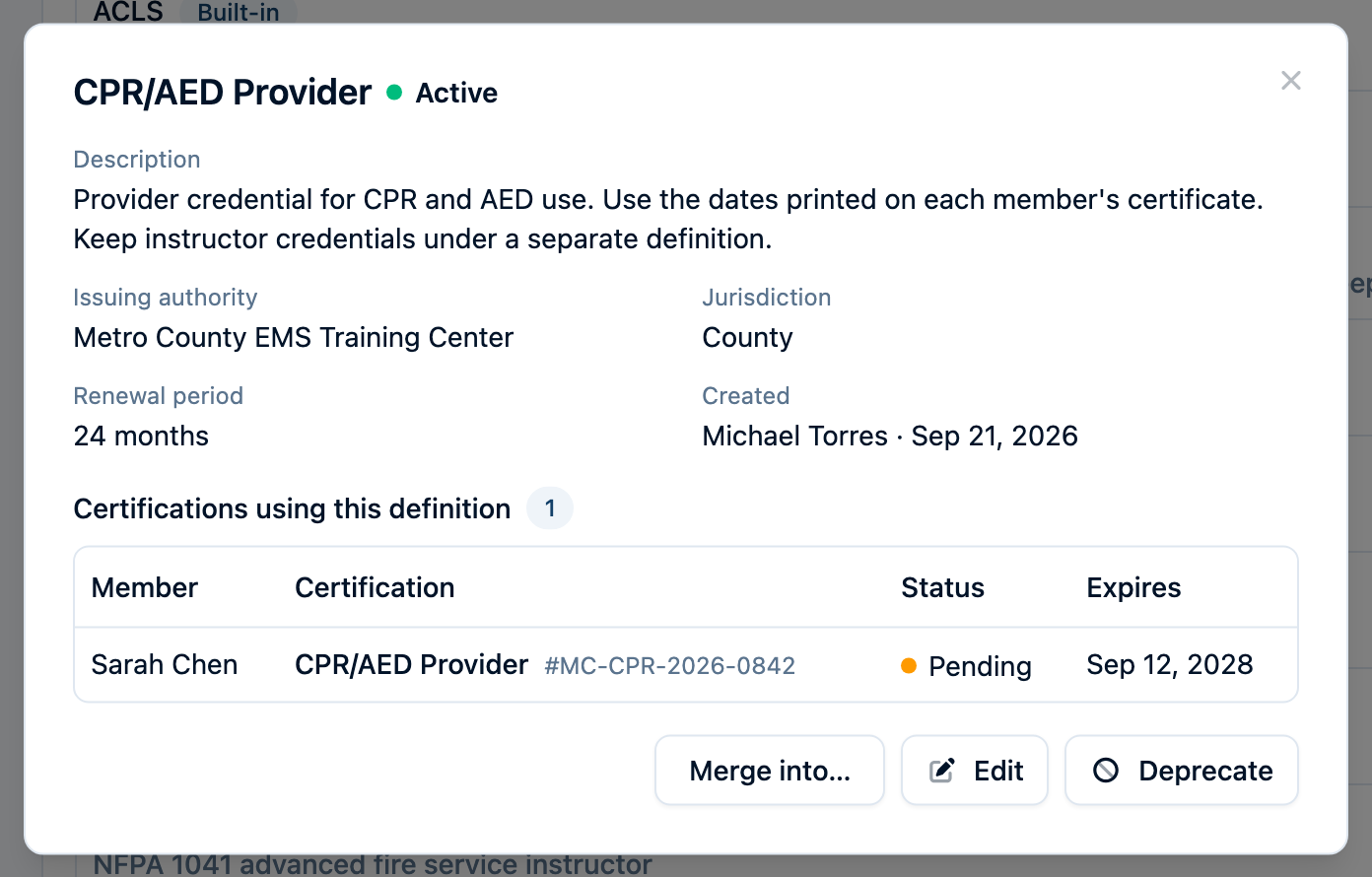
Keep the catalog easy to use
- Use one definition for the same credential. Search a full or partial name in the Type picker before creating one. Keep “CPR/AED,” “CPR and AED,” and “CPR/AED Provider” together when they mean the same qualification. Keep distinct levels or qualifications separate.
- Name the credential, not the holder or class. Use CPR/AED Provider, not Sarah's CPR September 2026. Put personal details, dates, and certificate numbers on the member's certification.
- Keep the issuer clear. Use the issuing organization's usual name consistently. Check whether similar names represent the same credential before combining them.
- Treat the renewal period as a reference. It does not calculate or change a member's expiration date. Enter the actual expiration on each certification; leave it blank only for a credential that does not expire.
- Check built-in defaults. You can edit built-in definitions to confirm the correct issuer and renewal period for your department. Built-in types cannot be deprecated or archived.
- Review new definitions regularly. The AI badge identifies definitions created from an accepted AI proposal. Check their wording and issuer just as you would a definition entered by hand.
Retire a type or fix duplicates
For a custom definition, use Deprecate when the type should no longer be chosen for new certifications. Existing certifications stay on members' records, remain filterable, and can still satisfy compliance requirements that reference that definition. Use Reactivate if it is needed again.
To combine duplicate definitions for the same credential:
- Open the duplicate in Definitions, then choose Merge into….
- Choose the Definition to keep. Check its name, issuer, and renewal period.
- Select Review merge. Check the certificate count and the compliance programs that will be updated.
- Select Merge definitions.
The definition you keep retains its details. The duplicate's certifications and compliance requirements move to it, including pending and archived records. Each person's certificate keeps its documents, dates, approval status, and linked training. Two certificates belonging to the same person remain separate records.
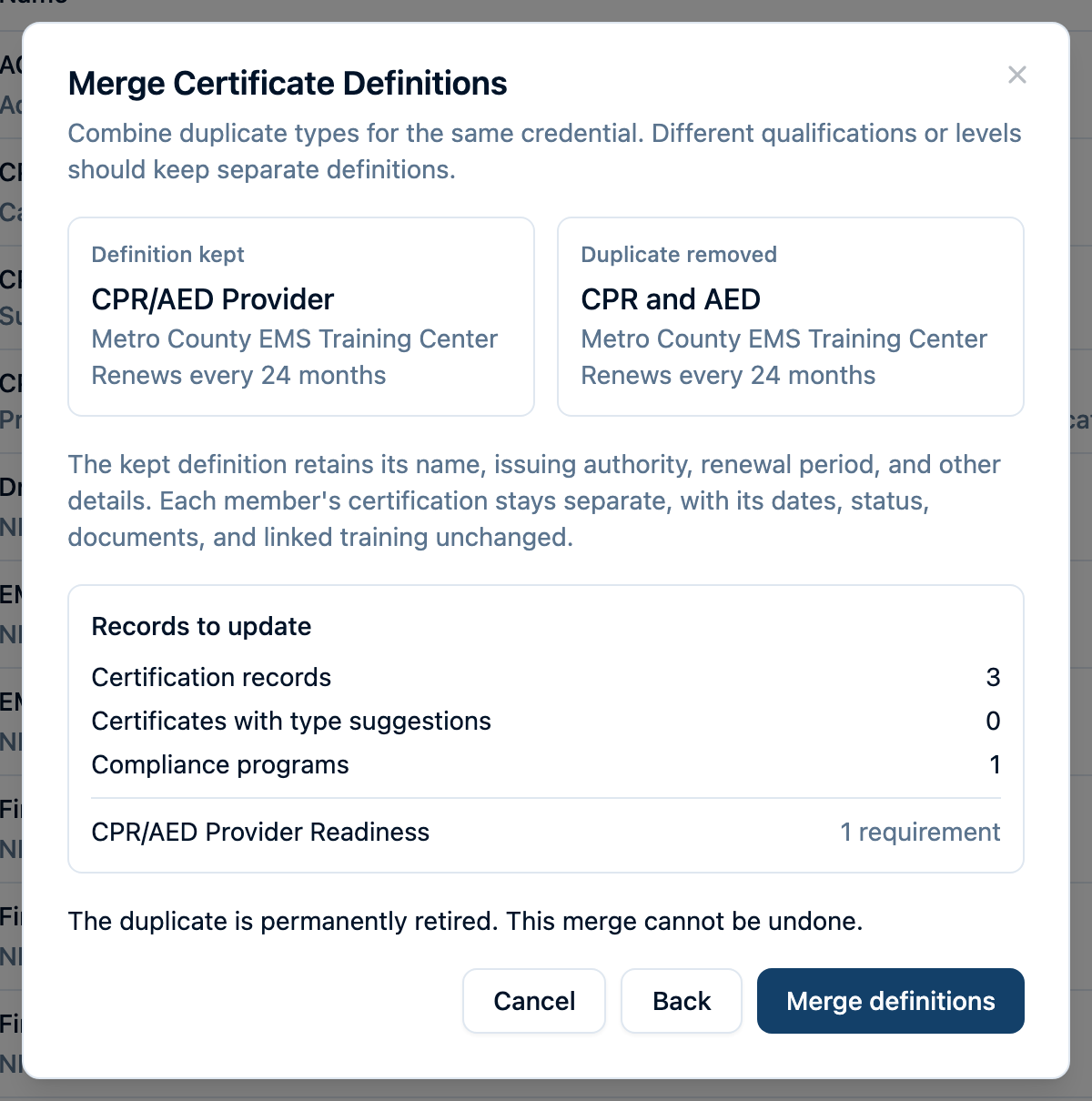
The duplicate is removed from the catalog, and the merge cannot be undone. Built-in definitions can be kept, but cannot be merged away.
Large merges need support. This means more than 46 certification and compliance program records need updating. Archived records and certificates with type suggestions count toward the total; each record counts once. Unusually large records may also need support. A blocked merge changes nothing. If someone changes a record while you are reviewing, review the updated preview before trying again.
Check the approved record
After approval, the certification leaves Pending review and appears on the member's Certifications tab and the department roster. Its document stays attached. A certificate whose expiration date has already passed displays Expired, even after approval.
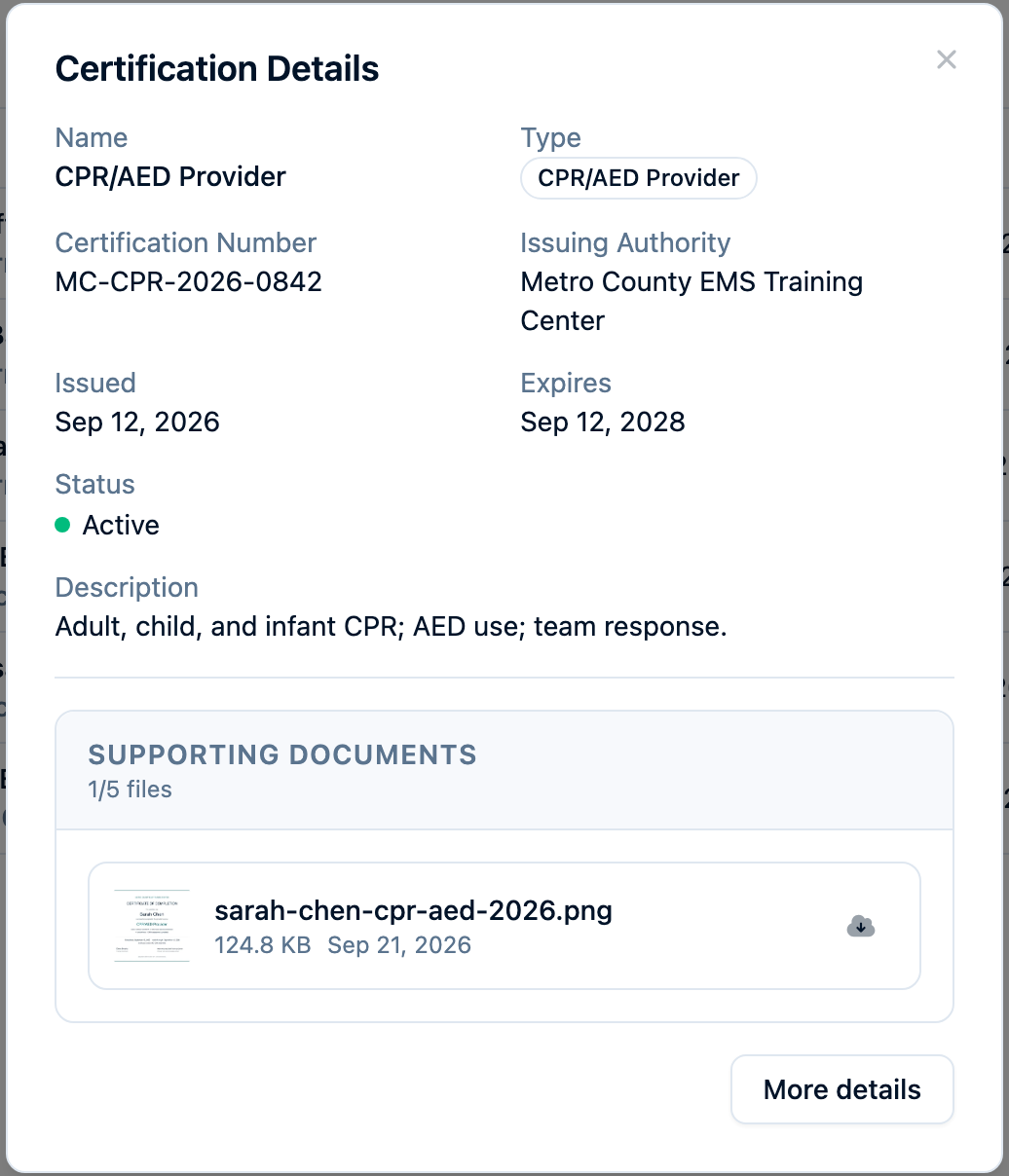
If you chose Also log this as a training, approval creates a completed training for that member only. The linked training provides the training hours; approval by itself does not log them.
Status Badges
| Status | Meaning |
|---|---|
| Pending | Submitted and awaiting administrator approval. |
| Active | Approved or entered by an administrator, and not expired or revoked. |
| Expired | The expiration date has passed. A credential expiring today remains valid through today. |
| Rejected | An administrator declined the submission; open the full record for the reason. |
| Revoked | An administrator marked the credential as withdrawn. |
Adding or Editing a Certification
Administrators can also open a member's Personnel > Certifications tab and select Add Certification > Enter details. Choose a Type, enter the Name and Issue Date, and add the remaining details from the certificate. Use Attach photo or PDF to include proof as you save, or add more later from the edit dialog under Supporting Documents > Upload. Each record supports up to five files.
To have the details read for you instead, choose Add Certification > Upload certificates on the member's page. Each file goes to Pending review, assigned to that member and tagged Admin upload, for you to confirm and approve.
To correct an approved record, select its edit icon or open it from the department roster, change the fields, and select Save Changes. To renew an existing record directly, update the issue and expiration dates, update the certificate number if needed, set Status to Active, and attach the new certificate.
If a renewal was uploaded as a separate submission, review the earlier record too so you do not leave duplicate current credentials. Administrators can Archive duplicate or superseded records after checking which one to retain. Archiving removes a record from the roster while preserving its history.
How Do I Keep Track of Soon-to-Expire Credentials?
Open Training > Certifications and select the roster view. In the Expires column menu, choose Within 30 days, Within 60 days, or Within 90 days. These windows include expiration dates from today through the selected number of days. Add Status > Active to focus on current certifications. Use Expired separately for dates that have already passed.
Sort Expires from soonest to latest and bookmark the URL for your regular renewal check. Filters and sorting are saved in the link.
The certificate holder receives reminders 30 days before, 7 days before, and on the expiration date, for milestones still ahead when the record is added or approved. Delivery follows their Settings > Notifications preferences. Reminders go to the holder, not automatically to officers.
Find members or export a list
Use the roster's Member, Certification, Type, and Status filters to narrow the list. For example, choose the CPR/AED Provider type and Active status to find current holders. A compliance program can use the same definition in a Certification active requirement.
Export CSV downloads every record matching the current filters and sort, including matching rows beyond those currently visible. It includes members, certificate names and numbers, issuing authorities, types, dates, status, and hours.
Permissions
Signed-in department members can see the certification roster and their own certificate documents. Viewing another member's attached files and AI-extracted details requires certification-document access.
Department administrators manage records, definitions, bulk uploads, and the review queue. Members use Add Certification on their own personnel page to upload certificates or enter details; either way, their submissions wait in Pending review. If Certifications is missing, check with an administrator that the Training module is enabled.