
Add Your CE Shifts to Your Calendar
Subscribe once to see about six months of upcoming shifts in your calendar, including overtime and trades you cover.
Get your calendar link
- In CE, open Personnel, select your name, and open the Schedule tab.
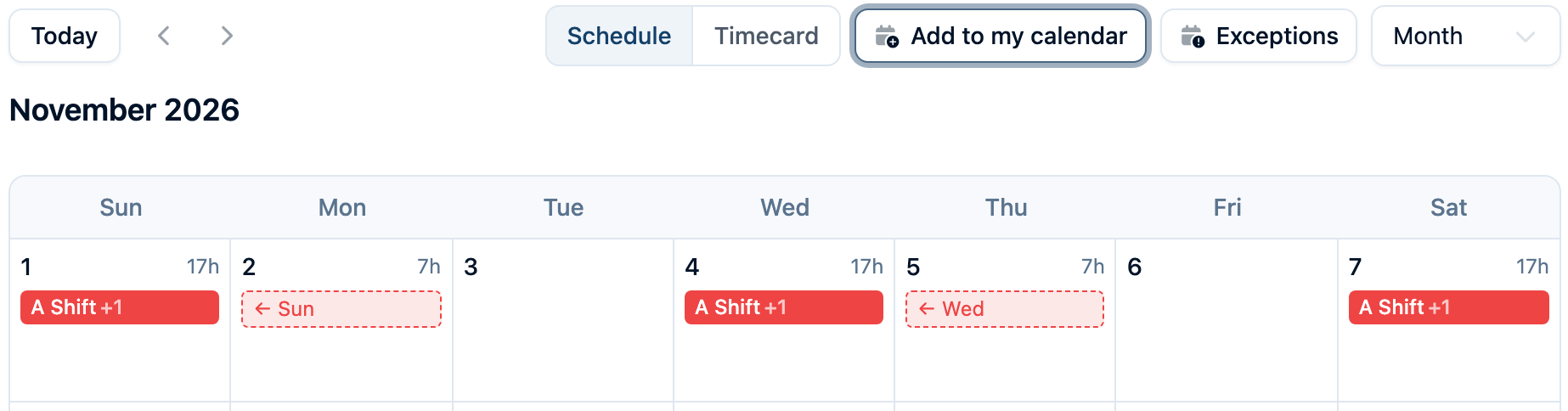
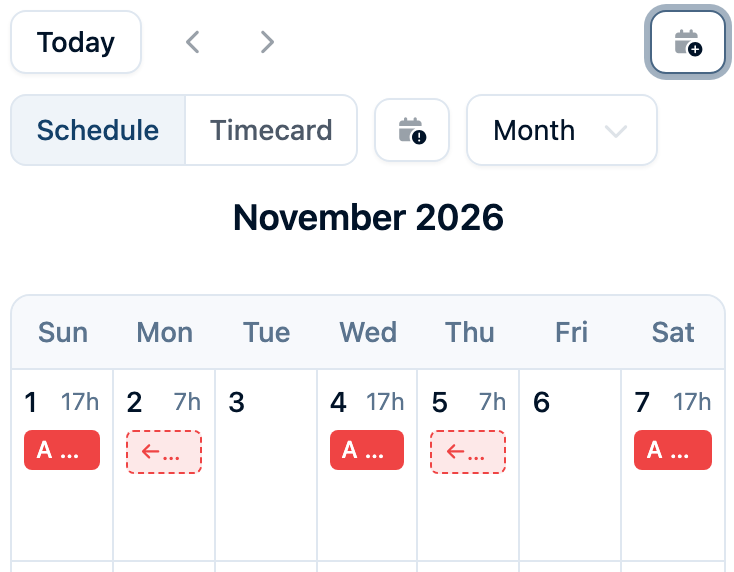
- Above your calendar, select Add to my calendar. On a phone, tap the calendar icon with a plus sign in the Today row.
- The first time, select Create my calendar link. Anyone with this link can see your shifts, so keep it private.
Choose your calendar app
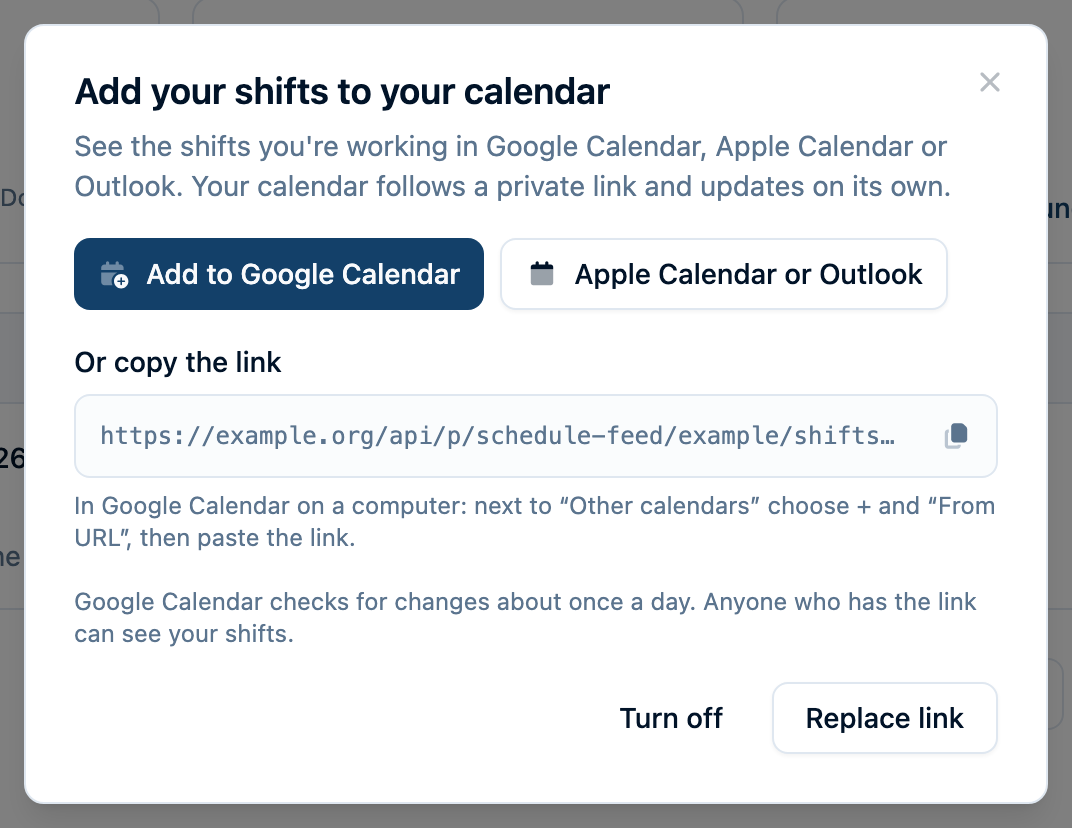
- Google Calendar. On a computer, select Add to Google Calendar in CE, then confirm in Google.
- Apple Calendar or the Outlook desktop app. Select Apple Calendar or Outlook in CE. Confirm the subscription in the app that opens.
- Outlook on the web. Select the copy icon beside your link in CE. In Outlook Calendar, choose Add calendar → Subscribe from web, paste the link, and save the subscription.
- Another app. Copy your link from CE. In your calendar app, look for an option to subscribe by URL and paste the link there.
Your calendar app checks CE periodically. For a last-minute trade or shift change, check CE first.